
How to Sign in to My CenturyLink Account on PC & Mobile App


 3 min. read
  Published on
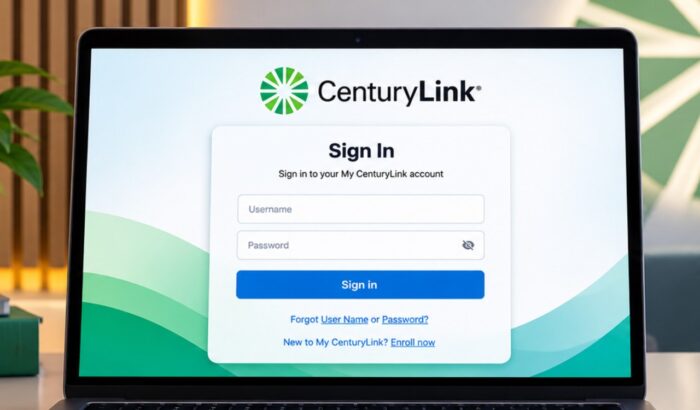
My CenturyLink login is a gateway for customers to get into their online account to manage billing, services, payments, and more. In this guide, we’re going to show you how to sign in to your My CenturyLink account on your mobile phone and PC.
How do I log in to my CenturyLink account?
1. Use the web browser
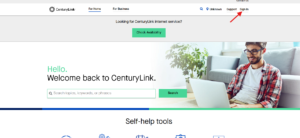
- Open the official CenturyLink website.
- Click on Sign In option from the top right.
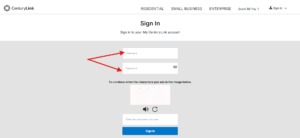
- Enter your My CenturyLink username and password. On the same page enter the verification characters to prove you’re not bot.
- Lastly, click on Sign In to access your account.
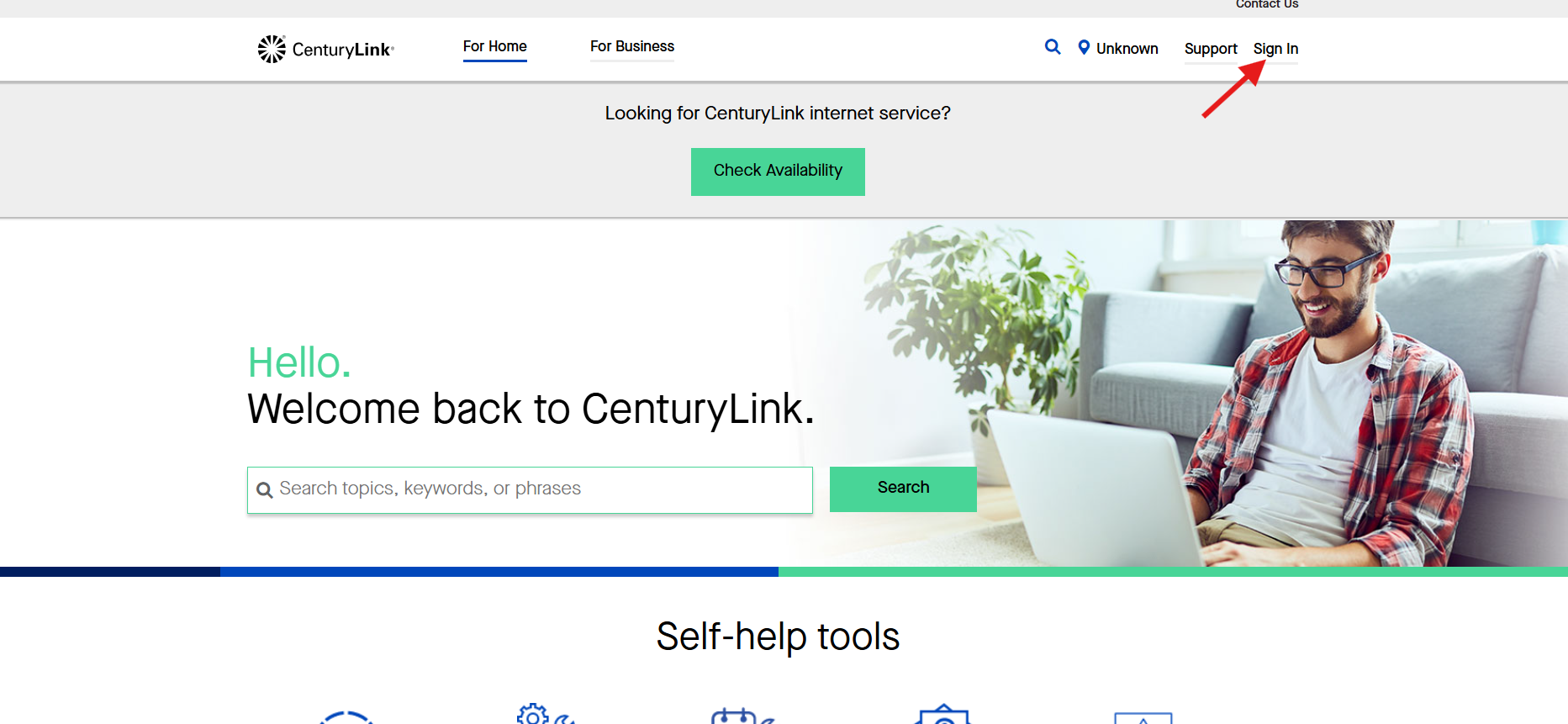
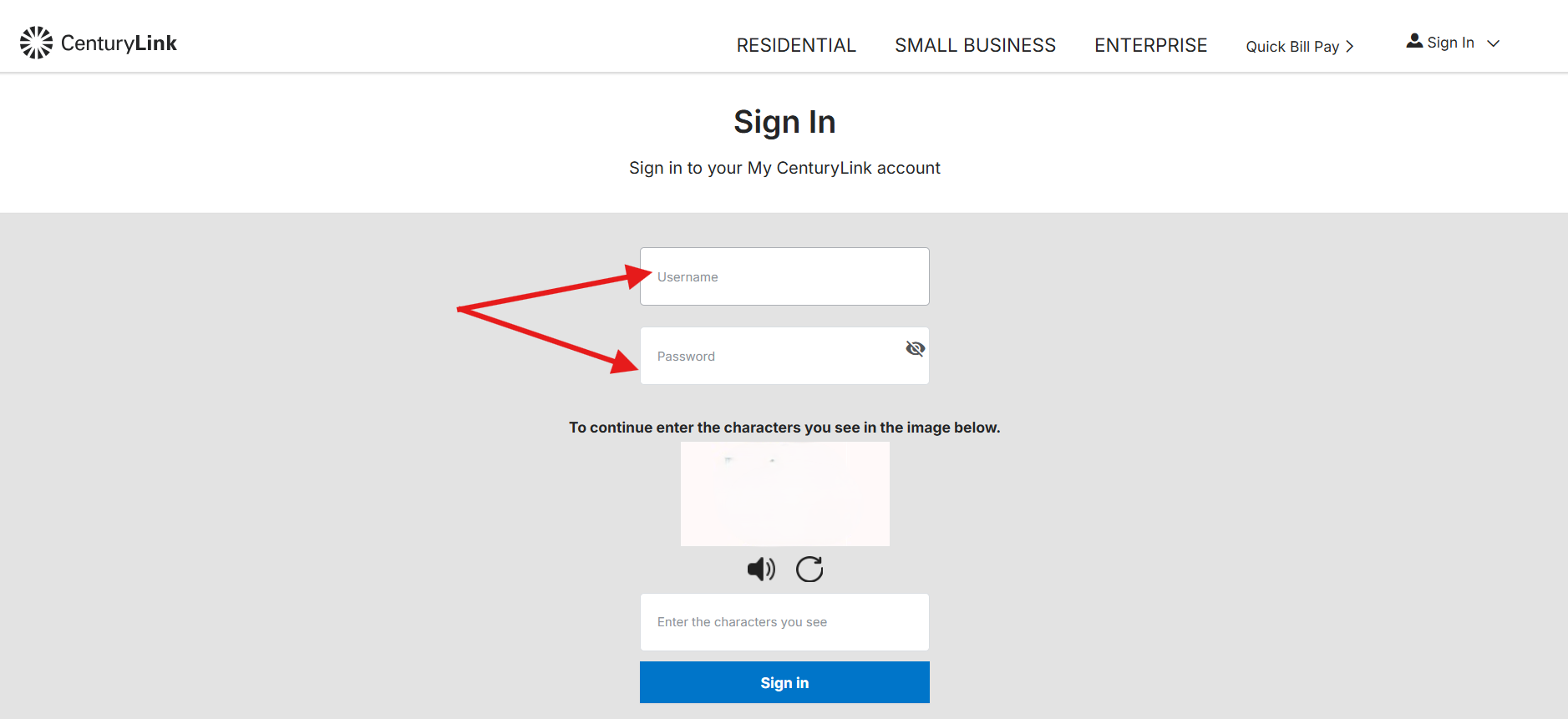
Do note that CenturyLink says your My CenturyLink username and password are used for both its website and app.
Quick tip: Avoid login links from random emails or search ads. Start from CenturyLink’s official website whenever possible.
2. Use the dedicated app
The My CenturyLink app is the easiest option when you want to manage your account from your phone.
- Install the app: Download the official My CenturyLink app on your iPhone or Android phone.
- Open the app: Launch My CenturyLink after installation.
- Tap Sign In: Enter your My CenturyLink username and password, and then tap on the Sign In button.
If the My CenturyLink app refuses to open, simply try the CenturyLink website through your mobile browser using the similar method that we mentioned above.
What can you do after signing into your My CenturyLink account?
My CenturyLink is more than a simple billing page. Depending on your account, you can:
- View current and previous bills.
- Pay your CenturyLink bill.
- Manage saved payment methods.
- Set up or manage AutoPay.
- Manage Wi-Fi and connected services.
- Check order information.
- Review technician appointments.
- Update certain account settings.
Here’s what to do when CenturyLink account login isn’t working
Login problems can happen even when your service itself is working normally. Start by checking that your username and password are correct. If you recently changed your password, use the newest credentials rather than an older saved password. Browser autofill can sometimes keep entering outdated information.
You can also try these quick fixes:
- Open CenturyLink in another browser.
- Clear the browser’s cached data and cookies.
- Disable extensions temporarily.
- Try the My CenturyLink app instead.
- Reset your password if you cannot remember it.
- Check whether JavaScript is enabled.
- Contact CenturyLink support if recovery options fail.
CenturyLink has an official guide that provides detailed recovery options for forgotten usernames and passwords.
Now that you know how to log in to your CenturyLink account, you should be able to manage your services, billing, and account settings more easily. If you also need access to your network settings, check our guide on how to log in to your router, or see our Xfinity email login guide if you use Xfinity services as well.
CenturyLink Login FAQs
1. Can I pay my CenturyLink bill without logging in?
Yes. CenturyLink offers Quick Bill Pay, which can be used without signing into My CenturyLink. You need your account number or billing phone number.
2. Is my CenturyLink login password for the app is different?
No. Your CenturyLink username and password should be the same for My CenturyLink online and in the app.
3. Where can I find my CenturyLink account number?
You can find it on your bill, welcome letter, or order confirmation. The app also displays the account number within the account menu.
4. Can I access CenturyLink email separately?
Yes. CenturyLink provides a separate email sign-in option through CenturyLink.net. The company recommends signing in at least once a year to keep an unused CenturyLink email account active.

Read our disclosure page to find out how can you help Windows Report sustain the editorial team. Read more



Improve this guide



User forum
0 messages