
How to Force a Windows 11 Update Using Microsoft’s Tools


 3 min. read
  Published on
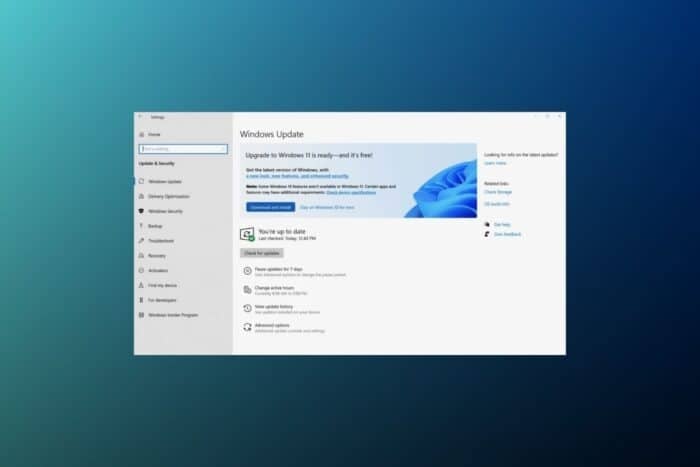
Need to force a Windows 11 update? Whether you’re triggering a Windows 11 update download, running an update check, or upgrading from Windows 10, there are reliable options. Use the Windows Update Installation Assistant, the free upgrade assistant, or the ISO to install the latest version, including the 24H2 update. Follow the steps below.
How to Force a Windows 11 Update (Including the Latest Versions Like 24H2)💡
Table of contents
Step-by-step instructions ✅
- Check Compatibility First
You can use the PC Health Check Tool to see if your system meets the Windows 11 requirements: Secure Boot, TPM 2.0, supported CPU, etc.
If your PC doesn’t pass the check, this method won’t work, you’d need an unsupported install route instead. - Enable “Get the Latest Updates” Setting
Go to Settings > Windows Update > Advanced Options
Flip on Get the latest updates as soon as they’re available
This tells Windows to push the most recent build
Microsoft has confirmed that Windows 11 24H2 is now broadly available, but there is a catch related to compatibility blocks that may delay the update on some devices. - Download the Windows 11 Installation Assistant
Visit Microsoft’s download page
Hit Download Now under “Windows 11 Installation Assistant” - Launch the Assistant
Open the tool, accept the terms, and follow the prompts
The Assistant will re-check your PC’s specs and download the Windows 11 setup files - Finish the Install
The setup will walk you through the rest, including rebooting and updating settings
Your files and apps should stay intact, though it’s wise to back up anything important beforehand
If your PC starts downloading the update automatically—especially the newer 24H2 version, this guide on Windows 11 24H2 auto-download behavior explains why that happens even if you haven’t manually triggered it.
🛡️ Pro Tip: Update Defender Before You Upgrade
Before installing the new OS, especially if you’re doing it manually, make sure your security tools are up to date. Microsoft warns that new Windows 11 and 10 installs need this Defender update to avoid bugs and security slip-ups.
Wrapping up
If Windows Update isn’t delivering the latest Windows 11 version when you need it, the Installation Assistant and ISO method give you a clean way to take control.
Just make sure your system meets the requirements, has enough space, and your files are backed up. Once you’ve run the update, check your version with winver to confirm it installed correctly. This way, you stay ahead without waiting on Microsoft’s rollout schedule.
Frequently Asked Questions
No, a normal boot won’t interfere with the upgrade process. As long as your system is functioning properly and isn’t corrupted, you can boot normally before and after installing Windows 11. If you’re performing a clean install, ensure your bootable media is configured correctly. If your PC doesn’t pass the compatibility check, this method won’t work, and you’d need an alternative manual installation method designed for unsupported systems.
It depends on your needs and comfort level. While unsupported PCs can run Windows 11 using workarounds, future updates may cause issues or stop altogether. If you’re willing to deal with occasional bugs and manual fixes, upgrading is possible. Here’s a quick guide on how to install Windows 24h2 on unsupported hardware.
If you run into update problems, such as your Office apps not updating properly, here’s a quick fix for Microsoft Office not updating that might help.


Read our disclosure page to find out how can you help Windows Report sustain the editorial team. Read more



Improve this guide




User forum
0 messages