
How to Get BIOS Key on Any Windows PC (Simple Methods)


 4 min. read
  Published on

You can get BIOS key by checking manufacturer documentation, startup splash messages, system info tools, or motherboard manuals. These methods help you identify the correct key for any Windows PC.
Table of contents
How to get BIOS key on any Windows PC?
Check the startup splash message
Most PCs display the BIOS key during the first seconds after you reboot. Watch for a short line like Press F2 for Setup or Press Delete to enter BIOS, because this text reveals the exact key.
- Restart your computer.
- Focus on the lower area of the screen during boot.
- Write down the BIOS key shown by your device.

If you want an additional walkthrough that covers BIOS access basics, you can read this guide on how to access BIOS on a Windows PC.
Check your manufacturer’s support page
Manufacturers publish BIOS key shortcuts in their online model documentation. You only need your model number to find the correct shortcut.
- Visit your PC manufacturer’s support page.
- Enter your desktop or laptop model in the search field.

- Open the user manual or startup guide and look for BIOS or setup key details.

This method gives you the most accurate key because it matches your exact model.
Look up common BIOS keys by brand
Brands use predictable shortcuts, so you can find the BIOS key quickly by matching it to your device brand. This works well when you cannot find the manual.
- Identify your brand from the logo or system info.
- Check the usual BIOS key for the brand:
- Dell: F2
- HP: Esc or F10
- Acer: F2
- ASUS: F2 or Delete
- Lenovo: F1 or F2
- MSI: Delete
Use the matching key on the next boot and confirm that it works for your specific model.
Check your motherboard manual
Custom built PCs rely on motherboard BIOS shortcuts, not generic PC brand defaults. Every motherboard manual lists the required key for firmware access.
- Press Windows key + R, type msinfo32, then press Enter.
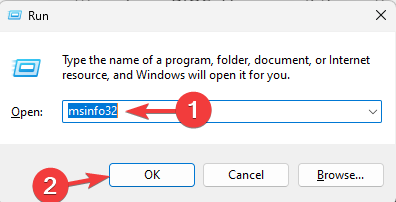
- Note your BaseBoard Manufacturer and BaseBoard Product.

- Search online for your motherboard model manual.
- Open the BIOS or firmware section and note the listed BIOS key.
If you want to verify BIOS data inside Windows, you can follow this guide on how to check BIOS version in Windows.
Use Windows System Information
Windows shows the BIOS vendor and motherboard details, and this information helps you determine the correct key for your system. Vendor names often share the same default shortcuts across many models.
- Press Windows key + R.
- Type msinfo32 and press Enter.
- Check the fields for BIOS Version, BIOS Vendor, and BaseBoard Manufacturer.
- Search online for the common BIOS key associated with that vendor.
If you plan to tweak firmware options after you find the key, you can review this guide on how to change BIOS settings safely in Windows.
FAQ
The BIOS key is the specific keyboard shortcut your PC uses to open the BIOS or UEFI firmware menu during startup.
You usually see the BIOS key on the first boot screen, in a small message such as “Press F2 for Setup” or “Press Delete to enter Setup” near the bottom.
Yes, different series and generations can use different BIOS keys, so you should always confirm the shortcut using the model manual or support page.
You should check the motherboard or PC manual, search the model support page, and review System Information in Windows to identify the exact firmware vendor and matching key.
You can get BIOS key quickly by watching the startup splash screen, checking the manufacturer support page, looking up common shortcuts by brand, reviewing your motherboard manual, and using Windows System Information. These methods give you clear answers that match your hardware, so you avoid guesswork when you need to open firmware settings.
After you identify the correct key, you can handle tasks such as changing boot order, enabling virtualization, or updating firmware with much more confidence.

Read our disclosure page to find out how can you help Windows Report sustain the editorial team. Read more



Improve this guide



User forum
0 messages