
Starbucks App Not Working? 7 Easy Fixes That Work


 5 min. read
  Published on
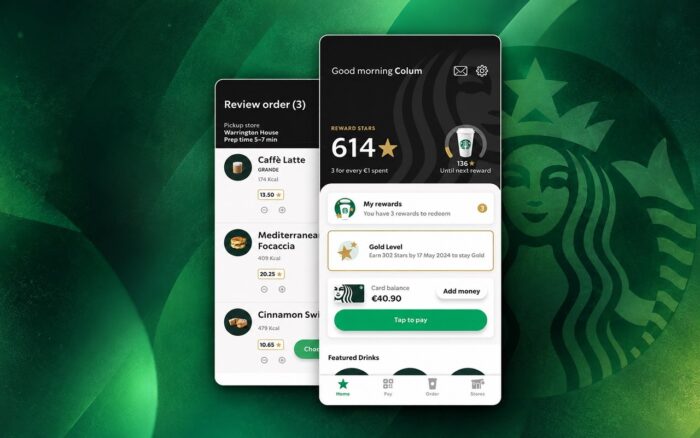
If the Starbucks app is not working, you might have trouble signing in, placing mobile orders, making payments, or checking your Rewards balance. These problems can occur because of server outages, outdated app versions, network issues, or corrupted app data.
Here are seven ways to get the Starbucks app working again on your iPhone or Android device.
What can I do if Starbucks app is not working?
1. Check if Starbucks is down
Before changing your phone settings, check whether Starbucks is experiencing a server outage. If the app suddenly stops working for multiple users, the problem might not be on your device.
You can check the service status using these steps:
- Visit Downdetector.
- Look for a sudden increase in reported Starbucks problems.
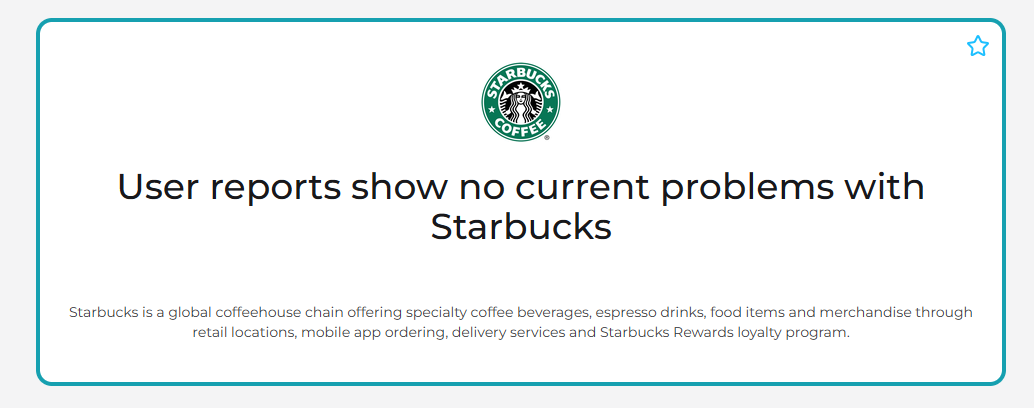
- Check whether users are reporting login, payment, or mobile ordering errors.
- If reports suggest an outage, try the app again after Starbucks restores its services.
If Starbucks is experiencing widespread problems, reinstalling the app or resetting your phone won’t resolve the server-side issue.
2. Force close and reopen the Starbucks app
Sometimes, the Starbucks app becomes unresponsive because a background process stops working correctly. Closing it completely and reopening it can resolve temporary glitches.
On iPhone:
- Swipe up from the bottom of the screen and pause in the middle, or double-click the Home button on older models.
- Find the Starbucks app in the app switcher.
- Swipe up on its preview to close it.
- Reopen Starbucks and check whether it works.
On Android:
- Open Settings > Apps > Starbucks.
- Tap Force stop.
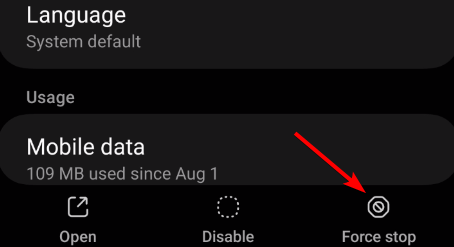
- Confirm the action if prompted.
- Launch Starbucks again.
If the app continues freezing, restart your phone before moving to the next solution.
3. Check your internet connection
Try switching between Wi-Fi and mobile data:
- Open your phone’s Settings.
- Turn off Wi-Fi and enable Mobile data.

- Open the Starbucks app and check whether it loads.
- If the problem continues, reconnect to another reliable Wi-Fi network.
- Temporarily disconnect any VPN or custom DNS service to check whether it interferes with the connection.
You can also enable Airplane Mode for about 10 seconds, then disable it to refresh your network connection.
4. Update the Starbucks app
If your app crashes or stops loading after a software update, installing the latest Starbucks version may help.
On iPhone:
- Open the App Store.
- Search for Starbucks.
- Tap Update if the option appears.
- Restart the app after the update finishes.
On Android:
- Open the Google Play Store.
- Search for Starbucks.
- Tap Update if an update is available.
- Reopen the app and check whether the issue persists.
You can also visit the official Starbucks app download page to find the iPhone and Android versions.
5. Clear the Starbucks app cache on Android
Clearing the app cache can remove temporary files without deleting your Starbucks account.
Follow these steps on Android:
- Open Settings > Apps.
- Find and select Starbucks.
- Tap Storage & cache or Storage, depending on your device.
- Select Clear cache.
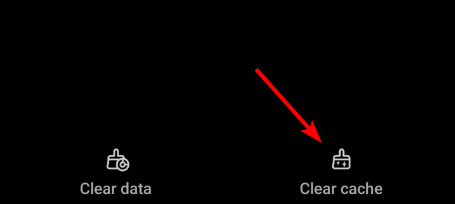
- Reopen the Starbucks app.
If clearing the cache doesn’t help, you can try Clear storage or Clear data, but this will reset locally stored app information and may sign you out.
6. Enable location permissions for Starbucks
If the Starbucks app opens but cannot find nearby stores or displays errors when you try to order, check its location permissions.
On iPhone:
- Open Settings > Privacy & Security > Location Services.
- Make sure Location Services is enabled.
- Find Starbucks in the list.
- Select While Using the App.
- Reopen Starbucks and search for your preferred store.
On Android:
- Open Settings > Location > App location permissions.
- Select Starbucks.
- Choose Allow only while using the app.
- Return to Starbucks and check whether nearby locations appear.
Location settings vary slightly between devices and operating system versions.
If one store remains unavailable, select another participating location. Individual stores may temporarily limit mobile ordering, and location permissions won’t override those restrictions.
7. Uninstall and reinstall the Starbucks app
If none of the previous solutions work, reinstalling Starbucks can remove damaged local app files and restore the app to a clean installation.
On iPhone:
- Touch and hold the Starbucks app icon.
- Tap Remove App > Delete App.
- Open the App Store.
- Search for Starbucks and install it again.
- Sign in to your existing account.
On Android:
- Open Settings > Apps > Starbucks.
- Select Uninstall.
- Open the Google Play Store.
- Download and reinstall Starbucks.
- Sign in and check whether the app works.
Your account-linked Starbucks Rewards information and registered Starbucks Card balances should remain associated with your account. However, locally stored information may disappear.
Most Starbucks app problems can be resolved by checking for outages, updating the app, clearing its cache, or fixing connection and account issues. Similar problems can also affect other shopping apps. If you’re experiencing issues with other services, check our guides on fixing the Stop & Shop app, resolving Nespresso app loading and login problems, and troubleshooting the Best Buy app.
FAQs
Why is my Starbucks app not loading?
The Starbucks app may fail to load because of an unstable internet connection, corrupted cache files, outdated software, or a temporary server outage. Start by checking your connection, restarting the app, and installing any available updates.
Why is the Starbucks app not letting me order?
Starbucks may temporarily disable mobile ordering at individual locations, or the app may encounter payment or connection problems. Check another participating store, verify your payment method, and confirm that Starbucks isn’t experiencing a widespread outage.
Why does my Starbucks app keep crashing?
Frequent crashes can result from outdated software, damaged app files, or compatibility issues. Update Starbucks, restart your phone, and clear its cache on Android. If the problem continues, reinstall the app.
Will I lose my Starbucks Rewards if I delete the app?
Deleting the Starbucks app should not remove Stars, registered Starbucks Cards, or balances linked to your Starbucks account. After reinstalling the app, sign in with the same account to access your Rewards information. However, some locally stored app data may disappear.

Read our disclosure page to find out how can you help Windows Report sustain the editorial team. Read more



Improve this guide

User forum
0 messages