
How to Change Sound Volume Windows 11 in 5 Easy Ways


 3 min. read
  Published on
Adjusting audio levels in Windows 11 is easy, and you can control both system output and individual apps. Use the methods below to manage your sound quickly and accurately.
Table of contents
How to change sound volume Windows 11?
Change the main system volume
You can adjust the main system volume directly from the taskbar.
- Click the sound icon at the bottom right.
- Drag the slider left or right to change the volume.

- Play any audio to confirm the new level.
For more detailed sound configuration, learn how to access additional controls using this guide to change sound settings in Windows 11.
Change sound volume through Settings
Windows Settings provides full control over output devices and volume levels.
- Press Windows + I to open Settings.
- Select System.
- Click Sound.

- Adjust the Volume slider under Output.

- Select the correct output device if you are using multiple audio devices.
Adjust volume for individual apps
Volume Mixer lets you control the audio level of each app separately.
- Open Settings.
- Select System.
- Click Sound.
- Scroll to the Advanced section.
- Select Volume mixer.

- Adjust the sliders next to each app.

If you need more help with app specific audio, follow this tutorial on individual app volume control in Windows 11.
Use the classic Volume Mixer
The classic mixer gives you fast access to per app controls and output options.
- Right click the sound icon.
- Select Open volume mixer.
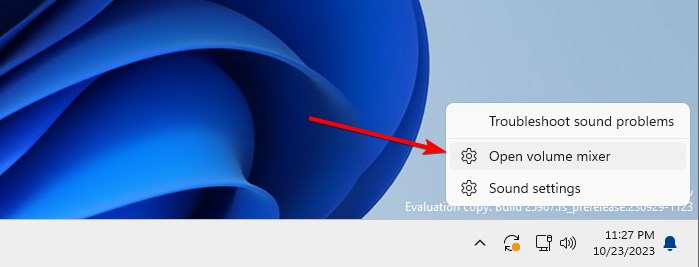
- Adjust each app slider as needed.
You can read more in this guide on how to open the sound volume mixer in Windows 11.
Use keyboard shortcuts to adjust volume
Most laptops and many keyboards include dedicated audio keys.
- Press the Volume Up key to increase sound.
- Press the Volume Down key to decrease sound.
- Press the Mute key to silence audio.
FAQ
Click the sound icon on the taskbar and drag the slider to increase or reduce system volume.
Open Settings, select System, choose Sound, then open Volume mixer to control each app separately.
Check the correct output device, increase app specific volume, and enable enhancements like Loudness Equalization in sound settings.
Right click the taskbar sound icon and select Open volume mixer to access the classic control panel style mixer.
Changing sound volume in Windows 11 is simple whether you use the taskbar slider, Settings, the classic Volume Mixer, or keyboard keys. Each method lets you quickly control system audio and customize your listening experience. For deeper configuration and troubleshooting, explore the dedicated sound guides linked in this article.

Read our disclosure page to find out how can you help Windows Report sustain the editorial team. Read more



Improve this guide




User forum
0 messages