
Windows 11 Volume Mixer Guide: 5 Easy Ways to Open It


 4 min. read
  Updated on
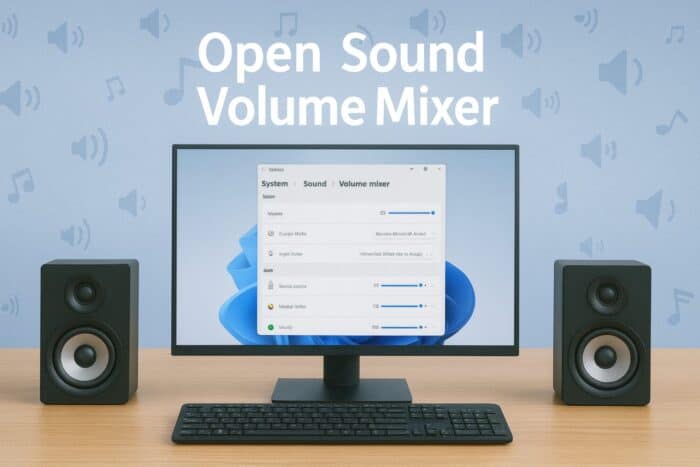
Learn how to open the sound volume mixer in Windows 11 using multiple easy methods. This guide covers quick shortcuts and settings options to help you adjust app and system volume levels fast.
Table of contents
How to Open Sound Volume Mixer on Windows 11?
1. Use the Quick Settings Panel
You can access the mixer instantly from the taskbar without opening any menu.
- Click the Volume icon on your taskbar.
- Select the arrow icon next to the volume slider.
- Choose Open volume mixer.

- Adjust each app’s volume slider as needed.
This is the fastest method and works directly from the taskbar.
If your mixer does not show all active programs, check this guide on Volume Mixer not showing all programs.
You can follow this simple guide on how to change sound volume in Windows 11 to adjust your system audio with ease.
2. Open Volume Mixer from Settings
If you prefer the Settings app, this method gives you more options.
- Press Windows + I to open Settings.
- Go to System > Sound.

- Scroll down and click Volume mixer.

- Use the sliders to adjust or mute individual apps.
If Windows does not remember your changes, follow this fix for Volume Mixer not saving settings.
3. Launch Volume Mixer Using Run Command
You can still open the classic Volume Mixer from older Windows versions.
- Press Windows + R to open the Run dialog.
- Type sndvol.exe and click OK.
- The classic Volume Mixer window will appear.
This method is quick for users who like the legacy interface.
4. Access Volume Mixer Through Search
If you prefer using the taskbar search, try this simple approach.
- Click the Search icon on your taskbar.
- Type Volume Mixer in the search box.
- Select Open Volume Mixer from the results.

It is ideal if you use Windows Search regularly to access system tools.
5. Pin Volume Mixer for Quick Access
You can create a permanent shortcut for even faster access.
- Open Settings > System > Sound > Volume mixer.
- Right click the page in the taskbar preview and select Pin to taskbar.
- Now you can access it anytime with one click.
Once pinned, you can open it quickly when you want to increase your laptop volume beyond 100 percent.
Why You Should Use the Volume Mixer
The volume mixer helps you maintain consistent audio control across apps. You can lower noisy browsers while keeping your video call volume high or mute specific apps without affecting others.
For a complete walkthrough on improving your audio setup and managing Realtek sound settings, check out this full guide on how to use Realtek Audio in Windows 11.
FAQs
Go to Settings > System > Sound > Volume mixer and click Reset at the bottom of the page.
Make sure your Windows 11 is updated to the latest version. Older builds may hide it in the taskbar settings.
Yes. You can create a desktop shortcut with the target sndvol.exe to open it instantly.
Corrupt user profiles or third party audio apps can override mixer preferences. Reset the Sound settings and reconfigure your audio devices.
Conclusion
Opening the sound volume mixer in Windows 11 is simple once you know where to look. Whether through the Quick Settings panel, the Settings app, or the classic Run command, each method gives you precise control over your audio experience.

Read our disclosure page to find out how can you help Windows Report sustain the editorial team. Read more



Improve this guide


User forum
0 messages