
MSN Notifications Not Working? Try These 6 Fixes Today


 5 min. read
  Updated on
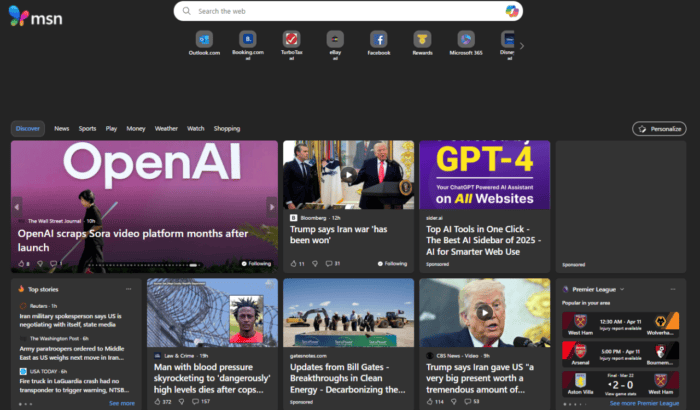
MSN quietly does a lot for you, keeping you updated with news alerts and more. However, when MSN notifications suddenly stop working, it starts to get frustrating fast. After looking into it, we found that many users have reported the same issue. That said, the best part is that the issue is almost always fixable.
Table of contents
- What can I do if MSN notifications are not working?
- 1. Check Windows Notification Settings (Works when the app is installed)
- 2. Check Browser Notification Permissions (If you’re using MSN in a browser)
- 3. Turn Off Focus or Do Not Disturb Settings
- 4. Check Background App Permissions
- 5. Sign Out and Back Into Your Microsoft Account
- 6. Reset Browser or Reinstall the MSN App
- Why are MSN notifications not working for you?
- FAQs related to MSN notifications
What can I do if MSN notifications are not working?
1. Check Windows Notification Settings (Works when the app is installed)
This is the first place to look. If Windows has notifications turned off for MSN at the system level, nothing else matters; you won’t get a single notification. In order to fix that, follow these steps:
- Open Settings on your Windows PC
- Go to System > Notifications
- Scroll down to find MSN or Microsoft News in the app list
- Make sure the toggle is switched on
- Also, check that banners and sounds are enabled under the app’s notification options
If this was already off, turning it on might be all you need to fix MSN notifications on Windows 11 or Windows 10.
2. Check Browser Notification Permissions (If you’re using MSN in a browser)
If you use MSN in a browser, notifications may have been blocked at some point and never re-enabled.
- Open your browser settings
- Find the Notifications or Site Permissions section
- Locate MSN in the list
- Set it to Allow
- Refresh the MSN page and test
3. Turn Off Focus or Do Not Disturb Settings
Focus Assist is designed to reduce distractions while you work. If it’s active, MSN notifications may not come through.
- Open Settings
- Select System
- Open Focus or Do Not Disturb
- Turn it off or add MSN as an allowed app
- Check if it is scheduled to activate automatically, and disable that
4. Check Background App Permissions
If you use the MSN app, background restrictions can block notifications.
- Open Settings
- Select Apps
- Find MSN and click Advanced Options
- Set Background App Permissions to Always
For browser users, check if tab sleeping or power-saving features are active, as these can also affect notification delivery.
5. Sign Out and Back Into Your Microsoft Account
Account sync issues often cause inconsistent MSN notifications.
- Open the MSN app or your browser
- Sign out of your Microsoft account
- Restart your device
- Sign back in and check if notifications resume
6. Reset Browser or Reinstall the MSN App
If nothing else works, resetting clears hidden configuration issues.
- For browsers: go to settings and reset all options to default
- For the MSN app: go to Settings > Apps > MSN > Advanced Options > Reset
- If needed, uninstall and reinstall MSN from the Microsoft Store, then sign back in
Why are MSN notifications not working for you?
One of the following reasons might be the culprit for why you are not getting MSN notifications:
- Disabled Browser Permissions: If you’ve previously blocked notifications in your browser (Edge, Chrome, etc.), MSN cannot push alerts until you manually re-enable them. This is one of the most common reasons users miss notifications.
- Windows Notification Settings: Even if MSN itself is working, Windows can block notifications at the system level. Settings like Focus, Do Not Disturb, or general notification toggles can prevent alerts from appearing.
- Background Restrictions: Both Windows and modern browsers limit background activity to save battery or system resources. If MSN is restricted from running in the background, notifications may not trigger in real time.
- Account Sync and Personalization: MSN notifications rely on your Microsoft account sync. If sync is disrupted or personalization settings aren’t applied correctly, your notification preferences may not work, even if everything else seems fine.
MSN notifications can fail for several small reasons at once, from permissions to system settings, so it’s worth checking each factor carefully instead of assuming it’s a bug. Often, the fix is straightforward once you find the right setting, even if it seems tricky at first. And while you’re tweaking your MSN experience, you might also want to explore ways to personalize it further, whether that’s restoring MSN as your homepage, managing what appears in your Bing News feed (like blocking certain sources), or even taking a break with some of the best free MSN online games available right now.
FAQs related to MSN notifications
Notifications are usually blocked at the browser or Windows level. Checking permissions in both places resolves it in most cases.
Yes. When Focus settings are active, MSN notifications are stopped without alerting you, so it’s worth checking even if you don’t remember turning them on.
Yes, battery saver limits background activity, which can stop alerts until it’s off.
They work best in Edge and Chrome, but behavior can vary depending on your settings and browser version.
Yes, the app must run in the background to deliver push notifications in real time.
Yes, you need to be signed in with your Microsoft account for MSN notifications to work; otherwise, alerts won’t sync or appear.

Read our disclosure page to find out how can you help Windows Report sustain the editorial team. Read more



Improve this guide



User forum
0 messages