
How to Login to Instagram on Mobile, Web, and Desktop


 4 min. read
  Updated on

If you’re looking to learn how to log in to Instagram on your phone, browser, or desktop app, this guide will show you the proper way to do it.
How can I log in to Instagram?
How to Log In to Instagram on the Mobile App
Logging in on the mobile app is the most common and direct way to access Instagram.
- Open the official Instagram app on your Android phone or iPhone.
- Enter your Instagram username, email address, or mobile number.
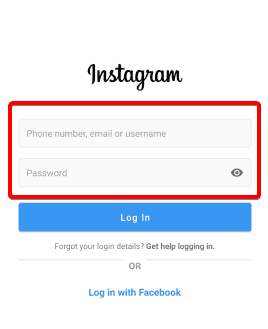
- Enter your password and tap Log in.
- If Instagram asks for verification, enter the security code from your authentication app, SMS, WhatsApp, or use a backup code.
If your account has previously been used on the phone, Instagram may also show the saved profile on the login screen, allowing you to sign in with a tap.
Instagram Login Through a Web Browser
Using a web browser is a convenient option when you don’t have the app installed.
- Open Instagram in Chrome, Edge, Safari, or another supported browser.
- Select Log in if necessary.
- Enter your username, email, or phone number and password.
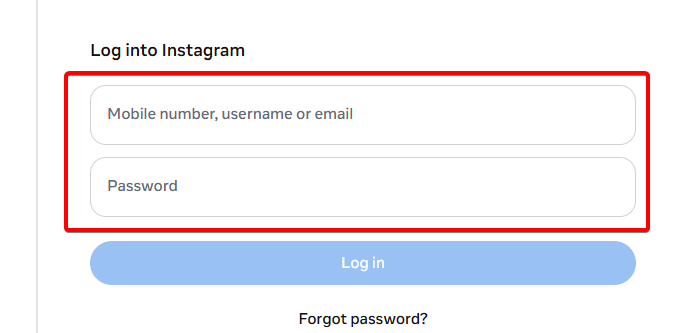
- Complete any requested security verification.
This works on Windows PCs, Macs, Chromebooks, tablets, and mobile browsers, so you do not need the phone app to access Instagram.
How to Use the Instagram Desktop App
The desktop app provides a similar experience to the mobile version for Windows users.
- On Windows, install the official Instagram app from the Microsoft Store.
- Open Instagram and select Log in.
- Enter your account credentials.
- Complete two-factor authentication if Instagram requests it.
For Mac computers, Instagram is primarily accessed through the web rather than a dedicated macOS desktop application, so Instagram.com is the simplest option.
In case you encounter any issues with the app, visit our guide to learn how to fix the Instagram app if it’s not working.
Other Instagram Sign-In Options
If your Instagram and Facebook accounts are connected through Accounts Center, Meta can allow connected accounts to log into each other, depending on your settings.
One important correction to many older Instagram login guides: Instagram profile QR codes cannot be used to log into Instagram. They are designed for finding profiles, not authentication.
When Instagram Won’t Let You Log In
If your password is rejected, choose the password recovery option on the login screen. Instagram also provides recovery options for forgotten usernames, inaccessible email addresses or phone numbers, hacked accounts, and identity verification.
If the app itself is malfunctioning, Instagram recommends updating the app and device software, restarting the device, checking your internet connection, or reinstalling the app. We also have a guide on what to do if you can’t log in to Instagram, so don’t miss it.
Instagram Login Security Tips
Turn on two-factor authentication under Accounts Center → Password and security → Two-factor authentication. Instagram supports authentication apps, SMS, and WhatsApp, while backup codes can help when a verification code cannot be delivered.
Never enter your Instagram password on a suspicious login page, and avoid saving your credentials on shared computers. For more security tips, you might want to visit our guide on how to check your Instagram login activity.
Frequently Asked Questions
How do I log into my existing Instagram account?
Open the app or Instagram.com, enter your username, email or phone number, add your password, and complete verification if requested.
Can I log into Instagram without the app?
Yes. Instagram works through a mobile or desktop web browser.
Can I log into Instagram with a QR code?
No. Instagram profile QR codes are for finding profiles, not signing in.
What if I forgot my Instagram password?
Use the recovery option on the login screen and follow Instagram’s instructions to reset your password.
With mobile, browser, and Windows access available, Instagram login remains fairly flexible. The bigger question is whether Meta will continue adding faster sign-in methods while keeping account recovery secure.

Read our disclosure page to find out how can you help Windows Report sustain the editorial team. Read more



Improve this guide




User forum
0 messages