
How to Login to Your Router and Access Settings Easily


 3 min. read
  Published on

Learn how to login to your router in minutes. This guide covers default IPs, usernames, and passwords, plus what to do if you cannot access your router settings.
Table of contents
How to Access Your Router Login Page?
1. Find Your Router’s IP Address
Follow these steps to locate the correct IP address for your router.
- On Windows, press Win + R, type cmd, then run ipconfig.
- Look for Default Gateway (usually 192.168.0.1 or 192.168.1.1).
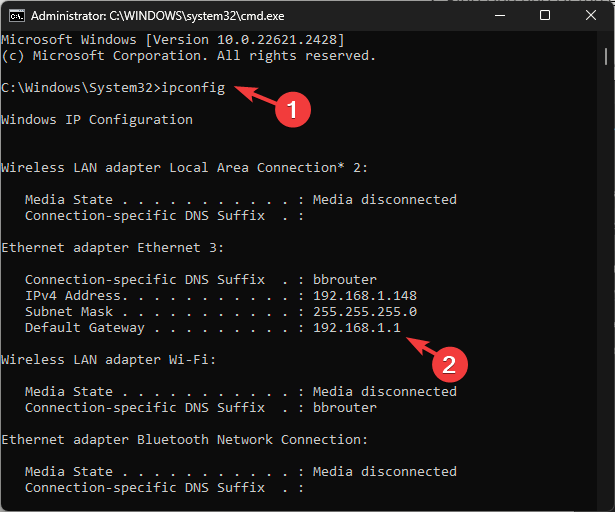
- On Mac, go to System Preferences > Network > Advanced > TCP/IP.
2. Open the Router Login Page
Use a browser to reach your router’s login screen.
- Enter the IP address in your browser’s address bar.
- Wait for the router login screen to appear.

3. Enter Username and Password
Use the default or custom login details to access your router.
- Common defaults: admin/admin or admin/password.
- If changed, check your router label or ISP documents.
- Reset the router if you forgot the credentials.
Troubleshooting Router Login Issues
If you cannot login to your router, follow these quick fixes.
- Clear browser cache or open the login page in incognito mode.
- Ensure you are connected to the router via Wi-Fi or Ethernet.
- Restart the router and computer to refresh the connection.
- Disable VPN or proxy if enabled.
- Reset the router by pressing and holding the Reset button for 10–30 seconds.
For more fixes, see this full guide on what to do if you can’t access the router page.
Why Router Login Matters
Accessing your router allows you to:
- Change the Wi-Fi name and password.
- Enable parental controls.
- Update router firmware for security.
- Set up advanced features like port forwarding.
If you want more control, you can also use your PC as a Wi-Fi router or connect an access point to your router without a cable.
FAQs
Check the IP address, ensure a stable connection, or reset the router to factory defaults.
Most routers use 192.168.1.1 with username admin and password admin or password.
Yes. After logging in, go to Administration or System Settings and set a new username and password.
Change the default password, enable WPA3 encryption if supported, and keep firmware updated.
Conclusion
Router login is the key to managing your home network. Once inside, you can customize Wi-Fi settings, strengthen security, and enable features that improve performance. If you follow the steps in this guide, you will be able to access your router quickly and make sure your network stays safe and reliable.

Read our disclosure page to find out how can you help Windows Report sustain the editorial team. Read more



Improve this guide




User forum
0 messages