
How to Use System Restore on Windows 10 and Windows 11 PCs


 6 min. read
  Updated on

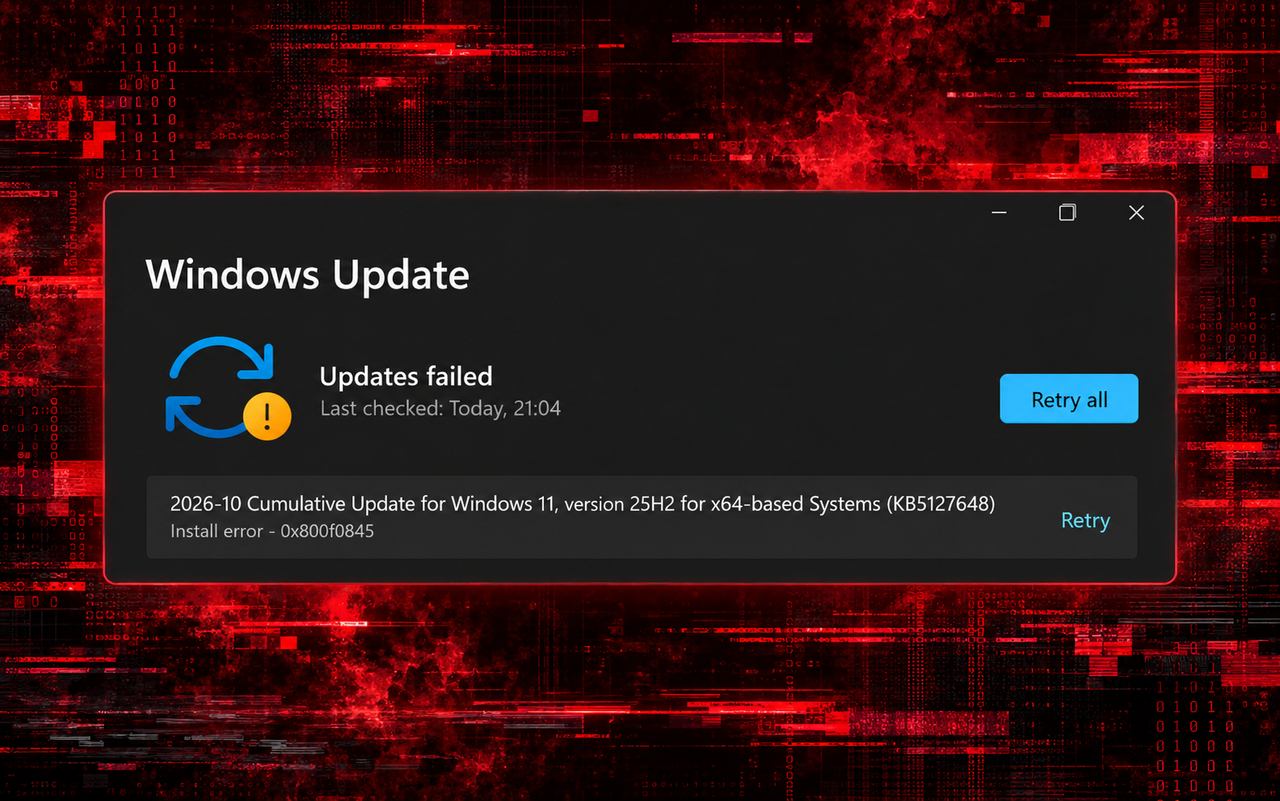
Learning how to use System Restore on Windows 10 and Windows 11 PCs can save you hours of frustration. This is especially useful at times when your system starts acting up after a bad update, failed driver install, or broken registry tweak; you don’t always need a full reset. It lets you roll your PC back to an earlier, working state, without losing your personal files.
System Restore works by creating snapshots, called restore points, that capture your system settings and configurations at a specific time. However, many users don’t realize the feature is disabled by default.
If you don’t turn it on manually, your PC won’t create restore points automatically. That means no backups to return to when things break. So, in this guide, we’ll walk you through steps to enable and use system restore and create a restore point on Windows 10 and 11 PCs.
Table of contents
How to Enable System Restore on Windows 10
It’s worth noting that System Restore isn’t always enabled by default. Therefore, if you want to restore your system in Windows 10 or prepare for a system rollback, you need to enable it first. Here’s how to get it done.
- Open the Start menu and type Create a restore point.
- Click the top result to open System Properties.
- Under Protection Settings, select your primary System drive (usually C:).
- Click Configure.
- Select Turn on system protection.
- Adjust disk space usage if needed with the slider.
- Click Apply, then OK.
How to Create a Restore Point on Windows 10
Once you’ve enabled System Restore on Windows 10, your PC will automatically create restore points during key events like updates or software installs. Here’s what you need to do to create a system restore point on Windows 10
- Open Start, search Create a restore point.
- In System Properties, click Create under Protection Settings.
- Type a name like Before GPU driver update.
- Click Create, then wait a few seconds.
- Once done, click Close.
You can now restore Windows 10 to this point if needed. Just in case it’s not working, make sure to check our guide to fix System Restore is Not Working in Windows 10.
How to Enable System Restore on Windows 11
The process for System Restore in Windows 11 is very similar to that of Windows 10. Here’s how to do it step-by-step:
- Click on Start, search Create a restore point, and open the result.
- Under Protection Settings, select the System (C:) drive.
- Click Configure.
- Choose Turn on system protection.
- Use the slider to adjust space usage for restore points.
- Hit Apply, then OK.
If you’ve got multiple drives, repeat the steps for each one. If System Restore on Windows 11 is experiencing delays, make sure to check our guide to speed it up.
How to Create a Restore Point on Windows 11
To manually create a restore point on a Windows 11 PC, you must follow the steps given below. This gives you an instant rollback option if things break.
- Open System Properties via Create a restore point search.
- Click Create under Protection Settings.
- Enter a name like Before registry edit.
- Click on Create, then Close after it’s done.
How to Use System Restore on Windows 10 & 11
Whether on Windows 10 or 11, restoring is easy:
- Click on Start, search for Create a restore point.
- In the System Properties window, click System Restore.
- Choose Next, then pick a restore point.
- Click Scan for affected programs to review changes.
- Click Next, then Finish.
Your PC will reboot and restore system files to the selected state.
Conclusion
If your system starts acting up, don’t panic; System Restore is your safety net. Whether you’re on Windows 10 or Windows 11, enabling protection and creating restore points takes just a minute, but can save hours of troubleshooting. For times when you hit the wall, we have a guide to help you fix System Restore doesn’t complete successfully. All that said, if some of you want to pause System Restore, check our guide to undo it easily on Windows 11.
For broader fixes before rolling back, see our repair Windows 11 guide with step-by-step tools like SFC, DISM, and Startup Repair.
FAQs
To use System Restore, open the Start menu and search for “Create a restore point.” In the System Properties window, click System Restore, choose a restore point from the list, and follow the prompts. Your PC will restart and roll back system files to the selected state. This won’t affect personal documents or files.
System Restore is a targeted recovery tool that rolls back Windows settings, drivers, and system files without touching your data. In contrast, System Recovery is a full reset or reinstall of Windows. It often deletes all files and apps, restoring your PC to factory condition. Use System Restore for smaller issues.
A full System Restore involves selecting a restore point that was created before a major issue started. This restores system files, drivers, and registry settings. You can do this through the System Restore wizard in Windows or via recovery mode if Windows won’t boot. It’s safe and doesn’t remove your personal files.
You can boot System Restore either from within Windows or through Advanced Startup. To use it when Windows won’t boot, hold Shift and click Restart from the login screen or Start menu. Then go to Troubleshoot > Advanced Options > System Restore. Follow the steps to pick and apply a restore point.
You can’t directly use a Windows 10 System Restore point on a Windows 11 install because they rely on different system files. However, you can still recover personal files using File History or OneDrive if you backed them up. For full system backups, use a third-party tool that supports OS migration.
Click Start, hold the Shift key, and click Restart. This will take you into the Windows Recovery Environment. From there, choose Troubleshoot > Advanced options > System Restore. It’s the easiest way to get to recovery tools without needing a separate USB or installation media.
Right-click on a file or folder and select Restore previous versions. If System Protection or File History is enabled, you’ll see older versions listed. Select one to view or restore it. This is helpful if you’ve accidentally overwritten or deleted part of a file.
If you upgraded without wiping the drive, your old files may be in Windows.old folder on your C: drive. Open File Explorer and navigate to C:\Windows.old\Users\YourName to find them. You can also recover files using File History or a cloud backup if it was enabled in Windows 10.

Read our disclosure page to find out how can you help Windows Report sustain the editorial team. Read more



Improve this guide



User forum
0 messages