
How to Manage & Activate Mobile Plans in Windows Without Mobile Plans App


 3 min. read
  Published on

With the Mobile Plans app retiring in February 2026, Windows is moving eSIM activation and plan management to the web. If you have a laptop or tablet with LTE/5G support, here’s how you can now connect to mobile data.
Table of contents
How to manage & activate mobile plans in Windows post Mobile Plans app’s retirement
1. Buy a new plan directly from your carrier
- Open your web browser and go to your mobile operator’s website.
- Look for the section on eSIM activation for Windows devices.
- Choose and purchase a plan.
2. Share your device information in Windows Settings
- After starting the process on the carrier site, Windows may prompt you in Settings to share device identifiers (like EID or IMEI).
- Click Allow to securely pass this data to your operator.
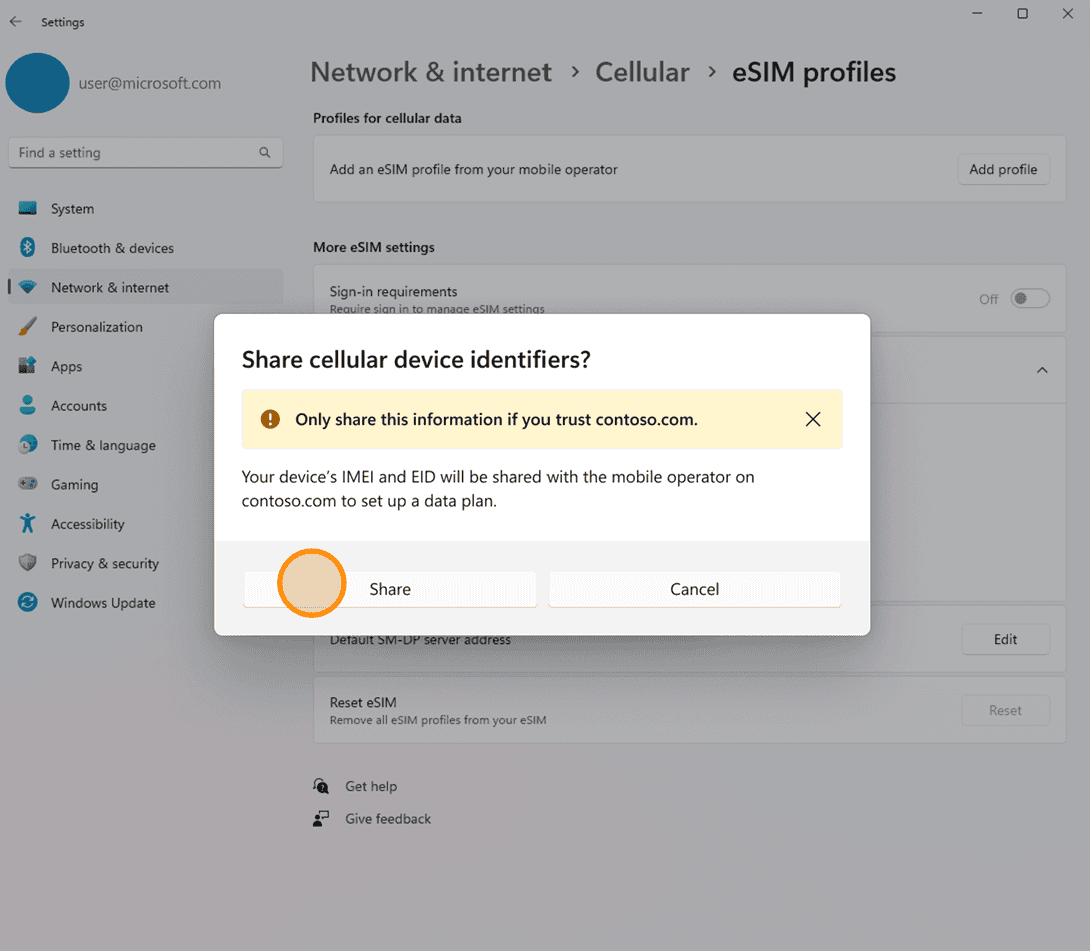
- This helps your carrier automatically provision your eSIM without needing codes or QR scans.
3. Confirm and download your eSIM profile
- Windows will show a confirmation box before downloading the profile.

- Accept the prompt, and your cellular plan will be installed.
4. Manage your plan going forward
- Existing plans you activated earlier will continue to work normally.
- To manage or change your plan, go directly to your carrier’s website instead of the old Mobile Plans app.
- If your carrier has integrated with Windows, you may also see direct “View my account” links in network settings.
5. Other activation options remain available
- You can still set up eSIM using QR codes or by entering codes manually if your carrier supports it.
FAQs about Mobile Plans App Retirement in Windows
No, you can keep using the app until February 27, 2026. After that date, Microsoft will remove references to it, and you may uninstall it if you wish.
Not at all. Any plans you’ve already purchased will continue to work normally. You’ll just manage them directly through your carrier’s website instead of the app.
Yes. QR codes and manual entry are still supported ways of activating eSIMs on Windows, even after the Mobile Plans app is retired.
You’ll visit your mobile operator’s website, purchase the plan, and Windows will prompt you to share device details (like EID or IMEI) for automatic eSIM setup.
Yes. Windows uses industry-standard HTTPS flows and confirmation steps. Your consent is always required before sharing device information or downloading an eSIM profile.
Summing Up
You don’t lose any mobile connectivity when the Mobile Plans app goes away; you just get a simpler, web-powered system. Think of it like shopping online: you go to your carrier, pick your plan, and Windows takes care of the technical setup in the background.

Read our disclosure page to find out how can you help Windows Report sustain the editorial team. Read more



Improve this guide




User forum
0 messages