
Media Creation Tool Not Working on Arm64? Here’s How to Fix It


 3 min. read
  Published on

If the Media Creation Tool shows the error “We’re not sure what happened, but we’re unable to run this tool on your PC,” it means the app cannot run properly on your system. This issue mainly affects Arm64-based Windows devices. Follow the steps below to fix it.
Table of contents
What can I do if Media Creation Tool Not Working on Arm64?
Run the Medcia Creation Tool on an x64 PC
Use this method to successfully create installation media even if you are on an Arm64 PC:
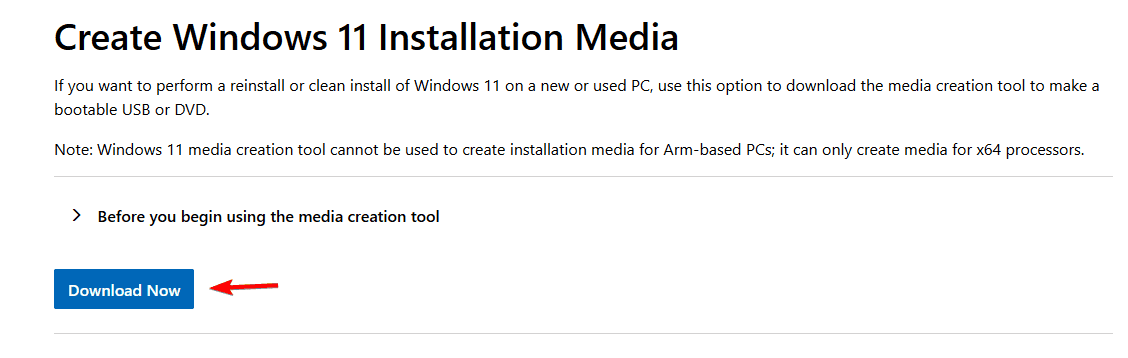
- Download the tool
Download the Media Creation Tool from Microsoft’s official page.
- Copy the tool to x64 system
Move the installer to a PC with an AMD or Intel x64 processor
- Run the software
Run the tool on that PC to create your installation media.

- Create a bootable drive
Use the created USB or ISO file on your target device as needed.

- Wait for Microsoft to fix it
Stay updated as Microsoft is tracking a permanent fix for Arm64 hosts.
For a full walkthrough on how to prepare your USB for installation, see this guide on creating a Windows 11 bootable USB drive.
Why Media Creation Tool Fails on Arm64 PCs?
The Media Creation Tool (MCT) is currently incompatible with Arm64 hosts. It cannot create ARM media, and it also fails to create x64 media from Arm-based systems. This limitation affects recent versions of Windows 11 and Windows 10 running on ARM hardware.
On Arm64 devices, the Media Creation Tool may fail with the error: “We’re not sure what happened, but we’re unable to run this tool on your PC.” This happens because the tool cannot create ARM media and also fails to build x64 media from Arm64 systems.
If you are looking for a direct installation option, you can download the official Windows 11 ARM ISO for M1 and ARM devices.
FAQs
The tool is not compatible with Arm64 hosts. It cannot generate ARM installation media and it also fails to build x64 media when started from an Arm64 device.
No. Running it in emulation does not resolve the limitation. Use a physical AMD or Intel x64 PC to create the ISO or USB.
Create the ISO or USB on an x64 PC, copy it to the Arm64 device, then boot from the USB or mount the ISO and start setup. Follow the on-screen steps to upgrade or perform a clean install.
Conclusion
When the Media Creation Tool fails on Arm64 with the “unable to run this tool” error, it’s due to a known compatibility limitation. Run the tool on an AMD or Intel-based PC, then move the resulting media to your Arm64 system for installation.
If the Media Creation Tool does not detect your USB drive, you can follow these troubleshooting steps to fix USB detection issues.

Read our disclosure page to find out how can you help Windows Report sustain the editorial team. Read more



Improve this guide

User forum
0 messages