
How to Disable Microsoft Office Upload Center on Windows


 3 min. read
  Published on

Microsoft Office Upload Center might slow down sync or trigger constant notifications. Many users want to turn it off because they rely on newer Microsoft 365 tools instead. This guide shows you the fastest ways to disable it on Windows.
Table of contents
How to Disable Microsoft Office Upload Center
Turn it off from the Upload Center settings
This built-in setting works on older Office versions that still include Upload Center.
- Open the Start menu and type Upload Center.
- Select Microsoft Office Upload Center from the results.
- Click Settings inside the app.
- Uncheck Display icon in notification area.

- Close the window to stop the tray icon from running.
If you want to work in the browser instead, check this overview of the Microsoft 365 online apps.
Disable the Office Upload Center startup entry
Startup entries reload the tray icon every time you sign in.
- Press Ctrl + Shift + Esc to open Task Manager.
- Select the Startup tab.
- Look for Microsoft Office Document Cache or Office Upload Center.
- Select it and click Disable.

- Restart your PC.
Remove the Office Document Cache
Clearing the cache helps if the icon keeps reopening because of stuck files.
- Open the Start menu and type Upload Center.
- Open the app and click Settings.
- Select Delete cached files.

- Confirm the action.
- Restart your PC.
If you frequently handle large Office files, you can review this guide on how to adjust the Office download folder.
Disable it on Office 365 and Office 2019
Modern Office versions use the newer OneDrive sync engine, so you can disable legacy components safely.
- Open OneDrive Settings from the system tray.
- Select Office from the left sidebar.
- Uncheck Use Office applications to sync Office files.
- Click OK.
Remove Upload Center from older Office installations
If you use an older build like Office 2010 or 2013, you can remove the feature with the installer.
- Go to Control Panel.
- Click Programs and Features.

- Select your Microsoft Office version.
- Click Change.
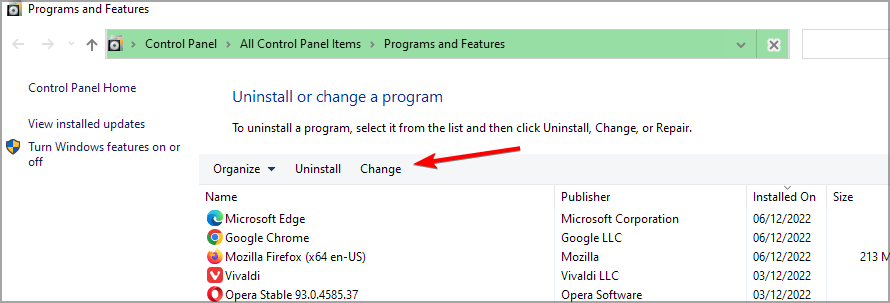
- Choose Add or Remove Features.
- Set Office Document Cache to Not Available.
- Click Continue.
FAQs
Look for a small orange circular icon with an upward arrow in the system tray.
Yes, modern versions use OneDrive directly, so you will not lose features.
A corrupted cache or startup entry might reload the tool each session.
No. OneDrive handles all sync tasks without needing the old Upload Center.
You can disable Microsoft Office Upload Center with quick setting changes or by removing the feature completely. Modern Microsoft 365 users depend on newer sync services, so turning off the legacy component improves performance and reduces interruptions. If you run into login issues afterward, try this Microsoft 365 sign in troubleshooter.

Read our disclosure page to find out how can you help Windows Report sustain the editorial team. Read more



Improve this guide


User forum
0 messages