
What Is MSEdge.exe in Windows 11 and How Does It Work


 4 min. read
  Published on
MSEdge.exe is the core executable that launches Microsoft Edge on Windows 11. This quick guide explains what MSEdge.exe does, where it lives on your PC, and how to use it safely for smooth, reliable browsing.
Table of contents
What Should I Know About MSEdge.exe?
What Is MSEdge.exe?
The msedge.exe file is the main executable for Microsoft Edge, Microsoft’s Chromium-based browser for Windows 11. It runs all browser processes including tabs, extensions, and user sessions.
If Edge isn’t opening or you want to launch it manually, knowing where msedge.exe is located and how to use it can help fix startup or compatibility issues.
For advanced customization, see how to enable hidden Edge flags and unlock experimental features in the browser.
Where Is MSEdge.exe Located?
1. Default Installation Path
Microsoft Edge installs automatically with Windows. You can find the executable here: C:\Program Files (x86)\Microsoft\Edge\Application\msedge.exe
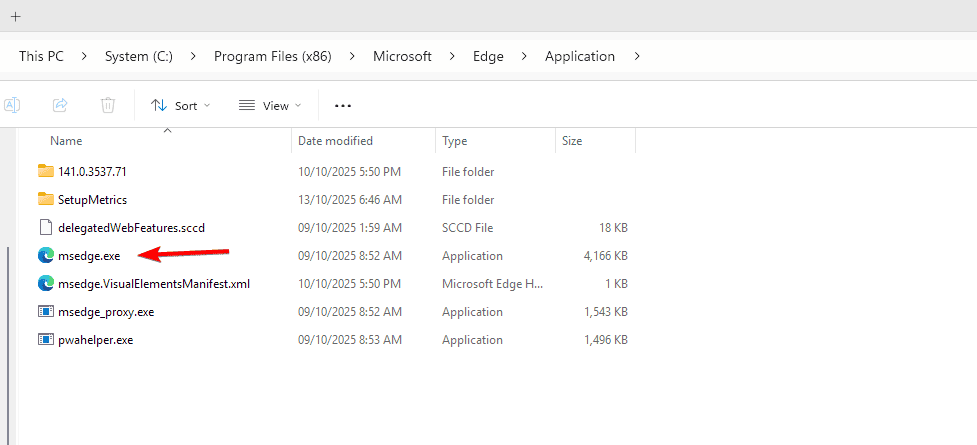
2. Use Windows Search
- Press Windows + S to open Search.
- Type msedge.exe or Microsoft Edge.
- Right-click the result and select Open file location.

This takes you directly to the executable file folder.
If you prefer to open certain pages every time you launch Edge, you can also set a homepage in Edge for quicker access.
How to Open MSEdge.exe
1. Via Run Command
- Press Windows + R to open the Run dialog.
- Type msedge and press Enter.
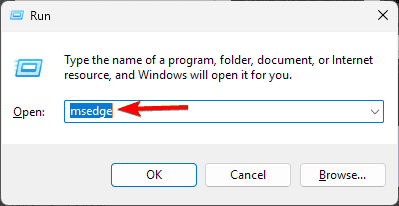
- Microsoft Edge will launch immediately.
2. From Command Prompt
- Press Windows + S and type cmd.
- Right-click Command Prompt and select Run as administrator.

- Type the following command and press Enter: start msedge
3. From File Explorer
- Open File Explorer using Windows + E.
- Go to C:\Program Files (x86)\Microsoft\Edge\Application.
- Double-click msedge.exe to open the browser manually.
How to Fix MSEdge.exe Not Working
1. End Background Edge Tasks
- Press Ctrl + Shift + Esc to open Task Manager.
- Under Processes, look for any Microsoft Edge tasks.
- Right-click each and choose End Task.
- Try reopening Edge afterward.
2. Repair Microsoft Edge
- Press Windows + I to open Settings.
- Go to Apps > Installed apps.
- Find Microsoft Edge and click the three dots.
- Select Modify > then click Repair.

Windows will reinstall Edge and fix corrupted files automatically.
3. Clear Browser Cache
- Open Edge.
- Press Ctrl + Shift + Delete.
- Select Cached images and files and Cookies and site data.
- Click Clear now.
If certain pop-ups are blocked or websites don’t load correctly, check this guide on how to allow pop-ups in Microsoft Edge.
4. Run SFC and DISM Commands
- Open Command Prompt (Admin).
- Type sfc /scannow and press Enter.
- After it finishes, type DISM /Online /Cleanup-Image /RestoreHealth and press Enter.
- Restart your computer after both scans complete.
How to Create a Shortcut for MSEdge.exe
- Navigate to C:\Program Files (x86)\Microsoft\Edge\Application.
- Right-click msedge.exe.
- Select Send to > Desktop (create shortcut).
- Rename the shortcut to Microsoft Edge for easy access.
FAQs
You can find it in C:\Program Files (x86)\Microsoft\Edge\Application.
Yes, it’s a legitimate Microsoft file. If it appears elsewhere on your PC, scan it with Windows Defender to ensure it’s not malware.
Yes. You can uninstall Microsoft Edge via Settings > Apps, then download the latest version from the official Edge website.
Too many open tabs, heavy extensions, or background processes can cause spikes. Disable unnecessary extensions and restart Edge.
Conclusion
Knowing how to use msedge.exe helps you open, repair, or manage Microsoft Edge efficiently. Whether you’re troubleshooting startup issues or setting custom preferences, these steps ensure a smoother browsing experience on Windows 11.

Read our disclosure page to find out how can you help Windows Report sustain the editorial team. Read more



Improve this guide



User forum
0 messages