
My Family Cinema Not on Google Play: How to Install


 2 min. read
  Published on
Many users notice that My Family Cinema is not on Google Play when searching for it. Since the app isn’t available in the store, the only option is to install it manually using the APK file. Below, we’ll show you how to do it safely and suggest alternatives if it doesn’t work.
Table of contents
How to Safely install My Family Cinema?
1. Download the APK from the Official Website
- Visit the official My Family Cinema site.
- Locate the latest APK version.
- Tap download and confirm the security warning.
If the APK fails to work after download, see the full My Family Cinema not working guide.
2. Enable Unknown Sources on Android
- Open Settings > Security.
- Enable Install unknown apps.
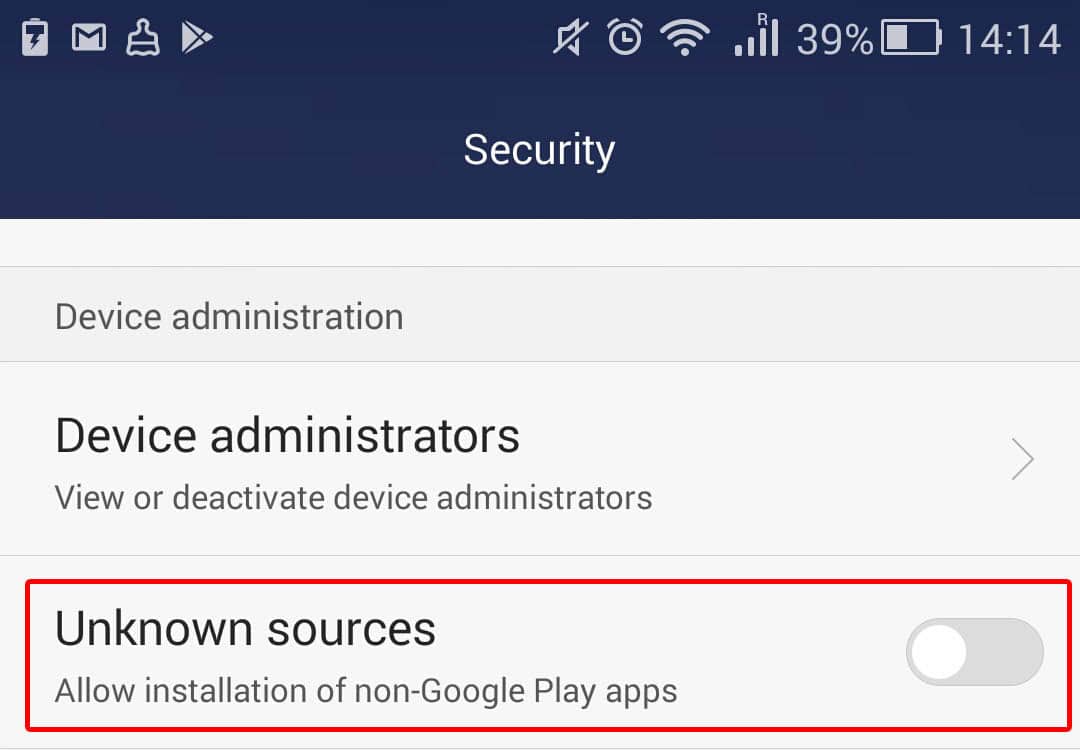
- Select the browser or file manager you used for the APK.
3. Complete Installation
- Open the downloaded APK file.
- Tap Install and wait until the process finishes.
- Launch the app from your home screen.
If the app installs but your card or PayPal is declined during signup or renewal, follow this guide on My Family Cinema not accepting payment to fix common billing issues.
FAQs
Because the app doesn’t meet Google’s content policies, it cannot be distributed through the Play Store.
Yes, but only if downloaded from the official website or trusted sources. Avoid third-party sites.
Visit the official website, enable unknown sources in Android settings, then install the APK.
Like other streaming apps, it may face takedowns or ISP restrictions.
You can try legal streaming apps or explore safe alternatives.
Since My Family Cinema is not on Google Play, you’ll need to sideload it through the APK file. Make sure to enable unknown sources before installation and only download from trusted sources. For similar cases, you can also read our guides on Putlocker not working and CrackStreams errors.

Read our disclosure page to find out how can you help Windows Report sustain the editorial team. Read more



Improve this guide



User forum
0 messages