
Fix Network and Sharing Center Not Opening on Windows 11


 3 min. read
  Published on
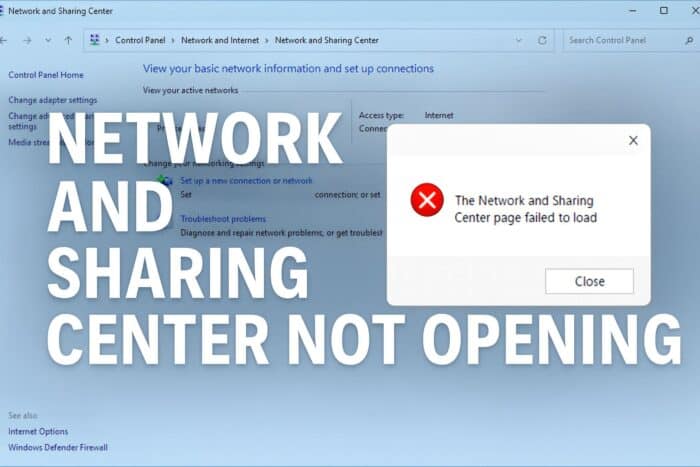
When the Network and Sharing Center does not open, Windows usually blocks it because of missing components, corrupted files, or broken Control Panel links. The methods below help you reopen it quickly and restore full network access.
Table of contents
Network and Sharing Center Not Opening?
Restart the essential networking services
Windows needs several networking services active before the Network and Sharing Center can launch. Restarting them often restores access.
- Press Windows plus R, type services.msc, and press Enter.

- Scroll to Network Connections and open it.
- Set Startup type to Automatic and click Start.

- Click Apply and close the window.
- Repeat this for Network List Service and Network Location Awareness.
If sharing features also fail, check this guide on fixing network sharing issues in Windows 11.
Open Network and Sharing Center through an alternate path
If the Control Panel shortcut fails, you can call the module directly with its executable.
- Press Windows plus R.
- Type control.exe /name Microsoft.NetworkAndSharingCenter

- Click OK.
- If it works, recreate the shortcut inside Control Panel for quicker access.
For more ways to reach this panel, see this article on the Network and Sharing Center in Windows 10.
Run System File Checker and DISM
Broken system files often block the networking interface from loading.
- Open Start, type cmd, right click Command Prompt, and select Run as administrator.
- Type sfc /scannow and press Enter.

- Wait for the verification to complete.
- Type DISM /Online /Cleanup-image /Restorehealth and press Enter.
- Restart your PC and open the Network and Sharing Center again.
Update or reinstall your network adapter drivers
Driver conflicts can prevent networking panels from opening or working correctly.
- Right click Start and select Device Manager.

- Expand Network adapters.
- Right click your primary adapter and choose Update driver.

- Select Search automatically for drivers and follow the prompts.
- If the problem continues, select Uninstall device and restart your computer so Windows can reinstall the driver.
Reset Windows networking
A full network reset restores your adapters and all networking components to default.
- Open Settings.
- Select Network and internet.
- Click Advanced network settings.
- Select Network reset.
- Click Reset now and restart your PC.
If you also need to refresh discovery features, check how to enable them in this guide on turning on Network Discovery in Windows 11.
FAQ
Corrupted system files, disabled services, broken Control Panel shortcuts, or outdated drivers usually cause this issue.
Yes. Some malware modifies networking components. Run a full antivirus scan if the issue appears suddenly and you notice other suspicious behavior.
No. It resets each adapter configuration but keeps the hardware and drivers installed on your system.
Reinstalling Windows should stay as a last resort. First try repairing system files, resetting the network, and creating a new user profile.
When the Network and Sharing Center does not open, focus on restarting key services, repairing corrupted files, updating drivers, and resetting your network configuration. The related guides above give you extra paths if network sharing or discovery features also stop working. If the problem continues even after these steps, a deeper system repair or clean install may provide a permanent fix.

Read our disclosure page to find out how can you help Windows Report sustain the editorial team. Read more



Improve this guide

User forum
0 messages