
How to Fix Outlook Notifications Not Working on iPhone


 4 min. read
  Published on

Is your Outlook app not sending alerts on your iPhone? Many users report Outlook notifications not working after an iOS or app update. Here are quick steps to fix the issue and make sure you never miss an important email again.
Table of contents
What can I do if Outlook notifications are not working on iPhone?
1. Check iPhone notification settings
Make sure Outlook is allowed to send alerts through iOS system settings.
- Open Settings on your iPhone.
- Tap Notifications.
- Select Outlook from the list of apps.
- Enable Allow Notifications.
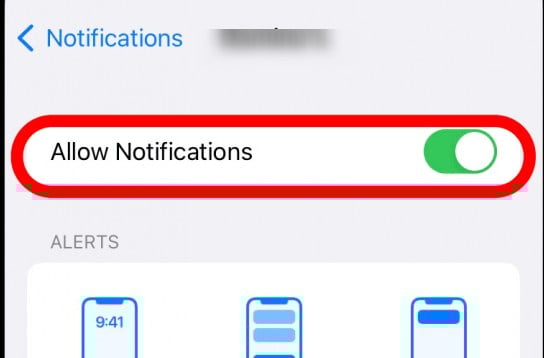
- Turn on Sounds, Badges, and Banners.
If you face similar problems with other email apps, see this guide on how to fix Gmail not working on iPhone.
2. Enable notifications inside Outlook
Verify that notifications are turned on directly in the Outlook app.
- Launch the Outlook app.
- Tap your profile icon in the top left corner.
- Select Settings.
- Tap Notifications.
- Choose your preferred option such as Focused Inbox only or All Mail.
If alerts arrive without sound, try this fix for Outlook notification sound not working.
3. Turn off Focus or Do Not Disturb
Check if Focus or Do Not Disturb is blocking your Outlook alerts.
- Swipe down from the top right corner to open Control Center.
- Look for the Focus or Do Not Disturb icon.

- If it is enabled, tap it to turn it off.
- Check if Outlook notifications appear after disabling it.
4. Update the Outlook app
Make sure you have the latest version of Outlook installed.
- Open the App Store on your iPhone.
- Tap your profile icon in the top right corner.
- Scroll down to see available updates.
- If Outlook is listed, tap Update.
- Wait for the update to finish, then reopen the app.
5. Reinstall Outlook
Reinstalling can fix bugs or corrupted files that block notifications.
- Press and hold the Outlook app icon.
- Tap Remove App and confirm by choosing Delete App.

- Restart your iPhone.
- Open the App Store and search for Outlook.
- Download it again and sign back in with your account.
6. Check Background App Refresh
Outlook needs background activity enabled to deliver push alerts.
- Go to Settings.
- Tap General.
- Select Background App Refresh.

- Make sure Outlook is enabled.
- Restart the app and test notifications again.
If alerts are missing for specific mail folders, see this guide on Outlook notifications not working for subfolders.
7. Restart your iPhone
A restart clears temporary glitches that may block alerts.
- Press and hold the Side button and either volume button.
- Slide to power off your iPhone.
- Wait a few seconds, then press the Side button to turn it back on.
- Open Outlook and check if notifications are working.
FAQs
This usually happens when notifications are disabled in iPhone settings or inside the Outlook app.
Yes, Focus or Do Not Disturb can mute all alerts including Outlook emails.
No. Your emails are stored on Microsoft servers. You just need to sign back in.
Updates may reset app permissions or create compatibility issues. Re enable alerts and update the app.
Yes. Low power mode limits background refresh, which can delay or block Outlook alerts.
Conclusion
Outlook notifications not working on iPhone can be frustrating, but in most cases the problem is linked to notification settings, Focus mode, or outdated app versions. By following the steps above, you can quickly restore email alerts and ensure you stay updated without missing important messages.
For iPhone audio and in-car connection problems, see our guide on Apple CarPlay not working.

Read our disclosure page to find out how can you help Windows Report sustain the editorial team. Read more



Improve this guide



User forum
0 messages