Microsoft Device Night was less hype, more genuine excitement for new Windows 10 devices

The October 6th Microsoft Windows 10 devices event in New York City may go down as one of the best showings of cohesion, passion and direction the company has displayed in a long time. The argument of whether Microsoft is a software or hardware company melted away during the 2-hour showcase, where the company intricately blurred the lines and gave reporters and fans the best of both. Talented presenters and heads of departments mixed marketing lingo with real-world use cases for Microsoft’s wave of next generation hardware.

However, highly controlled demos and month-long rehearsed speeches will only get a company traditionally known for overpromising and under-delivering so far. When it comes to spurring shifts in the minds of consumers, it requires more than a polished stage presence, it requires a bit of physical intervention.

In this case, it’s the men and women of the Microsoft ExpertZone that represent the company’s physical presence when the smoke from keynotes have all but dissipated. Over the past four weeks, ExpertZone staff have been travelling across America, evangelizing, educating and entertaining business partners and consumers alike with the devices and software seen at the October 6th event.
ResizedDE

Gathered in select Microsoft flagship Stores and lavish hotel conference rooms, ExpertZone employees host what are known as Device Nights. Device Nights represent an opportunity for Microsoft to press the flesh and gather in-person feedback while also educating its business partners and users on its new wares.

On November 12th, a handful of us from the WinBeta were invited to attend Microsoft’s Device Night 2015 in Los Angeles, CA., and suffice to say, the ExpertZone employees put on a showing that was good if not better than the October 6th event.

The Los Angeles Device Night event was held at the swanky Hotel Palomar on Wilshire Blvd. Amongst the gathered crowds were employees and business partners who would be entrusted with imbuing the same high level of enthusiasm and passion the folks at Microsoft have for their devices and services.

[pullquote align=”center” cite=”” link=”” color=”” class=”” size=””]”attendees were given a much more personal and passionate hands-on demo of Microsoft’s latest devices”[/pullquote]

Instead of the richly crafted 1-minute demo videos many of were witness to during the October 6th event, attendees were given a much more personal and passionate hands-on demo of Microsoft’s latest devices and services like the Surface Book, Surface Pro 4, Microsoft Band 2, and Lumia 950, to name a few.

We started our night meeting our helpful contact, the senior manager of Microsoft Training & Experience, Matthew Shenker. Equipped with a cool new Surface Book and Surface Pen, Matt showed us around the playground of Microsoft goodies and introduced us to the men and women who would walk us through Microsoft’s vision.

As contemporary R&B, HipHop and Dance music blanketed the hall, Matt walked us from one device booth and demo to the next, careful of answering any and all questions we had. Our first booth and demo was of the Lumia 950’s Continuum feature. As we approached, a sudden feeling of ‘been there done that’ washed over me, but once our presenter got into it, I quickly realized why Microsoft has been making such a big deal of the feature. As many have said and reported on, Continuum is a feature that has to be seen and dealt with in person to appreciate.

ResizeDE1

During our time at the booth, we saw demonstrations of the Lumia 950 used as a secondary mouse and pointer device while also doubling as a phone and presentation tool. We were also told, at least for now, only first-party Windows 10 apps will work with Continuum Start screen. As the Start Screen on the desktop is a mirror image of Windows 10 Mobile Start Screen, 3rd party apps will be present in the layout, but greyed-out, indicating there are unusable. We pressed on about the file app on Windows 10 Mobile doubling as the file app for Continuum use, but we’re told there will be ‘more to come’ on that front.

But who are we kidding, most people’s focus right now is on the release of Microsoft’s long awaited phone flagships. The Lumia 950 was indeed in attendance and several ExpertZone staff were rocking them as personal devices. Unfortunately, the Lumia 950 XL was not present. As an avid and at times dejected Windows Phone fan, it was nice to see that some people at Microsoft still care about Windows 10 Mobile. While the Lumia 950’s primary presence was used to extol the virtues of Continuum, Matt was able to wrangle up a 950 for a close-up. The particular Lumia 950 we got some hands-on time with happened to belong to Lindsey of the ExpertZone team. She was also kind enough to walk us through the very impressive Windows Hello feature.

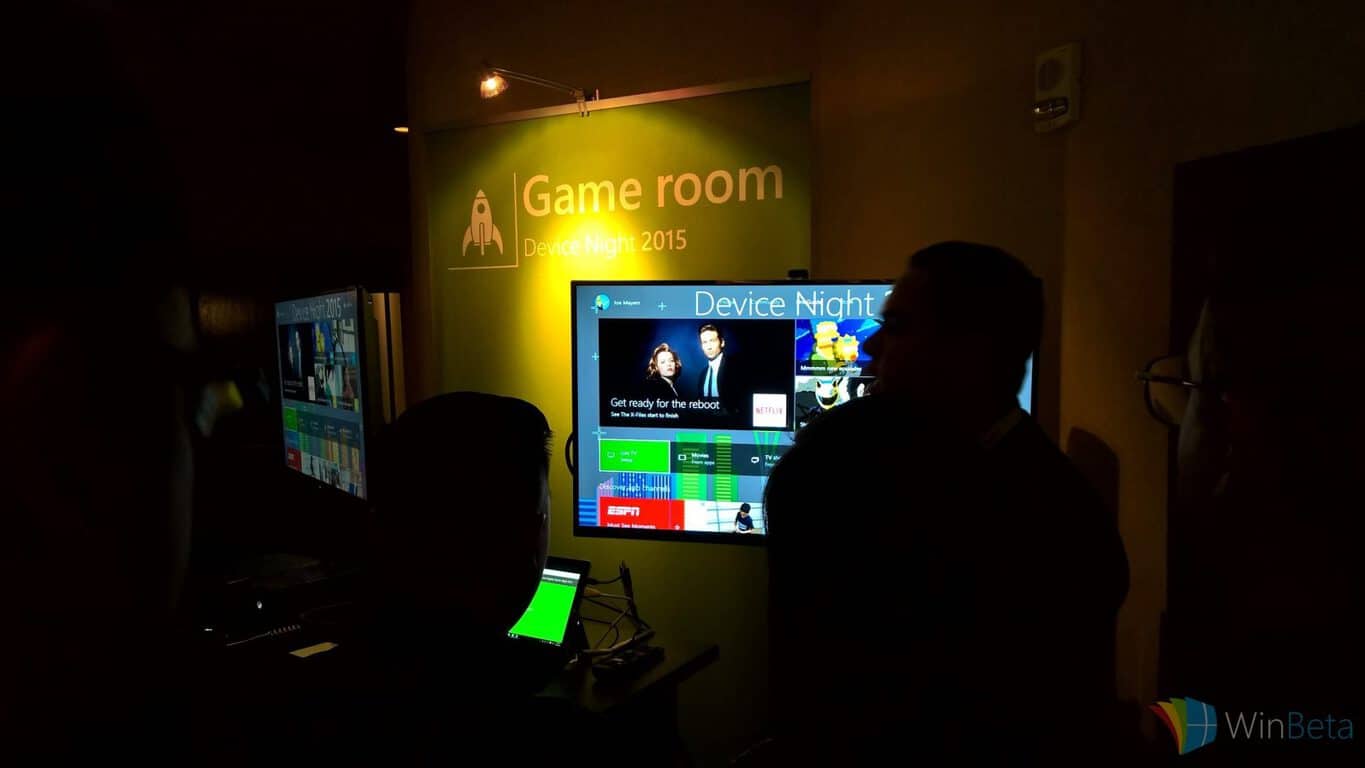
We were then given a tour of the now released New Xbox One Experience. The guided walkthrough consisted of the nice new gamer-centric aspects of the UI as well as the lesser covered entertainment features. Items such as the OneGuide, media apps, Xbox Fitness and the Store were all covered at length.

At another table across from the Xbox One demo was a graphic artist crafting image after image on the new Surface Book and Surface Pro 4. The demo helped both business and creative-types understand the technology behind the pen as well giving examples of what can be produced when owning either device.
ResizeDE6

Rounding out our night was a very detailed exploration of the Microsoft Band 2. This is where Paul Britton, a partner and channel marketing manager at Microsoft, illuminated the melding of the Band 2’s highly sophisticated hardware sensors and Microsoft’s expansive cloud-connected software. While there are native apps written to work cross-platform for the Band 2 and other handsets, it’s on the web where the Band 2 really shines. The web interface dives much deeper into comparative analytics, predictive measures, and routine tracking pulled from the Band 2.

The evening wasn’t all business. Attendees were plenty feed with fancy favours and finger foods throughout the night. For many who weren’t grabbing portraits or selfies at the photo booths, there were round-robin style Halo 5 tournaments going on. Others could be found lounging at the bar discussing distribution and channel supply of new products. At the end of it all, were the giveaways. Some attendees walked away with a brand new Microsoft Band 2, Surface Pro 3 and 4 and Lumia 950 (given once it launches). The Surface Book prizes were reserved for a separate, larger contest among the newly recruited ExpertZone members.

ResizeDE13

The night was educational and inspiring for fans and partners of Microsoft, but above all else, it was fun. There was a lot of genuine excitement in the air and you can tell everyone in the room was excited with what Microsoft had to offer. Echoing sentiments from Microsoft CEO Satya Nadella, Windows, Lumia, Surface are slowly starting to feel like things people want, rather than what people have to deal with. In his words, “moving people from needing Windows, to choosing Windows, to loving Windows.”

We’d like to thank Paul Britton, Matthew Shenker, Lindsey Paenitz, Bill Bush, and the entire ExpertZone Staff for hosting us.
Microsoft introduces PowerPoint Designer, Morph

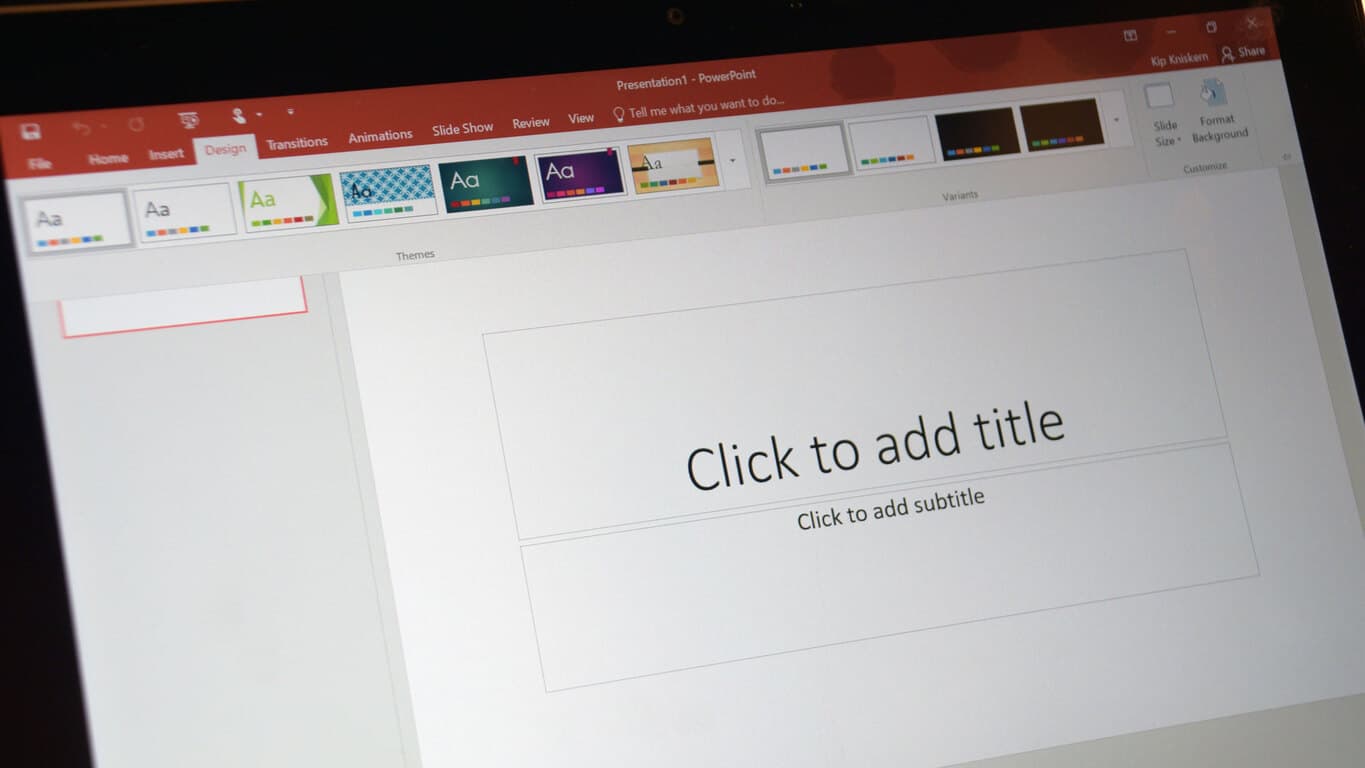
Today, Microsoft is announcing two new features for PowerPoint, a slide designer that automates the look of your slides called Designer, and a new set of transition effects called Morph:

Morph creates cinematic motion by seamlessly animating between your slides. Morph doesn’t just animate regular text or images, it can animate 3-D shapes or be applied at a word or even character level, including text wrapping. Simply duplicate slides you want morphed together, move the objects based on how you want them to animate and click the Morph button under Transitions.

You can get a feel for how the new features work and look in this video:

The two new features should make it even easier to create slide presentations, even if you’re not a designer. The features are exclusive to Office 365 users, and come first to Office 2016 for Windows desktop and mobile, but you can expect to see them roll out to other platforms in the coming months.
In the same blog post, the Office team also announced the next step in user participation in Microsoft’s development process, Office Insider.

Fix: Windows 10/11 Stuck at Resetting to the Previous Version

Although Windows 10 is great upgrading to Windows 10 isn’t always as smooth as you might think. Some users have reported that when upgrading to Windows 10, or when performing a clean install, that Windows 10 will get stuck on reset, so let’s see how to fix that.

What to do if Windows 10 is Stuck at Reset

First of let’s explain when resetting means in this case. This doesn’t mean that your computer will keep restarting over and over again, it means that your computer will get stuck on resetting screen. You see, when you perform a system reset (reinstall your Windows 10), Windows installation will reset your system, which includes deleting your files.

This process is call reset, and many users seem to be stuck at this stage of Windows 10 setup. Apparently, their reset process will get stuck at certain percent and stay like that for a long time. This seems like a big problem, but there are few solutions.

Solution 1 – Keep waiting patiently

If you choose to perform a full reset and confirm that you want to clear all data on your hard drive the process might take a while. During this process all your files will be deleted, and Windows will “fill” empty space with zeroes in order to completely remove your data and make it unrecoverable. Depending on the size of your hard drive this process might take hours, so you’ll just have to wait. Users have reported that this process took more than three hours and sometimes it can take even more, so you’ll just have to wait and be patient since there’s no way to speed up the process.

Solution 2 – Perform a Hard Boot

Remember to keep an eye on HDD LED on your computer case. If the LED is active it means that Windows 10 is deleting your files and you shouldn’t interrupt this process. If the HDD LED isn’t active it means that the setup is stuck and you need to perform a Hard Boot.

To perform a Hard Boot you need to hold down the power button for 8 to 10 seconds to turn off your computer. Then turn it on and turn it off by holding the power button for 8 to 10 seconds. Then you need to restart the setup processes.

Users also report to perform Hard Boot few times before you can enter Windows 10 Automatic repair options. When you enter Automatic repair options try to perform clean install from there.

KB 3097877 Causes Crashes, Hangs & Various Other Problems for Windows 7 Users

Update – Microsoft has released an official fix for the bugs caused by the KB3097877 update, so go ahead and have a look to see of you’re still experiencing issues. 

This week we reported about the Patch Tuesday for November, and the many fixes that it brought. But, as it’s almost always the case, it did manage to product some botched update, as well. This time, it seems that update file KB 3097877 is causing the most of the issues.

According to multiple reports, quite a dozen of them, I might say, MS15-115 KB 3097877 is causing various problems, such as Outlook crashes, network sign-in black screens, disappearance of Windows 7 sidebar and gadgets, Asus Audio Center issues and more.

As we speak, Microsoft hasn’t acknowledged any problems in KB 3097877, and it seem that the single solutions to fix them consist in uninstalling the patches or rolling back to an earlier system restore point.

Outlook problems caused by KB 3097877

It seems that Outlook was the most affected product of them all. Here are just a couple of annoying problems reported by Window users:

Since loading the Office 2010 automatic update last night, Outlook crashes. At first, it crashed when I clicked to expand the main screen or an email to full screen. Now, it opens, but before it completes startup, it shuts down. “Microsoft Outlook has stopped working” screen pops up. Then It closes and I get a screen that says, “A problem caused the program to stop working correctly. Windows will close the program and notify you if a solution is available.”

Many say that Outlook won’t even start after the 11/11/2015 security updates. But what seems to be the biggest problem are the crashes:

After installing Windows updates last night/this morning, my Outlook 2010 (running on Windows 7) crashes after I click on different messages in my Inbox (gmail account). Is anyone aware of possible conflicts that may have been included in the November 10, 2015 update for Windows?

Just this morning, after several updates last night, Amazon, Best Buy, and other assorted senders crash outlook when pictures are downloaded. Disabled all Add ins. My temporary workaround is to empty the trusted senders list and just not download pictures. Very confusing as it just started for no apparent reason (maybe one of the MS updates?

I recently was affected by the problem with Windows Update KB3097877 crashing my Outlook. Before I discovered that uninstalling that update would solve my problem I went through many of Microsoft’s fix options, including Online repair (which looked like at least a partial reinstall)

Windows 7 problems caused by KB 3097877

Windows 7 users are also apparently affected by KB 3097877, and various problems have been reported. Here’s what we have been able to found from the support forums:

I have Windows 7 running and now after booting when I enter the homescreen you can pick the user on which you want to log on. So I try my own user and then it should “load” to the point where it will ask for your password of the user.

Others have been reporting that they can not log into Windows 7 after the November 2015 updates.

We just ran the latest windows 7 updates on multiple windows 7 professional 64bit computers. Once the update runs, the machine boots to the ctrl-alt-del screen for login. If you hit ctrl-alt-del, a black screen appears. Then after a few seconds (5-30) it bounces back to the login screen but it is entirely blue – no option or login. Each time you ctrl-alt-del, you get the black screen then back to blue.

A couple of other users report issues with the screen flicker, as well, allegedly caused by a Wacom driver:

Update KB 3097877 on Windows 7 Professional 64 Bit makes the login screen flicker and login is not possible. Most probably caused in connection with Wacom Cintiq 13 HD tablet, driver 6.3.15-1

Other issues

Other Windows 7 users report that Internet Explorer crashes when you try to download pictures in an email. There even are problems reported with Excel, as well:

I believe the most recent November 2015 Tuesday update contained an update for Excel (I use 2010). After the updates installed I have a series of 3 or 4 important spreadsheets that all start to open than immediately crash and close Excel. Excel reports it can’t find a resolution. These spreadsheets have opened fine for years and other than making some daily changes to figures in the spreadsheet nothing new added. There are no macros running in these sheets.

Thus, long story short, there are many, many issued caused by this specific update, so please use the comments section to let us know how have you been affected.

Microsoft's Surface 3 LTE lands on Verizon for business professionals

A couple of months back we reported on AT&T becoming a retail business partner with Microsoft. The partnership would allow Microsoft to sell its Surface 3 LTE devices through AT&T to business customers with carrier specific promotions and deals.
Not to be outdone it looks like the other largest mobile carrier provider in the US, Verizon, is getting in on the action as well. Verizon recently announced its plans to sell the Microsoft Surface 3 with Verizon’s 4G LTE to business professionals.
Verizon is selling the Surface 3 with 4G LTE for $649.99 (US) with a 2-year activation contract. For the business professional looking to stay untethered to Verizon, a Surface 3 with 4G LTE can also be picked up for $749.99 (US) without a contract.
Much like the AT&T deal, the devices will come with Windows 8.1 Pro that can be upgraded to Windows 10 Pro for free afterwards. Other specifics include:

A variety of accessories are also available to enhance the experience. The Surface 3 Type Cover Keyboard ($129.99) easily attaches to the tablet to add a physical keyboard and lets you type away without a virtual keyboard taking up screen space. And the Surface 3 Pen ($49.99) feels like an actual pen and lets you mark up presentations and sign documents, or quickly access OneNote by clicking the pen so you can have a notepad ready when you need it. A Surface 3 Docking Station is also be available for $199.99.”

While the Surface Pro 3 has been arguably the choice of many, a Surface 3 with LTE should not be overlooked.

Windows 10 gets Windows Update and Windows Store for business

As part of the November update for Windows 10, Microsoft is introducing a number of new services for business, including:

  • Windows Update for Business provides IT controls over the deployment of updates within their organizations, while ensuring their devices are kept current and their security needs are met, at reduced management cost. Features include setting up device groups with staggered deployments and scaling deployments with network optimizations.
  • Windows Store for Business provides IT a flexible way to find, acquire, manage and distribute apps to Windows 10 devices – both Windows Store apps and custom line of business apps. Organizations can choose their preferred distribution method by directly assigning apps, publishing apps to a private store, or connecting with management solutions.

The update also includes two new capabilities for IT to help users use Windows 10 on multiple devices get their work done:

  • Mobile Device Management, empowers IT to use the full power of Enterprise Mobility Management to manage the entire family of Windows devices, including PCs, tablets, phones, and IOT. Windows 10 is the only platform that can manage BYOD scenarios from the device to the apps to the data on those devices – safely and securely. And of course, Windows 10 is fully compatible with the existing management infrastructure used with PCs, giving IT control over how they bridge between two capabilities.
  • Azure Active Directory Join, empowers IT to maintain one directory, enabling people to have one login and securely roam their Windows settings and data across all of their Windows 10 devices. AAD Join also enables any machine to become enterprise ready with a few simple clicks by anyone in the organization.

Windows 10 also adds a number of features designed to help secure organizations, including Credential Guard, Device Guard, Windows Hello, and Windows Defender.


Xbox One Windows 10 update is rolling out now and here’s how to get it

Xbox One owners will be getting a completely new Windows 10-powered operating system for their gaming and media console within the next 24 hours. The official rollout of the system update that will install the new operating system has been confirmed to begin at 3:01am ET/ 12:01am PT on November 12th. It’s important to note that not everyone will get the update at once and, like the rollout of Windows 10 to PCs, users will gradually be given the update over the course of the day starting from the official launch time.

  • To get the update as soon as possible, Xbox One owners should enable Instant-on power mode in the Power & startup settings. This will allow the console to download the update while it’s turned off and is worth enabling over the next day or so to get the update as soon as possible.
  • Those wishing to save energy with the Energy-saving mode (which almost completely shuts down the Xbox One when it’s turned off) can check for the update by going to the System settings and viewing the Update button on the left side of the screen.

This update to what is being called “The New Xbox One Experience” is mandatory and any system which hasn’t updated by November 23rd will be forced to. You can read the full release notes of the update here.

The Xbox One’s new Xbox 360 backwards compatibility will actually activate separately from The New Xbox One Experience at 3:01pm/12:01 PM (noon) PT on November 12th for all users, who simply have to refresh their games library to see all of their Xbox 360 digital titles. Xbox 360 games will also begin appearing in the Xbox One store at this stage with over 104 titles currently confirmed for inclusion. When this happens, owners of physical Xbox 360 disks for any of the 104+ game titles can also begin playing these on Xbox One as well.

The New Xbox One Experience is both a visual and technical revamp of the Xbox One user interface and will be powered by a version of the Windows 10 operating system designed for the console that will enable it to run apps designed for Windows 10 PCs and mobile devices. Health tracking company, FitBit, has already confirmed they are working on an Xbox One version of their app. The new Windows 10-powered Xbox One will also bring a renewed focus on animated user avatars, speedier navigation, and changes to the way apps are snapped and menus are navigated.

Microsoft’s virtual assistant, Cortana, has been confirmed to be coming to Xbox One but won’t be getting a public launch until sometime in 2016 despite already appearing on consoles for those Xbox One owners in the Preview Program, which is used by Microsoft to test upcoming features before rolling them out to all users. A Kinect sensor will be needed to use Cortana on Xbox One but that shouldn’t come as a surprise to anyone as a Kinect is already needed for the Xbox One’s current voice command functions.

Are you excited for The New Xbox One Experience? Which aspect of it are you hyped for the most? How will you be installing it? Let us know in the comments below.

Microsoft's Project Oxford uses A.I. and facial recognition to guess your emotion

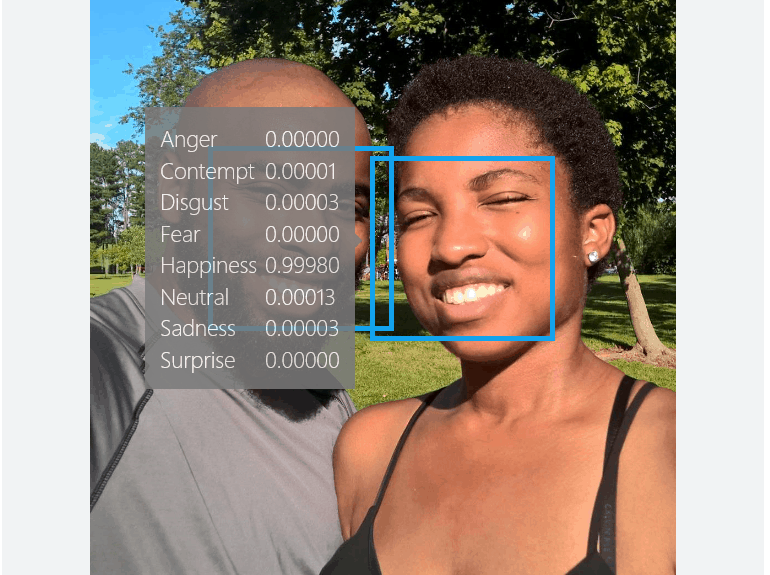
Microsoft’s Project Oxford attempts to extract the emotion from photos to tell just how happy, or unhappy, the subject is. The Emotion Recognition site launched today and allows users to insert either an image URL or upload a photo from their personal library. Similar to the “How-Old” website that launched in May, this program then uses both facial recognition and artificial intelligence to deduce the subject’s temperament.
The emotions detectable are happiness, surprise, neutrality, fear, contempt, and disgust. A list is displayed once the user hovers their mouse over the highlighted face. In addition to the emotional levels displayed, the program also prints the results in computer code for programmers. As with other Project Oxford research programs, the API’s for this program are made available for developers who are encouraged to incorporate these technologies into their apps.
Me and danielle
Project Oxford’s effort is a glimpse into what can be done with these sophisticated programs. It will be interesting to see how other developers decide to use things like facial and emotion recognition in their apps. What sort of features would you like to see using Project Oxford’s emotion recognition software? Let us know in the comments below.

Microsoft's Flagship Store opening draws massive crowds in Sydney, Australia

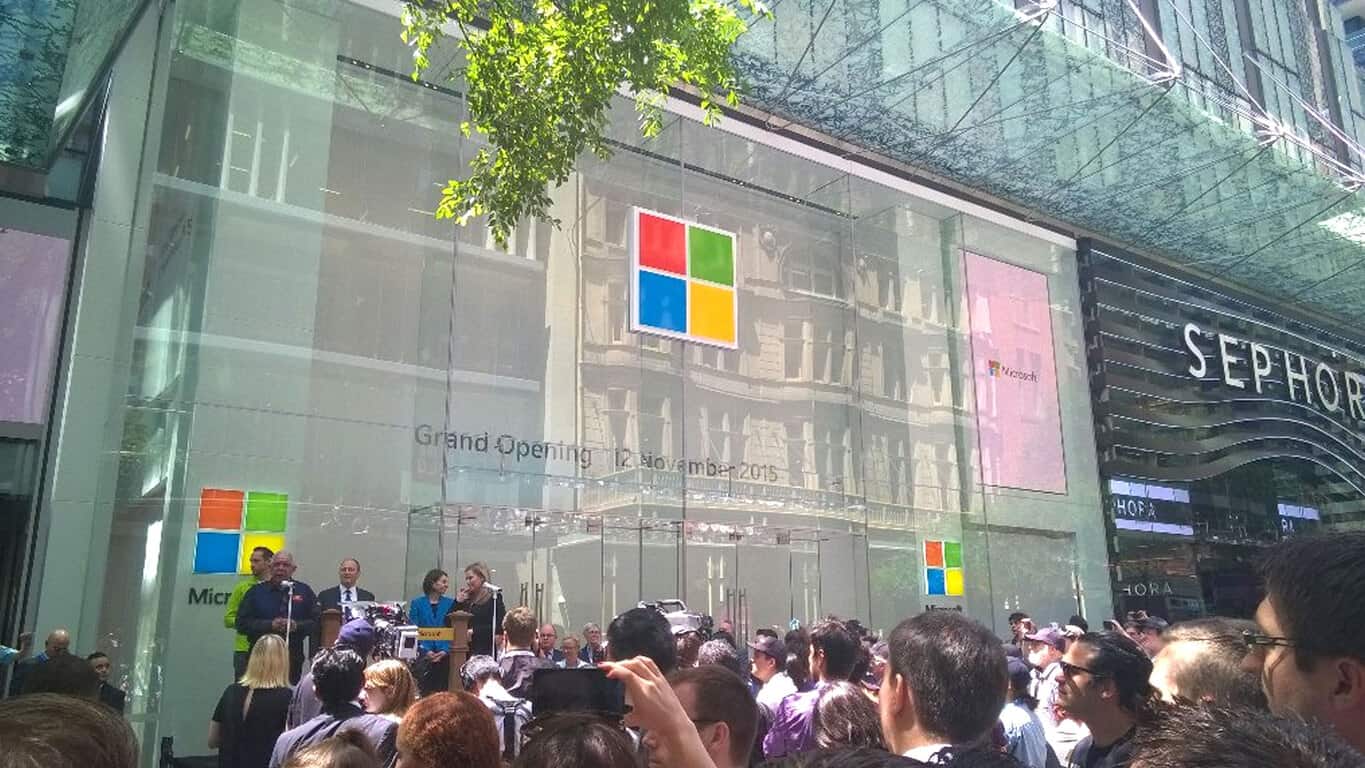
Microsoft’s Sydney Flagship Store is currently celebrating its grand opening and has drawn some impressive crowds around its Pitt Street Mall location. Microsoft Australia’s Education Marketing Manager, Emma Milson is on location and has been tweeting several fantastic photos of all of the people who have gathered for the day’s celebrations. Here are a few of her snaps.


Many others in attendance have also been tweeting about the activity on location.


The day looks to be full of a combination of presentations and activities, all aimed to showcase Microsoft’s latest products. Some of the activities include fashion illustrator Kerrie Hess illustrating live on the Surface Pro 4, photo opportunities with characters from the Xbox One game Halo 5: Guardians, a Base Body Babes fitness working using the Microsoft Band 2, and special performances by Ellie Drennan and Jessie J at the nearby State Theatre. We’ll be sure to report on any announcements, if any, coming out of the event so make sure to check back soon for more.

How to Remove Office 2016 from Mac

Although Office 2016 is quite useful tool you might want to remove it if you’re not pleased with it. If you’re a Mac user and you want to remove Office 2016, today we’re going to show you how to do it.

Remove Office 2016 From Mac Completely

This is relatively easy to do, just move the application and user files to the Trash, empty the Trash and restart your computer to complete the process. Here’s the detailed information how to do it:

  1. Open Finder and click Applications.
  2. Command COMMAND + click to select all the Office 2016 applications.
  3. Ctrl + click or right click the applications.
  4. Now choose Move to the Trash from the menu.

If you want to remove files from user Library folder you need to do the following:

  1. In Finder press COMMAND, Shift and h at the same time.
  2. In the Finder menu click View > as List. After that click View > Show View Options.
  3. In the View Options menu make sure that you select Show Library Folder.
  4. Switch back to Column view now. You can do that by pressing COMMAND+3 and click <YourUserName>Library > Containers .
  5. There should be several folders and you need to ctrl + click or right click each of these folders and select Move to Trash.
    • These are the folders that you need to delete:
    • com.microsoft.errorreporting
    • com.microsoft.Excel
    • com.microsoft.netlib.shipassertprocess
    • com.microsoft.Office365ServiceV2
    • com.microsoft.Outlook
    • com.microsoft.Powerpoint
    • com.microsoft.RMS-XPCService
    • com.microsoft.Word
    • com.microsoft.onenote.mac
  6. Switch back to Column view by pressing COMMAND+3 and click Library > Group Containers and right-click each of the following folders and select Move to Trash. Here’s the list of folders you need to remove:
    • UBF8T346G9.ms
    • UBF8T346G9.Office
    • UBF8T346G9.OfficeOsfWebHost
  7. After that you just need to empty the Trash and Office 2016 will be successfully removed from your Mac.

That’s it, I hope these instructions helped you to uninstall Office 2016 from your Mac. If you have any comments, or questions, just reach for the comment section below.

Microsoft meets Apple's iPad Pro release with optimized Office Apps

Apple isn’t the only company ready for today’s launch of the iPad Pro, Microsoft is also getting in on the action. Under the direction of CEO Satya Nadella, Microsoft has refocused its approach to how it provides its services to customers. Unconstrained by one OS (Windows) Microsoft has shifted its focus from pushing Windows OS as its core ecosystem to saturating the market with their proprietary products and services. This strategy has been seen with Nadella’s demonstrations of Office on iOS, as well as the Microsoft Band 2’s cross-platform functionality. A major focus for Microsoft is productivity apps, mainly Microsoft Office, which Nadella wishes to push as Microsoft’s key monopoly.
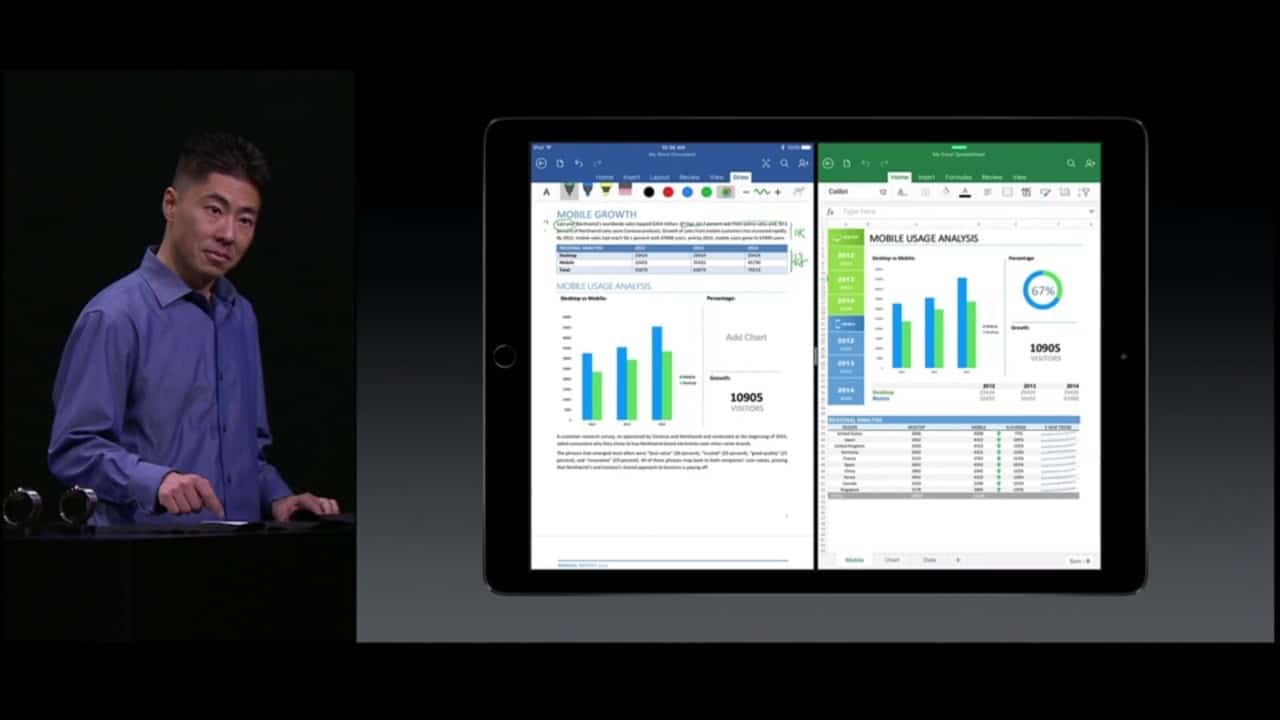
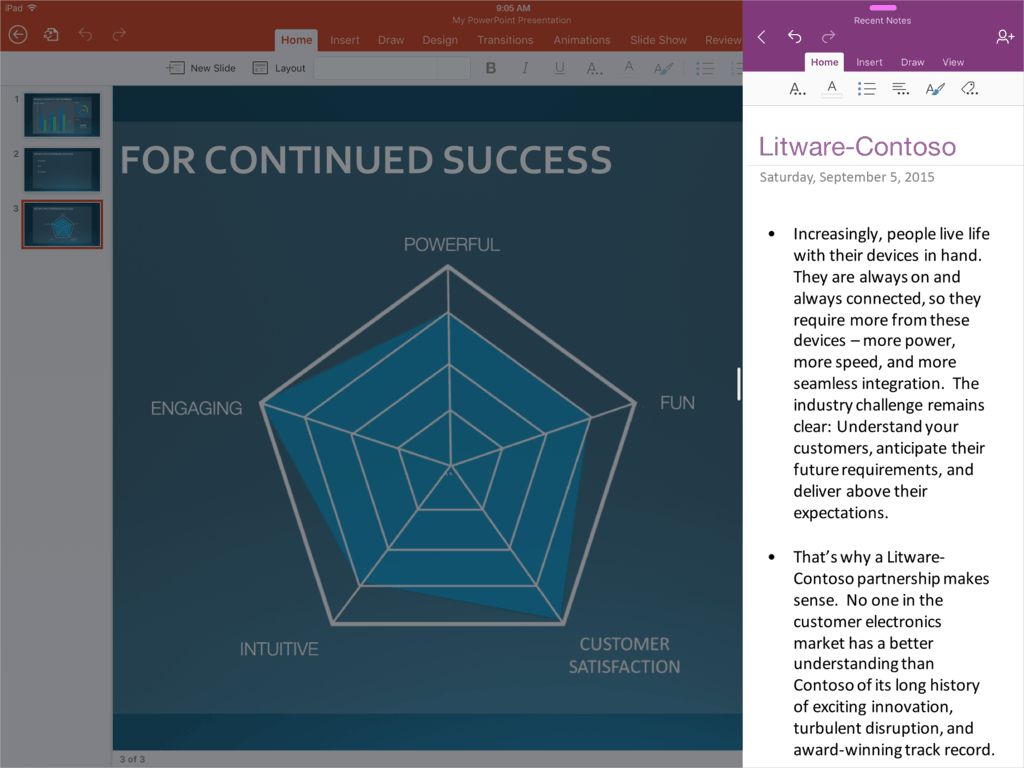
During Apple’s last press conference, Microsoft’s Products manager, Kirk Koenigsbauer, was invited on stage to demo how Microsoft Office will work on the iPad Pro and iOS 9. During the demo, Koenisbauer demonstrated how the Apple pencil can be used with programs like OneNote and PowerPoint to annotate and create content. With the release of iOS9, Apple also introduced several new features, albeit not new for Windows 8 or 10 users, that can be used with Office. These features include a split screen view as well as a slide over feature to improved multitasking and productivity.

Microsoft-Office-apps-are-ready-for-the-iPad-Pro-3-3Microsoft-Office-apps-are-ready-for-the-iPad-Pro-1-1-1024x768

These Office apps are not just available for the iPad Pro, however, but will also function on the iPad Air, iPad mini, and iPhone. To take full use of this productive suite users will need to subscribe to Office 365 which provides a subscription service for up to five PC’s and/or Macs, as well as 5 tablets and 5 phones. This subscription also comes with 1 TB of cloud storage via OneDrive that can be shared among all of your devices.
The addition of Microsoft Office apps, especially ones tailored to take advantage of the real-estate and pen input of the iPad Pro, demonstrates Nadella’s focus and strategy. Not only can one use the full suite of apps on Windows devices, but on most iOS devices as well with no compromise. What are your thoughts on Apple’s iPad Pro and Microsoft Office? Let us know in the comments below.

‎Microsoft Word
‎Microsoft Word
Price:
Free+


‎Microsoft Excel
‎Microsoft Excel
Price:
Free+


‎Microsoft PowerPoint


‎Microsoft OneNote
‎Microsoft OneNote


‎Microsoft Outlook
‎Microsoft Outlook


‎Microsoft OneDrive
‎Microsoft OneDrive

How Azure Search thrives off of customer obsession

If you’re like most people, when you think of Microsoft you think of a massive, sprawling corporation that’s too big to fail. While that’s not wrong, the truth is that Microsoft has several small “start-ups” working inside of it, facing the hard choices and high risk that any small business would be faced with. One such group, profiled in a Microsoft News Center post, is Azure Search. The service became publicly available back during March.
The team’s story is relatively odd within the confines of Microsoft, as they took a different approach to building up their business. Namely, the Azure Search team is obsessed with thinking like their customers. In fact, they go about cold calling potential customers – something that most people would never imagine a Microsoft engineer doing. In fact, one of Azure Search’s top customers came from one of these cold calls, and he initially thought that a prank was being played on him.
Azure Search credits its tenacious advancement as a service to the fact that it simply had no choice. Indeed, Azure search views “scarcity as a virtue,” giving them “no choice but to focus on what really matters.” The reasoning behind this is that, without any time or people to spare, the team at Azure Search had no choice but to focus on what really mattered. Making constant contact with customers, being obsessed with the way that they think and making sure that they make the products that people want to buy.
With Azure Search becoming bigger by the day, they still haven’t forgot what’s made them successful: their unyielding effort to stay in touch with customer needs. “We could go off on our own and build a billion things,” Says Liam Cavanagh, veteran Microsoft engineer in the Azure search team. “Instead, we pick the right battles. We almost don’t do anything without first talking to customers.” The Azure search team is looking like a group that’s headed in the right direction, and with Azure looking for new employees, it may even be growing. Hopefully this love for customer satisfaction spreads throughout other departments of Microsoft.
 

Microsoft opens its first international flagship store today in Sydney, Australia

Microsoft recently opened the doors of its first flagship store in New York City. The grand opening of their newest store on 5th Avenue was followed with a lot of fanfare, including a concert at Rockefeller Center featuring Pitbull. But that isn’t their only flagship store set to open this fall. The technology company is also launching its first international flagship store in Sydney, Australia on November 12th. The two story and 6,000 square foot store is located in the Westfield shopping centre in the Pitt Street Mall and comes with all the familiar aspects of a Microsoft Store. There will plenty of opportunities to try out Microsoft devices, PCs from other OEMs, and a Microsoft Answer Desk to help with PC repair and troubleshooting.
artist rendering
To celebrate the opening of the Sydney store, Microsoft is giving away 750 tickets to the first in line for the grand opening to see Jessie J in concert with opening act Ellie Drennan. There are also other events taking place at the store to commemorate the grand opening, including demonstrations of the Surface Pro 4, Halo 5 photo opp with Master Chief and Spartan Locke, and a fitness workshop with the Microsoft Band 2. Microsoft detailed the following itinerary for the day on its Facebook page.

Wednesday 11 November
• 10:00 PM — Customer lineup begins
Thursday 12 November
• 8:00 AM — Customers in line can enter to win a meet and greet with Jessie J*
• 11:30 AM — Grand Opening ceremonies begin
• 12:00 PM — Microsoft opens (complimentary concert tickets* distributed)
• 12:30 PM – 2:30 PM — Fashion Illustrator Kerrie Hess live illustration on Surface Pro 4
• 2:00 PM – 4:00 PM — Halo 5 characters Master Chief and Spartan Locke photo opportunities
• 4:00 PM – 5:00 PM — Base Body Babes Fitness Workshop with Microsoft Band 2
• 5:00 PM — Doors open for the special performance with Jessie J and opening act Ellie Drennan at the State Theatre
• 7:00 PM — Special performance begins with Jessie J and opening act Ellie Drennan at the State Theatre

To find out more information about the day’s events, head over to the Store’s Facebook page for the latest updates.

Ubisoft announces PC minimum specs for Rainbow Six Siege, launching December 1st

Tom Clancy’s Rainbow Six Siege is set to release in less than a month, on December 1st. And in anticipation of the release, Ubisoft announced the minimum and recommended PC specs for this latest installment in the tactical shooter franchise.

The announced required specs are rather in line with most AAA titles to debut this year. Maybe even a little lower than some, with Ubisoft suggesting a minimum possible GPU and CPU combo of an Intel i3 560 with a GTX 460. However, gamers should note that the game will require 6GB of RAM at minimum.
Minimum:

  • Operating System: Windows 7, Windows 8.1, Windows 10 (64bit versions required)
  • Processor: Intel Core i3 560 @ 3.3 GHz or AMD Phenom II X4 945 @ 3.0 GHz
  • RAM: 6GB
  • Video Card: NVIDIA GeForce GTX 460 or AMD Radeon HD 5870 (DirectX-11 compliant with 1GB of VRAM)
  • DVD ROM Drive: DVD-ROM Dual Layer
  • Sound: DirectX® 9.0c compatible sound card with latest drivers
  • Hard Drive: 30GB
  • Multiplayer: Broadband connection with 256kbps upstream or faster

Recommended:

  • Operating System: Windows 7, Windows 8.1, Windows 10 (64bit versions required)
  • Processor: Intel Core i5-2500K @ 3.3 GHz or better or AMD FX-8120 @ 3.1 Ghz or better
  • RAM: 8GB
  • Video Card: NVIDIA GeForce GTX 670 (or GTX 760 / GTX 960) or AMD Radeon HD 7970 (or R9 280x [2GB VRAM] / R9 380 / Fury X)
  • DVD ROM Drive: DVD-ROM Dual Layer
  • Sound: DirectX® 9.0c compatible sound card 5.1 with latest drivers
  • Hard Drive: 47GB
  • Multiplayer: Broadband connection with 512kbps upstream or faster

Are you planning to play Rainbow Six Siege when it is released this holiday season? How does your gaming rig stack up against the recommended specs? Let us know in the comments section below.

Microsoft teases "Decoded," new online video series focused on coding

Microsoft is putting together a new video series covering one of the company’s all-time favorite topics. Called “Decoded,” the series will travel the world with Microsoft’s John Shewchuk to discover new tools and how they’re being used to develop the most exciting software solutions.
There’s a trailer out teasing the new series, and it’s a short one so go ahead and give it a view.

Here’s Microsoft’s description of the new series:
Always unorthodox and at times irreverent, DECODED takes viewers around the globe and shares modern developer best practices.
“Decoded” has its own YouTube channel, which you can access here. If you’re a developer, or just interested in how software gets created, then hit that subscribe button.

Microsoft to open data centers in Germany controlled by Deutsche Telekom, providing greater security

Yesterday at The Future Decoded in London, Microsoft announced it was opening new datacenters in the UK, and today at a press conference in Berlin, the company announced further plans to open more datacenters in Germany, this time with a twist.
The new data centers, although they will “enable the full power of Microsoft’s cloud in Germany”, will be under the control of a subsidiary of Deutsche Telekom, acting as something of a shield between Microsoft and the US and German data.  Microsoft will have no access to data held in the facilities without the permission of that subsidiary, T-Systems.
Germany has one of the strictest data protection laws in Europe, and the move will help to allow German companies to store their data in the cloud without exposing them to possible US intrusion, similar to the attempts by the US government to gain access to data held in Irish servers.  According to the Financial Times, the 3rd party trusteeship will protect German data by forcing official requests to go through German authorities.
Microsoft is pushing hard both to enable companies outside the US to use its cloud storage offerings, and also to clarify government rights and limits when it comes to data storage.


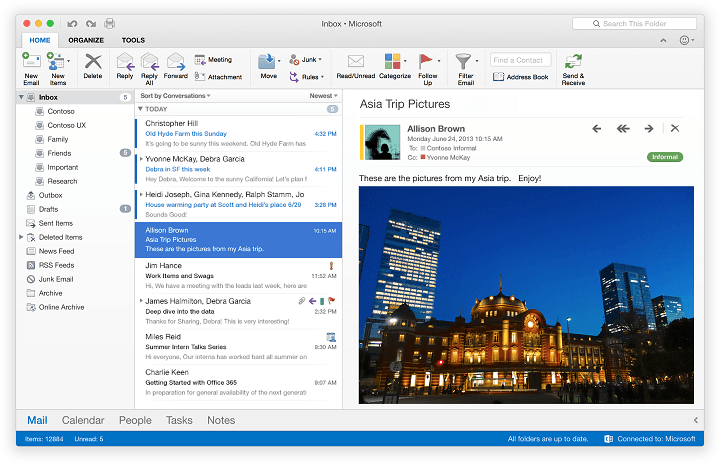
Fix: Outlook 2016 for Mac Freezes in OS X El Capitan

Many Windows 10 users use Microsoft Office on regular basis and the same goes for Outlook. However, Outlook isn’t available only on Windows it, also available on Mac, and speaking of which, it seems that Outlook 2016 freezes on Mac, so let’s see what we can do about it.

What to do if Outlook 2016 for Mac Freezes in OS X El Capitan

Users report that they are having issues with Outlook 2016 on OS X El Capitan, and according to them Outlook 2016 freezes and only way to close it is to use Force Quit. To make things worse, users can’t export their emails, calendar and such, so you can see why is this such a problem, but there’s no need to worry since today we have a few solutions.

Solution 1 – Update Outlook 2016 and your Mac OS

Microsoft and Apple are aware of this issue, and according to the reports there’s an updated version of Outlook 2016 available that fixes this issue. In addition to updating your Outlook 2016, it won’t hurt that you update your OS X as well. Some users even suggest downloading the beta update because it fixes the issues with Outlook 2016.

Solution 2 – Uninstall Outlook 2016 and download the older version

The second solution is to dragon the Outlook app to the trash, but make sure that you back up your data if you can. After you’ve done that download the earlier build and make sure that you turn off auto-update function, so you don’t update to the latest version. This isn’t a solution, but a workaround until stable and functional version is released.

Solution 3 – Run MS Database Utility

Some users suggest that the main reason for this issue is a problem related to Identity so it’s best to rebuild your Identity. To do this you need to navigate to your Office folder and to run MS Database Utility.

Posted in Fix

StaffPad app optimized to make beautiful music on Windows 10

StaffPad, an app that allows composers to create digital scores, has received a major update. The program was created specifically for Windows 8.1 and Surface devices and launched back in March of this year. What makes this app unique is its ability to transcribe digital ink to actual musical notes. Today, StaffPad has been updated for Windows 10, bringing with it a new look and a host of updated features.

As the video above demonstrates, this app is not for novices, but music professionals. The benefits of the program range from its ability to recognize user handwriting, sync scores to the cloud via OneDrive, real-time audio playback, and its ability to understand the difference between touch and pin input as users compose through a series of pen gestures and quick access menus. These menus have been redesigned, straying away from the hidden windows in Windows 8.1, and using the newer design language (hamburger menus) from Windows 10. In fact, the entire app has been redesigned as a Windows 10 exclusive with the developer stating that the Windows 8 version will no longer receive updates. Current users will, however, be able to update to the newest version for free.
Additional changes to the app include a redesigned home screen. The previous gray color scheme has been abandoned for a dynamic background that changes based on the time of day and the current weather at your location. A realtime search has also been added that makes finding scores, adding to collections, and editing scores directly from search more efficient. Fly out menus have been added under each score (three white dots) which reveals additional options such as access previous versions of the score, sort, edit, and delete.
These design features find they’re way to the Score page, where the bulk of this app’s work is done. Instead of swiping from the bottom to reveal the command bar as in the Windows 8.1 version, there is now a permanent command bar at the top, with a carrot indicating access to more options. This command bar also houses a Composer assistant, a Cortana-like helper that responds to voice commands. This feature can be used to process commands such as “add strings in 3/4 , in F major” or “140bpm at bar 5”.
Other notable additions include a partial bar selection, swing playback options, directional symbols, sketch layer colors, and copy and paste to OneNote. The developer also notes several ways to optimize the user experience. These suggestions include running StaffPad in Windows 10’s tablet mode, disabling the Surface Pen’s press and hold gesture, and removing the pen cursor.
Overall, StaffPad is striving to bring a very comprehensive solution to composers, providing features that optimize productivity, function, and usability on Windows 10. If you are using the current version of StaffPad, let us know how you feel about these changes in the comments below.

StaffPad
StaffPad
Developer:
StaffPad Ltd
Price:
$89.99

Microsoft Surface Book allegedly not coming to the UK until 2016

Some bad news oncoming for UK-based coveters of Microsoft’s newest engineering marvel, the Surface Book: it won’t be hitting UK shore for the next 4 or 5 months.
The news was broken by Microsoft MVP and previous Neowin writer, Michael Gillett, on his Twitter page. He reportedly acquired the information from the Surface stand in #FutureDecoded, Microsoft UK’s annual 3-day partner conference for discussions and prediction of the future of technology, business, society, leadership, and more, among leaders of the industry in UK and Europe. Microsofts CEO Satya Nadella gave a talk at this year’s event in London, whose audience reportedly capped at 10,000. With the credibility of the information established, here is the details in Gillett’s own words:


Not stopping there, Gillett continues to sadden owners of the Surface Pro 3 looking forward to a taste of Windows Hello without changing their machines, by revealing information regarding the availability of the new Type Cover with fingerprint reader in the UK:


Not all hope is lost though:


While the news regarding Surface Book availability date may force some users with immediate needs to go for different laptop options, on the upside, this also means more time for other Surface fans to save up money, or to contemplate on whether the Surface Pro 4 might be the right choice after all. In the meantime, watch our hands-on of the device, and stay tuned for upcoming news, deals and more.

Microsoft lends a hand to wildlife conservationists

Microsoft has lent a hand to some conservationists at Woodland Park Zoo by assisting them in developing special scent-dispensers, devices that are designed to attract wildlife such as wolverines, lynx, fishers, and gray wolves to areas where they can be easily photographed for research and data gathering by automated cameras.
Mike Sinclair from Microsoft Research assisted the researchers in developing the new technology that allowed for the distribution of stinky liquid lures that could keep for the length of winter unattended while running on a new system run by an ultra-low power control processor powered by lithium batteries capable of lasting six to nine months without maintenance.
Dr. Robert Long from the Woodland Park Zoo was thrilled with Microsoft’s assistance and praised Mike Sinclair for his invaluable input. “Mike has been absolutely awesome, he was exactly what we were looking for. We needed a fairly straightforward way to control this thing over time. He created a tool to help us study and conserve these types of species. It really was a project that came about because of our true need.”
Over 25 of the devices have already been deployed since September with a further 35 to be distributed over 656 square miles in the North Cascades and 20 more in a multi-species forest carnivore project in north-central Idaho.
Microsoft has a long history with helping individuals and organisations improve their productivity such as when they helped entrepreneurs in Detroit or assisted visually impaired individuals in India. Microsoft has particularly been active in Africa with a variety of projects recently launched aiming to improve the quality of life for those who live there under their 4Afrika banner. Just in the last year, Microsoft’s 4Afrika has improved internet connectivity for universities in Ghana and brought the first telemedicine to Botswana.
Have you seen tech help anyone in your area? Let us know in the comments below.

Star Micronics signs Microsoft worldwide patent licensing agreement

Star Micronics Co. Ltd., a company who delivers Android-powered commercial printers and computing devices, announced today a patent licensing agreement with Microsoft. Under this agreement, the company will have the ability to use Microsoft patents in the design and deployment of their Android-based products. According to Microsoft’s News Center, Star Micronics’s licensing agreement is among 1,200 other agreements the Redmond based company has with other organizations. Among these organizations is Google, who recently settled their long-standing licensing issues with Microsoft.
According to the president of Microsoft Technology Licensing, Nick Psyhogeos, sharing the use of patents allows companies to build upon infrastructures created by Microsoft in an attempt to revolutionize products and deliver “state-of-the-art technology” to consumers. The Director and Executive officer of Star Micronics’s Special Products also supports this notion and states that, “Star Micronics has a reputation for innovation and leadership within the industries in which we operate. This patent agreement will allow us to continue to provide high-quality products to our customers, as well as develop new solutions that build upon Microsoft intellectual property.”
Overall, licensing patents are a win-win for companies like Microsoft. Not only is the company compensated for the use of their patents, but it also helps bolster a world of creativity and innovation, something that Microsoft seems to care deeply about. What do you think? Will Microsoft’s patent licensing help foster innovation and advancements from Star Micronics?

Redstone development branch "rs1_release" showing up for some Windows Insiders

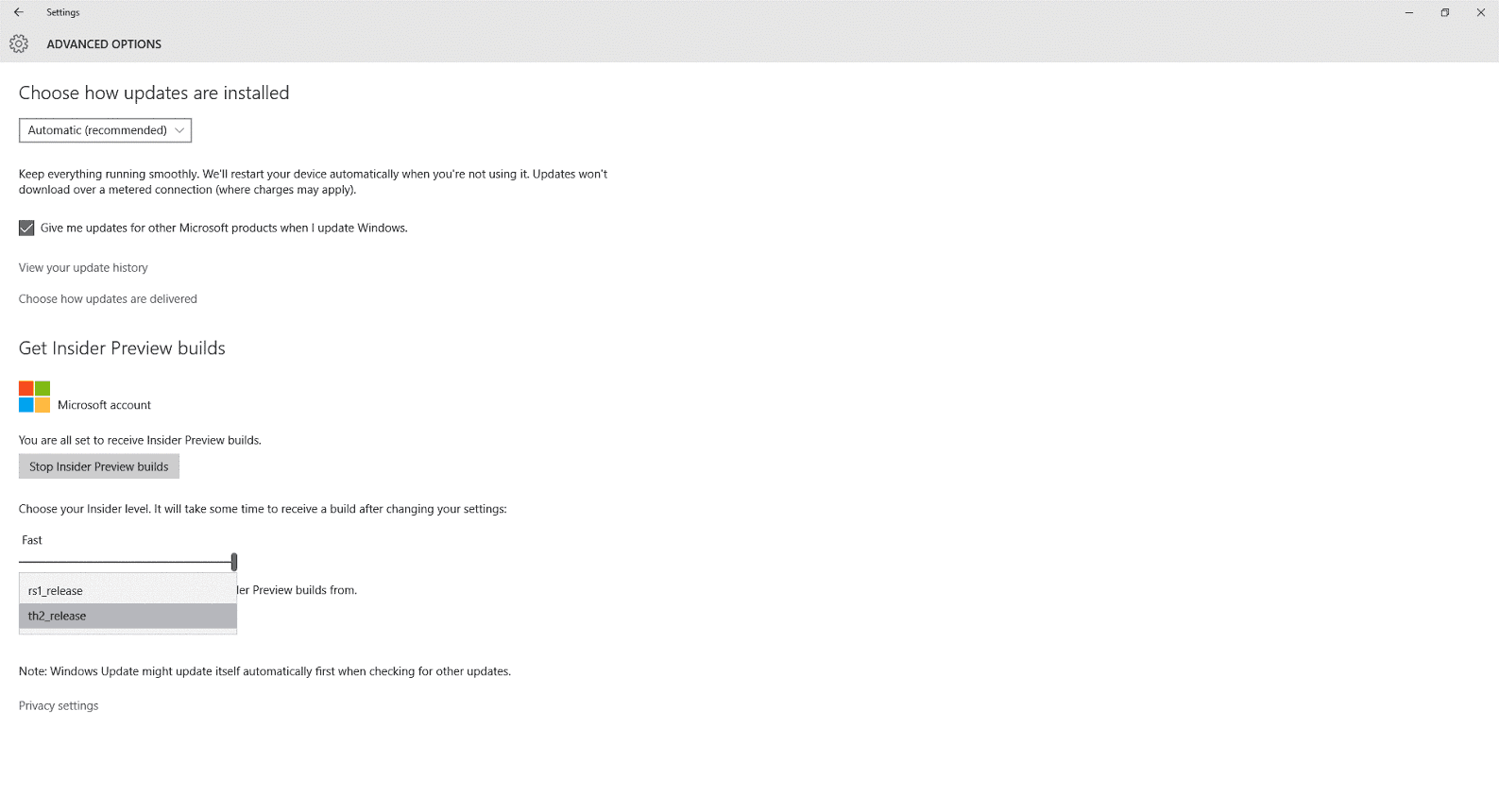
With Threshold 2 now in the rear-view mirror development wise, Microsoft has now turned its focus over to Redstone, the next major update for Windows 10 slated launch in 2016. Internally, development is now way under way, and recently Microsoft began compiling builds in the “rs1_release” development branch, meaning Microsoft is now compiling code into one of the main development branches.
The ‘_release’ branch is usually where Insiders receive builds from. Insiders who recently partook in the Threshold 2 Insider Preview received them from “th2_release”, so for an rs1_release branch to exist is not surprising. However, it appears some Insiders are now seeing an option to switch to the rs1_release development branch, allowing them to download Redstone builds when they become available.
rs1
If you look at the screenshot above, you’ll see that below the Fast/Slow slider, there’s a new dropdown menu that includes the th2_release branch and rs1_release branch. I have not seen this dropdown on any of my insider machines unfortunately, but we’ve received a few tips claiming this option is showing up. This could be an error on Microsoft’s part, which would be unfortunate.
What are your thoughts on this? Do you see the option to switch to an rs1_release branch yet? Let us know below.
Thanks for the screenshot, Brendon!

Microsoft's new ads show what's been with improved in the Surface Pro 4

Microsoft has recently unleashed new ads highlighting improvements the Surface Pro 4 makes over last year’s model. These ads have less emphases on “the tablet that can replace your laptop” (presumably because the Surface Book is a laptop that can replace your tablet) and more on what you can do with the Surface Pro 4.

The ad shown above, mentions a few key improvements over the Surface Pro 3. First, the screen has been boosted to a 12.3-inch display with a higher pixel density of 267 PPI. In addition to that, the Surface pen (which is compatible with the Surface Pro 3 as well) now has 1024 levels of pressure sensitivity over 250 from the previous generation, and now attaches magnetically to the left side of the device. Finally, the ad touches on improvements to the speakers, making them 40% louder.
In addition to the main ad, there are also three separate 15-second ads  that cover specific features individually as well. Overall, the changes to the Surface Pro 4 can really improve a user’s experience and productivity with such a diverse device, and this is what Microsoft is striving to get across to consumers. The Surface Pro 4 is available starting at $899.99 through the Microsoft store.
What do you think about the new ads for the Surface Pro 4? Do they do the device justice? Let us know in the comments below.

Microsoft continues buying spree, acquires Israeli information protection company Secure Islands

Microsoft has been an acquisition monster lately, buying up apps like Wunderlist and Sunrise, fleshing out its mobile AI capabilities with Mobile Data Labs, and pumping up its CRM portfolio with Adxstudio. Today, Microsoft is announcing an addition to its data protection offerings with its purchase of Secure Islands.
Data security is clearly a hot topic today. Data breaches have hit everyone from the government to private organizations to companies like Target, T-Mobile, and many, many more. Securing data is made more difficult by the need to share data outside of an organization’s own information technology infrastructure, creating the need to protect data even when its outside of a given organization’s control.
Data protection technology provider Secure Islands is focused on protecting just this kind of data. From Microsoft’s blog:

Businesses continue to face challenges protecting their data in a world where information travels beyond the boundary of the corporate network and across many devices outside company control. To work effectively, organizations must share information with partners, vendors and customers. These realities make it more critical than ever to have solutions that prevent data loss and track information regardless of where it resides.
Based in Israel, Secure Islands provides powerful data classification, protection and loss prevention technologies for virtually any type of file, which allows customers to apply data protection to more applications. Global customers, such as UBS, OSRAM, Vodafone and Credit Suisse, use and trust Secure Islands to protect data at each stage of the information lifecycle – from creation to sharing.

Secure Islands’ technology will be integrated with Azure Rights Management Service to work alongside the data classification capabilities of Office 365 and Windows. Secure Islands CEO Aki Eldar also had some words on the merging of his company within the giant company from Redmond:

By joining Microsoft, we will be able to extend and expand our vision. Microsoft has been a long time partner and its leadership in enterprise IT, its resources and global reach will help us innovate and deliver new information protection capabilities to both our current and new customer base.

Microsoft is transitioning from the Windows platform company to a “cloud-first, mobile-first” strategy, and acquisitions like this are just one of the tactics they’re using to dramatically transform themselves. We’ll be keeping an eye on how the company continue to meld itself into a competitive giant going forward.

Rate your moustache for Movember with Microsoft Garage's newest creation

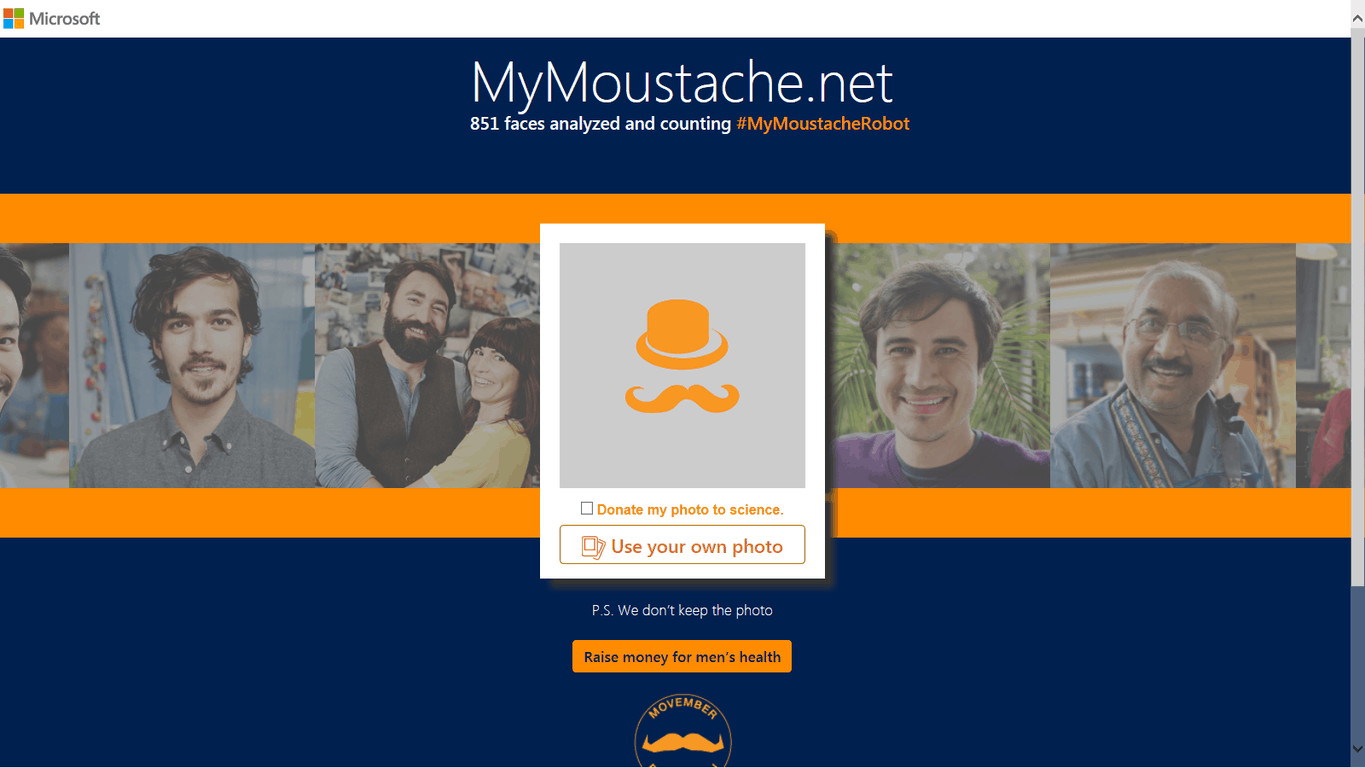
Microsoft’s arguably most creative division at the moment, Microsoft Garage is back with another invention, and this time, it’s to improve your facial hair, or actually, the only part of it that matters: the moustache. Welcome to MyMoustache.net, a new internet phenomenon in the making.
Part of Microsoft’s collaboration with the Movember Foundation in order to raise awareness of men’s health and showcase the power of machine-learning, the site uses complex functions to determine the length, form and awesomeness of your moustache and calculate your ranking in..yadayada, you know what? Here are some pictures, this is a thing to be seen:

mymoustache step 1
Submit your own photo for ‘stache evaluation ‘for science’ or do a test run using one of the stock photos.


Get respect for your awesome your 'stache level.
Get respect for your awesome your ‘stache level…


..or hang your head in shame at your undeveloped legend. But fear not, for the machines are here to help! Just press 'Auto-stache' and..
..or hang your head in shame at your undeveloped legend. But fear not, for the machines are here to help! Just press ‘Auto-stache’ and..


..voilà! Your future (or alternate) glorious self with ultimate moustache power presents. Try again as many time as you wish!

Of course, due to the power of machine-learning, you don’t even need to have any moustache at all to see how you would look with one (ladies, it’s your chance to step into our shoes). The app itself is certainly a good way to show off Microsoft’s software and cloud capabilities, while solidifying Redmond’s image as a fresh, innovative company finding back its charm. Want to see more creative projects from Microsoft Garage? Stay tuned, and get updated!

Windows 10 news recap: Threshold 2 signed off, flat skin drama, new build, and more

Windows 10, having been available for over three months now, has already surpassed 120 million installs worldwide. According to new statistics from NetApplications, Windows 10 continues to increase in market share, but Windows 7 remains the most popular operating system. For the month of October 2015, Windows 10 climbed in market share to 7.94 percent. Windows 10 has been seeing a steady increase in market share since its release in late July — going up a little over one percent every month.
Windows 10 continues to make headway amongst Steam users, rising to almost a 28 percent share in October. That’s a slower increase from September, which saw an increase from 17 percent to 25 percent, according to Steam.
One of the most popular stories this week involved Google’s vice president of design and the father of Material Design. According to him, Windows 10 is basically Windows XP with a flat design skin. You can read the controversial story here. You can also read an opinion piece by Kareem Anderson arguing why Windows 10 is less XP and more of a mature operating system.
At the end of this past week, Microsoft rolled out a new desktop build to Windows Insiders. Windows 10 build 10586 was released, offering bug fixes and nothing groundbreaking in terms of features.
Windows 10 Threshold 2 has been signed off for the desktop (as well as mobile), according to our sources. Microsoft has finally selected a build of Windows 10 Threshold 2 that will roll out to the public! According to our contacts, build 10586 has been selected as the final build of Threshold 2, for both desktop and mobile. The company is planning to begin rolling the update out sometime this month for everyone.
Stay tuned for another exciting week of Windows 10 news!

What to Do If You’re Unable to Stop Receiving Windows 10 Builds

Windows 10 is constantly improving and Microsoft has developed its Insider program that allows users to to try latest Windows 10 previews and test new features before they are released to the public. Although this sounds great, it appears that some users can’t leave the Insider program, so we showed you what to do if you can’t get back to Windows Insider program, and now, we’re going to show you what to do if you can’t leave it.

What to do if You Want to Stop Receiving Windows 10 Insider Builds

Solution 1 – Visit the Windows Insider support page

  1. If you wish to leave Insider program you need to visit Insider program support page.
  2. At the support page sign in with your Microsoft account.
  3. Then click the Leave the Windows Insider Program link.

This is it, you’re not into Insider program anymore, but remember that your Windows 10 won’t get restored to the previous version, you’ll just stop receiving Windows 10 Insider updates.

Solution 2 – Disable Insider builds from Settings

  1. Open Settings and go to Windows Update.
  2. In Windows Update section click on Advanced options.
  3. In the Advanced options navigate to Get Insider builds section and click Stop Insider builds button.stop receiving windows 10 builds
  4. Next you should see a confirmation dialog. Click Confirm.
  5. Next, click the Restart now button.

Solution 3 – Perform a clean install of Windows 10

Sometimes you’re unable to opt out of the Insider program and the best choice is to perform a clean install of Windows 10 and not join the Insider program again. In fact, even if you manage to opt out of Insider program, you still might want to perform a clean install in order to get back to the default version of Windows 10 that is more stable.

To perform a clean install of Windows 10 you’ll need to get Windows 10 ISO file which you can download here. You will also need Media Creation Tool and a 4GB or more USB flash drive or DVD to burn your Windows 10 ISO.

We would like to mention that Insider program is designed for testing purposes, and it’s not advisable to use it as your main operating system since some features and software might not work properly.

Teamviewer 11 released, brings SOS button and improved performance

Teamviewer has been a huge help to anybody who has ever needed help with their computer, or needed to collaborate in any other way. Teamviewer is an app for Windows and Windows Mobile that allows you to let somebody else take control of your computer remotely, often to troubleshoot technical issues. With the new version of the app, Teamviewer 11, people should look forward to a much better experience.
Most noticeably coming from the new update is the fact that Teamviewer is now 15x faster than its previous iterations. It’s been optimized to use less bandwidth and provide better image rendering. At the end of the day, this means that you’ll be seeing better image quality in TeamViewer and using up less bandwidth in the process. You’ll also be seeing file transfers going 15x faster than in previous versions.
One added feature in Teamviewer 11 is the SOS button, which makes it much more efficient to get customers the help they need, exactly when they need it. The SOS button can create an icon with your company’s name, that can be clicked to request help immediately, without going through any other extra hoops. This makes the customer support experience much faster, more efficient, and easier for everybody involved.
All in all, the improvements to Teamviewer are huge. In a world where it can be difficult to get effective customer support quickly, Teamviewer is there to make sure that you can communicate with your customers quickly efficiently, and in a way that makes everybody’s lives easier. In Teamviewer 11, along with updates to its general efficiency and the SOS button, it also adds an overhaul to its toolbar, better Android support, and more
Head over to Teamviewer’s website to download the application for Windows.
Thanks @NicholasHayman  for the tip.

Several Microsoft teams being rebuilt around legal chief Brad Smith

Huge changes have come to Microsoft’s legal team, which is being built around the company’s new president and chief legal officer Brad Smith. The most notable of these changes is the appointment of Horacio Gutierrez to general counsel – more specifically, the new department of Corporate, External and Legal affairs. This position in general counsel used to be held by Brad Smith, however since his appointment as Microsoft’s first President since 2002, he was no longer able to hold that position.
Along with Gutierrez’s new position, Microsoft has made a few other changes to its rosters. The company’s first female president, Mary Snapp, has been appointed corporate vice president of Philanthropy, and privacy lawyer John Frank will be leading the EU government affairs department. Taking up some of Brad Smith’s old responsibilities is John Seethoff, who has been named corporate secretary. It was also determined that the “trustworthy computing” team is going to be answering directly to Brad Smith.
The reason behind these changes? According to a Microsoft spokesperson, these changes are part of a “broader initiative” to put a larger emphasis on privacy, security, and external relationships, especially with governments, universities, and nonprofits.

Microsoft Store opening in Pennsylvania gets huge turnout

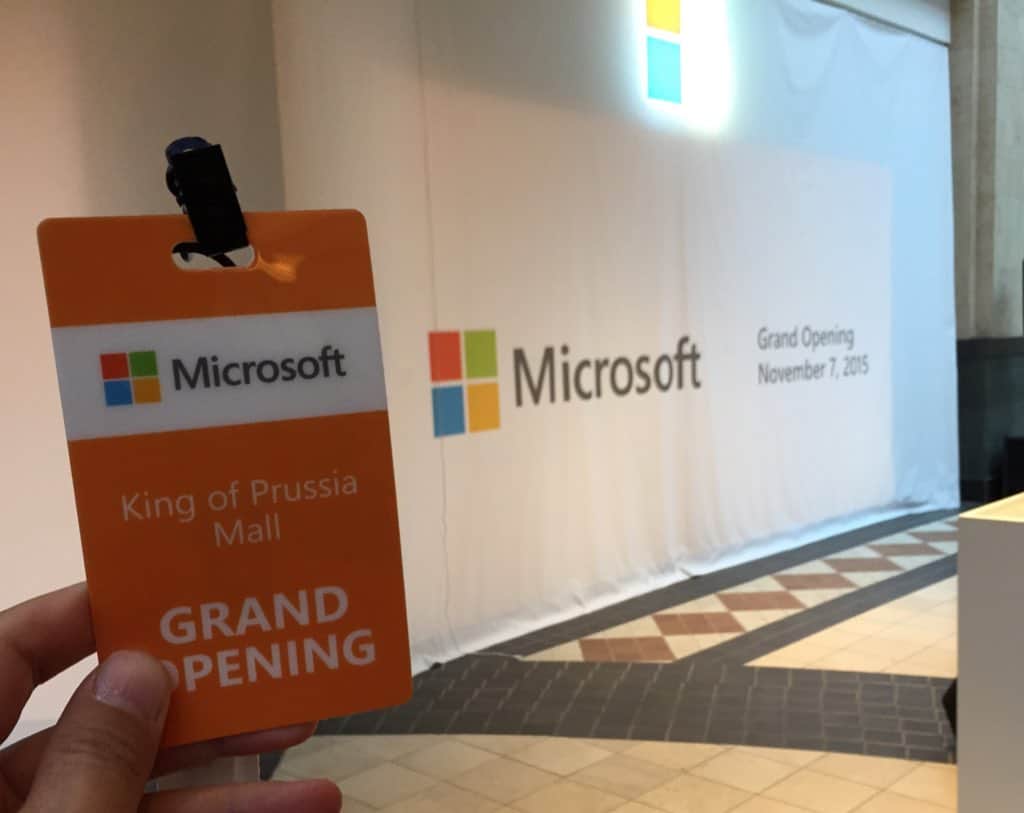
Today, Microsoft has opened up a brand new retail store at the King of Prussia Mall in Pennsylvania. Microsoft celebrated the grand opening by giving away gift cards with varying amounts (and one gift card worth $1000).
Judging by the photos in the tweets below, the grand opening party attracted a large turnout, as eager fans waited in line to be one of the first people to enter the new store — and win up to $1000.
Check out the tweets embedded below. Did you go to the grand opening? Let us know in the comments below.


https://twitter.com/SuperTongue/status/662973811525074944

GeForce 358.87 WHQL drivers for Windows 10 released, in time for Call of Duty Black Ops III

As Call of Duty Black Ops III hits Windows 10 PCs worldwide, Nvidia has rolled out a new set of “game ready” drivers. These drivers are dated November 4th, and have passed Windows Hardware Quality Labs testing.
“Prior to a new title launching, our driver team is working up until the last minute to ensure every performance tweak and bug fix possible makes it into the Game Ready driver. As a result, you can be sure you’ll have the best day-1 gaming experience for your favorite new titles,” the release notes state.
You can grab the new GeForce 358.87 WHQL drivers for Windows 10 32bit or Windows 10 64bit. Happy gaming!
 

Microsoft has added changes to the Windows Store to rid spam reviews

Microsoft has revealed today that they have added some new improvements to the Windows Store to help control the large number of spam reviews. Last year, Microsoft enabled app developers to reply to reviews, but now developers and other reviewers can also report spam reviews.

When a developer reports a review as spam, it will be reviewed by one of the Windows Store team members. In addition, Microsoft has also added a feature to the Store that will automatically detect and delete many of the spam reviews that are annoying and unhelpful.
Developers now have a little more control over nonsensical one-star ratings without comments or spam comments which are irrelevant to the app itself. Hopefully this will solve some of the spam cluttering the Store so that customers will read reviews that lot more helpful and informative so it’s easier for him or her to give the app a shot.
What do you think about these new features added to the Windows Store to rid spam reviews? Let us know what you think in the comments below!

Microsoft and Intel bring 'Speed Shift' technology to Windows 10 this Fall

To date, common knowledge of Skylake processors includes claims of better management of thermal temperatures, voltage during workloads, and its potential to increase operating system efficiency. For many new PC owners out in the wild, Intel’s claims hold true. Laptops, tablets, and 2-in-1’s housing Skylake processors have been reported to be cooler to the touch when processing, requiring less fan usage overall and in some cases, hosting noticeably longer battery life on devices.
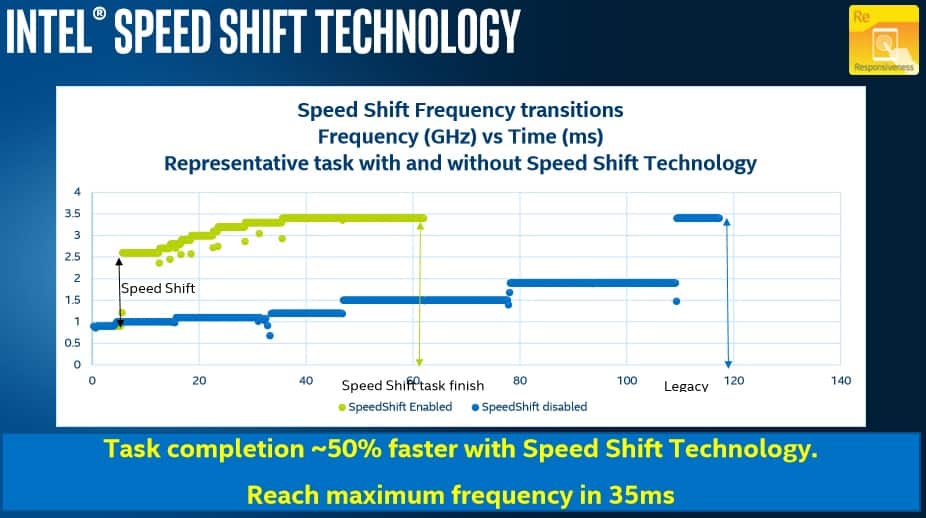
As more reviews of the Surface Book, Surface Pro 4 and other various 2015 PC offerings continue to surface, customers are being inundated with information about Intel’s 6th generation core processor, Skylake. According to a recent AnandTech review, we learned that the Skylake processor has another trick up its sleeve for Windows 10 users. The processor utilizes a design change called ‘Speed Shift’, that enables the OS to hand over control of the frequency and voltage to the Skylake processor.

Compared to Speed Step / P-state transitions, Intel’s new Speed Shift terminology, changes the game by having the operating system relinquish some or all control of the P-States, and handing that control off to the processor. This has a couple of noticeable benefits. First, it is much faster for the processor to control the ramp up and down in frequency, compared to OS control. Second, the processor has much finer control over its states, allowing it to choose the most optimum performance level for a given task, and, therefore, using less energy as a result. – Brett Howse”

SpeedShift
Apparently, ‘Speed Shift’ was a technology that was announced early on in Skylake’s roadmap, but without OS support for it, the technology was overlooked, if not forgotten entirely until now. Fortunately, Microsoft and Intel worked together to bring the technology up to speed (pun intended).
Even though Microsoft and Intel’s efforts have gotten ‘Speed Shift’ ready and primed, the technology is still not available to Windows users with Skylake processors. Microsoft’s Fall update to Windows 10 is said to include a patch to enable ‘Speed Shift’ for PCs housing Skylake processors.
Years ago, Microsoft and Intel partnered on designing processors that would showcase the best of what Windows could offer consumers. While the line between Windows and Intel’s offerings hasn’t always been as taught as Apple hardware and its A-line of processors, Windows users appear to be still benefitting from years of continued Intel evolution.

Microsoft announces app submitting deadlines to the Windows Store for the holidays

Everyone loves the holidays, including app developers. In fact, the holidays are a great time for developers, as the Windows Store generated 40% more app sales than the average of the rest of the year, according to Microsoft.
Developers will want to take advantage of the upcoming holiday season to update their apps. To ensure their apps reach the Windows Store in time for the holidays, developers have until November 18 to get their app approved on Thanksgiving, and they have until December 15 to get their app approved by Christmas.
Of course, it’s always best to make sure the app is submitted as early as possible. Microsoft says that app volumes are typically higher and turn-around times might be a little longer than what developers usually experience.
What do you think of the deadline dates for submitting apps to the Windows Store? Do you have and app ready to be submitted for the holidays? Tell us what you think in the comments below!

Dell and HP representatives ask customers not to upgrade to Windows 10

It’s easy to see that Microsoft has been very aggressively getting Windows users to upgrade to Windows 10 since it came out. As this marketing push from Microsoft has been strong, they’ve had plenty of support from OEM’s like Dell, HP, and Lenovo, who have all been marketing their PC’s with Windows 10 in mind. While the OEM’s working with Microsoft remain supportive of Windows 10, some individuals working the phone support lines for these companies might not fully agree.
When LAPTOPMAG.com called out to several support lines attempting to get support for their Windows 10 PC’s, they were told to uninstall Windows 10 to resolve the issue. This happened multiple times, even going so far as to have a representative from HP recommend that people shouldn’t upgrade to Windows 10 at all. Windows 10 has been generally well received by the majority of customers, which makes it extremely odd to hear a representative of companies like HP and Dell suggest to their customers stay away from the new operating system.
Reps speaking out against Windows 10 isn’t necessarily coming from a place of dislike for the operating system, though. When LAPTOP reached out to Mike Nash, HP’s VP of Customer Experience, he reminded them “At the end of the day, the person’s job is to get the PC running,” and that “Given the scenario, it might have been the most expeditious thing to get them back to a known good space.”
It seems like this is just some customer service professionals trying their best to make sure they can do their job effectively when they’re not quite used to Windows 10 yet. When LAPTOP reached out to Dell, they noted that “We remain committed to Windows 10 and are ready to help our customers make the transition as easy as possible.”

Microsoft Garage makes PowerPoint more social with Social Share plug-in

Microsoft’s Garage, which provides opportunities for Microsoft employees to work on separate, innovate software outside the company’s mainstream, isn’t just for iOS and Android apps. The group can also produce some nifty Microsoft-specific offerings, such as the Social Share plug-in for PowerPoint.
Check out the short intro video:

Essentially, Social Share makes it easy to share PowerPoint presentations and slides as images, albums, or video. Available within the PowerPoint interface, Social Share can push content to Twitter and Facebook and also create OneDrive links to pass along.
The new plug-in leverages PowerPoint’s capabilities and familiarity in putting together compelling multimedia content. The Social Share activity pane within PowerPoint also brings some interactivity along, showing comments and general interactions.

Social Share brings social sharing and interaction to PowerPoint.

The reasoning behind the plug-in’s creation was simple:

“PowerPoint has rich editing, animations and photos that people might want to share on social media,” says Om Krishna, a senior software engineer with the Wildfire group in Office, which created Social Share. “We thought PowerPoint would be a good way to start to find a simple way to share content.”

Social Share’s value goes beyond just presenting information. The Microsoft Garage project can be used to solicit feedback, engage with audiences, and generally turn PowerPoint into a much more social solution.
You can download the plug-in here. Social Share works with Office 2013 or later, so head over, install the plug-in, and get sharing.