Toshiba's latest Windows 10 2-in-1 PC now on sale in the US

September has proven the success of the 2-in-1 PC form factor pioneered by Microsoft.  We have seen a whole new lineup of Windows 10 devices announced at the IFA industry exhibition, rumors are surfacing (no pun intended) of Dell’s 2-in-1 with their signature Infinity Display, and even Apple has joined the 2-in-1 fray with the recently announced iPad Pro.
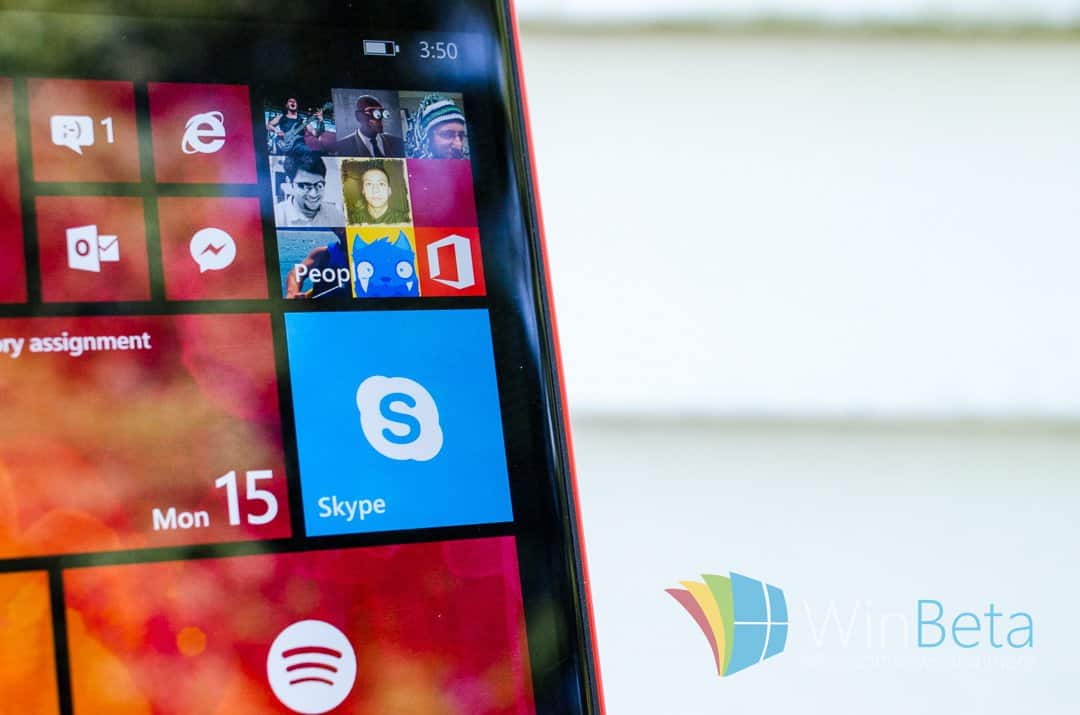
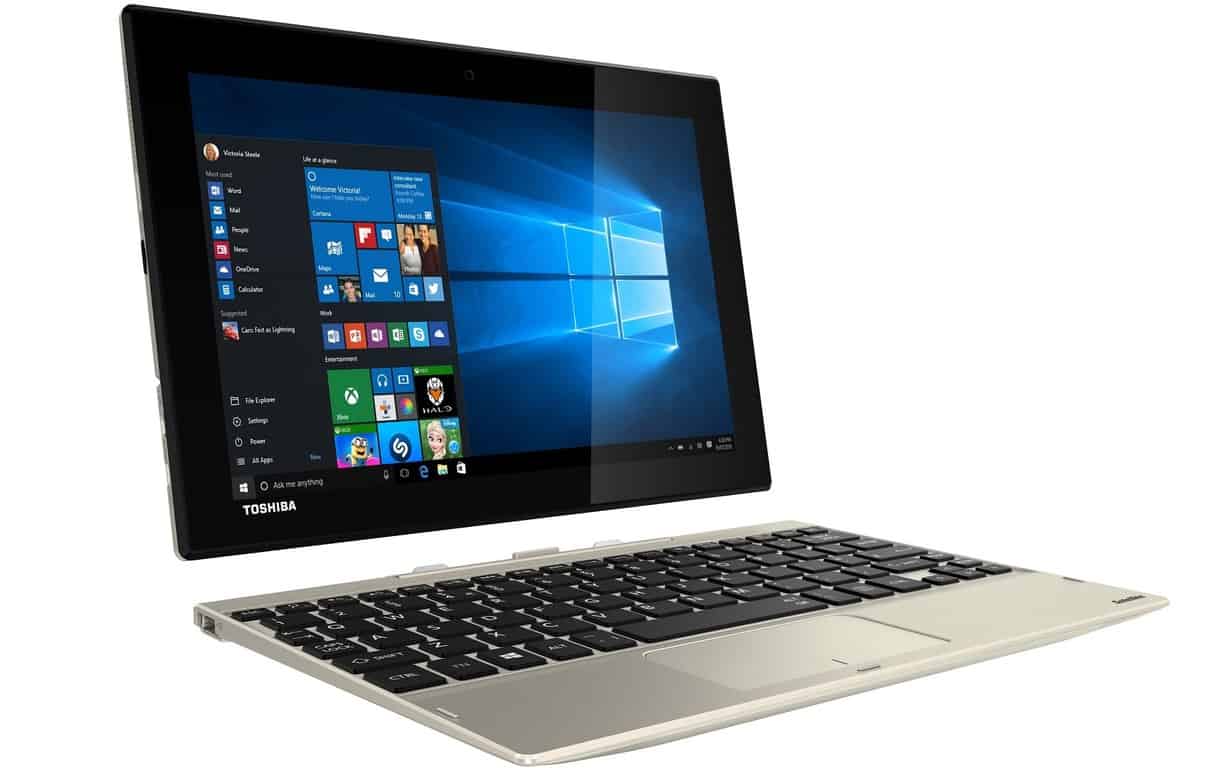
One of the newest 2-in1’s, the sleek looking Toshiba Satellite Click 10, is now available for purchase in the US. Unlike the Surface 3 or iPad Pro, this 2-in-1 comes with a detachable hard keyboard that can fold like a traditional clamshell laptop. And when the keyboard detaches it becomes a convenient 10.1-inch tablet weighing 1.2 pounds.
While well-designed to be compact and ultra-portable, this device’s hardware is less powerful than the Surface Pro 3, and is more in lines to compete with 2-in-1’s like the Surface 3. The specs are:

  • Processor: Intel Atom x5-Z8300 Processor
  • Operating System: Windows 10 Home
  • Memory: 2GB LPDDR3 1600 (not user upgradeable)
  • Graphics: Mobile Intel® HD Graphics
  • Storage: Available either with 32 GB or 64 GB of eMMC storage
  • Display: 10.1” widescreen display with 1920×1200 resolution, 10 point multi touch support, WUXGA TruBrite LED Backlit display with Wireless Display Support
  • Connectivity: Wi-Fi Wireless networking (802.11a/g/n), Bluetooth V4.1
  • Keyboard Dock: TruType keyboard, Clickpad pointing device with multi-touch control, 2 USB v2.0 ports, Docking connector
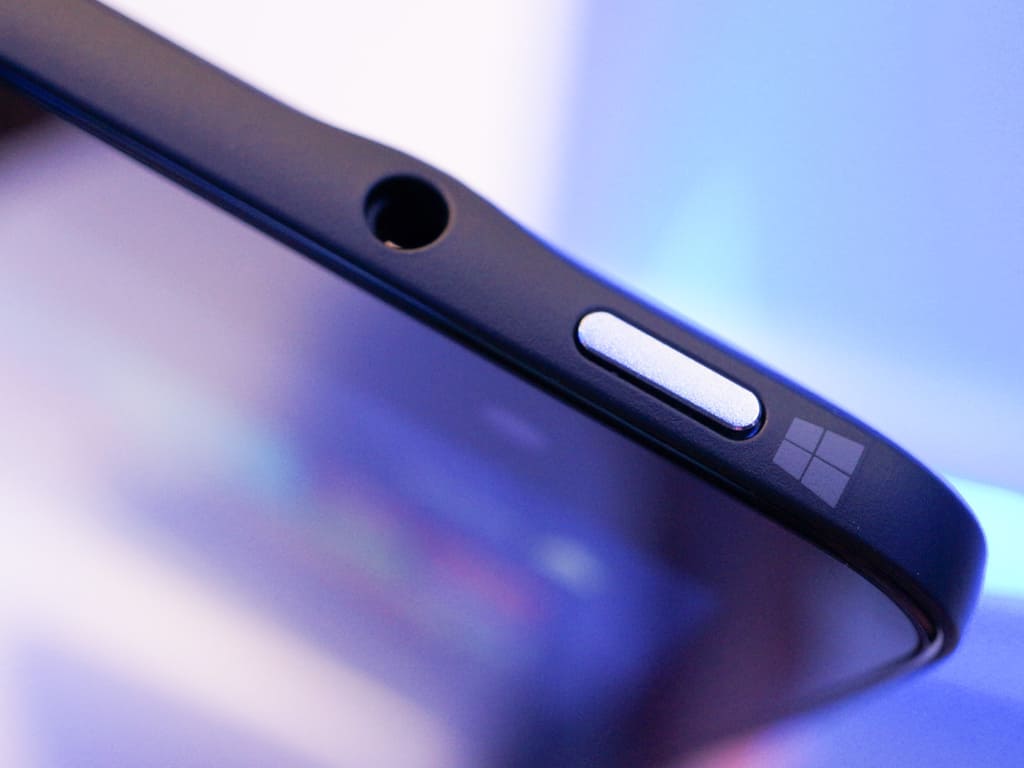
  • Tablet: Micro HDMI, Microphone/Headphone combination port, 1 USB 2.0 port, Memory Card Reader, Docking connector, Volume up/down buttons, Windows button, Power button
  • Battery: rated for more than 7 hours
  • Cameras: 8MP rear facing camera and 2MP front facing webcam

This capable Windows 10 2-in1 starts at $349.99 for the 32 GB option and goes up to $369.99 for the 64 GB version. And unlike the Surface 3, the keyboard is included. However, it does come with a slightly less powerful version of the Intel Atom than the Surface 3 (the X5-Z8300 compared to the X5-Z8700), and with a limit of 2GB of RAM it won’t be a multitasking workhorse. That said, it still runs a full desktop version of Windows 10, comes with good port options, HD display, 7 hours of battery, and a hard keyboard attachment that has more “lapability” than a magnetically connected soft type cover.
What do you think of Toshiba’s Intel Atom powered 2-in-1? Let us known in the comments section below.

Flappy Bird with a twist: Fly or Die available in the Windows Store

A new day, a new Flappy Bird inspired game. Fly Or Die, the newest creation from developer Loon Apps, is now available exclusively in the Windows Store.
Besides putting a nice, pastel-like skin job reminiscent of Sony’s classics LocoRoco on the old one-finger gameplay – popularized by the notorious Flappy Bird – the game actually features an interesting new mechanics: obstacles now move in tandem with their designs (e.g. buzzsaws running back and forth,) or at least jiggles in place, adding another level of hazard and intensity to the already-unforgiving gameplay. All of them are also very grumpy about something, as you can see on the video. Additional, the main character (understandably a bird) also has a name: Piou. Which I assume is pronounced “pew.” Maybe.

You have 4 worlds to take Piou through with increasing difficulty, which you unlock slowly with collecting in-game apples. In an interesting twist, you cannot purchase apples, instead having to rely solely on “your skill and your force of will” to progress.
A fresh take on the Flappy Bird formula, Fly or Die is available for free on Windows Phone 7, 8, 10, and Windows 8, 8.1 and 10 on their respective Stores.

FLY OR DIE !
FLY OR DIE !
Developer:
Loon Apps
Price:
Free

Skype Mojis: TV and movie clips to cheer up your chats

Skype has long been a solid business communications tool, and Microsoft has done a great job of beefing up the infrastructure and adding in solid collaboration features since purchasing the messaging solution in 2011. That’s great for the enterprise, of course, but one could argue that Microsoft’s done relatively little to make Skype into the kind of fun social messaging tool that the cool kids like to use.

Skype Mojis run everywhere.

Apparently, the Skype team agrees, and so they’ve announced Skype Mojis, which take the concept of emoticons to another level entirely. In short, Mojis are hand-curated TV and movie clips that can be accessed from the emoticon button. Feel like you need a little creativity in your chatting? Grab a Moji and, as Microsoft says, let it “do the talking for you.”
Here’s Kermit and Miss Piggy providing a quick overview of Skype Mojis:

Update to the latest Skype client on Windows, Mac, Android, and iOS, and you’ll have access to snippets from a variety of studios including Universal Studios, Disney Muppets, BBC, and others. Despicable Me, Bridesmaids, Pitch Perfect, Jurassic Park, and The Muppets are a few examples of what’s in store, and Microsoft promises to keep things fresh with new and unique content.
The company is asking for feedback at the Skype Community, and go here if you need to update your app to start titillating your contacts with Skype Mojis.

Screenshots leaked for Windows Server 2016 Technical Preview 3 Build 10537

Yesterday was full of big news with Microsoft sending out invitations to an event announcing new Windows 10 Devices on October 6th, and a long awaited release of a new Windows 10 Mobile build for Windows Insiders. But there were also leaked screenshots of Build 10537 of Microsoft’s latest operating system for servers, Windows Server 2016 Technical Preview 3.


The images were leaked on Twitter by WZorNet and while they don’t contain any commentary on the new Build, many of the screenshots do reveal menu lists of things such as Server Roles, Features and options for in the newly refined Server Manager Dashboard. You can check out all of screenshots over at Wzor.net.
Just as a quick recap, some of the features released in the most recent officially released preview build, Build 10514, included Windows Server Containers and Active Directory Federation Services. It remains to be seen if Build 10537 will make it officially into the hands of the public, but with Windows Server 2016 not expected to be finalized well into next year, there should be more preview Builds in store around the corner.

Windows Server 2016 Technical Preview 3 Build 10537

Windows Server 2016 Technical Preview 3 Build 10537

Windows Server 2016 Technical Preview 3 Build 10537

Windows Server 2016 Technical Preview 3 Build 10537

Microsoft UK offers Core i7 Surface Pro 3 at discounts as high as £233

Surface Pro 3 is an excellent 2-in-1 tablet offering users with top-of-the-line specifications on board — you’ll have to shell out extra bucks if you want the top configuration. UK residents, if you’re still thinking about getting the high-end configuration of the Surface Pro 3, now might be a great time as Microsoft UK is offering a 15 percent discount on the Core i7 configurations (via Windows Central).

The 256GB Core i7 model with 8GB of RAM is now priced at £1,104 (a discount of £195), while the 512GB model now comes with a £1,316 (discounted by £233) price tag.
It’s also worth mentioning that it’s a limited time deal, and will expire tomorrow at 9am UK time. So, make sure to make the most out of it if you’re interested in picking it up. If you’re hanging in the middle, you can check out our detailed review of the tablet, and see if it’s worth the money.
Microsoft has also scheduled an event on October 6th where the company is expected to launch the Surface Pro 4.

Ninjacats crack Microsoft's October event secret code (spoiler alert)

Some attentive readers have spotted binary code hidden inside the promotional image of today’s October 6th event announcement.
binaryChallengeOct6Event
Warning: the following spoils the code.
Naturally, it didn’t take long for the massive Gravemind that is the internet to decode the hidden message. This message reveals itself to be none other than a URL toward a Windows blog post congratulating keyboard detectives for completing the excruciatingly, painstakingly, backbreaking journey of a challenge, calling it the #ninjacat challenge. It also goes on to encourage users to spread the word about the challenge. This seems like something of a cute and fun marketing tactic to get people interested in the upcoming event.
I personally think it would’ve been better if it decoded to a URL for the online live-stream.
windows_ninjacat_oct6_1920_1080

Microsoft re-signs, expands agreement to share info with NATO

Microsoft has been continually strengthening their security certifications in an effort to expand their government services to new levels of the public sector. This has led Microsoft to being a provider of cloud services for everything from local law enforcement agencies surveillance footage to the state of Texas’s Women, Infants, and Children food and nutrition program, and more.
The Redmond, WA based technology company has also invested in a new transparency center in Brussels earlier this year. This new center is a part of Microsoft’s outreach to restore faith in Microsoft security and provide both transparency over its source code and resources for increasing cybersecurity both in the public and private sectors.
To this end, Microsoft announced today an expansion of their partnership with NATO’s Communications and Information Agency (NCI). This agreement is a part of Microsoft’s growing Government Security Program which currently works with over 40 agencies representing more than 25 governments. Microsoft describes their Government Security Program (GSP) as:

A program designed by Microsoft to help governments evaluate and protect existing systems, and create, deploy, and maintain more secure infrastructure, the GSP fosters partnership and trust. It is open to government agencies regardless of a commercial contract with Microsoft, and is an important part of what we consider to be our duty as global citizens.

Today’s agreement is the latest development in Microsoft and NATO’s 12-year relationship, but it will be the first time NATO uses the recently expanded capabilities of Microsoft’s GSP. In today’s statement, Microsoft described the agreement, saying:

…the NCI Agency will gain access to technical information and documentation about Microsoft products and services, as well as information about internet safety, threat intelligence, online training tools, and guidance to help mitigate the effects of cyberattacks across the region.

NCI Agency General Manager, Koen Gijsbers, also said of today’s statement:

NATO is facing new and increasingly dangerous threats to cybersecurity across the world and these threats could affect national economies and citizens. To avoid it, NCI Agency strongly believes in rapid and early information sharing on threats and vulnerabilities with leader companies worldwide, such as Microsoft. Trust is the key to success.

Hopefully the continual expansion of Microsoft’s GSP will ensure a greater and timelier disseminations of cybersecurity information to help both public and private organizations shore up their systems and data across the globe. Importantly, this approach to openness, and providing resources to make safer digital environments for any and all interested governments, will also help foster trust in Microsoft’s products and services.

Microsoft interns have great things to say about their experiences

Interning is a great way to get a feel for a company, a career, and an industry, and interning at Microsoft can be an ultimate experience for Windows fans (or anyone who wants some valuable experience with a software company). Microsoft’s Skype blog recently highlighted some intern experiences, providing a solid glimpse into what it’s like to work at Microsoft.
If you’re thinking of becoming an intern, then check out the experiences of Natasha, Sarah, and Frederico, who completed 12-week internships as members of the Skype team and lived to tell the tale. If Sarah’s experience is at all representative of the program, then it sounds like a great experience.

The opportunity to be a part of the Skype team this summer has given me an awesome look into what’s happening within the organization and at Microsoft. I believe Skype is changing human communication and connecting the world – it’s energizing to see all the new ideas and innovations the teams here are working on.

Go check out the story for more details on what these interns thought of their time at Microsoft. If you’re ready to take the plunge, you can find out more about Microsoft’s internship program here.

Windows 10 news recap: Threshold 2 UI refinements, new ads, and more

Welcome back to the Windows 10 weekly news recap, where we take a look at all the biggest news stories from this week regarding Windows 10.
Windows 10 Threshold 2 is under development right now, and it appears Microsoft is continuing to refine the Windows 10 user-interface with the upcoming update, as the latest internal builds of Windows 10 now feature updated icons and UI elements. You can read more about that here.
Microsoft has released a new batch of commercials for Windows 10. While their earlier commercials features some cute toddlers, these new ads feature kids in school. There are four advertisements in total though one is mostly a compilation of other ads. We’ve embedded the ads below for your viewing pleasure.


In a post announcing that Dell and others will soon sell Surface Pros to enterprise, Microsoft also slipped in an announcement about some new features coming this month to Windows Insiders running Windows 10. The features will be rolled out to Insiders this month, on track for broader availability later this year. These features include:

  • Enterprise Data Protection (EDP), providing personal and corporate data protection “wherever data flows”
  • Microsoft Passport, to help business workers securely log in to applications, websites, and networks without a password, and
  • Windows Store for Business, allowing company owned apps and more.

Microsoft has rolled out a new cumulative update for Windows 10 this past week (KB3081455), which includes functionality improvements and resolves vulnerabilities in the operating system. This particular cumulative update addresses issues stated in seven security bulletins.
Several new Universal apps made their debut on Windows 10 this past week. These apps include an Adidas fitness app, WWE Network, an official NFL app, and a new Zomato app. Microsoft also teased a Translator 10 Beta app.
Must Read: Relax, Windows 10 doesn’t have a malicious ‘keylogger’
Stay tuned for yet another exciting week of Windows 10 news. You can keep up to date with the latest breaking Windows 10 news by bookmarking our dedicated hub here. You can also check out our library of Windows 10 tutorials here.

Using Picture Passwords in Windows 10 as a fun and easy way to log in

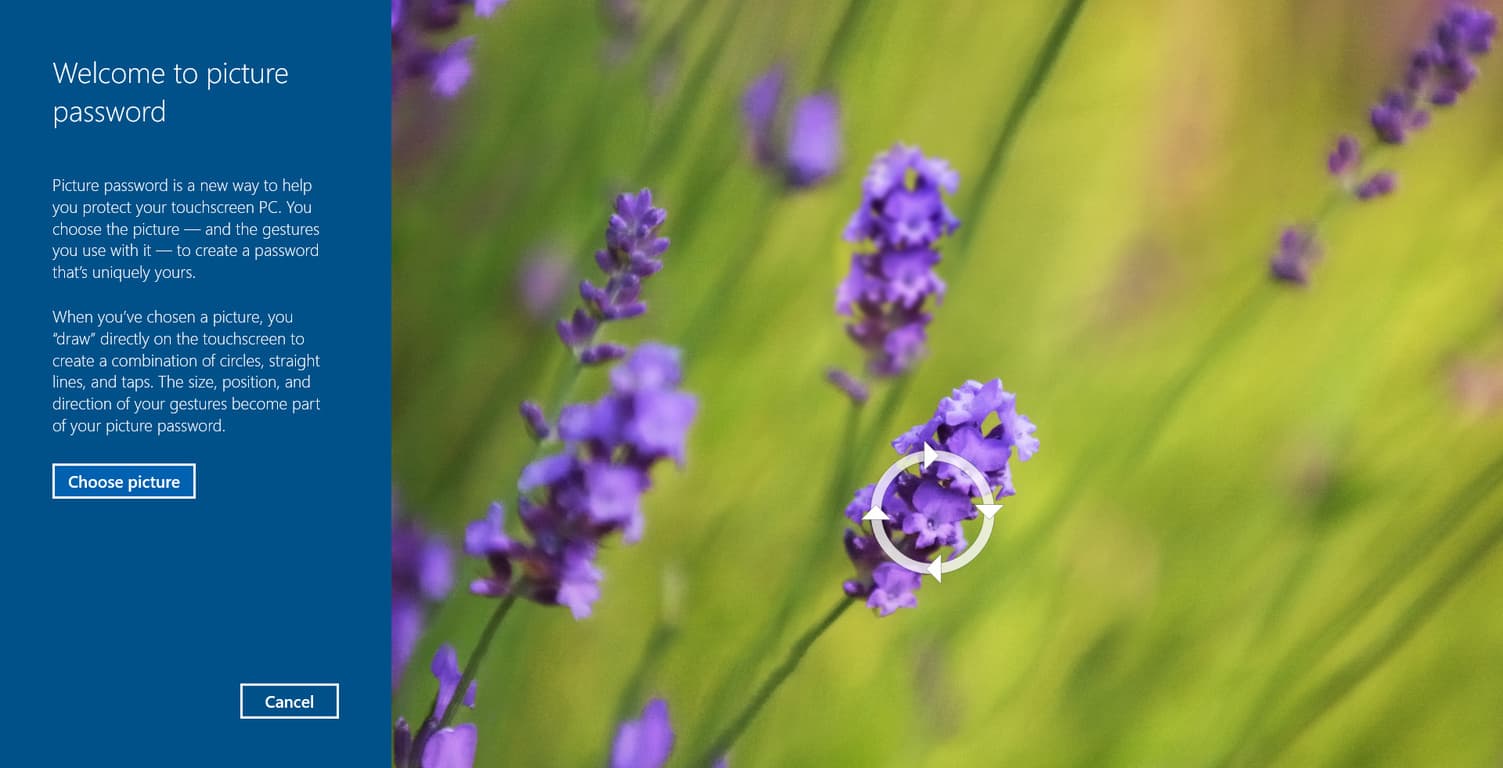
In Windows 10, there are more ways to log into your computer than ever. You could opt to use a password, a pin code, or use Windows Hello and its biometric login system. But today, we’re going to show you how to set up a picture password, which is one of the more fun ways to get into Windows.

Picture passwords were introduced when Windows 8 made its debut, and is still a feature in Windows 10. It works by assigning patterns to a picture which the user will then replicate every time they wish to log in to their PC. Which makes for quick and easy access to Windows. Setting it up is easy:

Step 1: Navigate to Settings, then Accounts, then Sign-in options

Step 2: Under Picture Password, hit Add

Step 3: Follow the instructions which involve selecting a picture, then drawing a combination of patterns including circles, straight lines and taps.

Step 4: Once done, your Picture Password is ready. Test is by locking your PC (Windows Key + L), and repeating the patterns you just assigned on the picture you’ve chosen.

Picture passwords are a quick way to log in to your PC, but just like PIN codes, if someone is standing behind you while you enter them, you could give them away. If you want to keep your device as secure as possible, we suggest using your full Microsoft ID password, or Windows Hello if your hardware supports it.

Fix: Tablet Auto Rotate Doesn’t Work in Windows 10/11

Windows 10 is designed to be a single operating system for all sorts devices ranging from phones, tablets, laptops to PCs, and so far Windows 10 is doing great on all platforms, but it appears that some tablets have issues with auto rotate in Windows 10.
Tablet Auto Rotate Doesn't Work in Windows 10

What to Do if You Can’t Auto Rotate Tablet in Windows 10

If you own a table or a smartphone you probably know how auto rotation works. It uses sensors in your devices and if detects rotation it rotates your display and adjust it to your current orientation. There are two causes for this problem, it can be a software or a hardware issue, so let’s see what can we do about it.

Solution 1 – Set lock rotation to off

  1. Tap on Start menu and choose Settings.
  2. Then go to System.
  3. Next tap on Display.
  4. Scroll down and make sure that Lock rotation of this display is set to OFF.

Auto rotation lock feature is automatically turned on in Windows 10, so make sure that you turn it off.

CHECK OUT: Tablet Doesn’t Rotate After Windows 8.1, 10 Update for Some

In addition you can also try this:

  1. Go to Control Panel.
  2. Choose Display.
  3. Click on Change Display Settings.
  4. Make sure that Allow the screen to auto-rotate is checked.

If this doesn’t help, maybe you’re having a hardware issue, so let’s check if your sensors are working properly.

Solution 2 – Use Microsoft Sensor Diagnostics Tool to test your sensors

  1. Download Microsoft Sensor Diagnostics Tool.
  2. Start the tool and select the HID Sensor Collection: Inclinometer.
  3. Pay attention to Data box since it displays number of tilt degrees.
  4. Rotate your device and check if the values of degrees change
    If the number of degrees is changing, the issue is related to software, but if values stay the same, it means that your sensors aren’t working, so you might want to send your tablet to a repair shop.

Before trying all of this remember to update your device using Windows Update since latest updates usually fix most software issues, so they might fix problems with auto rotation.

That would be all, if you have any comments, questions, or suggestions, reach for the comment section below, and we’ll make anything clear. Also, if you have any other Windows 10-related issues you can check for the solution in our Windows 10 Fix section.

Read Also: Fix: Touch Screen Can’t Calibrate in Windows 10

OneNote app for Windows 10 gets full screen drawing mode and more

The OneNote app for Windows 10 has been getting plenty of updates recently, and today we have another addition to the app’s toolkit. With the new additions to the app, OneNote has been given a full screen drawing mode, allowing users to draw in OneNote without some of the other distractions that would be on screen otherwise.
This is a big improvement to the UI of OneNote, making things feel a bit better for those who need to draw anything on the app. Previously, users were faced with almost a quarter of their screen being taken up by other portions of the app, but this new addition frees up quite a bit of screen real estate.
In addition to the new full screen drawing update, OneNote was given some miscellaneous bug fixes and polish, as well as some proofing changes, allowing it to correct or ignore misspelled words instead of just painting them as misspelled.  This new update isn’t going to change the way that you use OneNote by any stretch of the imagination, but it will definitely polish your experience.

Photos Add-ins app for Windows 10 appears to be a rebrand of Lumia Moments

Remember the Lumia Moments app? This app allows you to use the best frame in a video to find pictures and save them as “Living Images” and bring them to life in the camera roll. It appears Microsoft has quietly rebranded the Lumia Moments app to Photo Add-ins.
This change was first spotted by OneTechStop, and the app is available right now in the Windows Store. Interestingly enough, this app now appears to be a “plug-in” for the Photos app. You can grab the app from the download link below. Here’s what the app description states:
“Add great new effects and features to the Microsoft Photos app with this handy plug-in. With Microsoft Photos plug-in, you can save the perfect photo from your videos, add a strobe effect to your photos to show action or add blur to emphasise motion. This plug-in is fully supported on Lumia 830, Lumia 930, Lumia Icon and Lumia 1520.”
Just recently, we learned that Microsoft was retiring several Lumia apps, including Storyteller, Beamer, Photobeamer, and Refocus. It looks like these apps may have some hope after all if Microsoft decided to rebrand them and offer them as plug-ins to the Photos app.

Lumia Moments
Lumia Moments
Developer:
Microsoft Mobile
Price:
Free

Windows executive David Treadwell gets a new position in Cloud and Enterprise

Last month, we reported on the continued shuffling of chairs aboard the Microsoft executive deck. Some of the moves made by Microsoft were to consolidate roles while others were shifted into better suited positions. Twenty-six-year Microsoft veteran, David Treadwell, was among the executives to be shuffled, having moved from Windows to the Microsoft Cloud and Enterprise division. At the time, Treadwell’s move was a big question mark for Microsoft observers. However, just a few weeks after a landing a new home in different department, we are getting a bit more clarity on the change.
Thanks to a report from Mary Jo Foley over at ZDNet,we now know Treadwell’s new title of Corporate Vice President of Identity puts him at the head of a recently split division of Identity and Security in Microsoft’s Cloud & Enterprise Division.
Taking on the responsibility of the Security portion of the newly split unit will reportedly be Bharat Shah. Shah is now the active Corporate Vice President of Security. Prior to the promotion, Shah worked as a general manager of BPOS, Office 365 and Microsoft’s Online services. More recently his title was Vice President of Windows Azure Active Directory and Security. Seems the promotion was a natural fit for him and Microsoft.
As for what the new Corporate Vice Presidents of Identity and Security now do separately remains a mystery. Microsoft has yet to detail why the unit was separated and what each unit’s goals are going forward. The move almost seems counterintuitive to many of the moves Microsoft has made lately in its efforts to consolidate and eliminate layered communication.
Other management moves include Brad Smith, who we reported is now president and chief legal officer at Microsoft.
After some relatively big shakeups on the Microsoft landscape recently, the new title changes for these executives seems almost respectively mundane.

Microsoft exec talks about Bing being at the heart of future Windows 10 revenue

Arguably, communication has never really been Microsoft’s strong suit; this is not to say Microsoft ‘can’t’ communicate but rather its timing or message leaves more questions than answers for some.
During the Windows 8 development, the Windows team communicated minutia details in an unnecessarily long blog post but remained radio silent on the most relevant issues of combing a mobile and desktop operating system. Over the past handful of months, Microsoft has been very open and communicative about offering free Windows 10 to consumers, while remaining relatively vague on its plans for future revenue production.

Fortunately, Chief Marketing Officer at Microsoft, Chris Capossela took time out this week at the Citi Global Tech Conference in New York to expound on Microsoft’s ‘freemium’ Windows strategy going forward.

While most Windows 10 users have been delighted with the free upgrade, investors have been a little less than receptive to the idea of Microsoft giving away solid revenue. Chris explains that Microsoft has several plans for recouping some of the lost revenue from free Windows 10 installs, and it most of them revolve around Bing.

“Edge usage is higher on Windows 10 than IE usage was on Windows 8 and Windows 7. That’s net positive for Microsoft. That’s more queries being executed through Bing, that’s more ad revenue flowing through Edge. And that’s obviously a revenue source for us independent of the Windows device. I shouldn’t say independent, I should say post-sale of the Windows device.”

Edge4
Perhaps this plays into recent observations by Windows 10 users about the symbiotic encouragement of the Edge browser for Bing use and vice versa. Chris also speaks about the friendlier face of Bing, Cortana also feeding into Bing’s analytics on Widows usage and its users to bring in additional revenue:

As you use Cortana you’re not using the Google query engine, you were probably using 15 minutes ago. And the more people fall in love with Cortana and use Cortana the more we’re able to essentially capture that query share from Google.”

As Cortana is allowed to track users across Windows 10, Bing, Outlook, OneDrive, Xbox, Windows Mobile and Office, it plays into Microsoft’s strategy to wean users off of Google properties. With more searches flowing through Cortana (aka Bing), Microsoft can also increase its Bing Ad revenue over the long-term.
For some time now, Bing has been the butt of search engine jokes, but as search transitions to become increasingly personalized and predictive, Windows 10 and Bing seem to be where Microsoft is set to compete.

How to disable “Get Office” notifications on Windows 10

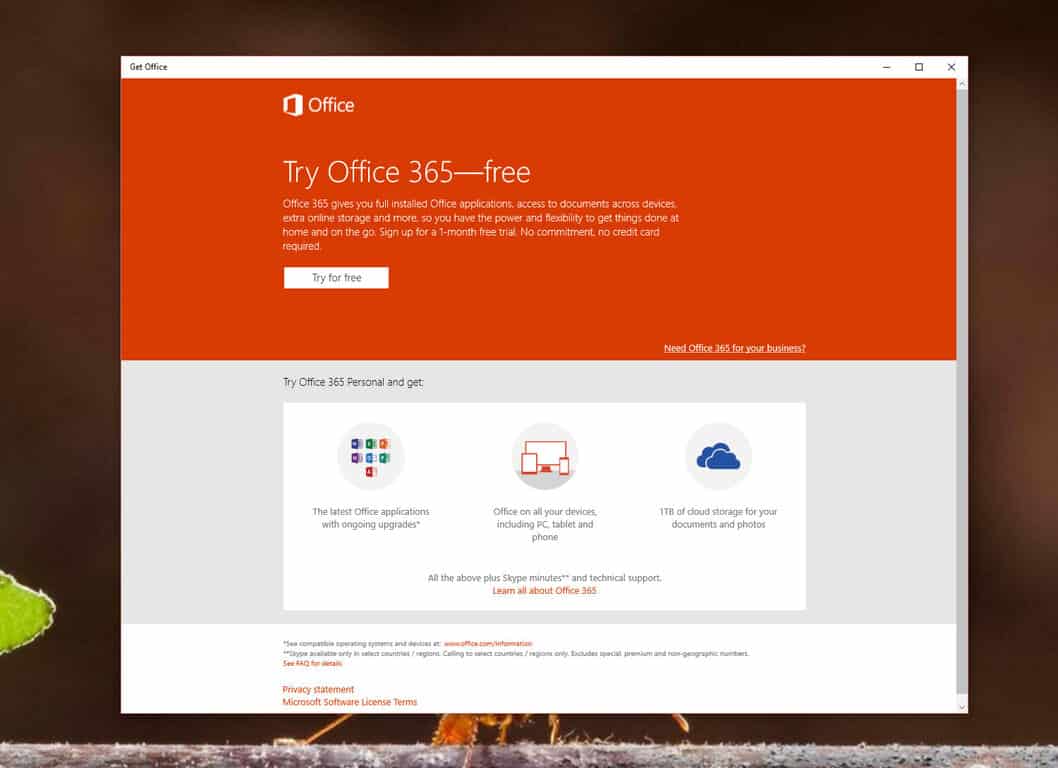
If you are running Windows 10, you have likely noticed a notification that appears occasionally on the bottom right side of your screen asking you to try Office 365. If you do not have Office installed on your PC, the “Get Office” app will bug you with notifications, encouraging you to download and install Microsoft’s Office productivity suite.

If you do not care for Office or you simply want to get rid of the notification, here is an easy solution. First, open up the Settings app. From there, tap or click System and select the “Notifications & actions” category on the left side of the window. Scroll down until you see “Show notifications from these apps” and locate “Get Office.” Simply turn the notification to the off setting and you are good to go! You can also disable or enable notifications for certain apps. For example, if the Windows Feedback app is annoying you with notifications, you can easily disable it too.

As you can see, it’s a very simple process to manage your notifications on Windows 10! If you want to get rid of the “Get Office” app altogether, simply open up Cortana and type “Get Office.” Once you see the app appear, right click on it and select uninstall.

In summary:

  • Open Settings app
  • Tap or click System
  • Select Notifications & actions
  • Scroll down and locate “Get Office” and turn the setting off

Microsoft bets on Lumia with Windows 10 to "reinvent business productivity"

In a blog post today, Microsoft talks about how Windows 10 for Lumia is making businesses run more efficiently, allowing employees to do their work from anywhere with programs that are familiar to them. The prime advantage that Microsoft sees with Windows 10 for Lumia is the growing amount of universal apps. It’s Microsoft’s vision that employees will have the same experiences on their mobile phone as they do on their desktop, creating a cohesive experience that doesn’t interrupt workflow. To quote the blog post,”The apps that employees already know and love on their desktop or tablet – Outlook Mail, Outlook Calendar, Word, PowerPoint, Excel, and more – are the very same apps that they’ll use on their Lumia phone, complete with the rich formatting capabilities they’re used to and all backed-up in the cloud.”
This means that, when employees need to complete important tasks, they don’t need to rush back to their desks to get access to the suite of tools necessary for completing their work. Instead, they can just fire up their Lumia phones and use all of the apps that they need, without any features being stripped from them. This means that employees can stay mobile without losing any of their effectiveness.
On top of the ease of use for employees, Microsoft’s blog post notes that Lumia is ideal for “easing the burden on IT and allowing more businesses to explore customized solutions,” since it seamlessly integrates into Windows services like Azure and Office 365. With IT departments no longer needing to jump through hoops with far too many services interacting with each other, it’s easier than ever for businesses to create an ecosystem for their employees that is simple to use and simple to troubleshoot.
Finally, the blog post points out that Windows 10 for mobile is a strong choice for security. Since Windows 10 can only run apps that have been checked and are trusted,  phones are protected from all sorts of malware straight out of the box. Businesses should feel safe with the devices that are plugged into their network.
Microsoft seems confident that Windows 10 mobile is a good choice for businesses, and for good reason. The streamlined network of devices that the Windows ecosystem cultivates is one that should make it easy for businesses to manage things without the fuss that comes from managing several different services.

Upgrade to Windows 10 for a chance to win a round trip to NYC

It’s been over a month since Microsoft released its latest operating system — Windows 10. The operating system is available as a free upgrade for users with Windows 8/8.1 and Windows 7. Microsoft is now offering another incentive to users who have not yet upgraded to Windows 10.
Individuals who upgrade to Windows 10 can win a trip for two to New York City to witness the opening of the flagship Microsoft store on 5th Avenue later this year. The winner also receives accommodation for two and front of line access at the opening of the Microsoft flagship store in New York City (via Windows Central).
In addition to a round trip to New York City, the lucky winner will also get new hardware, including a Surface Pro 3, an Xbox One and a Microsoft Band. Lastly, the winner receives VIP passes for the bands’ (not specified which band) performance at the event.
As with every promotion, there are some rules and conditions. First of all, you must be over 18 years of age to take part in the promotion. Also, you must be on Windows 8.1 or Windows 7 at the start of promotion and upgrade it during the promotional period. This contest is only open to residents of the United States and Canada (except Quebec).
You can get extra entries by sharing it on your Twitter or Facebook feed. You must turn in your entries by September 30th so make sure to upgrade it before the end of the month and increase your chance to be at the opening of the store.

Fix: Lumia 1020 WiFi Problems in Windows 10 Mobile

Nokia Lumia 1020 is a great phone, despite not being the newest smartphone on the market. Nokia Lumia 1020 got Windows 10 Mobile update, but it seems that with Windows 10 update there are some WiFi problems on Lumia 1020.
Lumia 1020 WiFi Problems in Windows 10 Mobile
There are some issues with Nokia Lumia 1020 and WiFi but luckily you can use one of these workarounds.

How to Solve WiFi Problems in Windows 10 Mobile on Lumia 1020

Solution 1 – Change your wireless network frequency

According to some users, Nokia Lumia 1020 has problems when connecting to 5GHz wireless networks, but you can easily fix this by accessing your router and changing your connection frequency from 5GHz to 2.4GHz.

In most cases to do so you need to open your browser and type 192.168.1.1. Next you’ll be asked to enter your router’s username and password. If you don’t know it, the best way is to search for it online. The following steps differ from router to router, so the best way is to check your manual on how to do so, but in most cases this option should be located in Wireless Settings or WLAN.

Solution 2 – Change your WiFi encrypyion settings

When it comes to wireless security there are several encryption methods, one of those is WEP, also known as Wired Equivalent Privacy, that isn’t the safest encryption method out there. This encryption method is old, outdated and vulnerable, and it’s not advisable to use it. On the other hand there are some better encryption methods such as WPA2-PSK that are more secure. If Lumia 1020 is giving you problems with WiFi you might want to try accessing your router and changing the wireless encryption from WEP to WPA2-PSK. Just like wireless frequency, this option should be located in WLAN or Wireless Settings in your router.

Solution 3 – Set use AES instead of TKIP

We mentioned WPA2-PSK encryption, but you should know there are two types of WPA2-PSK: TKIP and AES. AES is newer and more secure, and sometimes you need to set your phone to use AES instead of TKIP. To do so go to:

Wireless Setting > Manually > WPA > Cipher Type > AES and select use only AES.

That would be all, I hope these solutions helped you with WiFi problems in Lumia 1020. But even if you didn’t manage to solve it, you should wait a little, because Windows 10 Mobile is still in it’s developing phase, and developers will probably come up with a fix.

Read Also: Windows 10 Mobile Bugs that Need to be Fixed Before the Final Version

Windows 10 upgrade reportedly being automatically downloaded onto unsuspecting PCs

According to a report from the Inquirer, Microsoft has confirmed that it automatically downloads Windows 10 into upgrade-eligible Windows PCs, regardless of whether users opted-in to the free upgrade or not. Reports from such users indicate that upgrade files, ranging from 3.5 to 6GB in disk space, were downloaded and stored in the rather secluded ~BT folder, wasting both disk space and valuable, metered bandwidth. According to some of the victims, this unprovoked behavior caused their monthly bandwidth allowances to cap.
When the Inquirer inquired about the bizarre phenomenon, Microsoft confirmed:

For individuals who have chosen to receive automatic updates through Windows Update, we help upgradable devices get ready for Windows 10 by downloading the files they’ll need if they decide to upgrade. When the upgrade is ready, the customer will be prompted to install Windows 10 on the device.

This download allegedly comes batched with the routine Patch Tuesday update, so don’t be shocked to see an unusually enormous update.
If true, many will find this aggressive behavior quite disconcerting, especially on the heels of other recent invasive Windows 10 measures such as its option of using your computer and bandwidth as a seeding server for other Windows 10 users to download updates from being enabled by default, or the inability to turn off updates in the consumer-facing versions of Windows 10.
The prime issue here isn’t necessarily what they did, or what they’re planning, but the lack of transparency. None of these actions were what you’d call “marketing points”, and the discoveries of these features were not announced directly by Microsoft itself in advance, but by keen users.
Windows 10, cumulative update 3
Despite the inevitable kneejerk reaction to Microsoft’s plots, there is some merit to its behavior. Refusing Windows updates, which casual users are prone to do, leaves the system perpetually vulnerable to malicious attacks. Windows 10 is currently free to upgrade, and should unsuspecting users eventually decide to update, having them wait hours for the upgrade files to finish could sour the upgrade experience.
Still, it really begs the question: just what else is Microsoft doing with our computers behind the scenes? And at what point will they have gone too far? Or has the company crossed that line already?

All Windows 10 Cortana Commands and Questions You Can Ask

Cortana is definitely one of the most notable, if not the most notable addition of Windows 10. We all know that we can control it with a lot of commands, but I’m sure you can’t think of all commands in the moment, and there are some commands you didn’t even know you can use. So, I wrote this article in order to show you all commands used for interacting with Cortana.
The Complete List of All Cortana Commands And Questions You Can Ask
To even start interacting with Cortana, you have to say “Hey Cortana” (you can also click on the search bar, but we’re talking about the voice commands here). The virtual assistant will open, and you can give it the desired command. And the variety of commands is really huge, as I said, you probably don’t even know all the commands, so if you want to get the most of Cortana, check out all available commands below.

All Commands And Questions You Can Ask Cortana in Windows 10

Organize your stuff with Cortana

all cortana commands windows 10

As its title says, Cortana is your personal assistant, which means you can use it tasks real assistants do, like setting up reminders, sending emails, etc. Here are the commands you can use to turn Cortana into a very reliable assistant:

  • Create an appointment. If you’re using Microsoft calendar for managing your obligations, you can set up a new appointment with a voice command. Cortana will then ask you for some more info about the appointment, and everything will be set. Just say, for example “Create a meeting tomorrow at 6PM.”
  • Move my appointment. – Once you’ve created an appointment, you can also re-arrange it. Just say “Move my meeting to 8PM on Thursday,” and the appointment will be re-arranged.
  • Set a reminder. Cortana can set reminders for you, just say something like “Remind me to do my homework at 6PM,” and you won’t forget your obligations once again.
  • Show me my reminders. You can also click on the menu button and go to “History,” and it will show you reminders you’ve already completed, as well.
  • Set an alarm. Just like reminders, you can set alarms for certain times in the day. You can set these to occur only once, or recur on a regular basis. Just like reminders, you can also set an alarm, or more alarms. You can also choose if it will be an “one-time” alarm, or you want to repeat it every day.
  • Show me my alarms. – The same this is for alarms, just like you can see all your reminders, Cortana will show you all your alarms, as well.
  • Send an email to – One of the main responsibilities of a personal assistant is sending emails, and Cortana is not different. Just say “Send email to Jim,” and you’ll be asked to write a message, and Cortana will send the email in seconds.
  • Call someone – You can call anyone from your Skye contacts list with Cortana, just say “Call Peter/John/etc.” and you’ll talking with your friend in a moment.

Search online and get information

all cortana windows 10 commands

Cortana is also a great tool for searching online for a certain information or certain websites. Logically, it uses Bing as a search engine, but you can change it with a simple trick. If you want to get almost any information you want, just ask:

  • Show me places near me – Ask Cortana to show you info about any place near you, like the best Italian restaurant around, the nearest school, the nearest theater, etc.
  • Show me pictures of – When you ask Cortana to show you a picture of some celebrity, like LeBron James, Mia Kunis, Bill Gates, etc. it will use Bing image search and it will show you all available pictures.
  • Show me a video – Ask Cortana to show you some video, like ‘Show me a video of tonight’s Bulls game,” and it will bring you all available videos from tonight’s game, etc.
  • When is the next game? – You can also ask Cortana when’s the next game of your favorite sports team, and you’ll get the exact date of the next match.
  • Tell me about – You can ask Cortana to give you a basic info about a lot of stuff or people, just say “Tell me about Italy/tigers/Novak Djokovic/Audi/..”
  • What’s the population your country? – You should already know that, young man.
  • How tall  is? – If want to know the height of your favorite person, Cortana will tell you.
  • Define a word – Ask Cortana to give you a meaning of a certain word, like “Define cynical,” and you won’t have to look anywhere else again.
  • When is ? – Ask Cortana when is the certain holiday, or event, like “When is Haloween,” and you’ll get the exact date of that holiday.
  • How long a movie lasts? – Cortana can even tell you how long a movie lasts, just ask her, for example “How long is The Godfather 2.”
  • Who is the CEO of Microsoft? – Cortana will ‘gladly’ give you any Microsoft-related information, so you can ask her various stuff about the company and its employees.
  • What is one US dollar in Japanese yen or how much centimeters are in an inch? – Cortana can easily do any currency or unit conversion for you, just ask her what do you want to convert.
  • What time is it in New York? – Check out the current time in every time zone in the world.

Have fun with Cortana

cortana commands windows 10

Besides making Cortana do all the work for you, or search for everything you need, you can also spend some time playing with it. Ask Cortana various ‘personal’ questions, and it will give you interesting, often humorous answers.

  • What is your name?
  • Who are you?
  • what are you?
  • Are you female?
  • Are you real?
  • Are you human?
  • What does Cortana mean?
  • Why are you blue?
  • Can I change your name?
  • How old are you?
  • What do you look like?
  • Can you cook?
  • What are you wearing?
  • Are you sleeping?
  • What do you eat?
  • Who created you?
  • Where do you live?
  • Who is your mother?
  • Who is your father?
  • Who is your boss?
  • Are you awake?
  • Do you have brothers or sisters?
  • What’s your favorite music?
  • Who is your favorite artist?
  • What are you doing?
  • Can you dance?
  • Are you smart?
  • Are you pretty?
  • Are you hot?
  • Are you single?
  • Do you have a baby?
  • Do you have a boyfriend?
  • Kiss me
  • Will you marry me?
  • What should I call you?

Make small talk with Cortana, like you do to your family in the morning, during the day, or in the evening:

  • Good morning.
  • Good afternoon.
  • Good evening.
  • Goodnight.
  • How are you doing?
  • What are you up to?
  • Thank you.
  • Testing…
  • Goodbye.

Ask some simple, but serious questions:

  • Why are we here?
  • Where do babies come from?
  • What is the meaning of life?
  • What is the answer to the universe?
  • What is love?
  • Guess what?

Or have a little pop-culture chat:

  • Beam me up Scotty.
  • Hello HAL.
  • Open the pod bay doors.
  • Use the Force.
  • May the Force be with you.

Pour some personal comments to Cortana, give her a compliment, or insult her, you’ll get the funny replay either way:

  • You are cool.
  • You are beautiful.
  • You are funny.
  • You are awesome.
  • You are the best assistant ever.
  • You are ugly.
  • You are creepy.
  • You are annoying.
  • You suck.
  • I love you.

Discuss about the competition, or Microsoft, because Cortana has its own point of view on various companies:

  • Which is better, Cortana or Siri?
  • Which is better, Cortana or Google Now?
  • Which is better, Bing or Google?
  • Which is better, Xbox or PlayStation?
  • Which is better, Windows or Linux?
  • Which is better, Windows or Mac OS?
  • What is the best computer?
  • What is the best tablet?
  • What is the best operating system?
  • What is the best phone?
  • What is the best search engine?
  • What do you think of Windows?
  • What do you think of Apple?
  • What do you think of iOS?
  • What do you think of Google?
  • What do you think of Android?
  • What do you think of Siri?
  • What do you think of Google Now?
  • What do you think of Xbox?
  • What do you think of Playstation?
  • Do you know Siri?
  • Do you know Google Now?
  • Do you know Clippy?
  • Do you like Satya Nadella?
  • Do you like Steve Ballmer?
  • Do you like Bill Gates?

And finally, ask her some questions about Halo, and you’ll get only superlatives:

  • What is Halo?
  • Tell me about Halo?
  • What do you know about Halo 5?
  • Are you in Halo 5?
  • Are you the Cortana from Halo?
  • Are you really Cortana?
  • Did you die?
  • I thought you were dead?
  • Are you in Halo 5?
  • What is favorite Halo game?
  • Where is the Master Chief?
  • What is Master Chief’s last name?
  • What is Master Chief doing?
  • Are you dating Master Chief?
  • Do you love Master Chief?

As you can see, you can talk to Cortana about various stuff, and it could be very helpful and productive, as well. Microsoft’s decision to include Cortana in Windows 10 is definitely a good move, and it brought using a PC to a whole another level.

If you know some Cortana command that we didn’t include in this post, please write it down in the comments, in order to help our readers use Cortana for even more amazing things or ask her even more interesting questions.

Read Also: Fix: Cortana Can’t Send Dictated Emails and Take Notes in Windows 10

Leaks show Dell's working on an updated Venue 8 Pro for Windows 10

Dell’s Venue 8 Pro has proven to be an excellent small Windows tablet for many, and it now seems to run Windows 10 fairly well. However, Dell hasn’t provided official Windows 10 images with the tablet. Typically this is an indication that a company doesn’t yet officially support Microsoft’s newest operating system on their devices. That might be set to change before the end of 2015 for Dell.
According to reference material from Giga.de, Dell is planning to introduce an updated version of the Dell Venue 8 Pro with Windows 10 preinstalled. Allegedly dubbed the 5855, the new tablet will offer a number of key upgrades along with Dell’s stamp of approval on Windows 10.
Italian Windows Blog also reinforces the existence of the Next Gen Venue 8 Pro 5000 with a spec list sales slide. The leaked sales slide highlight the new tablet utilizing a current-generation Intel Atom X5-Z8500.  Other specs include the option of a higher resolution screen (1920X1200 vs. the original model’s 1280X800) and up to 4GB of RAM. The new tablet also looks to include optional LTE as well as a RealSense 3D camera option will support Windows 10 Hello. While the original Venue 8 Pro ran 32-bit Windows 8.1, the 5855 will run 64-bit Windows 10.

Dell V8Pro 5855
Venue 8 Pro overview.

At this time, pricing and availability remain unconfirmed. As shopping season, draws nearer, a release date sometime in November seems more than likely.

Microsoft's Brad Anderson and Scott Guthrie talk tech over lunch

It was a sunny day when Brad Anderson, Microsoft’s Corporate Vice President of Enterprise Client and Mobility, finished his lunch in 10 seconds and used the rest of his 30-minute break to drive and chat with Microsoft guru and familiar face, Scott Guthrie, in a video published today. Part of Brad’s web series where he spent his lunch break with the industry’s top leaders and influencers, the video offered an interesting and informative look into Scott Guthrie and his work at Microsoft.

Scott Guthrie, who looked rather comfortable in his now-signature red polo shirt, shared some good laughs with Brad on the rumor and running joke about Scott being a basketball star in his university days. The joke even got on his Wikipedia page and was the basis for a hilarious misunderstanding in one of his conferences.

Scott’s programming career started at the young age of 10, when he first made money with his skills in FoxPro, having done many years of BASIC programming. Scott went on to write the first ever customer-relationship-managment (CRM) software for his father’s telemarketing business. The knowledge and Scott’s interest in data management was carried to his long career at Microsoft and beyond, till finally he took over CEO Satya Nadella’s former position as Executive Vice President of Microsoft’s Cloud and Mobility group.
The interview then continues with a discussion about the increasingly important role of mobility and the mobile-first mentality in today’s enterprise solutions. The current focus of Microsoft in enterprise mobility is on” improving the end-user experience all around IT,” and achieving the balance between customer empowerment and protection of corporate assets, which is also what differentiates Microsoft solutions from other offerings, explained Scott.


Microsoft’s recent release of its Active Threat Analytics (ATA) for Active Directory, which is based on last year’s acquisition of Aorato, is a prime example of Microsoft’s clear focus on cloud and services. The product gathers info on the who, what, where, when, why and how of corporate data access and pinpoint abnormal behaviors and threats using machine learning. The enormous amount data being processed from this and across all of Microosft’s offerings necessitates a service-based, cloud-based software model, which also allows for tracking changes and using data in a deeper way.
For more informative talks and fun tidbits regarding industry leaders, check out other videos from Brad Anderson’s Lunch Break series on Youtube.

Throwback Thursday: The last time Microsoft was talked about positively at a major Apple event

Microsoft and Apple are like Coke and Pepsi, rivals for as long as we can remember. The two tech companies compete with each other across a number of product categories including operating systems, productivity suites, personal computers, smartphones, music services, TV, and more.

During yesterday’s Apple event in which the company announced the iPhone 6S, 6S Plus, and the new iPad Pro, Microsoft took the stage for the first time in a long time. In an era where Apple events were known for the jabs the company took at Microsoft and its products, the relationship between the two companies changed with a snap of a finger. We wondered why Apple decided to break from tradition and allow the event to be livestreamed on Microsoft’s new Edge browser in addition to Safari, I guess now we have our answer. Check out Microsoft’s part of the keynote below.

In the 1990’s, Apple initiated a legal battle against Microsoft over operating system patent disputes. This is also a time when Apple was struggling to reassert itself following executive restructuring and brutal competition from the likes of IBM, Atari and others. Apple’s future looked bleak, it looked nonexistent. Until Microsoft stepped in, that is.

[pullquote align=”right” cite=”” link=”” color=”” class=”” size=””]Apple defied all odds and negotiated a truce with Microsoft[/pullquote]

During Apple’s 1997 MacWorld event, Steve Jobs stood in front of a projection with the words ‘Meaningful Partners’. “I’d like to announce one of our first partnerships today, a very, very meaningful one” started Jobs, “…and that is one with Microsoft” he said as the crowd erupted in both boos and applause. Apple defied all odds and negotiated a truce with Microsoft which saw the patent dispute settled, a 5-year commitment from Microsoft to develop Office for Macintosh, Internet Explorer set as the default Macintosh browser, a Java collaboration between the two companies, and Microsoft investing $150 million to buy non-voting Apple shares.

Following that mind-shattering announcement, it was Microsoft’s turn to speak. While then Microsoft CEO Bill Gates wasn’t physically at the event, he spoke to the crowd via satellite. Initially booed, Gates announced that he was pleased with the partnership, and seemed to win the affections of the onlookers after mentioning that both Office and Internet Explorer for Macintosh would not be simple ports of the Windows versions, but have features unique and specially designed for Apple’s operating system. You can check out the full Microsoft segment of Apple’s event in the video below.

Eventually, the partnership ended and the relationship between Apple and Microsoft soured once more. Apple campaigned against Microsoft in every way it knew how; in events, commercials, interviews, you name it. But it seems that relationship is changing once more, and this time, not out of desperation or necessity, but of mutual business understanding.

This change in business dynamic probably started when Satya Nadella took office as Microsoft CEO and changed the company’s business model to one that focused on the growth and expansion of its services. As a result, Office was made available on the iPad. Is the iPad Pro a direct result of that decision? I wouldn’t go that far, but there’s no denying that having the most popular (by far) productivity suite available for iOS is a huge selling point for both companies when it comes to business, just as it was back in 1997.

It’s a breath of fresh air to see the two rivals back on good terms again. Competition is good of course, especially when it results in products and services that are beneficial to customers. We’d love to hear your thoughts on the renewed relationship between Apple and Microsoft, sound off in the comments section below!

How to train your Windows 10 PC to better recognize your handwritting

Do you blame computers for your terrible handwriting? We do too. Luckily, Windows has become pretty good at recognizing our scribbles, but if you find that your Windows 10 hybrid/tablet PC is still having difficulty converting your written words to text, training it will help tremendously. Here’s how to begin.

Step 1: Start Settings, then, using the search bar on the top left corner, type ‘Language’.

Step 2: Click on ‘Language’ and the traditional Control Panel should open

Step 3: Next to your primary language, click ‘Options’

Step 4: Click ‘Personalize handwriting recognition’

Step 5: Select ‘Teach the recognizer your handwriting style

Step 6: Select either ‘Sentences’ or ‘Numbers, symbols, and letters’ to begin training, and follow the instructions.

The more you train your PC, the better it gets at recognizing your handwriting, even if you write like a doctor. Let us know how well your PC recognizes your handwriting in the comments section below.

NOTE: Handwriting training is not available for all languages, although we expect that over time, Microsoft will continue to add support for more.

Microsoft looks at third-party retailers to push hardware in Brazil

Microsoft recently expanded its Surface Pro sales channel that sees Dell and HP selling the company’s popular tablet line to the enterprise. Another big sales market for Microsoft is Brazil; a country that loves Windows Phone so much that the Microsoft platform outsells the iPhone. Now Microsoft is increasing its presence in that company with a new deal.
Microsoft has announced recently that they are partnering with a Brazilian company known as Cnova which owns a few online stores including Ponto Frio, Casas Bahia and Extra.com. The stores are to showcase nearly all Microsoft products, including Lumia phones, Windows PCs tablets, and Microsoft peripherals in a special dedicated section on their websites.
It’s a pretty interesting move for Microsoft. Maybe it will help with the increase of Microsoft products in the country. What do you think about this move? Let us know in the comments.

Microsoft adding more productivity features in upcoming iOS9 and watchOS2 updates

Microsoft has announced that it’s Microsoft Office will be updated for Apple’s new iPad Pro, iOS 9, and even watchOS 2. The Microsoft suite of apps including Word, Excel, PowerPoint, OneNote, Outlook and Translator were given new enhancements to compliment Apple’s latest mobile OS.
Microsoft has added the ability to use two apps on the same screen on iPad devices with iOS 9. Users can quickly glance on an app with Apple’s Slide Out multitasking method, where the user can quickly bring an app to the iPad’s right side of the display and then quickly swipe the app away.
Office-updates-for-the-iPad-1-1024x763
The user can also use Apple’s Split View mode, where they can use two full size apps side by side similar to the ‘tablet’ multitasking feature baked into Windows 8 and Windows 10’s. Microsoft has also made it possible to quickly open an Office document from Outlook onto the corresponding Office app’s own screen half just with a single tap.
iPad Pro users can also enjoy inking and drawing on Office documents with the new Apple Pencil thanks in part to Microsoft building support for this feature across its suite of productivity apps. Users can track notations or mark up documents almost as fluently as if they were using pen and paper.
Office-updates-for-the-iPad-5-1024x769
When searching on your iPad or iPhone with Apple Spotlight, OneNote notes and Outlook emails now appear as search items.
Microsoft has also added support for Apple’s Wireless Keyboard commands to the Outlook app. Users can start a new email with the Command key (⌘) plus the N key, or use the Command key plus a number to switch between Email (⌘1), Calendar (⌘2), Files (⌘3), People (⌘4) and Settings (⌘5).
Office-updates-for-the-iPad-6
Outlook will now show essential information on the Apple Watch with watchOS 2 thanks to a new feature called Complications, which are important bits of information displayed on the Watch’s face. Time Travel is a feature on the watch that lets the user turn the Digital Crown to check Outlook Calendar appointments for present and future events.
The Microsoft Translator app will receive an update that enables a pinned translation to be played from the phone over to the Watch’s speaker. And when you’re away from your home country, you can have the Watch automatically display common phrases like “Good morning”, “Goodbye”, and “Goodnight” in the country’s language.
The app updates are likely to come shortly after the release of iOS 9 and watch OS 2. Be sure to tell us what you think of these new features in the comments below.
If you want, you can download one of these apps for your iPhone or iPad from one of the links below.

‎Microsoft Word
‎Microsoft Word
Price:
Free+


‎Microsoft Excel
‎Microsoft Excel
Price:
Free+


‎Microsoft PowerPoint


‎Microsoft OneNote
‎Microsoft OneNote


‎Microsoft Outlook
‎Microsoft Outlook


‎Microsoft Translator

Texas WIC has moved to Microsoft's Government Cloud

Enterprise and Microsoft are often synonyms with one another. As Microsoft continues to refine its Office 365, OneDrive, Skype and Azure products for business, its association with enterprise continues to solidify. However, Microsoft’s solutions continue to make headway in various other sectors such as government, education and medical.
Recently, the system for providing nutritional benefits and education to mothers regarding infant and child care in Texas has moved to using the Microsoft Cloud Solution for WIC. The move signals another valuable use case of Microsoft’s Government Cloud.
The Women, Infants and Children program more commonly referred to as WIC is a nutrition program handled at the state level and funded by the U.S. Department of Agriculture. Typically, mothers involved with the WIC program are given subsidies benefits on food to promote the improved diet of infants, children and women who are pregnant.
The Texas WIC program information management system was established in 1995, back before the landscape of identity security and cloud computing evolved. According to a Microsoft vice president of U.S. State and Local Government, the old system has “outlived its usefulness.”
Texas WIC’s move to Microsoft’s Government Cloud is intended to solve delays with daily backup and data sync requirements. The delays leave participants waiting for their information to sync before they receive their benefits and causes gaps in benefits coverage during outages.
According to Microsoft:

On top of the improvements in eligibility and health recommendations that will result from the new solution, case workers and beneficiaries alike will also see vast improvements and efficiency in scheduling and inventory management, reduced wait times, improved customer service, and enhanced employee mobility.

Microsoft is confident that the deployment of Microsoft’s Government Cloud solution for Texas WIC’s will ultimately lead to WIC staff being able to focus more on their clients. Rather than spending time troubleshooting sync problems dealing with mishandled coverage for children and mothers, they will be able to concentrate on providing more one-on-one services with participants.

Microsoft’s cross-platform strategy hits the limelight at Apple event

A little more than a year ago, Microsoft announced Office Mobile for iOS, hinting that cross-platform productivity solutions were going to be important to their future strategy. This morning, Microsoft demonstrated Office Mobile on an iPad Pro at Apple’s special event, removing all doubt of that strategy’s importance.

Consider the implications.

First, Apple has effectively advertised an alternative to one of their most important homegrown applications, iWork. This is unusual all by itself. Apple doesn’t often recognize the existence of competitors unless it’s to point out how Apple is superior, and so asking a competitor like Microsoft on-stage represents a sea change not only in Microsoft’s practices, but in Apple’s as well.

Second, Microsoft has just very publicly recognized the significance of Apple’s iPad Pro, a direct competitor to Microsoft’s own Surface line of machines–not to mention to their OEMs, who have increasingly invested in the kind of hybrid machines that Surface was meant to popularize. This can’t have been an easy decision to make, and while Windows and Surface fans might be upset at what seems to signal a snub of Microsoft’s platform, a long look at market realities is once again required.

[pullquote align=”right” cite=”” link=”” color=”” class=”” size=””]not long ago, Microsoft was at a crossroads[/pullquote]

The bottom line is this: not long ago, Microsoft was at a crossroads. iOS and Android were eating Microsoft’s lunch, not only in mobile but in cannibalizing the core Windows PC market as well. Things were so dire that Apple’s proclamation of a “post-PC era” became successfully ensconced into the mainstream vernacular. Today, traditional PC sales, namely desktops and notebooks continue to stagnate.

In short, Microsoft was facing a very bleak future if Windows remained their primary product.

Flash forward a year or so, and Microsoft’s position has changed dramatically. They have now successfully positioned themselves as the “productivity company,” with their primary productivity solution, Office, taking center stage at a major Apple event. This means that Apple customers will likely be using a major Microsoft product where only a short while or so ago, they used nothing. These customers are now much more likely to pay money to Microsoft for Office 365 subscriptions, which is significantly more than the zero dollars they would be paying otherwise.

At the same time, enterprises–which maybe even more so are Microsoft’s most important customers–will no longer have the same pressure to support non-Microsoft products. Certainly, the BYOD (bring your own device) movement is assisted by a solid mobile version of Office, but it wasn’t going anywhere regardless. This way, Microsoft removes non-Microsoft productivity solutions from the equation–and not just iWork. Perhaps more important, Office Mobile’s success puts even more pressure on Google Docs, which is likely the more important competitor here.

Very long-term, Microsoft also enhances their Windows 10 platform. Because users will keep using Office on their iPads (and Android devices), they remain in the Microsoft camp. That buys time for Microsoft to develop Windows 10 as the best platform across all device types on which to run their productivity solutions. Some have called this Microsoft hedging their bets. More likely, this is a Trojan horse strategy that is far more likely to succeed than one that requires Microsoft to switch iOS and Android users to Windows 10 directly.

[pullquote align=”right” cite=”” link=”” color=”” class=”” size=””]Microsoft’s new strategy has created a crack in Apple’s armor[/pullquote]

One can remark on how closely Apple mimicked the Surface Pro 3 with their design of the iPad Pro and its accessories. That’s an interesting story all by itself. Certainly, Microsoft is doing good things to demonstrate the power of their platform, and there’s much to look forward to as Microsoft fleshes out their smartphone strategy.

In the shorter term, however, what’s most remarkable is how quickly Microsoft’s new strategy has created a crack in Apple’s armor. Rather than demonstrate any kind of capitulation on Microsoft’s part, their participation in today’s Apple event shows a sort of quiet strength that bodes well for Microsoft’s future.

Windows Store summer sale includes 50% off Disney games and select in-app purchases

If you’re a fan of mobile games, then the Windows Store has a treat for you. From now through September 13th, multiple Disney titles in the Windows Store will be 50% off. Games like “Temple Run: Brave”, “Where’s My Mickey? and “Disney Solitaire” are all getting a 50% price cut for the next couple of days.
Perhaps a fan of a different type of game. Star Wars: Commander (A free-to-play Star Wars themed base-building game, similar to Clash of Clans) is having all of its in-app purchases at half price. For example, a “Bag of crystals,” usually priced at $9.99, will now run you just $4.99. If you play Star Wars: Commander, now may be a good time to pick up some of that premium currency.
Hurry up, since the sale is going to be over in just a few days. If you’d like to see the entire collection of sales, you can check them out right here. You should see if there’s anything on the list that you’re interested in before time runs out.

Microsoft to co-host conference between leading US tech firms and China's President

On September 23th, China’s President Xi Jinping will be meeting with executives from the most prominent US tech companies in Seattle, reported the New York Times. The technology forum will be co-hosted by Microsoft.
Invitee list includes big names like Apple, Google, Uber, IBM and more, while equally impressive personas from China like Alibaba’s Jack Ma and Baidu’s Robert Liu are also expected. According to Zuo Xiaodong, Vice President of China Information Security Research institute, the forum is “mostly to discuss the industry cooperation” of the US and China.

Xi Jinping
Xi Jinping

The meeting comes at an interesting time, only a few days prior to Xi Jinping’s meeting with US President Obama on September 28, and is seen as an effort by China to brandish its influence and lure US tech firms with the promise of huge potential market, which has always been a tough nut to crack for even tech giants the likes of Facebook and Google.
Also according to the New York Times, Mr. Xi will have dinner at Microsoft legend Bill Gates’s estate in Seattle before his trip to the White House. Bill Gates had good history with China’s top brass, having met China’s former President Hu Jintao during his visit in 2006 and offered personal tech support to Mr. Hu, who admitted to using Windows everyday. The situation has clearly changed since then, however, which showed through China’s ban of Windows 8 in governmental agencies and run-ins with Microsoft China, as it develops an in-house OS to lessen dependence on US software. The fact that Microsoft is co-hosting the forum in Seattle is therefore very interesting to the development of its business in China.

How to track your flights using Cortana in Windows 10

When travelling, time is of the essence. On the day of our flights, we prioritize all of the day’s activities to ensure that we don’t miss those flights, and it can get hectic, fast. We try to consider factors that are both in and out of our control, and any help is always much appreciated.

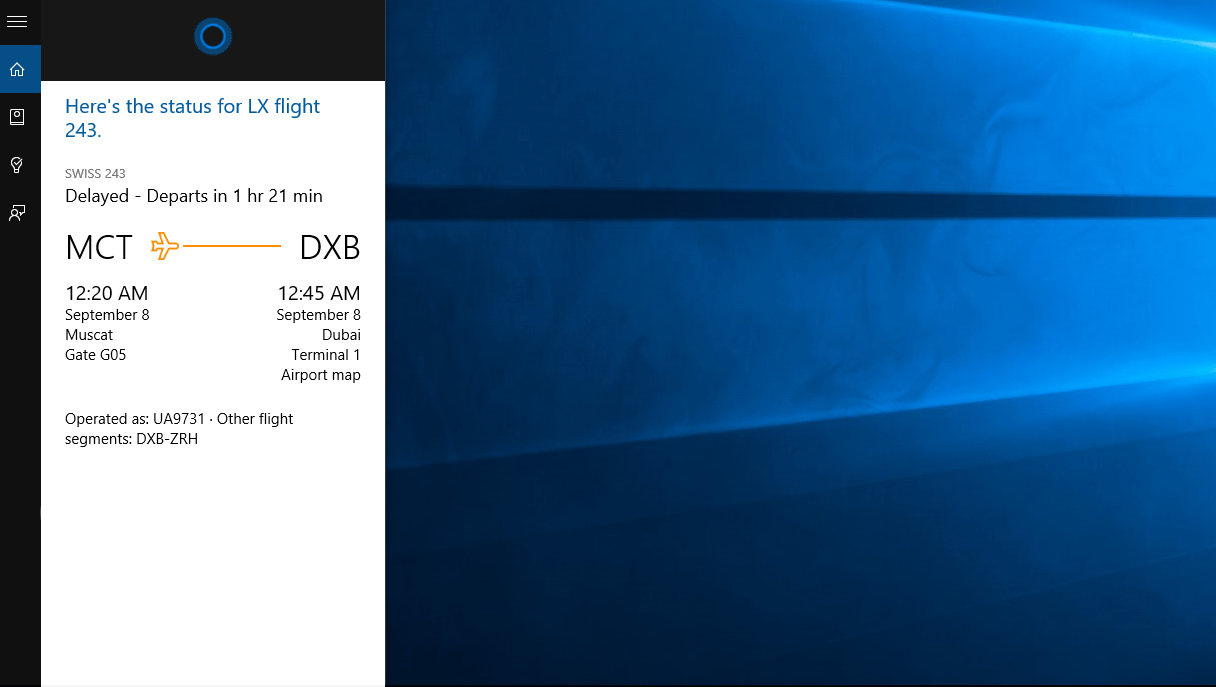
While Cortana can’t pack your bags for you, she can keep an eye on your flight, as well as the traffic conditions to the airport. That’s two things you no longer have to worry about. If your flight is delayed, Cortana will give you a heads up. If there’s heavy traffic to the airport, Cortana will remind you to leave earlier.

By default, Cortana start tracking your flights automatically. She can pull flight information from your emails (a feature which can be disabled), or you can enter the information manually. Simply launch Cortana and type your flight number (“Flight WY 101” for example). Cortana will then present you with the current flight status, and provide additional details about transits, delays, and gate information.

One of the great things about Cortana is that she works cross-platform, so you’ll get notifications about your flight on your phone even though you entered the flight information on your Windows 10 PC. Cortana is also coming to Android (currently in Beta) and iOS too soon, so it’s even more convenient to users.

Visual Studio is the new default Unity scripting editor on Windows

During Microsoft’s developer conference in April of this year, the company highlighted its growing partnerships with leading game engines in the industry. Among Microsoft’s list of named partners were Unreal Engine, Cocos2d, and Unity. Microsoft hopes that with game development support coming from a collaboration with three of the premier independent gaming engine providers, Visual Studio could become the one-stop-shop tool developers would want to use.
Since the announcement, Microsoft and Unity have been working on releases for Visual Studio and as of today, Microsoft has announced the release of Unity 5.2 and Visual Studio Tools for Unity 2.1.
According to Microsoft, Visual Studio is the new default Unity scripting editor on Windows. “Starting with Unity 5.2, Unity installer on Windows will now offer to install by default the free Visual Studio Community 2015 and Visual Studio 2015 Tools for Unity.”
As part of the release, there is also native support for Unity for Visual Studio Tools for Unity (VSTU). Developers can now forego importing VSTU packages into each Unity Project. Instead, Unity will automatically pick up VSTU where it is installed, and scripts will open directly in Visual Studio.
Other Unity integration includes cross-platform development using C#. Microsoft has added a new project template in Visual Studio 2015 that installs Unity and the subsequent Visual Studio Tools for developers interested in using C#.
7673.vs_install_unity_thumb_0D26094C
The release also has an update for VSTU 2.0 in the form of Visual Studio Tools for Unity 2.1. Septembers update now supports everything required for native VSTU support for to work in Unity 5.2, as well as to incorporate ‘important’ bug fixes, according Microsoft.
Microsoft is encouraging developers to offer suggestions in the UserVoice forums or report any issues through the Visual Studio Connect Site.

This week's Xbox Deals with Gold features Assassin's Creed Unity and more

Major Nelson’s list of this week’s Deals with Gold for Xbox Live Gold Members is out. These deals will be available through September 14th and include Assassin’s Creed Unity, Battlefield 4, Battlefield Hardline for 50% for the games, the bundles, and a number of add-on content packages.
The deals are available for Xbox Live users who have a Gold (paid) membership, with some of the add-on packages also being available for the Silver (free) Xbox Live membership. The full list of Xbox One deals includes:

  • Assassin’s Creed Unity 50%
  • Assassin’s Creed Chronicles: China 50%
  • Evolve 50%
  • Evolve Digital Deluxe 50%
  • Battlefield 4 Premium Membership 50%
  • Battlefield 4 50%
  • Battlefield Hardline Deluxe Edition 50%
  • Battlefield Hardline Standard Edition 50%
  • Battlefield 4 Premium Edition 50%
  • Battlefield Bundle 50%
  • Battlefield Hardline Ultimate Edition* 50%
  • Battlefield Hardline Ultimate Shortcut Bundle* 50%
  • Battlefield Hardline Player Shortcut Bundle* 50%
  • Battlefield Hardline Vehicle Shortcut Bundle* 50%
  • Battlefield 4 Weapon Shortcut Bundle* 50%
  • Battlefield 4 Air Vehicle Shortcut Kit* 50%
  • Battlefield 4 Ultimate Shortcut Bundle* 50%
  • Battlefield 4 Vehicle Shortcut Bundle* 50%
  • Battlefield 4 Ground & Sea Vehicle Shortcut Kit* 50%
  • Battlefield 4 Soldier Shortcut Bundle* 50%
  • Platinum Crew Credit Pack (The Crew)* 40%
  • Gold Crew Credit Pack (The Crew)* 33%
  • Silver Crew Credit Pack (The Crew)* 25%
  • Bronze Crew Credit Pack (The Crew)* 10%

Titles marked with an * denote the deal is available to Xbox Live Silver members as well.
The list of deals for Xbox 360 titles is similar, with the addition of some add-on content deals available for Metro Last Light. Don’t forget if you see an Xbox 360 deal that you are on the fence about, there is the potential that title will eventually become playable on the Xbox One through the backwards compatibility program set to debut this November.
The full list of Xbox 360 deals includes:

  • Assassin’s Creed II* 75%
  • Assassin’s Creed Revelations* 75%
  • Assassin’s Creed Brotherhood* 75%
  • Assassin’s Creed* 75%
  • Battlefield 4 Premium* 50%
  • Battlefield Hardline Ultimate Shortcut 50%
  • Battlefield Hardline Player Shortcut Bundle 50%
  • Battlefield Hardline Vehicle Shortcut Bundle 50%
  • Battlefield 4 Weapon Shortcut Bundle 50%
  • Battlefield 4 Air Vehicle Shortcut Kit 50%
  • Battlefield 4 Ultimate Shortcut Bundle 50%
  • Battlefield 4 Vehicle Shortcut Bundle 50%
  • Battlefield 4 Ground & Sea Vehicle Shortcut Kit 50%
  • Battlefield 4 Soldier Shortcut Bundle 50%
  • Metro Last Light Season Pass 75%
  • Metro Last Light The Faction Pack 50%
  • Metro Last Light Ranger Mode 50%
  • Metro Last Light The Tower Pack 50%
  • Metro Last Light The Chronicles Pack 50%

Do you plan on taking advantage of any of this week’s Deals with Gold? Let us know in the comments section below.
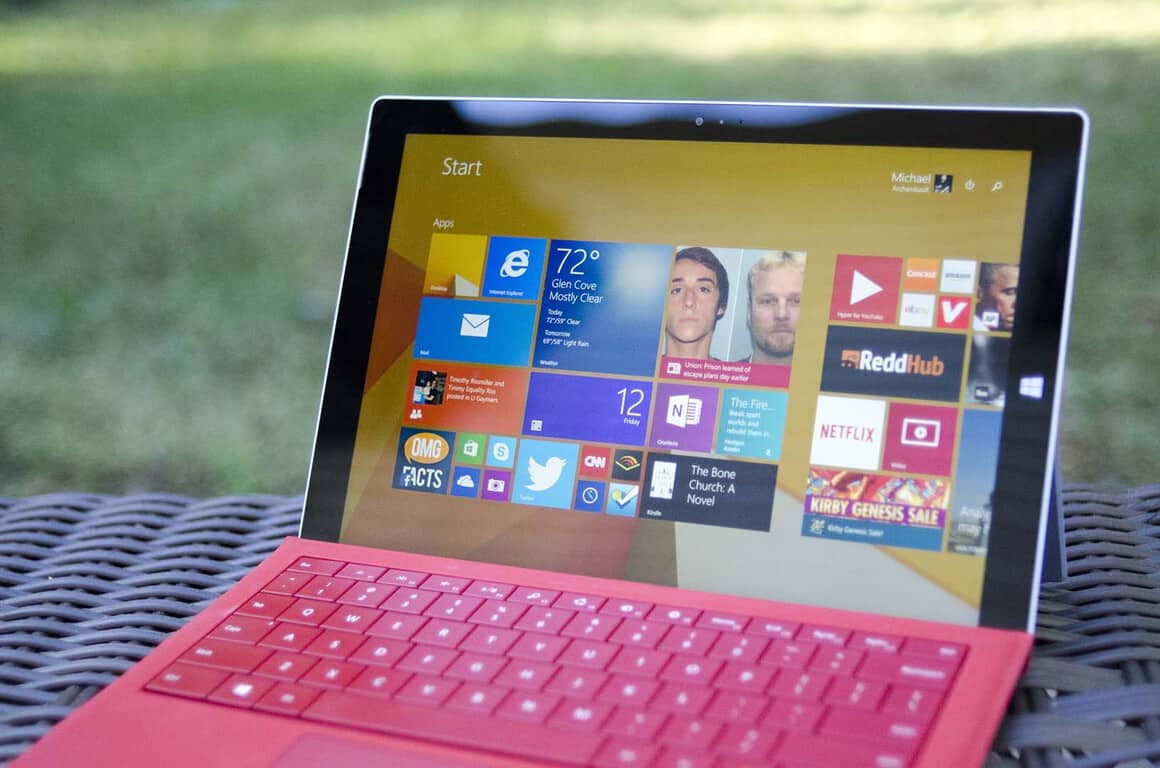
Windows Insiders to get new Enterprise features this month

In a post announcing that Dell and others will soon sell Surface Pros to enterprise, Microsoft also slipped in an announcement about some new features coming this month to Windows Insiders running Windows 10.
The features will be rolled out to Insiders “this month”, on track for broader availability “later this year”.
 
The features will include:

  • Enterprise Data Protection (EDP), providing personal and corporate data protection “wherever data flows”
  • Microsoft Passport, to help business workers securely log in to applications, websites, and networks without a password, and
  • Windows Store for Business, allowing company owned apps and more.

No word as of yet if there will be other non-enterprise features also available this month, or if what Insiders will be getting is an early look at the “Windows 10 November Update”, or “Threshold 2”, which is now slated for a November release.

Microsoft will be before the Second Circuit Court of Appeals tomorrow defending email

Microsoft will be in court tomorrow before the 2nd U.S. Circuit Court of Appeals to try to reverse a lower court’s ruling that the Redmond, Washington based company has to turn over customer email records stored in a data center outside of the U.S.
The case involves a US law enforcement agency demanding Microsoft hand over a customer’s email records as part of a narcotics investigation. This is something that isn’t out of the norm and involves a search warrant and due process. Microsoft accordingly complied to an extent under the law and handed over the customer’s address book, which was stored in data center within the United States.
But Microsoft did not fulfill the entirety of the government’s request due to a point at the heart of the appeals hearing tomorrow. While they handed over the address book, they did not hand over the actual email records because those records are stored in a data center in Ireland, well out of the jurisdiction of any domestic law enforcement agency.

In the lower court’s ruling, the emails were declared fair game, despite being stored abroad, because there is significant legal precedent for subpoenaing bank and business records when they are held abroad. But Microsoft contends that emails are entirely different from business records. In Microsoft’s brief to the Second Circuit, the technology company states (via the Wall Street Journal):

“A bank can be compelled to produce the transaction records from a foreign branch, but not the contents of a customer’s safe-deposit box kept there. A customer’s emails are similarly private and secure and not subject to importation.”

Upholding the lower court’s decision would also potentially be a violation of a nation’s sovereignty, and it is not clear that there is precedent to seize customer’s data, like emails, stored in foreign countries.
In court papers, Microsoft calls upon congress to (via The Washington Post):

“grapple with the question whether, and when, law enforcement should be able to compel providers like Microsoft to help it seize customer emails stored in foreign countries. Only Congress has the institutional competence and constitutional authority to balance law enforcement needs against our nation’s sovereignty, the privacy of its citizens and the competitiveness of its industry.”

More to the point, the United States is ignoring its normal recourse under treaties with foreign governments to have Ireland seize the data on behalf of the US law enforcement agency’s investigation. Instead it is trying to seize the data directly from Microsoft through the US’s legal system. If the lower court’s decision is upheld, it could set a dangerous precedent of ignoring international norms and enabling US government agencies with the ability to unilaterally seize a person’s data even if stored abroad, as long as the company conducts any operations within the US.
With such significant implications to the future of email and cloud storage for any company that does business in the United States (which is virtually everyone), many have come to the support of Microsoft with their own legal briefs. The list of those supporting Microsoft goes on and on, and includes everyone from the ACLU, Apple, Amazon, Cisco Systems, the Software Alliance, U.S. Chamber of Commerce, Verizon, and more.
If the decision is upheld it could be a potential threat to the already diminished trust of the US government in regards to citizens’ private data, and a threat to the viability of the global cloud business because of reservations over having operations within US jurisdiction. Another appeals submission by 29 major US and foreign news and trade organizations also support Microsoft on the grounds that they rely on e-mail and cloud storage to “gather, store, and review documents protected by the First Amendment… Even if the subscriber today is not a reporter — although we do not know for sure — the next subscriber may be” (via The Washington Post).
The appeals hearing that starts tomorrow will be closely watched by the tech industry, and it should be closely watched by all; as it has potentially far reaching implications in establishing legal precedent for how and when the U.S. government can subpoena email records.