
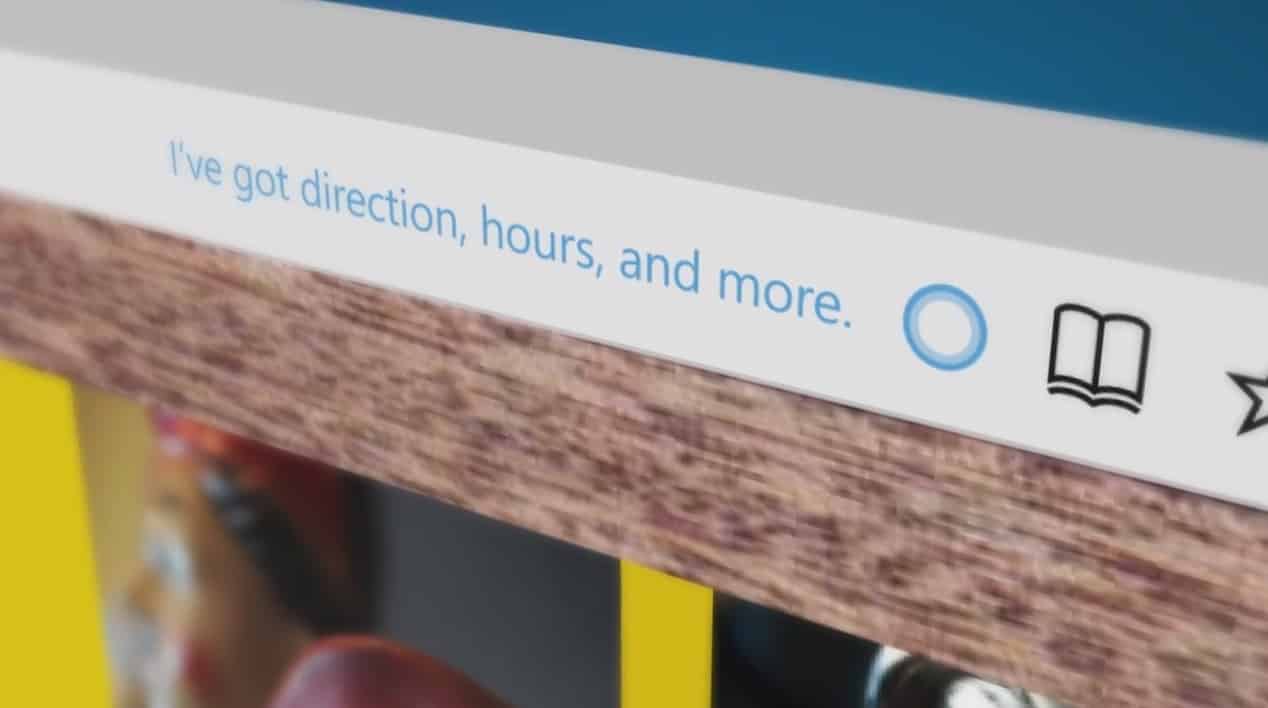
Today, Microsoft announced a new feature using Cortana with Microsoft Edge. The latest update to Edge adds the Cortana feature to get the latest deals on products on retailers’ websites like Best Buy, Staples, and Macy’s. When you visit these three retailer websites, Cortana will appear in the address bar armed with a coupon for the latest deals. You should see something like this:

At the moment, it looks like this new Cortana coupon feature is only available for the websites for Best Buy, Staples, and Macy’s, but it is likely other retailers will follow suit as this is a good way to increase exposure for retailers everywhere. The coupon feature may not be available for everyone just yet, as Microsoft is just starting to roll out the new Edge feature. If you want to check out if you have already received the Edge update, all you need to do is visit Best Buy, Staples, or Macy’s websites through Microsoft Edge. If Cortana doesn’t offer the coupon automatically, you can hold down Alt + C to bring up the coupon offer.
Rudy Huyn hired by Dropbox to develop Windows 10 experiences
Windows Phone star developer Rudy Huyn has announced that he will be working at Dropbox as Tech Lead. His role in his new job? “To provide the best Windows 10 user experience ever”, so not much different from what we’ve come to expect out of Rudy. He will be relocating from his current city of Rennes, France, to Dropbox’s headquarters based in San Francisco. There’s plenty of precedent for this move, as Dropbox has long acknowledged Rudy’s skill and shown its willingness to work with the developer in the past.
Amusingly, Rudy took this opportunity to play a little game of tease, where he tweets hints about his upcoming position.
Something will change in 12 days… #newJob #wpdev — Rudy Huyn (@RudyHuyn) September 16, 2015
Hint: my upcoming office #bestOfficeEver pic.twitter.com/mB2mff1vxF — Rudy Huyn (@RudyHuyn) September 16, 2015
His little striptease evidently only lasted about an hour before he fully confirmed his new position. This might have something to do with the fact that his hint image can be readily found in an article featuring Dropbox’s San Francisco headquarters expansion.
Those concerned about fate of his activity as a Windows Store developer evidently need not be worried, as he indicates through his Twitter that all of his high-quality, unofficial apps were developed as evening hobby projects to his real daily job, and this pattern will not change with his latest job. When does the man sleep, you might be asking? For many developers, working on software is not a straining job, but a therapeutic passion, akin to an artist who lets himself loose with the paintbrush after coming home from his daily work as an accountant.
There’s no shortage of evidence that Rudy has a passion for Windows platform. On his website, he even brands himself “a true Windows Phone addict”. He is noted for being one of the platform’s biggest and most ardent advocates, developing high quality, unofficial third party apps to popular services such as Instagram and Tinder. He has even gotten himself in into a something of a legal tussle with Snapchat with his unofficial Snapchat client 6Snap. He even has the accolades to backup his achievements: Microsoft MVP, Nokia Developer Champion, Microsoft Community Contributor Award 2011.
He is the hero the Windows 10 Mobile platform deserves, AND the one it needs right now.
Check out some of Rudy’s apps below.



Microsoft details Windows RT Start Menu update
As we posted yesterday, Microsoft has rather quietly released Update 3 for Windows RT 8.1. This is good news for Windows RT users, because the update adds in a Start menu, one of the most popular features of Windows 10 and the most demanded by Windows RT users. Microsoft has published a fairly descriptive changelog for Update 3 (officially dubbed KB3033055), and so we can provide additional details on precisely what Windows RT users can now enjoy.
As mentioned, the most significant change is the addition of a Start menu, which is quite similar to the version introduced in Windows 10 very early in the Windows Insider program. The start menu is a tad simpler than the one in Windows 10 and oddly resembles Windows 7/8.X in its iconography, but it provides a number of key features.

- Header. This is where the user account picture and power button appear.
- Pinned List. Apps that are pinned for easy access appear here.
- Most Frequently Used applications list (MFU). Apps that are frequently used but not pinned anywhere else will appear here.
- All Apps button. Selecting this button displays the All Apps list.
- Search text box. Typing here begins a search.
- App grid. Both Immersive and Win32 apps can be pinned, unpinned, and resized in this area.
The Start menu in Windows RT can be toggled on and off, accepts pinned apps to the grid and the Pinned List, and offers scrolling to accommodate a large number of pinned apps. A most frequently used (MFU) apps list provides quick access to your favorite apps, and a Search box occupies the familiar spot to the lower left of the Start menu.
Microsoft recognizes the need for explicit Desktop support, and so they devote a few bits to describing how to return to the Desktop quickly–a process that basically involves pinning the Desktop “app” to Start. Because Windows RT still utilizes the immersive version of Internet Explorer that was dropped from Windows 10, Microsoft also provides some insights on how the desktop and immersive versions Internet Explorer work together.
Finally, Windows RT users can now enjoy circular frames for User Account pictures, just like their Windows 10 compatriots. Whether this is a good or bad thing depends entirely on personal preference, of course.
That seems to be everything included in Windows RT Update 3, and while the Start menu is likely a welcome addition, it looks like Microsoft isn’t investing loads of resources into updating what’s essentially a dead platform. Hopefully the changes will be enough to tide Windows RT users over until they can make the jump to a Windows 10 machine.
New Microsoft President Brad Smith calls for Privacy Act reform
Microsoft President and Chief Legal Officer Brad Smith has only had his new title a few days, but he’s already making waves. In a Microsoft Blog post this morning, Smith opined on the importance of privacy in technology and the need for significant reform. However, his position is likely a little narrower than many Windows 10 users might like to see.
Specifically, Smith speaks to the inadequacy of the Electronic Communications Privacy Act (ECPA), which was passed in 1986 and which he considers archaic and completely behind the times.
The principal law that protects the online privacy rights of Americans today was passed in 1986. In technological terms, it was a bit like the Stone Age.
I remember, because by coincidence I was a young lawyer moving to Washington that fall. People still remind me that I was a bit of a trailblazer at the time by insisting that I have a PC on my desk at a law firm. Yet what’s most striking is that any activity online at that time required connecting to a modem to access a service such as CompuServe. Viewed in hindsight, it was pretty primitive. So much so that it never even occurred to me to ask the law firm for a PC and a modem.
Certainly, anyone who uses the Internet today–which of course includes a few billion people–would agree that privacy is a serious issue. Setting aside illegal hacks like the Ashley Madison fiasco, concerns abound regarding how companies legally utilize the scads of personal information shared inadvertently and deliberately on the Internet.
However, Smith is speaking here specifically about email protection, not coincidentally because Microsoft is embroiled in a legal battle with the U.S. government over access to emails stored outside the country. He cites a 2014 survey in which a sample of U.S. voters overwhelmingly supported the application of the same protections afforded paper documents to their digital equivalents.
The country has figured this out. A survey of U.S. voters we conducted last summer found that 86 percent believe in the same protections for digital information as information on paper. Similar sentiment in other countries has led to a series of new laws across Europe, Asia and South America while Americans continue to receive weaker protections as technology advances. Many of these updates center on laws to protect email, which has increasingly become our system for storing legal documents, remembering the milestones in the lives of our friends and family, and communicating our deepest held views.
Simply put, Smith supports significant changes to current law that would severely restrict law enforcement’s access to information stored in cloud services that reside outside of U.S. borders. To that end, he’s pushing a recently introduced bill, the Law Enforcement Access to Data Abroad Act (LEADS), that would explicitly define how law enforcement agencies can gain access to such electronic information.
Smith’s blog post is tightly focused on an issue that’s near and dear to the company’s heart, and which has likely cost them significant dollars in legal fees. He says nothing about other privacy concerns, which have also surface for Microsoft since the introduction of Windows 10, but those are surely on his mind as well.
Hopefully, Smith will devote some time soon to answering questions about how Microsoft is using the various information gathered by Windows 10, and perhaps prompt some other companies–Google and Facebook, we’re looking at you–to do the same.
Poll: What part of the Windows app gap do you want to close the most?
Whoever coined the phrase app gap was pretty clever. It’s probably mentioned by any salesperson trying to convince you to buy an iPhone or Samsung device when you ask to see a Lumia. While many popular apps are on the Windows platform, some notable ones are missing. This week’s poll is on which type of apps you would like to see most on Windows. We only give four options on the polls for the WinBeta Podcast so we’ve had to split them into categories. There are some types of apps that won’t be mentioned but these are four popular categories that people ask to be supported. Tune into this week’s WinBeta Podcast to hear us discuss the results. The voting page is embedded below and you can find the results here.
It’s worth pointing out that while you personally may not use an app or service like Snapchat, it still hurts the platform when they aren’t there. Google services, Snapchat and Pinterest, banking apps, and apps from business are all very popular and add to the list of reasons not to switch to or stay on Windows. Here’s a brief breakdown of the situation for each of this week’s options.
Google apps: YouTube, Chrome, Gmail, Google Maps, and Google Drive are just a few of the Google apps that don’t have official versions on Windows. Though there are third party alternatives to many of these, some people only like using first party clients or don’t know how to find good third party apps. Others are simply deterred by hearing “there’s no Gmail app on Windows” even though Outlook works fine. Even with third party alternatives, there are still Google services that you can’t use easily on Windows devices.
Banking apps: Banking apps are used by many to check their balance, easily transfer funds, and even deposit checks. While many of these can be done on a browser, the user interface is usually worse and some features are lost (mobile check deposit being a good example). While some big names banks such as Barclays in the UK have official apps that work well, many banks in the United States such as Bank of America do not. They gently push people towards their mobile sites that don’t work as well as fully featured apps.
Social Media apps: Some of the big names of social media have apps on Windows but there are some glaring exceptions when it comes to official applications, that’s not including the terribly supported Instagram, amazingly still in beta. The best Facebook app for Windows Phone is made by Microsoft, there’s no official Pinterest app, and the bane of every Windows related journalist Snapchat is far away from Microsoft charging $0.99 for a few replays. Social media drives many people’s buying habits and not having certain services on Windows is a major blow to the platform.
Business and Service apps: This is admittedly a bit of a blanket category. There are lots of businesses and restaurants that have apps on other platforms but not Windows. Recently I was researching MoviePass which lets you watch unlimited movies in theaters for a monthly fee. It requires an iPhone or Android device to work. Not only do they not have an app on Windows, I tweeted them asking about Windows Phone and they straight up said they weren’t working on one. This is only one example of apps like this not being on Windows, though. Concert venues, drone flying apps, and plenty more arrive on Android and iOS without ever touching a Windows mobile device.
This is in my opinion the biggest thing holding people back from embracing the platform. Writing this article has been a bit sobering when you look at how many things some people would have to give up to be on Windows mobile devices. With the limit of four options I couldn’t include some types of apps and this is only about apps that aren’t available, not ones that aren’t supported equally compared to their iOS and Android counter parts. While some would point to other issues, Microsoft has spent a massive amount of effort trying to fix this very problem. Their universal app platform combined with easy porting software that allow developers to use Android or iOS code to make apps all have their sites locked onto this problem.
Let us know which type of app you’d like to see most on the platform through your vote and sound off in the comments below.
Microsoft increases stock dividends payout
Microsoft announced an increase in dividends late yesterday:
Microsoft Corp. today announced that its board of directors declared a quarterly dividend of $0.36 per share, reflecting a five cent increase, or 16.1 percent, over the previous quarter’s dividend. The dividend is payable December 10, 2015 to shareholders of record on November 19, 2015. The ex-dividend date will be November 17, 2015.
Basically, the increase should make buying and holding Microsoft stock more attractive in the face of market volatility. The larger the dividend, the more value the stock provides even if its price on the stock market is stagnant or goes down.
Of course, spending more on dividend payouts leaves less money for investing in the business, and so there’s an obvious tradeoff. However, Microsoft is engaging in some aggressive strategies since CEO Satya Nadella took over the reins, and increasing dividend payouts is a good way to help smooth the transition.
Windows 10 Mobile Build 10512, 10514, 10536 Download Stuck for Several Users
According to a couple of Windows 10 Mobile users, it seems that downloading Windows 10 Build 10512, 10514 and 10536 takes a very long while to complete. Here are some more details.
 A couple of Lumia owners have been complaining that it’s ‘taking forever to download Windows 10 Mobile build 10514 and 10536‘. Here’s what one of them said:
It seems that it is taking forever to download Windows 10 Mobile build 10514 and 10536.1000 on my Lumia 930. It has been eight hours now, and the phone is still at the Downloading updates (0%).
A soft reset has restarted the update, and it has been running for three to four hours now. But even after the soft reset, the download is still stuck at 0%.
My Lumia 625 (spare phone) has finished downloading the two builds but when it is preparing to install the builds, it crashes with an error 0x800705b4. Twice. And after that it doesn’t receive the builds.
So, as we can see, the user did a soft reset but that didn’t help too much. We need to remind that these builds are fairly new, so this kind of issues are ‘natural’, if I can put it this way.
Windows 10 Mobile build 10512, 10514, 10536 download met with problems
Somebody else also weighed in, saying the following:
Mine is says updates are available and shows both:
Windows 10 Technical Preview for phones (10.0.10514.0) and
Windows 10 Technical Preview for phones (10.0.10536.1000).It’s been on “Downloading updates 0%” for hours now, including after several soft resets.
It seems I’m a whole update behind, since two builds don’t usually appear at once, but this is the first I’ve seen of either of these updates being available. Maybe that’s part of the problem?
So, as we can see, these are indeed some annoying problems. If you have experienced them, as well, do leave your comment below and share with us. If you know a fix to these issues, then we’ll be happy to hear it.
READ ALSO: New Windows 10 Mobile Build Brings Back Insider Hub, New Photo App and Fixes Mobile Hotspot
Microsoft sponsors Old Glory relay to celebrate US veterans
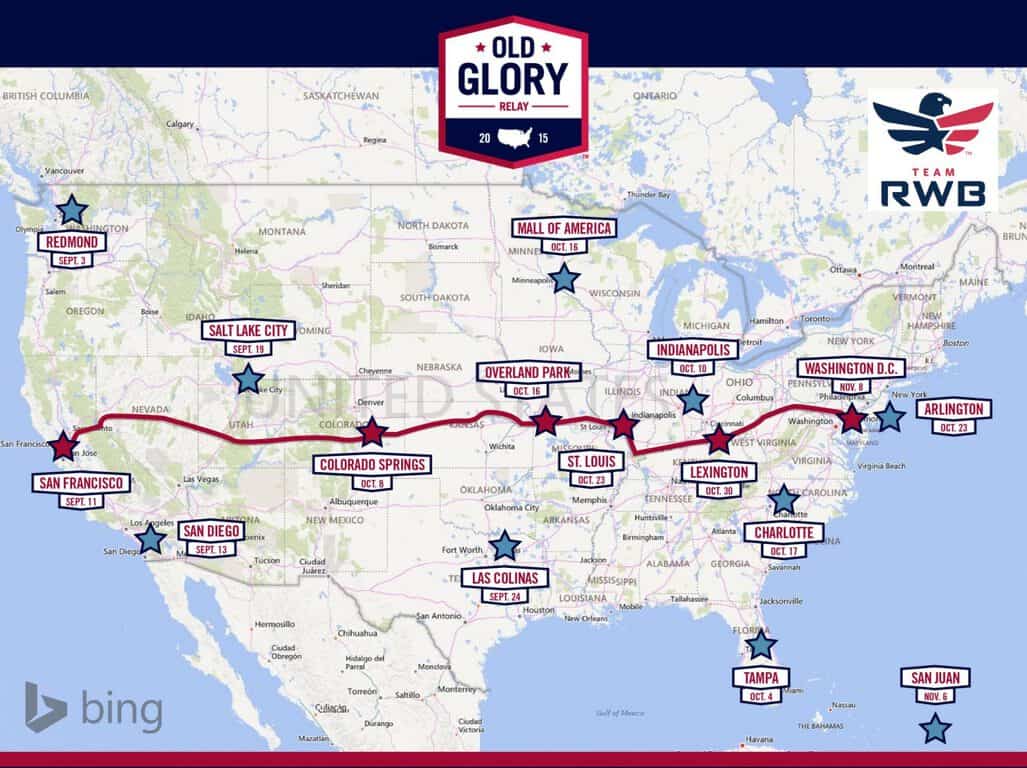
One of the founders of Microsoft, Bill Gates, now runs the “The Bill and Melinda Gates Foundation” which helps those less fortunate than the rest of us. Perhaps inspired by its founder, Microsoft itself is involved in many philanthropic events. Recently the company hosted festivities for the Special Olympic “Flame of Hope” relay and now it is sponsoring the “Old Glory” relay to celebrate US war veterans. Microsoft partners up with relay organisers, Team Red White and Blue, who set up the relay to “enrich the lives of America’s veterans by connecting them to their community through physical and social activity”.
This year’s relay kicked off on Sept. 11 (the anniversary of 9/11) in San Francisco and will end 60 days later in Washington D.C. on Nov. 8. Throughout that time, Microsoft runners and veterans will carry the Old Glory flag 3,540 miles across America along the route shown in the image above.

On the first two days Sean Kelley, program director for Military Affairs at Microsoft, ran 27 miles with onlookers honking car horns and giving him claps of encouragement. It was a proud moment for him:
“SEMPER FI!” I could hear shouted from the doorway of an office building. One young man stood at attention as we passed. Another older man, with a black beret on, saluted us proudly.
Apparently the Microsoft runners even ran the final sprint to the Microsoft campus with the Google veterans which shows that business rivalry was left at home and veterans are the only focus.
This isn’t Microsofts first involvement with veterans as previously they launched an assistance program to help veterans get into tech jobs. Unfortunately after their military service is done, many veterans become unemployed because they aren’t sure where to apply their skills.
We salute Microsofts efforts to help enrich the lives of veterans. War, while sometimes necessary, is a terrible experience for any human to go through. Hopefully Microsoft will inspire others to support these brave men and women.
'What If' a fun Q&A game makes its Windows Store debut
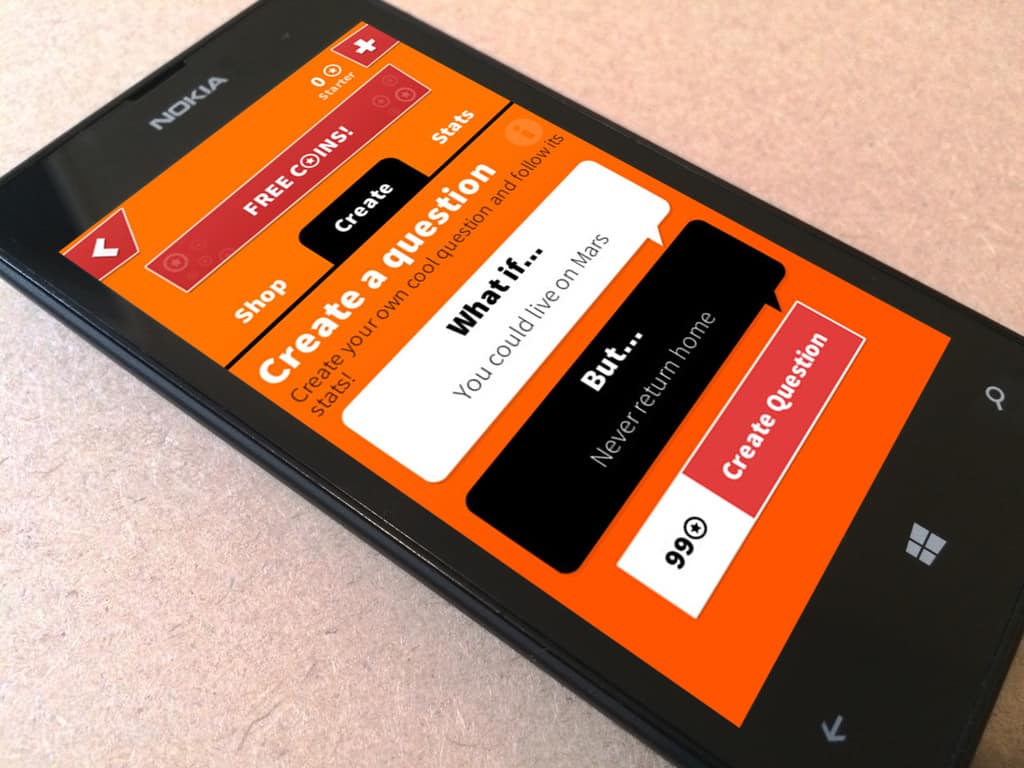
The folks over at Lumia Conversations blog recently highlighted an interesting new time-waster app for Windows Phones called ‘What if’. What If is a questions and answers based game where players are asked a series of “What if”scenarios followed by the poll results gathered from others who have answered the same questions.
For example, I was asked, “What if you never sleep longer than 5 hours a night, but you could craft and control your dreams every night?” I chose yes because I think it would be very nice to control everything in my dreams. And 63% of other people voted “Yes” with me.
Here’s another one: I was asked, “What if your salary tripled, but you had to work at McDonald’s?” I voted no because I like my job. Although I was a little surprised to see 62% disagreed with me.
‘What If’ is a nifty game and some of the questions are rather hilarious. What makes the game very unique is the crowd sourcing of questions that make into the game. Answering other people’s questions helps users gain ‘coins’, which are in-app currency. Beyond the app itself, ‘What If’ also encourages users to expand the experience onto other social platforms such as Facebook, where users can share to their timelines to gather even more ‘coins’. There are many more questions to answer as well, and you can answer them yourself by downloading the game from the Windows Store. Be sure to share some of what you were asked and what you replied with, in the comments below.

Windows XP still used by large number of companies in Eastern Europe

A report by ZDNet indicates that nearly a third of the public sector and business user base of many Eastern European countries still use Windows XP. Microsoft recently dropped support for the storied operating system (OS), which leaves a gaping security hole for many of these PCs. Prominent examples are Romania, with 34 percent of its install base still using the old OS. That’s 37.5 percent for Hungary. The Ukraine is at a whopping 41.2 percent. Worse yet, many of these companies are businesses where information security is vital: such as accounting and insurance.
There are several reasons why many businesses users in these regions refuse to upgrade. If it ain’t broke, don’t fix it; many businesses rely on legacy proprietary software that may not have counterparts updated for Windows 7 and beyond. Other, more obvious reasons are economical: to many, it simply isn’t worth paying for the cost to upgrade and the transition cost of training and investigating compatible software. And of course, there’s just plain ignorance. A lack of understanding that such an old OS lacks the updated security models to cope with modern day malware. Many of these companies, especially the smaller ones, likely don’t have adequate IT personnel to make informed decisions about information security.
It’s worth noting that NGOs (non-governmental organizations) in certain countries like Romania seem to be doing better at upgrading, with a larger number of users on Windows 7 or 8.1. This might have something to do Microsoft donating nearly $3 million in OS licenses, the largest donation ever to the local NGO sector. This also supports the notion that many refuse to upgrade more for economical practicality than necessity.
While the report points specifically to Eastern Europe, it bears mentioning that virtually every country in the world still has marginal numbers of companies that refuse to upgrade. To that end, at least on a philosophical level, Microsoft’s recent insistence on pushing its latest Windows 10 out as aggressively as possible makes a great deal of sense.
Toshiba's latest Windows 10 2-in-1 PC now on sale in the US
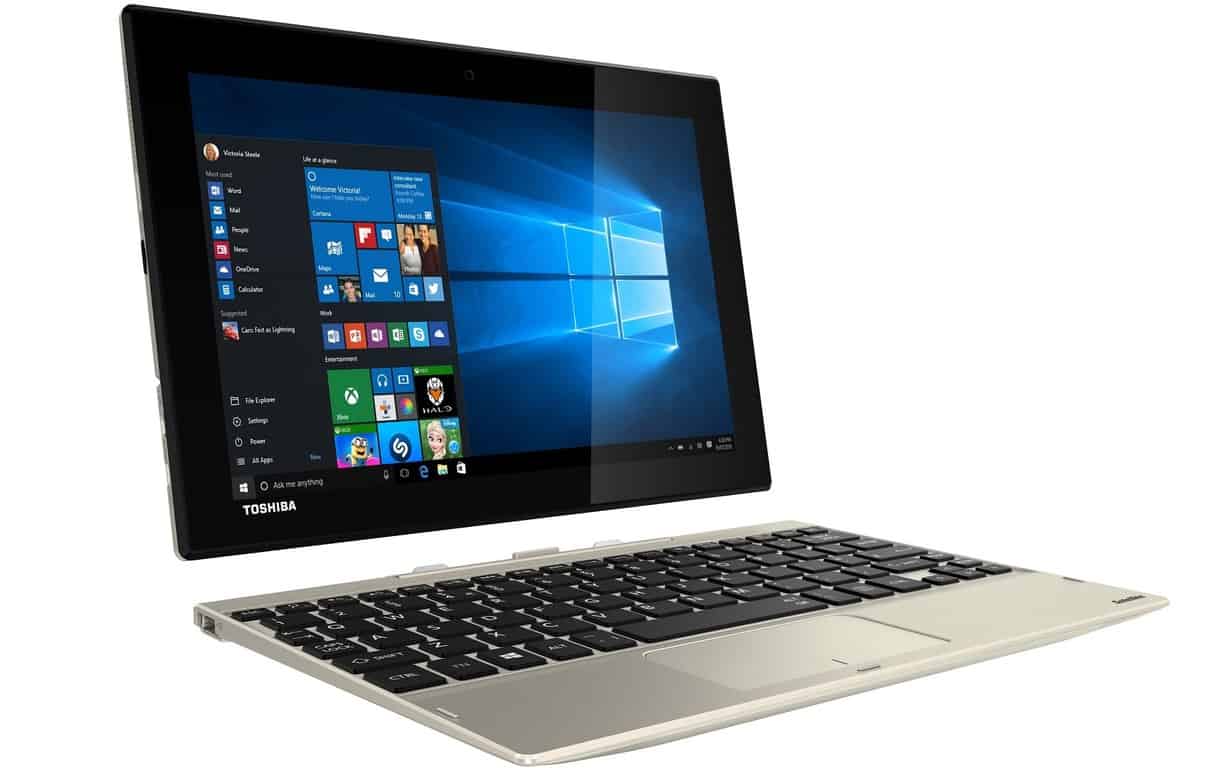
September has proven the success of the 2-in-1 PC form factor pioneered by Microsoft. We have seen a whole new lineup of Windows 10 devices announced at the IFA industry exhibition, rumors are surfacing (no pun intended) of Dell’s 2-in-1 with their signature Infinity Display, and even Apple has joined the 2-in-1 fray with the recently announced iPad Pro.
One of the newest 2-in1’s, the sleek looking Toshiba Satellite Click 10, is now available for purchase in the US. Unlike the Surface 3 or iPad Pro, this 2-in-1 comes with a detachable hard keyboard that can fold like a traditional clamshell laptop. And when the keyboard detaches it becomes a convenient 10.1-inch tablet weighing 1.2 pounds.
While well-designed to be compact and ultra-portable, this device’s hardware is less powerful than the Surface Pro 3, and is more in lines to compete with 2-in-1’s like the Surface 3. The specs are:
- Processor: Intel Atom x5-Z8300 Processor
- Operating System: Windows 10 Home
- Memory: 2GB LPDDR3 1600 (not user upgradeable)
- Graphics: Mobile Intel® HD Graphics
- Storage: Available either with 32 GB or 64 GB of eMMC storage
- Display: 10.1” widescreen display with 1920×1200 resolution, 10 point multi touch support, WUXGA TruBrite LED Backlit display with Wireless Display Support
- Connectivity: Wi-Fi Wireless networking (802.11a/g/n), Bluetooth V4.1
- Keyboard Dock: TruType keyboard, Clickpad pointing device with multi-touch control, 2 USB v2.0 ports, Docking connector
- Tablet: Micro HDMI, Microphone/Headphone combination port, 1 USB 2.0 port, Memory Card Reader, Docking connector, Volume up/down buttons, Windows button, Power button
- Battery: rated for more than 7 hours
- Cameras: 8MP rear facing camera and 2MP front facing webcam
This capable Windows 10 2-in1 starts at $349.99 for the 32 GB option and goes up to $369.99 for the 64 GB version. And unlike the Surface 3, the keyboard is included. However, it does come with a slightly less powerful version of the Intel Atom than the Surface 3 (the X5-Z8300 compared to the X5-Z8700), and with a limit of 2GB of RAM it won’t be a multitasking workhorse. That said, it still runs a full desktop version of Windows 10, comes with good port options, HD display, 7 hours of battery, and a hard keyboard attachment that has more “lapability” than a magnetically connected soft type cover.
What do you think of Toshiba’s Intel Atom powered 2-in-1? Let us known in the comments section below.
Flappy Bird with a twist: Fly or Die available in the Windows Store

A new day, a new Flappy Bird inspired game. Fly Or Die, the newest creation from developer Loon Apps, is now available exclusively in the Windows Store.
Besides putting a nice, pastel-like skin job reminiscent of Sony’s classics LocoRoco on the old one-finger gameplay – popularized by the notorious Flappy Bird – the game actually features an interesting new mechanics: obstacles now move in tandem with their designs (e.g. buzzsaws running back and forth,) or at least jiggles in place, adding another level of hazard and intensity to the already-unforgiving gameplay. All of them are also very grumpy about something, as you can see on the video. Additional, the main character (understandably a bird) also has a name: Piou. Which I assume is pronounced “pew.” Maybe.
You have 4 worlds to take Piou through with increasing difficulty, which you unlock slowly with collecting in-game apples. In an interesting twist, you cannot purchase apples, instead having to rely solely on “your skill and your force of will” to progress.
A fresh take on the Flappy Bird formula, Fly or Die is available for free on Windows Phone 7, 8, 10, and Windows 8, 8.1 and 10 on their respective Stores.

Skype Mojis: TV and movie clips to cheer up your chats
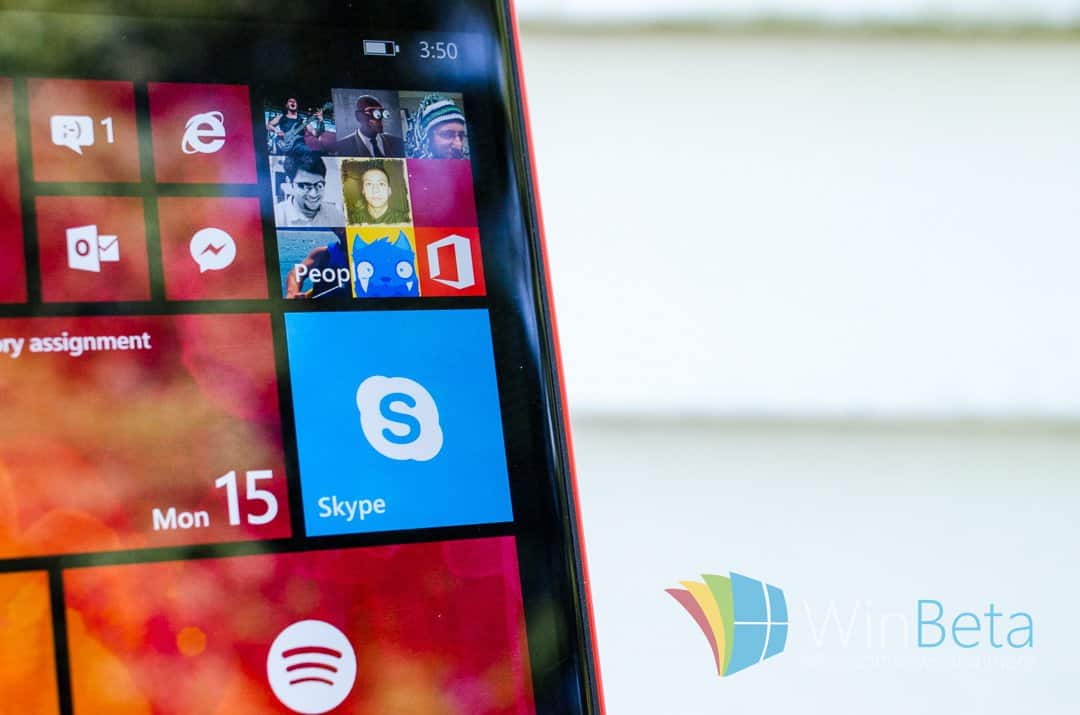
Skype has long been a solid business communications tool, and Microsoft has done a great job of beefing up the infrastructure and adding in solid collaboration features since purchasing the messaging solution in 2011. That’s great for the enterprise, of course, but one could argue that Microsoft’s done relatively little to make Skype into the kind of fun social messaging tool that the cool kids like to use.

Apparently, the Skype team agrees, and so they’ve announced Skype Mojis, which take the concept of emoticons to another level entirely. In short, Mojis are hand-curated TV and movie clips that can be accessed from the emoticon button. Feel like you need a little creativity in your chatting? Grab a Moji and, as Microsoft says, let it “do the talking for you.”
Here’s Kermit and Miss Piggy providing a quick overview of Skype Mojis:
Update to the latest Skype client on Windows, Mac, Android, and iOS, and you’ll have access to snippets from a variety of studios including Universal Studios, Disney Muppets, BBC, and others. Despicable Me, Bridesmaids, Pitch Perfect, Jurassic Park, and The Muppets are a few examples of what’s in store, and Microsoft promises to keep things fresh with new and unique content.
The company is asking for feedback at the Skype Community, and go here if you need to update your app to start titillating your contacts with Skype Mojis.
Screenshots leaked for Windows Server 2016 Technical Preview 3 Build 10537

Yesterday was full of big news with Microsoft sending out invitations to an event announcing new Windows 10 Devices on October 6th, and a long awaited release of a new Windows 10 Mobile build for Windows Insiders. But there were also leaked screenshots of Build 10537 of Microsoft’s latest operating system for servers, Windows Server 2016 Technical Preview 3.
Windows Server 2016 Technical Preview 3 Build 10537 …
screenshots:https://t.co/VbgURsIUqT pic.twitter.com/xoN8U9RJ4N— ????WZor????️ (@WZorNET) September 14, 2015
The images were leaked on Twitter by WZorNet and while they don’t contain any commentary on the new Build, many of the screenshots do reveal menu lists of things such as Server Roles, Features and options for in the newly refined Server Manager Dashboard. You can check out all of screenshots over at Wzor.net.
Just as a quick recap, some of the features released in the most recent officially released preview build, Build 10514, included Windows Server Containers and Active Directory Federation Services. It remains to be seen if Build 10537 will make it officially into the hands of the public, but with Windows Server 2016 not expected to be finalized well into next year, there should be more preview Builds in store around the corner.


Microsoft UK offers Core i7 Surface Pro 3 at discounts as high as £233
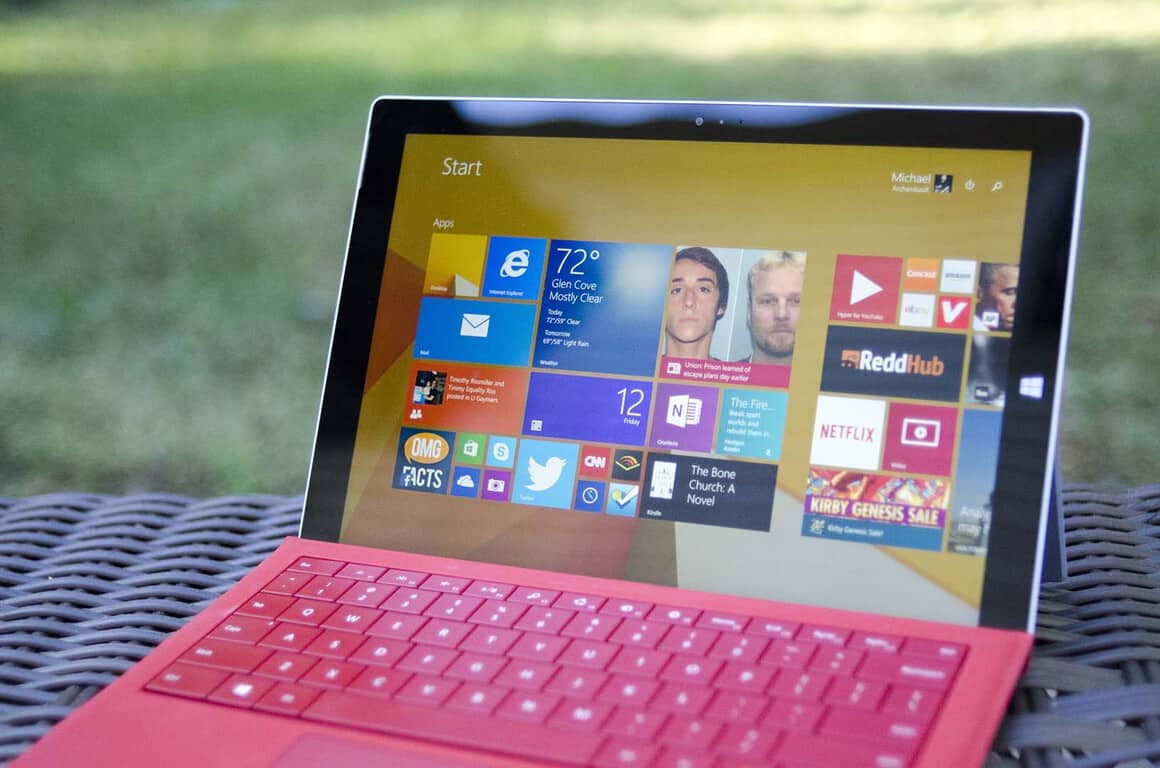
Surface Pro 3 is an excellent 2-in-1 tablet offering users with top-of-the-line specifications on board — you’ll have to shell out extra bucks if you want the top configuration. UK residents, if you’re still thinking about getting the high-end configuration of the Surface Pro 3, now might be a great time as Microsoft UK is offering a 15 percent discount on the Core i7 configurations (via Windows Central).
Save up to £230 on our 2-in-1 #SurfacePro3 offer ends tomorrow 9am! #flashsale https://t.co/dKmB665A6G pic.twitter.com/PIKsnVqsGz
— Surface UK (@Surface_UK) September 15, 2015
The 256GB Core i7 model with 8GB of RAM is now priced at £1,104 (a discount of £195), while the 512GB model now comes with a £1,316 (discounted by £233) price tag.
It’s also worth mentioning that it’s a limited time deal, and will expire tomorrow at 9am UK time. So, make sure to make the most out of it if you’re interested in picking it up. If you’re hanging in the middle, you can check out our detailed review of the tablet, and see if it’s worth the money.
Microsoft has also scheduled an event on October 6th where the company is expected to launch the Surface Pro 4.
Ninjacats crack Microsoft's October event secret code (spoiler alert)
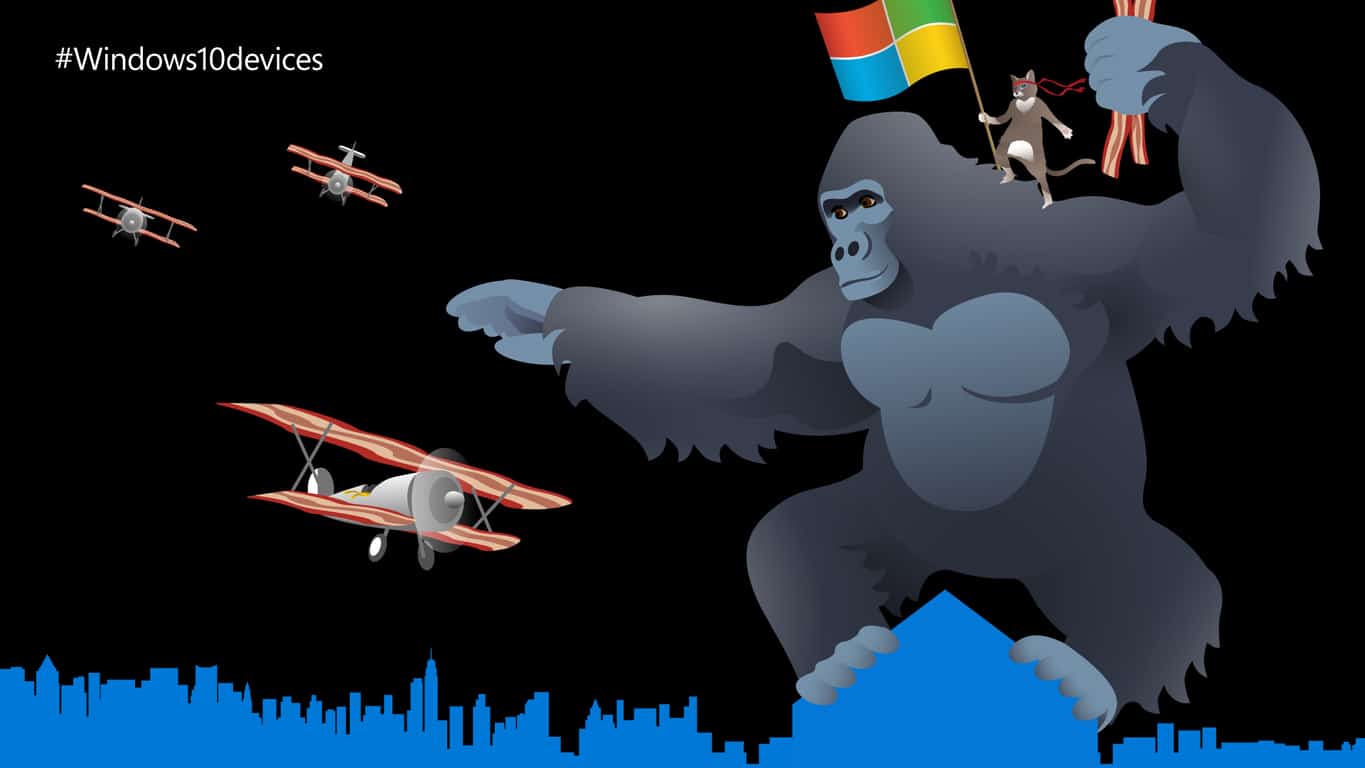
Some attentive readers have spotted binary code hidden inside the promotional image of today’s October 6th event announcement.

Warning: the following spoils the code.
Naturally, it didn’t take long for the massive Gravemind that is the internet to decode the hidden message. This message reveals itself to be none other than a URL toward a Windows blog post congratulating keyboard detectives for completing the excruciatingly, painstakingly, backbreaking journey of a challenge, calling it the #ninjacat challenge. It also goes on to encourage users to spread the word about the challenge. This seems like something of a cute and fun marketing tactic to get people interested in the upcoming event.
I personally think it would’ve been better if it decoded to a URL for the online live-stream.

Microsoft re-signs, expands agreement to share info with NATO

Microsoft has been continually strengthening their security certifications in an effort to expand their government services to new levels of the public sector. This has led Microsoft to being a provider of cloud services for everything from local law enforcement agencies surveillance footage to the state of Texas’s Women, Infants, and Children food and nutrition program, and more.
The Redmond, WA based technology company has also invested in a new transparency center in Brussels earlier this year. This new center is a part of Microsoft’s outreach to restore faith in Microsoft security and provide both transparency over its source code and resources for increasing cybersecurity both in the public and private sectors.
To this end, Microsoft announced today an expansion of their partnership with NATO’s Communications and Information Agency (NCI). This agreement is a part of Microsoft’s growing Government Security Program which currently works with over 40 agencies representing more than 25 governments. Microsoft describes their Government Security Program (GSP) as:
A program designed by Microsoft to help governments evaluate and protect existing systems, and create, deploy, and maintain more secure infrastructure, the GSP fosters partnership and trust. It is open to government agencies regardless of a commercial contract with Microsoft, and is an important part of what we consider to be our duty as global citizens.
Today’s agreement is the latest development in Microsoft and NATO’s 12-year relationship, but it will be the first time NATO uses the recently expanded capabilities of Microsoft’s GSP. In today’s statement, Microsoft described the agreement, saying:
…the NCI Agency will gain access to technical information and documentation about Microsoft products and services, as well as information about internet safety, threat intelligence, online training tools, and guidance to help mitigate the effects of cyberattacks across the region.
NCI Agency General Manager, Koen Gijsbers, also said of today’s statement:
NATO is facing new and increasingly dangerous threats to cybersecurity across the world and these threats could affect national economies and citizens. To avoid it, NCI Agency strongly believes in rapid and early information sharing on threats and vulnerabilities with leader companies worldwide, such as Microsoft. Trust is the key to success.
Hopefully the continual expansion of Microsoft’s GSP will ensure a greater and timelier disseminations of cybersecurity information to help both public and private organizations shore up their systems and data across the globe. Importantly, this approach to openness, and providing resources to make safer digital environments for any and all interested governments, will also help foster trust in Microsoft’s products and services.
Microsoft interns have great things to say about their experiences

Interning is a great way to get a feel for a company, a career, and an industry, and interning at Microsoft can be an ultimate experience for Windows fans (or anyone who wants some valuable experience with a software company). Microsoft’s Skype blog recently highlighted some intern experiences, providing a solid glimpse into what it’s like to work at Microsoft.
If you’re thinking of becoming an intern, then check out the experiences of Natasha, Sarah, and Frederico, who completed 12-week internships as members of the Skype team and lived to tell the tale. If Sarah’s experience is at all representative of the program, then it sounds like a great experience.
The opportunity to be a part of the Skype team this summer has given me an awesome look into what’s happening within the organization and at Microsoft. I believe Skype is changing human communication and connecting the world – it’s energizing to see all the new ideas and innovations the teams here are working on.
Go check out the story for more details on what these interns thought of their time at Microsoft. If you’re ready to take the plunge, you can find out more about Microsoft’s internship program here.
Windows 10 news recap: Threshold 2 UI refinements, new ads, and more
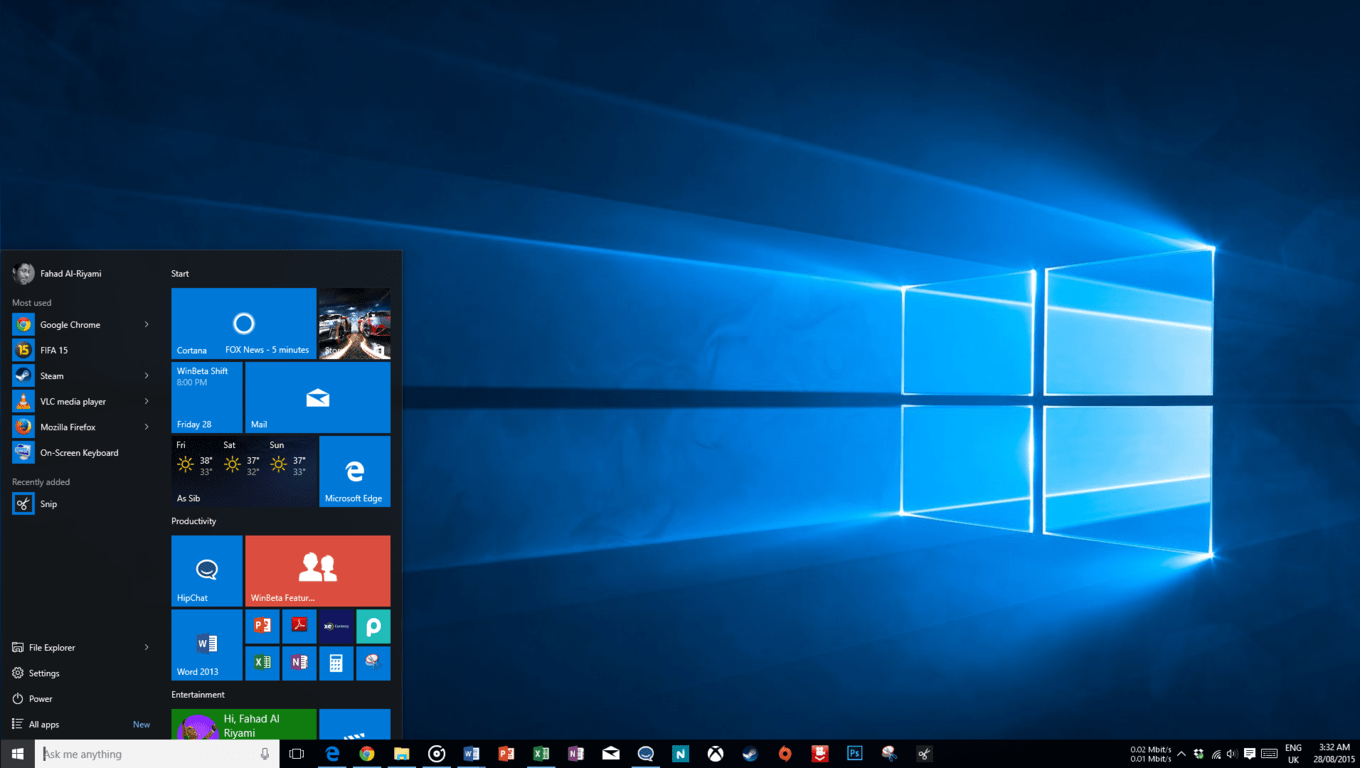
Welcome back to the Windows 10 weekly news recap, where we take a look at all the biggest news stories from this week regarding Windows 10.
Windows 10 Threshold 2 is under development right now, and it appears Microsoft is continuing to refine the Windows 10 user-interface with the upcoming update, as the latest internal builds of Windows 10 now feature updated icons and UI elements. You can read more about that here.
Microsoft has released a new batch of commercials for Windows 10. While their earlier commercials features some cute toddlers, these new ads feature kids in school. There are four advertisements in total though one is mostly a compilation of other ads. We’ve embedded the ads below for your viewing pleasure.
In a post announcing that Dell and others will soon sell Surface Pros to enterprise, Microsoft also slipped in an announcement about some new features coming this month to Windows Insiders running Windows 10. The features will be rolled out to Insiders this month, on track for broader availability later this year. These features include:
- Enterprise Data Protection (EDP), providing personal and corporate data protection “wherever data flows”
- Microsoft Passport, to help business workers securely log in to applications, websites, and networks without a password, and
- Windows Store for Business, allowing company owned apps and more.
Microsoft has rolled out a new cumulative update for Windows 10 this past week (KB3081455), which includes functionality improvements and resolves vulnerabilities in the operating system. This particular cumulative update addresses issues stated in seven security bulletins.
Several new Universal apps made their debut on Windows 10 this past week. These apps include an Adidas fitness app, WWE Network, an official NFL app, and a new Zomato app. Microsoft also teased a Translator 10 Beta app.
Must Read: Relax, Windows 10 doesn’t have a malicious ‘keylogger’
Stay tuned for yet another exciting week of Windows 10 news. You can keep up to date with the latest breaking Windows 10 news by bookmarking our dedicated hub here. You can also check out our library of Windows 10 tutorials here.
Using Picture Passwords in Windows 10 as a fun and easy way to log in
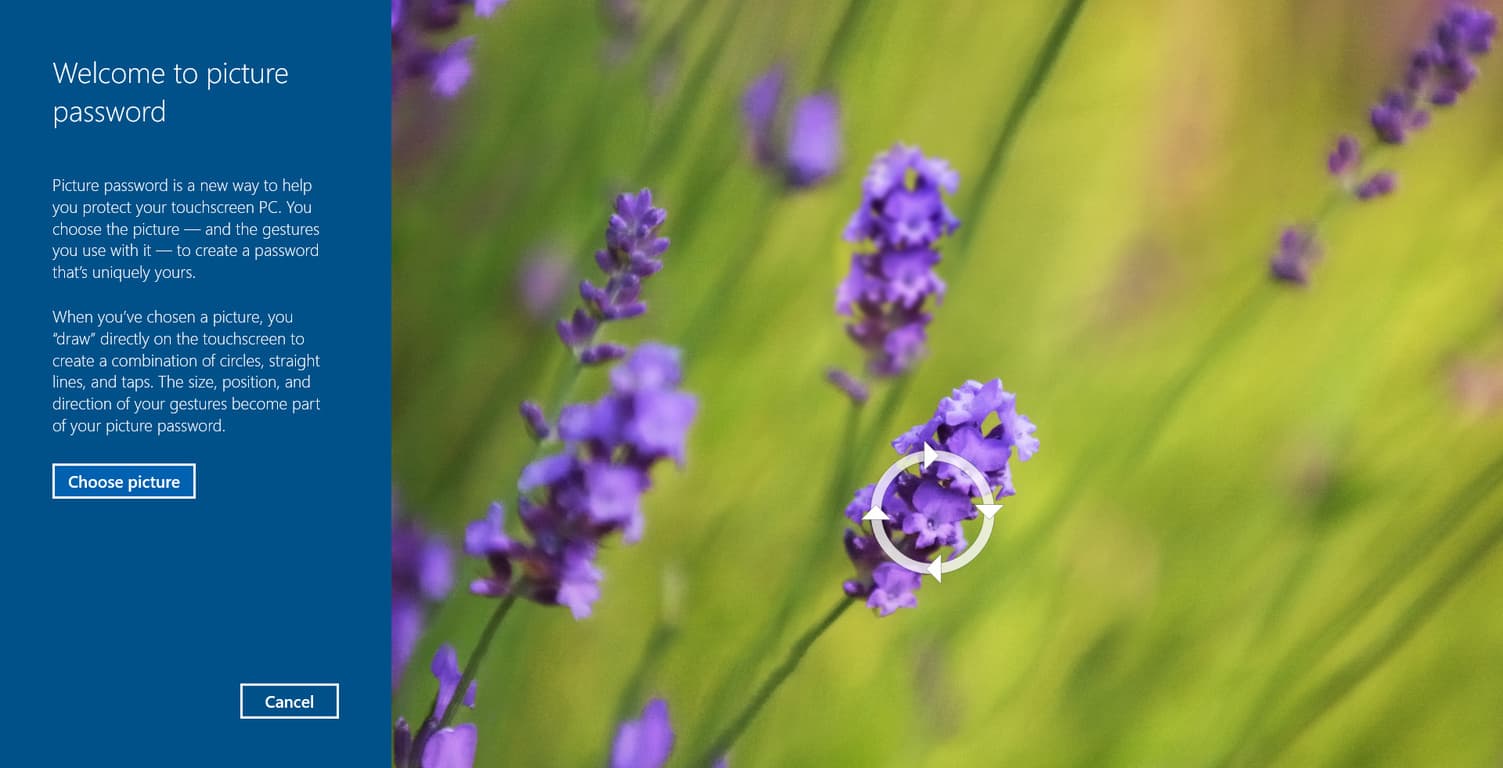
In Windows 10, there are more ways to log into your computer than ever. You could opt to use a password, a pin code, or use Windows Hello and its biometric login system. But today, we’re going to show you how to set up a picture password, which is one of the more fun ways to get into Windows.
Picture passwords were introduced when Windows 8 made its debut, and is still a feature in Windows 10. It works by assigning patterns to a picture which the user will then replicate every time they wish to log in to their PC. Which makes for quick and easy access to Windows. Setting it up is easy:
Step 1: Navigate to Settings, then Accounts, then Sign-in options
Step 2: Under Picture Password, hit Add
Step 3: Follow the instructions which involve selecting a picture, then drawing a combination of patterns including circles, straight lines and taps.
Step 4: Once done, your Picture Password is ready. Test is by locking your PC (Windows Key + L), and repeating the patterns you just assigned on the picture you’ve chosen.
Picture passwords are a quick way to log in to your PC, but just like PIN codes, if someone is standing behind you while you enter them, you could give them away. If you want to keep your device as secure as possible, we suggest using your full Microsoft ID password, or Windows Hello if your hardware supports it.
Fix: Tablet Auto Rotate Doesn’t Work in Windows 10/11
Windows 10 is designed to be a single operating system for all sorts devices ranging from phones, tablets, laptops to PCs, and so far Windows 10 is doing great on all platforms, but it appears that some tablets have issues with auto rotate in Windows 10.

What to Do if You Can’t Auto Rotate Tablet in Windows 10
If you own a table or a smartphone you probably know how auto rotation works. It uses sensors in your devices and if detects rotation it rotates your display and adjust it to your current orientation. There are two causes for this problem, it can be a software or a hardware issue, so let’s see what can we do about it.
Solution 1 – Set lock rotation to off
- Tap on Start menu and choose Settings.
- Then go to System.
- Next tap on Display.
- Scroll down and make sure that Lock rotation of this display is set to OFF.
Auto rotation lock feature is automatically turned on in Windows 10, so make sure that you turn it off.
CHECK OUT: Tablet Doesn’t Rotate After Windows 8.1, 10 Update for Some
In addition you can also try this:
- Go to Control Panel.
- Choose Display.
- Click on Change Display Settings.
- Make sure that Allow the screen to auto-rotate is checked.
If this doesn’t help, maybe you’re having a hardware issue, so let’s check if your sensors are working properly.
Solution 2 – Use Microsoft Sensor Diagnostics Tool to test your sensors
- Download Microsoft Sensor Diagnostics Tool.
- Start the tool and select the HID Sensor Collection: Inclinometer.
- Pay attention to Data box since it displays number of tilt degrees.
- Rotate your device and check if the values of degrees change
If the number of degrees is changing, the issue is related to software, but if values stay the same, it means that your sensors aren’t working, so you might want to send your tablet to a repair shop.
Before trying all of this remember to update your device using Windows Update since latest updates usually fix most software issues, so they might fix problems with auto rotation.
That would be all, if you have any comments, questions, or suggestions, reach for the comment section below, and we’ll make anything clear. Also, if you have any other Windows 10-related issues you can check for the solution in our Windows 10 Fix section.
OneNote app for Windows 10 gets full screen drawing mode and more

The OneNote app for Windows 10 has been getting plenty of updates recently, and today we have another addition to the app’s toolkit. With the new additions to the app, OneNote has been given a full screen drawing mode, allowing users to draw in OneNote without some of the other distractions that would be on screen otherwise.
This is a big improvement to the UI of OneNote, making things feel a bit better for those who need to draw anything on the app. Previously, users were faced with almost a quarter of their screen being taken up by other portions of the app, but this new addition frees up quite a bit of screen real estate.
In addition to the new full screen drawing update, OneNote was given some miscellaneous bug fixes and polish, as well as some proofing changes, allowing it to correct or ignore misspelled words instead of just painting them as misspelled. This new update isn’t going to change the way that you use OneNote by any stretch of the imagination, but it will definitely polish your experience.

Photos Add-ins app for Windows 10 appears to be a rebrand of Lumia Moments

Remember the Lumia Moments app? This app allows you to use the best frame in a video to find pictures and save them as “Living Images” and bring them to life in the camera roll. It appears Microsoft has quietly rebranded the Lumia Moments app to Photo Add-ins.
This change was first spotted by OneTechStop, and the app is available right now in the Windows Store. Interestingly enough, this app now appears to be a “plug-in” for the Photos app. You can grab the app from the download link below. Here’s what the app description states:
“Add great new effects and features to the Microsoft Photos app with this handy plug-in. With Microsoft Photos plug-in, you can save the perfect photo from your videos, add a strobe effect to your photos to show action or add blur to emphasise motion. This plug-in is fully supported on Lumia 830, Lumia 930, Lumia Icon and Lumia 1520.”
Just recently, we learned that Microsoft was retiring several Lumia apps, including Storyteller, Beamer, Photobeamer, and Refocus. It looks like these apps may have some hope after all if Microsoft decided to rebrand them and offer them as plug-ins to the Photos app.

Windows executive David Treadwell gets a new position in Cloud and Enterprise

Last month, we reported on the continued shuffling of chairs aboard the Microsoft executive deck. Some of the moves made by Microsoft were to consolidate roles while others were shifted into better suited positions. Twenty-six-year Microsoft veteran, David Treadwell, was among the executives to be shuffled, having moved from Windows to the Microsoft Cloud and Enterprise division. At the time, Treadwell’s move was a big question mark for Microsoft observers. However, just a few weeks after a landing a new home in different department, we are getting a bit more clarity on the change.
Thanks to a report from Mary Jo Foley over at ZDNet,we now know Treadwell’s new title of Corporate Vice President of Identity puts him at the head of a recently split division of Identity and Security in Microsoft’s Cloud & Enterprise Division.
Taking on the responsibility of the Security portion of the newly split unit will reportedly be Bharat Shah. Shah is now the active Corporate Vice President of Security. Prior to the promotion, Shah worked as a general manager of BPOS, Office 365 and Microsoft’s Online services. More recently his title was Vice President of Windows Azure Active Directory and Security. Seems the promotion was a natural fit for him and Microsoft.
As for what the new Corporate Vice Presidents of Identity and Security now do separately remains a mystery. Microsoft has yet to detail why the unit was separated and what each unit’s goals are going forward. The move almost seems counterintuitive to many of the moves Microsoft has made lately in its efforts to consolidate and eliminate layered communication.
Other management moves include Brad Smith, who we reported is now president and chief legal officer at Microsoft.
After some relatively big shakeups on the Microsoft landscape recently, the new title changes for these executives seems almost respectively mundane.
Microsoft exec talks about Bing being at the heart of future Windows 10 revenue
Arguably, communication has never really been Microsoft’s strong suit; this is not to say Microsoft ‘can’t’ communicate but rather its timing or message leaves more questions than answers for some.
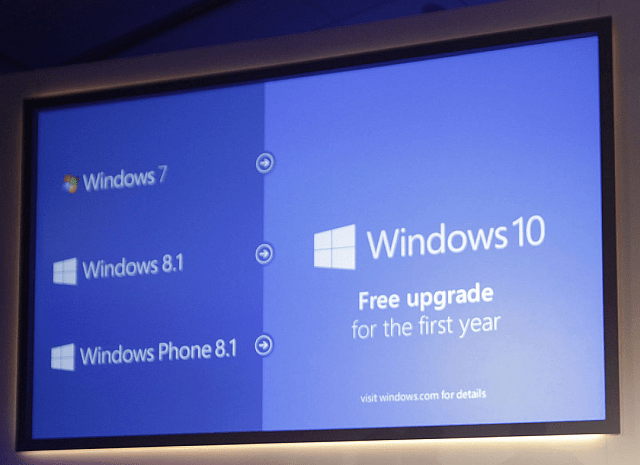
During the Windows 8 development, the Windows team communicated minutia details in an unnecessarily long blog post but remained radio silent on the most relevant issues of combing a mobile and desktop operating system. Over the past handful of months, Microsoft has been very open and communicative about offering free Windows 10 to consumers, while remaining relatively vague on its plans for future revenue production.
Fortunately, Chief Marketing Officer at Microsoft, Chris Capossela took time out this week at the Citi Global Tech Conference in New York to expound on Microsoft’s ‘freemium’ Windows strategy going forward.
While most Windows 10 users have been delighted with the free upgrade, investors have been a little less than receptive to the idea of Microsoft giving away solid revenue. Chris explains that Microsoft has several plans for recouping some of the lost revenue from free Windows 10 installs, and it most of them revolve around Bing.
“Edge usage is higher on Windows 10 than IE usage was on Windows 8 and Windows 7. That’s net positive for Microsoft. That’s more queries being executed through Bing, that’s more ad revenue flowing through Edge. And that’s obviously a revenue source for us independent of the Windows device. I shouldn’t say independent, I should say post-sale of the Windows device.”

Perhaps this plays into recent observations by Windows 10 users about the symbiotic encouragement of the Edge browser for Bing use and vice versa. Chris also speaks about the friendlier face of Bing, Cortana also feeding into Bing’s analytics on Widows usage and its users to bring in additional revenue:
As you use Cortana you’re not using the Google query engine, you were probably using 15 minutes ago. And the more people fall in love with Cortana and use Cortana the more we’re able to essentially capture that query share from Google.”
As Cortana is allowed to track users across Windows 10, Bing, Outlook, OneDrive, Xbox, Windows Mobile and Office, it plays into Microsoft’s strategy to wean users off of Google properties. With more searches flowing through Cortana (aka Bing), Microsoft can also increase its Bing Ad revenue over the long-term.
For some time now, Bing has been the butt of search engine jokes, but as search transitions to become increasingly personalized and predictive, Windows 10 and Bing seem to be where Microsoft is set to compete.
How to disable “Get Office” notifications on Windows 10
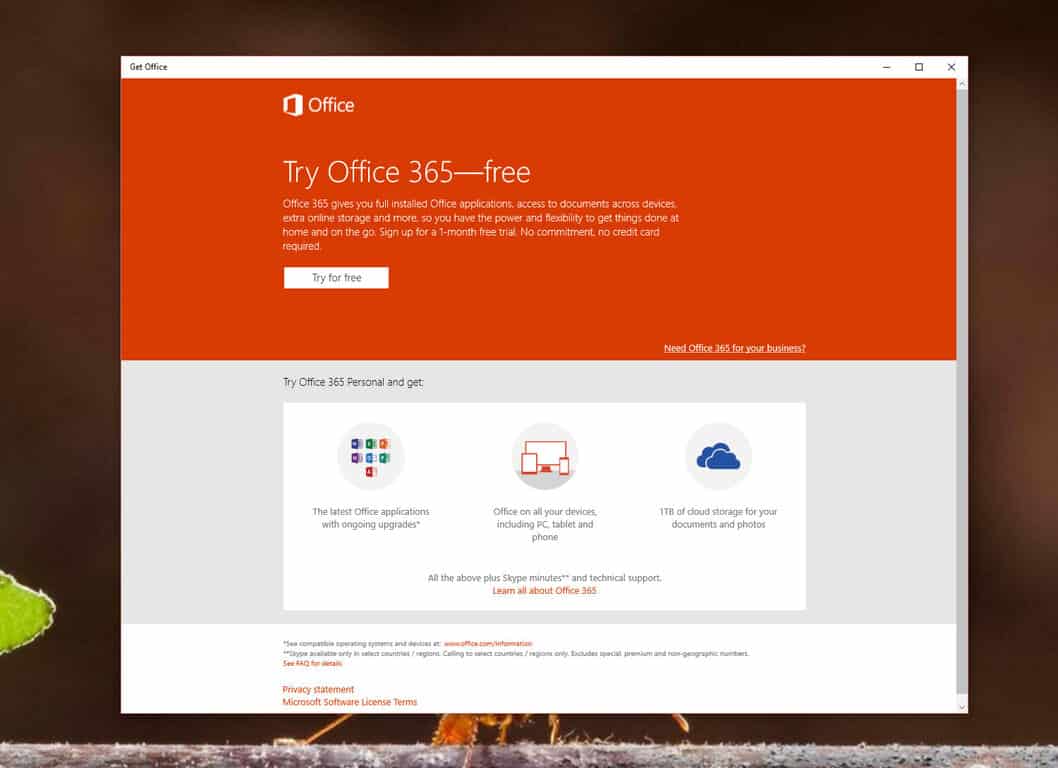
If you are running Windows 10, you have likely noticed a notification that appears occasionally on the bottom right side of your screen asking you to try Office 365. If you do not have Office installed on your PC, the “Get Office” app will bug you with notifications, encouraging you to download and install Microsoft’s Office productivity suite.
If you do not care for Office or you simply want to get rid of the notification, here is an easy solution. First, open up the Settings app. From there, tap or click System and select the “Notifications & actions” category on the left side of the window. Scroll down until you see “Show notifications from these apps” and locate “Get Office.” Simply turn the notification to the off setting and you are good to go! You can also disable or enable notifications for certain apps. For example, if the Windows Feedback app is annoying you with notifications, you can easily disable it too.
As you can see, it’s a very simple process to manage your notifications on Windows 10! If you want to get rid of the “Get Office” app altogether, simply open up Cortana and type “Get Office.” Once you see the app appear, right click on it and select uninstall.
In summary:
- Open Settings app
- Tap or click System
- Select Notifications & actions
- Scroll down and locate “Get Office” and turn the setting off
Microsoft bets on Lumia with Windows 10 to "reinvent business productivity"
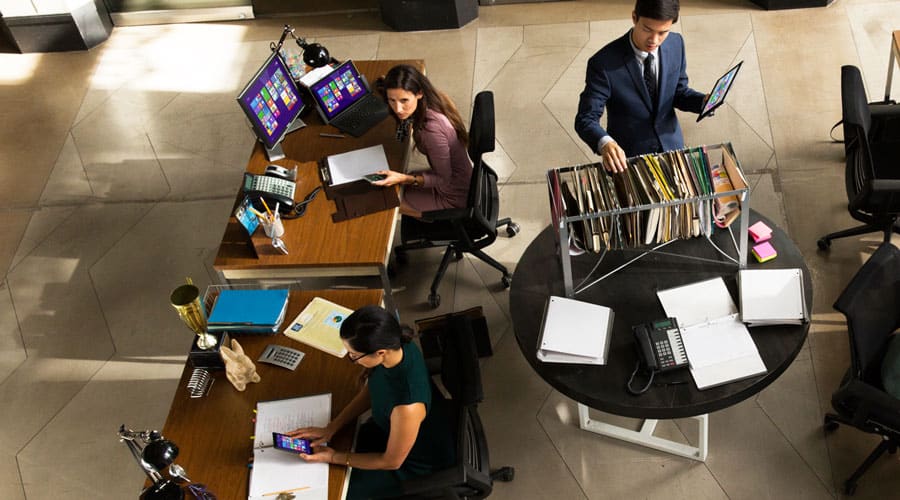
In a blog post today, Microsoft talks about how Windows 10 for Lumia is making businesses run more efficiently, allowing employees to do their work from anywhere with programs that are familiar to them. The prime advantage that Microsoft sees with Windows 10 for Lumia is the growing amount of universal apps. It’s Microsoft’s vision that employees will have the same experiences on their mobile phone as they do on their desktop, creating a cohesive experience that doesn’t interrupt workflow. To quote the blog post,”The apps that employees already know and love on their desktop or tablet – Outlook Mail, Outlook Calendar, Word, PowerPoint, Excel, and more – are the very same apps that they’ll use on their Lumia phone, complete with the rich formatting capabilities they’re used to and all backed-up in the cloud.”
This means that, when employees need to complete important tasks, they don’t need to rush back to their desks to get access to the suite of tools necessary for completing their work. Instead, they can just fire up their Lumia phones and use all of the apps that they need, without any features being stripped from them. This means that employees can stay mobile without losing any of their effectiveness.
On top of the ease of use for employees, Microsoft’s blog post notes that Lumia is ideal for “easing the burden on IT and allowing more businesses to explore customized solutions,” since it seamlessly integrates into Windows services like Azure and Office 365. With IT departments no longer needing to jump through hoops with far too many services interacting with each other, it’s easier than ever for businesses to create an ecosystem for their employees that is simple to use and simple to troubleshoot.
Finally, the blog post points out that Windows 10 for mobile is a strong choice for security. Since Windows 10 can only run apps that have been checked and are trusted, phones are protected from all sorts of malware straight out of the box. Businesses should feel safe with the devices that are plugged into their network.
Microsoft seems confident that Windows 10 mobile is a good choice for businesses, and for good reason. The streamlined network of devices that the Windows ecosystem cultivates is one that should make it easy for businesses to manage things without the fuss that comes from managing several different services.
Upgrade to Windows 10 for a chance to win a round trip to NYC
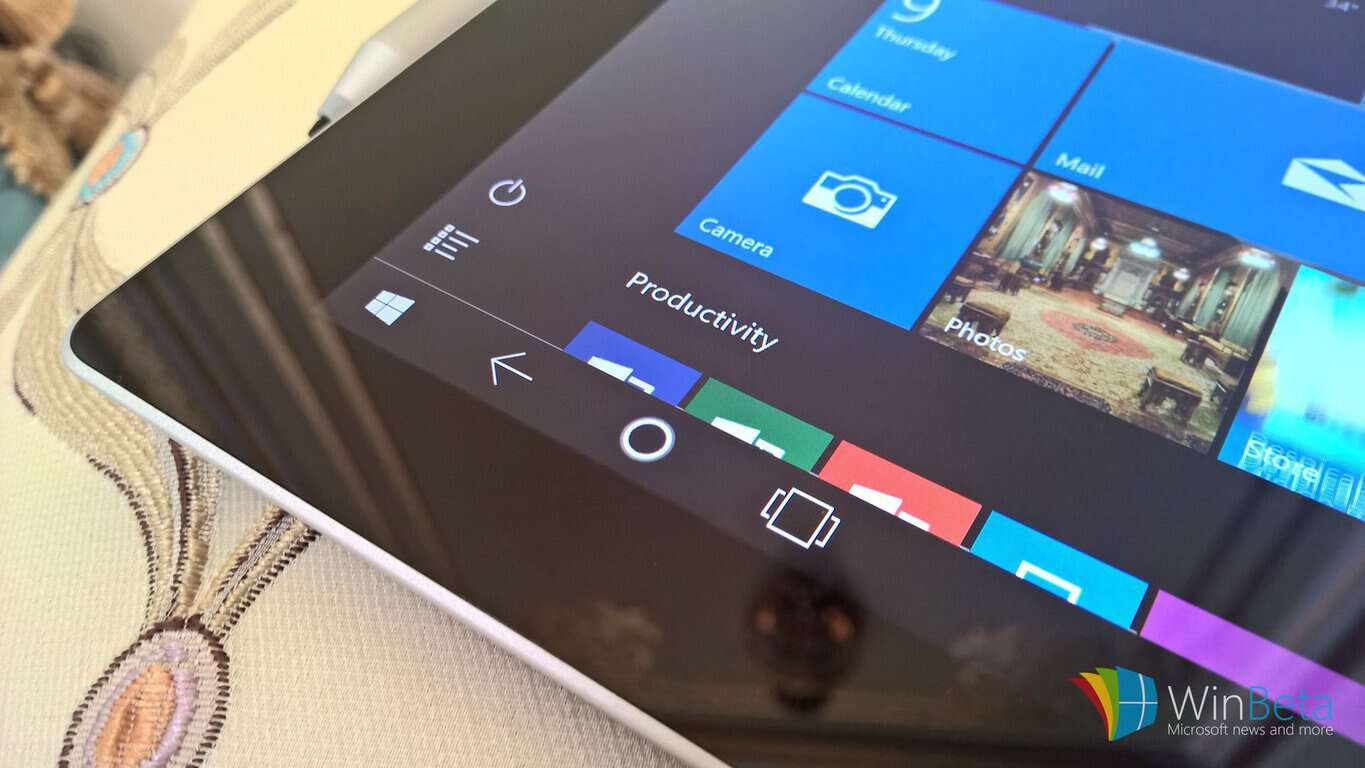
It’s been over a month since Microsoft released its latest operating system — Windows 10. The operating system is available as a free upgrade for users with Windows 8/8.1 and Windows 7. Microsoft is now offering another incentive to users who have not yet upgraded to Windows 10.
Individuals who upgrade to Windows 10 can win a trip for two to New York City to witness the opening of the flagship Microsoft store on 5th Avenue later this year. The winner also receives accommodation for two and front of line access at the opening of the Microsoft flagship store in New York City (via Windows Central).
In addition to a round trip to New York City, the lucky winner will also get new hardware, including a Surface Pro 3, an Xbox One and a Microsoft Band. Lastly, the winner receives VIP passes for the bands’ (not specified which band) performance at the event.
As with every promotion, there are some rules and conditions. First of all, you must be over 18 years of age to take part in the promotion. Also, you must be on Windows 8.1 or Windows 7 at the start of promotion and upgrade it during the promotional period. This contest is only open to residents of the United States and Canada (except Quebec).
You can get extra entries by sharing it on your Twitter or Facebook feed. You must turn in your entries by September 30th so make sure to upgrade it before the end of the month and increase your chance to be at the opening of the store.
Fix: Lumia 1020 WiFi Problems in Windows 10 Mobile
Nokia Lumia 1020 is a great phone, despite not being the newest smartphone on the market. Nokia Lumia 1020 got Windows 10 Mobile update, but it seems that with Windows 10 update there are some WiFi problems on Lumia 1020.

There are some issues with Nokia Lumia 1020 and WiFi but luckily you can use one of these workarounds.
How to Solve WiFi Problems in Windows 10 Mobile on Lumia 1020
Solution 1 – Change your wireless network frequency
According to some users, Nokia Lumia 1020 has problems when connecting to 5GHz wireless networks, but you can easily fix this by accessing your router and changing your connection frequency from 5GHz to 2.4GHz.
In most cases to do so you need to open your browser and type 192.168.1.1. Next you’ll be asked to enter your router’s username and password. If you don’t know it, the best way is to search for it online. The following steps differ from router to router, so the best way is to check your manual on how to do so, but in most cases this option should be located in Wireless Settings or WLAN.
Solution 2 – Change your WiFi encrypyion settings
When it comes to wireless security there are several encryption methods, one of those is WEP, also known as Wired Equivalent Privacy, that isn’t the safest encryption method out there. This encryption method is old, outdated and vulnerable, and it’s not advisable to use it. On the other hand there are some better encryption methods such as WPA2-PSK that are more secure. If Lumia 1020 is giving you problems with WiFi you might want to try accessing your router and changing the wireless encryption from WEP to WPA2-PSK. Just like wireless frequency, this option should be located in WLAN or Wireless Settings in your router.
Solution 3 – Set use AES instead of TKIP
We mentioned WPA2-PSK encryption, but you should know there are two types of WPA2-PSK: TKIP and AES. AES is newer and more secure, and sometimes you need to set your phone to use AES instead of TKIP. To do so go to:
Wireless Setting > Manually > WPA > Cipher Type > AES and select use only AES.
That would be all, I hope these solutions helped you with WiFi problems in Lumia 1020. But even if you didn’t manage to solve it, you should wait a little, because Windows 10 Mobile is still in it’s developing phase, and developers will probably come up with a fix.
Read Also: Windows 10 Mobile Bugs that Need to be Fixed Before the Final Version
Windows 10 upgrade reportedly being automatically downloaded onto unsuspecting PCs
According to a report from the Inquirer, Microsoft has confirmed that it automatically downloads Windows 10 into upgrade-eligible Windows PCs, regardless of whether users opted-in to the free upgrade or not. Reports from such users indicate that upgrade files, ranging from 3.5 to 6GB in disk space, were downloaded and stored in the rather secluded ~BT folder, wasting both disk space and valuable, metered bandwidth. According to some of the victims, this unprovoked behavior caused their monthly bandwidth allowances to cap.
When the Inquirer inquired about the bizarre phenomenon, Microsoft confirmed:
For individuals who have chosen to receive automatic updates through Windows Update, we help upgradable devices get ready for Windows 10 by downloading the files they’ll need if they decide to upgrade. When the upgrade is ready, the customer will be prompted to install Windows 10 on the device.
This download allegedly comes batched with the routine Patch Tuesday update, so don’t be shocked to see an unusually enormous update.
If true, many will find this aggressive behavior quite disconcerting, especially on the heels of other recent invasive Windows 10 measures such as its option of using your computer and bandwidth as a seeding server for other Windows 10 users to download updates from being enabled by default, or the inability to turn off updates in the consumer-facing versions of Windows 10.
The prime issue here isn’t necessarily what they did, or what they’re planning, but the lack of transparency. None of these actions were what you’d call “marketing points”, and the discoveries of these features were not announced directly by Microsoft itself in advance, but by keen users.

Despite the inevitable kneejerk reaction to Microsoft’s plots, there is some merit to its behavior. Refusing Windows updates, which casual users are prone to do, leaves the system perpetually vulnerable to malicious attacks. Windows 10 is currently free to upgrade, and should unsuspecting users eventually decide to update, having them wait hours for the upgrade files to finish could sour the upgrade experience.
Still, it really begs the question: just what else is Microsoft doing with our computers behind the scenes? And at what point will they have gone too far? Or has the company crossed that line already?
All Windows 10 Cortana Commands and Questions You Can Ask
Cortana is definitely one of the most notable, if not the most notable addition of Windows 10. We all know that we can control it with a lot of commands, but I’m sure you can’t think of all commands in the moment, and there are some commands you didn’t even know you can use. So, I wrote this article in order to show you all commands used for interacting with Cortana.

To even start interacting with Cortana, you have to say “Hey Cortana” (you can also click on the search bar, but we’re talking about the voice commands here). The virtual assistant will open, and you can give it the desired command. And the variety of commands is really huge, as I said, you probably don’t even know all the commands, so if you want to get the most of Cortana, check out all available commands below.
All Commands And Questions You Can Ask Cortana in Windows 10
Organize your stuff with Cortana

As its title says, Cortana is your personal assistant, which means you can use it tasks real assistants do, like setting up reminders, sending emails, etc. Here are the commands you can use to turn Cortana into a very reliable assistant:
- Create an appointment. If you’re using Microsoft calendar for managing your obligations, you can set up a new appointment with a voice command. Cortana will then ask you for some more info about the appointment, and everything will be set. Just say, for example “Create a meeting tomorrow at 6PM.”
- Move my appointment. – Once you’ve created an appointment, you can also re-arrange it. Just say “Move my meeting to 8PM on Thursday,” and the appointment will be re-arranged.
- Set a reminder. Cortana can set reminders for you, just say something like “Remind me to do my homework at 6PM,” and you won’t forget your obligations once again.
- Show me my reminders. You can also click on the menu button and go to “History,” and it will show you reminders you’ve already completed, as well.
- Set an alarm. Just like reminders, you can set alarms for certain times in the day. You can set these to occur only once, or recur on a regular basis. Just like reminders, you can also set an alarm, or more alarms. You can also choose if it will be an “one-time” alarm, or you want to repeat it every day.
- Show me my alarms. – The same this is for alarms, just like you can see all your reminders, Cortana will show you all your alarms, as well.
- Send an email to – One of the main responsibilities of a personal assistant is sending emails, and Cortana is not different. Just say “Send email to Jim,” and you’ll be asked to write a message, and Cortana will send the email in seconds.
- Call someone – You can call anyone from your Skye contacts list with Cortana, just say “Call Peter/John/etc.” and you’ll talking with your friend in a moment.
Search online and get information

Cortana is also a great tool for searching online for a certain information or certain websites. Logically, it uses Bing as a search engine, but you can change it with a simple trick. If you want to get almost any information you want, just ask:
- Show me places near me – Ask Cortana to show you info about any place near you, like the best Italian restaurant around, the nearest school, the nearest theater, etc.
- Show me pictures of – When you ask Cortana to show you a picture of some celebrity, like LeBron James, Mia Kunis, Bill Gates, etc. it will use Bing image search and it will show you all available pictures.
- Show me a video – Ask Cortana to show you some video, like ‘Show me a video of tonight’s Bulls game,” and it will bring you all available videos from tonight’s game, etc.
- When is the next game? – You can also ask Cortana when’s the next game of your favorite sports team, and you’ll get the exact date of the next match.
- Tell me about – You can ask Cortana to give you a basic info about a lot of stuff or people, just say “Tell me about Italy/tigers/Novak Djokovic/Audi/..”
- What’s the population your country? – You should already know that, young man.
- How tall is? – If want to know the height of your favorite person, Cortana will tell you.
- Define a word – Ask Cortana to give you a meaning of a certain word, like “Define cynical,” and you won’t have to look anywhere else again.
- When is ? – Ask Cortana when is the certain holiday, or event, like “When is Haloween,” and you’ll get the exact date of that holiday.
- How long a movie lasts? – Cortana can even tell you how long a movie lasts, just ask her, for example “How long is The Godfather 2.”
- Who is the CEO of Microsoft? – Cortana will ‘gladly’ give you any Microsoft-related information, so you can ask her various stuff about the company and its employees.
- What is one US dollar in Japanese yen or how much centimeters are in an inch? – Cortana can easily do any currency or unit conversion for you, just ask her what do you want to convert.
- What time is it in New York? – Check out the current time in every time zone in the world.
Have fun with Cortana

Besides making Cortana do all the work for you, or search for everything you need, you can also spend some time playing with it. Ask Cortana various ‘personal’ questions, and it will give you interesting, often humorous answers.
- What is your name?
- Who are you?
- what are you?
- Are you female?
- Are you real?
- Are you human?
- What does Cortana mean?
- Why are you blue?
- Can I change your name?
- How old are you?
- What do you look like?
- Can you cook?
- What are you wearing?
- Are you sleeping?
- What do you eat?
- Who created you?
- Where do you live?
- Who is your mother?
- Who is your father?
- Who is your boss?
- Are you awake?
- Do you have brothers or sisters?
- What’s your favorite music?
- Who is your favorite artist?
- What are you doing?
- Can you dance?
- Are you smart?
- Are you pretty?
- Are you hot?
- Are you single?
- Do you have a baby?
- Do you have a boyfriend?
- Kiss me
- Will you marry me?
- What should I call you?
Make small talk with Cortana, like you do to your family in the morning, during the day, or in the evening:
- Good morning.
- Good afternoon.
- Good evening.
- Goodnight.
- How are you doing?
- What are you up to?
- Thank you.
- Testing…
- Goodbye.
Ask some simple, but serious questions:
- Why are we here?
- Where do babies come from?
- What is the meaning of life?
- What is the answer to the universe?
- What is love?
- Guess what?
Or have a little pop-culture chat:
- Beam me up Scotty.
- Hello HAL.
- Open the pod bay doors.
- Use the Force.
- May the Force be with you.
Pour some personal comments to Cortana, give her a compliment, or insult her, you’ll get the funny replay either way:
- You are cool.
- You are beautiful.
- You are funny.
- You are awesome.
- You are the best assistant ever.
- You are ugly.
- You are creepy.
- You are annoying.
- You suck.
- I love you.
Discuss about the competition, or Microsoft, because Cortana has its own point of view on various companies:
- Which is better, Cortana or Siri?
- Which is better, Cortana or Google Now?
- Which is better, Bing or Google?
- Which is better, Xbox or PlayStation?
- Which is better, Windows or Linux?
- Which is better, Windows or Mac OS?
- What is the best computer?
- What is the best tablet?
- What is the best operating system?
- What is the best phone?
- What is the best search engine?
- What do you think of Windows?
- What do you think of Apple?
- What do you think of iOS?
- What do you think of Google?
- What do you think of Android?
- What do you think of Siri?
- What do you think of Google Now?
- What do you think of Xbox?
- What do you think of Playstation?
- Do you know Siri?
- Do you know Google Now?
- Do you know Clippy?
- Do you like Satya Nadella?
- Do you like Steve Ballmer?
- Do you like Bill Gates?
And finally, ask her some questions about Halo, and you’ll get only superlatives:
- What is Halo?
- Tell me about Halo?
- What do you know about Halo 5?
- Are you in Halo 5?
- Are you the Cortana from Halo?
- Are you really Cortana?
- Did you die?
- I thought you were dead?
- Are you in Halo 5?
- What is favorite Halo game?
- Where is the Master Chief?
- What is Master Chief’s last name?
- What is Master Chief doing?
- Are you dating Master Chief?
- Do you love Master Chief?
As you can see, you can talk to Cortana about various stuff, and it could be very helpful and productive, as well. Microsoft’s decision to include Cortana in Windows 10 is definitely a good move, and it brought using a PC to a whole another level.
If you know some Cortana command that we didn’t include in this post, please write it down in the comments, in order to help our readers use Cortana for even more amazing things or ask her even more interesting questions.
Read Also: Fix: Cortana Can’t Send Dictated Emails and Take Notes in Windows 10
Leaks show Dell's working on an updated Venue 8 Pro for Windows 10
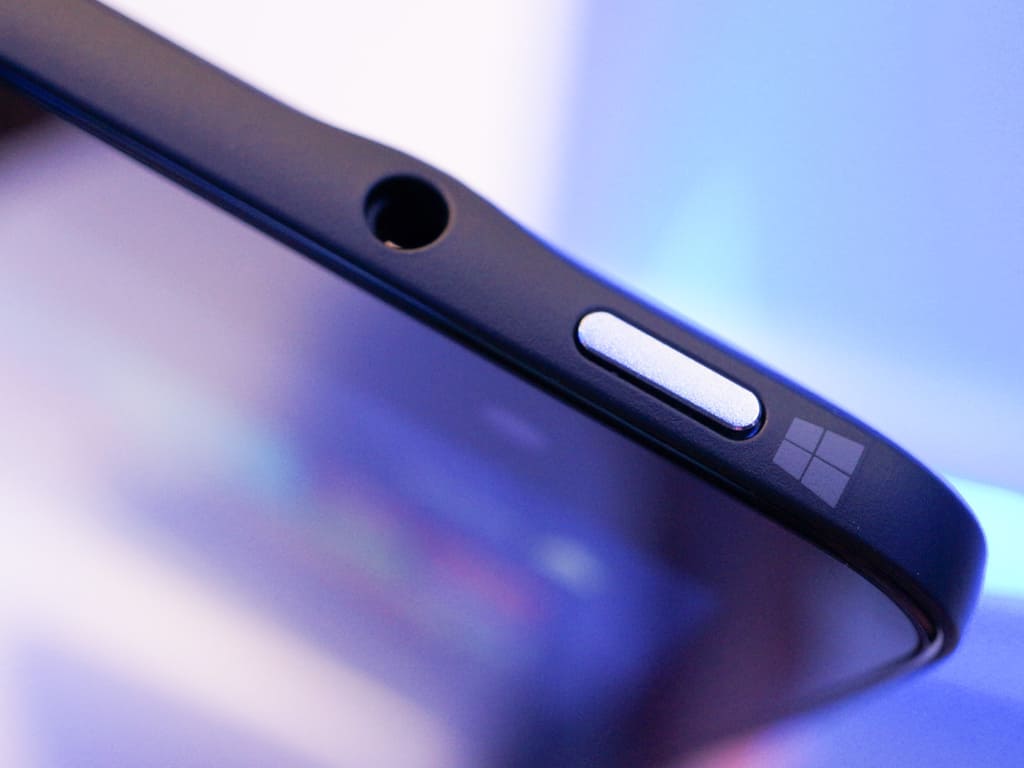
Dell’s Venue 8 Pro has proven to be an excellent small Windows tablet for many, and it now seems to run Windows 10 fairly well. However, Dell hasn’t provided official Windows 10 images with the tablet. Typically this is an indication that a company doesn’t yet officially support Microsoft’s newest operating system on their devices. That might be set to change before the end of 2015 for Dell.
According to reference material from Giga.de, Dell is planning to introduce an updated version of the Dell Venue 8 Pro with Windows 10 preinstalled. Allegedly dubbed the 5855, the new tablet will offer a number of key upgrades along with Dell’s stamp of approval on Windows 10.
Italian Windows Blog also reinforces the existence of the Next Gen Venue 8 Pro 5000 with a spec list sales slide. The leaked sales slide highlight the new tablet utilizing a current-generation Intel Atom X5-Z8500. Other specs include the option of a higher resolution screen (1920X1200 vs. the original model’s 1280X800) and up to 4GB of RAM. The new tablet also looks to include optional LTE as well as a RealSense 3D camera option will support Windows 10 Hello. While the original Venue 8 Pro ran 32-bit Windows 8.1, the 5855 will run 64-bit Windows 10.

At this time, pricing and availability remain unconfirmed. As shopping season, draws nearer, a release date sometime in November seems more than likely.
Microsoft's Brad Anderson and Scott Guthrie talk tech over lunch
It was a sunny day when Brad Anderson, Microsoft’s Corporate Vice President of Enterprise Client and Mobility, finished his lunch in 10 seconds and used the rest of his 30-minute break to drive and chat with Microsoft guru and familiar face, Scott Guthrie, in a video published today. Part of Brad’s web series where he spent his lunch break with the industry’s top leaders and influencers, the video offered an interesting and informative look into Scott Guthrie and his work at Microsoft.
Scott Guthrie, who looked rather comfortable in his now-signature red polo shirt, shared some good laughs with Brad on the rumor and running joke about Scott being a basketball star in his university days. The joke even got on his Wikipedia page and was the basis for a hilarious misunderstanding in one of his conferences.
Scott’s programming career started at the young age of 10, when he first made money with his skills in FoxPro, having done many years of BASIC programming. Scott went on to write the first ever customer-relationship-managment (CRM) software for his father’s telemarketing business. The knowledge and Scott’s interest in data management was carried to his long career at Microsoft and beyond, till finally he took over CEO Satya Nadella’s former position as Executive Vice President of Microsoft’s Cloud and Mobility group.
The interview then continues with a discussion about the increasingly important role of mobility and the mobile-first mentality in today’s enterprise solutions. The current focus of Microsoft in enterprise mobility is on” improving the end-user experience all around IT,” and achieving the balance between customer empowerment and protection of corporate assets, which is also what differentiates Microsoft solutions from other offerings, explained Scott.
Microsoft’s recent release of its Active Threat Analytics (ATA) for Active Directory, which is based on last year’s acquisition of Aorato, is a prime example of Microsoft’s clear focus on cloud and services. The product gathers info on the who, what, where, when, why and how of corporate data access and pinpoint abnormal behaviors and threats using machine learning. The enormous amount data being processed from this and across all of Microosft’s offerings necessitates a service-based, cloud-based software model, which also allows for tracking changes and using data in a deeper way.
For more informative talks and fun tidbits regarding industry leaders, check out other videos from Brad Anderson’s Lunch Break series on Youtube.
Throwback Thursday: The last time Microsoft was talked about positively at a major Apple event

Microsoft and Apple are like Coke and Pepsi, rivals for as long as we can remember. The two tech companies compete with each other across a number of product categories including operating systems, productivity suites, personal computers, smartphones, music services, TV, and more.
During yesterday’s Apple event in which the company announced the iPhone 6S, 6S Plus, and the new iPad Pro, Microsoft took the stage for the first time in a long time. In an era where Apple events were known for the jabs the company took at Microsoft and its products, the relationship between the two companies changed with a snap of a finger. We wondered why Apple decided to break from tradition and allow the event to be livestreamed on Microsoft’s new Edge browser in addition to Safari, I guess now we have our answer. Check out Microsoft’s part of the keynote below.
In the 1990’s, Apple initiated a legal battle against Microsoft over operating system patent disputes. This is also a time when Apple was struggling to reassert itself following executive restructuring and brutal competition from the likes of IBM, Atari and others. Apple’s future looked bleak, it looked nonexistent. Until Microsoft stepped in, that is.
[pullquote align=”right” cite=”” link=”” color=”” class=”” size=””]Apple defied all odds and negotiated a truce with Microsoft[/pullquote]
During Apple’s 1997 MacWorld event, Steve Jobs stood in front of a projection with the words ‘Meaningful Partners’. “I’d like to announce one of our first partnerships today, a very, very meaningful one” started Jobs, “…and that is one with Microsoft” he said as the crowd erupted in both boos and applause. Apple defied all odds and negotiated a truce with Microsoft which saw the patent dispute settled, a 5-year commitment from Microsoft to develop Office for Macintosh, Internet Explorer set as the default Macintosh browser, a Java collaboration between the two companies, and Microsoft investing $150 million to buy non-voting Apple shares.
Following that mind-shattering announcement, it was Microsoft’s turn to speak. While then Microsoft CEO Bill Gates wasn’t physically at the event, he spoke to the crowd via satellite. Initially booed, Gates announced that he was pleased with the partnership, and seemed to win the affections of the onlookers after mentioning that both Office and Internet Explorer for Macintosh would not be simple ports of the Windows versions, but have features unique and specially designed for Apple’s operating system. You can check out the full Microsoft segment of Apple’s event in the video below.
Eventually, the partnership ended and the relationship between Apple and Microsoft soured once more. Apple campaigned against Microsoft in every way it knew how; in events, commercials, interviews, you name it. But it seems that relationship is changing once more, and this time, not out of desperation or necessity, but of mutual business understanding.
This change in business dynamic probably started when Satya Nadella took office as Microsoft CEO and changed the company’s business model to one that focused on the growth and expansion of its services. As a result, Office was made available on the iPad. Is the iPad Pro a direct result of that decision? I wouldn’t go that far, but there’s no denying that having the most popular (by far) productivity suite available for iOS is a huge selling point for both companies when it comes to business, just as it was back in 1997.
It’s a breath of fresh air to see the two rivals back on good terms again. Competition is good of course, especially when it results in products and services that are beneficial to customers. We’d love to hear your thoughts on the renewed relationship between Apple and Microsoft, sound off in the comments section below!
How to train your Windows 10 PC to better recognize your handwritting

Do you blame computers for your terrible handwriting? We do too. Luckily, Windows has become pretty good at recognizing our scribbles, but if you find that your Windows 10 hybrid/tablet PC is still having difficulty converting your written words to text, training it will help tremendously. Here’s how to begin.
Step 1: Start Settings, then, using the search bar on the top left corner, type ‘Language’.
Step 2: Click on ‘Language’ and the traditional Control Panel should open
Step 3: Next to your primary language, click ‘Options’
Step 4: Click ‘Personalize handwriting recognition’
Step 5: Select ‘Teach the recognizer your handwriting style
Step 6: Select either ‘Sentences’ or ‘Numbers, symbols, and letters’ to begin training, and follow the instructions.
The more you train your PC, the better it gets at recognizing your handwriting, even if you write like a doctor. Let us know how well your PC recognizes your handwriting in the comments section below.
NOTE: Handwriting training is not available for all languages, although we expect that over time, Microsoft will continue to add support for more.
Microsoft looks at third-party retailers to push hardware in Brazil

Microsoft recently expanded its Surface Pro sales channel that sees Dell and HP selling the company’s popular tablet line to the enterprise. Another big sales market for Microsoft is Brazil; a country that loves Windows Phone so much that the Microsoft platform outsells the iPhone. Now Microsoft is increasing its presence in that company with a new deal.
Microsoft has announced recently that they are partnering with a Brazilian company known as Cnova which owns a few online stores including Ponto Frio, Casas Bahia and Extra.com. The stores are to showcase nearly all Microsoft products, including Lumia phones, Windows PCs tablets, and Microsoft peripherals in a special dedicated section on their websites.
It’s a pretty interesting move for Microsoft. Maybe it will help with the increase of Microsoft products in the country. What do you think about this move? Let us know in the comments.