
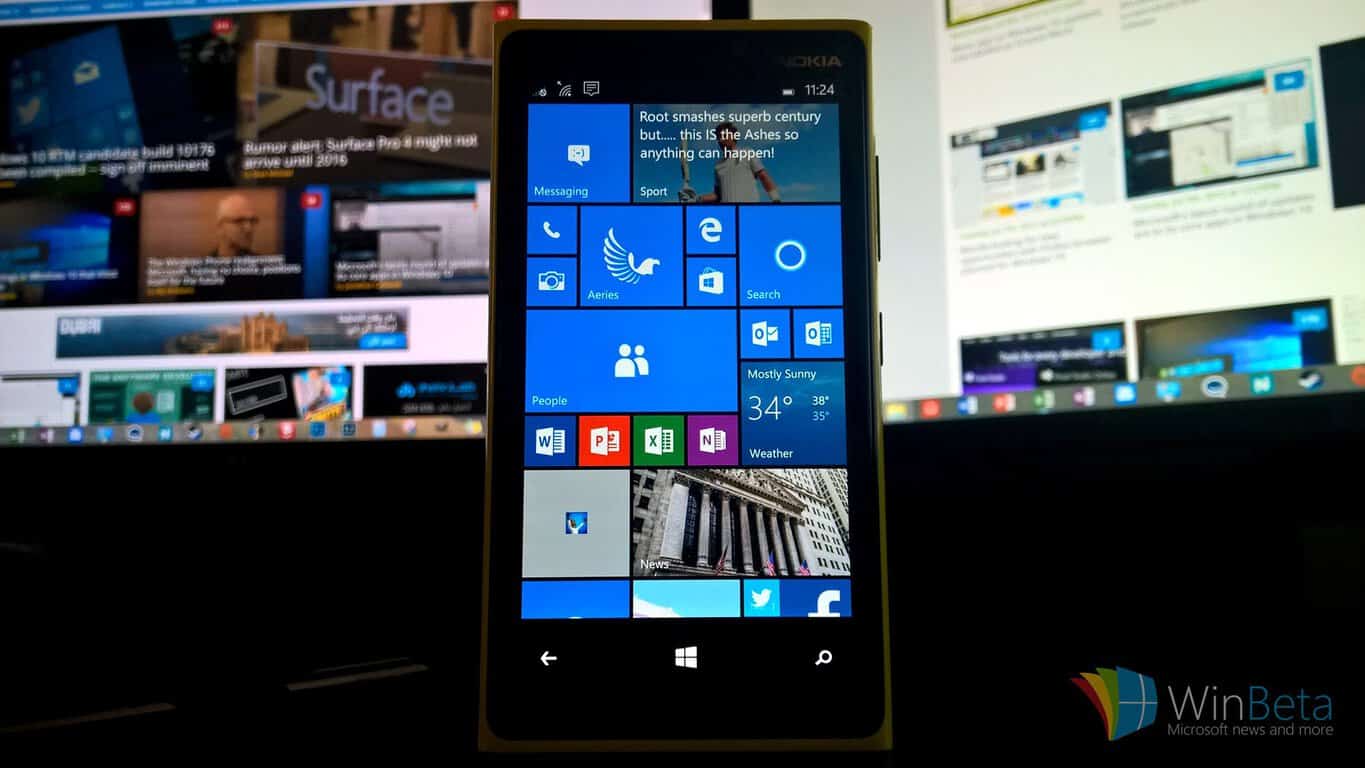
Earlier this Summer Microsoft announced that they would be laying off 7,800 employees as part of what Microsoft CEO Satya Nadella called a “fundamental restructuring of our phone business.” Microsoft has now confirmed that a manufacturing plant in Salo, Finland is being closed and 2.300 jobs are being cut there. Reuters (via Windows Central) reports that sites in Espoo and Tampere in Finland will remain open.
Cutting this many jobs and shutting down a plant certainly qualifies as a “tough decision” for Satya Nadella. Despite it being tough and affecting thousands of former employees, the decision is viewed by many as necessary to move forward with Microsoft’s overall strategy. The Nokia acquisition of Nokia has been followed up by struggles in sales and a $7.6 billion write-off. That isn’t to say that it’s without merit. Almost every Windows Phone on the market is a Lumia device and the future of Windows Phones will likely flow through that brand.
.Net Native, the code platform behind Universal Windows Apps, explained

Managed code vs. native code, it’s one of the great debates of our time. Microsoft began working on the .Net Framework back in the late ’90s, and .Net 1.0 was released way back in 2000. Basically the idea is that instead of writing code that performs all the mundane and common duties like memory management for each and every application, a “common language runtime” or CLR, would perform all the low level duties of the program and developers would be able to concentrate on the higher levels of their code. This worked great and reduced the intricacies of writing code, but performance has always been an issue, as that transformation from high level code to the CLR to the actual instructions to the computer inherently slowed things down.
Now Microsoft thinks it has hit upon the best of both worlds with a new programming paradigm it’s calling .Net Native. Developers who have grown up with .Net and call Visual Studio home will be able to use all their familiar tools including C# or Visual Basic and common .Net libraries, but once the code is compiled, these .Net Native programs will start up and run faster, and won’t require the installation of a .Net Framework version on the client’s computer to run.

In a post on the Building Apps for Windows blog, Microsoft Program Manager Daniel Jacobsen describes .Net Native, and offers a number of reasons why Microsoft thinks it’s better:
- Up to 60% performance improvement on cold startup times
- Up to 40% performance improvement on warm startup times
- Less memory consumption of your app when compiled natively
- No dependencies on the desktop .NET Runtime installed on the system
- Since your app is compiled natively, you get the performance benefits associated with native code (think C++ performance)
- You can still take advantage of the industry-leading C# or VB programming languages, and the tools associated with them
- You can continue to use the comprehensive and consistent programming model available with .NET– with extensive APIs to write business logic, built-in memory management, and exception handling.
Because compiling these new .Net Native applications can take time, Microsoft has introduced a “Debug” mode in Visual Studio that allows developers to write code much as they did with traditional .Net applications, and run it in Visual Studio without fully compiling to Native code. This can speed up the development process, although Jacobsen warns that testing code in “Release”, or fully compiled mode is important throughout the development cycle.
Microsoft’s Univeral Apps, the apps that will run on any Windows 10 device from desktop to tablet to phone to Xbox, are all written in .Net Native. For the developer, that means familiar tools but faster programs, and for the end user it means not having to sort out which versions of the .Net Framework you need to run your applications, and those programs will be lighter and run faster.
Windows 10 updates won't always have highly detailed update logs
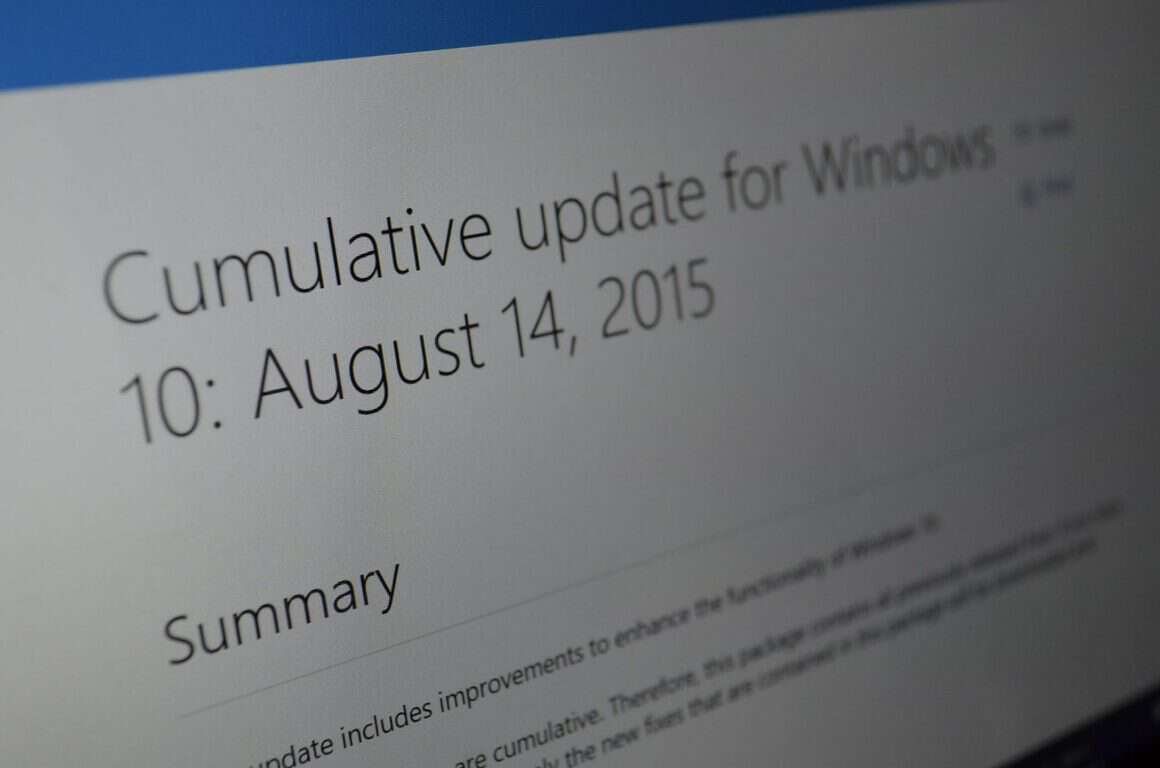
With Windows 10 being so new and being regularly worked on by Microsoft, users have received three cumulative updates in less than a month. These types of updates don’t add any new features but address bugs and other issues that have hampered early adopters of the new operating system. With these early updates, Microsoft has included detailed supporting documents, or KB articles, outlining the changes. Both users and journalists appreciate these as they provide a way to know all the little things that are being changed. Those detailed documents are not always going to include extensive details when new updates arrive however.
With cumulative update 3, Microsoft’s KB article on the update was very short. The summary only stated “This update includes improvements to enhance the functionality of Windows 10” and added that the updates are cumulative so installing just the most recent one is fine. This contrast in KB article length by Microsoft raised some eyebrows.
Because Microsoft has been so forthright with the previous updates, some are taking this recent KB article lacking detail negatively, claiming that it’s related to Microsoft’s security related poor publicity. It’s not clear from Microsoft’s statement if that’s true but many people are upset about Microsoft’s default security settings for Windows 10. With a group of user’s trust of Microsoft wavering, some have reacted quite harshly to an update not outlining every change.
In response to an inquiry from The Register (via Neowin) regarding the most recent KB documentation, Microsoft stated
“As we have done in the past, we post KB articles relevant to most updates which we’ll deliver with Windows as a service. Depending on the significance of the update and if it is bringing new functionality to Windows customers, we may choose to do additional promotion of new features as we deploy them.”
While almost weekly articles on Windows updates may seem dry to some but there are many users that want to stay on top of every little change. Microsoft will release varying amounts of information depending on the changes significance.
Microsoft Store has military discounts on Windows 10 PCs and more

For those that did not know, the Microsoft Store offers special discounts to those of you who are active duty members, reserve military personnel, and/or a military veteran. Individuals eligible to purchase from the Microsoft Store for Military includes current, former, and retired members and family members of the US Military, National Guard and Reserve in the United States. This offer is only valid in the United States and items can only be shipped in the United States.
Microsoft is offering over 5 percent off select Windows PCs, including the Asus Zenbook UX305FA-USM1 Signature Edition Laptop ($664.05 after a $34.95 discount) and the Razer Blade Signature Edition Gaming Laptop ($2,564.05 after a $134.95 discount). The popular Dell XPS 13 Signature Edition Laptop is discounted by $45. Military personnel are also able to snag a Surface 3 for $25 off the normal price as part of the military discount, bringing the $499 device to $474.05. The Surface Pro 3 is also discounted by $40, and the Surface Pen is discounted by $2.50.
Accessories and phones are also available at a decent price — the Microsoft Band is $20 off ($179.99 after discount), and the Lumia 635 is $6.45 off ($122.55 after discount). Here are the terms of this offer:
Valid until 12/31/2015, or while supplies last. Military discount not combinable with other promotional pricing. Available in Microsoft online store in the US (including Puerto Rico). Only available for active, former or retired US military personnel and family members. Institutions are not eligible for this offer. Shipping to US only, no shipping to APO/FPO addresses. Offer only valid on select products. Limited quantities may be available. Not valid on prior orders or purchases; cannot be transferred or otherwise redeemed for cash or coupon code. Not combinable with other offers. Taxes may apply. Void where prohibited or restricted by law. False representations of eligibility voids this offer, and Microsoft reserves the right to collect the full price of product(s) ordered. Limit of 3 items per order. Bulk orders not valid and may be canceled.
For those interested, head over to the Microsoft Store for Military and check out the deals. This is definately a great way for Microsoft to say thanks to those who sacrifice for the freedom of the country. Lead image credit: US Army.
Microsoft educates Insiders on how Windows 10 handles memory
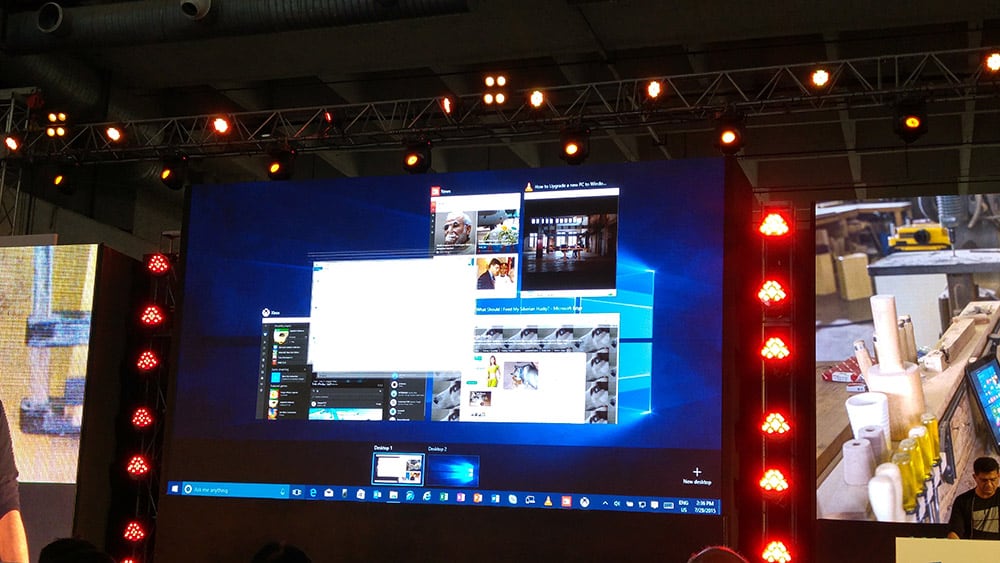
Memory management is becoming a hot topic of discussion as the ubiquitous use of smartphones and application management is helping previously computer illiterate users become more aware of its importance. When apps crash, pages fail to load, or the overall operating system of a smartphone begins to experience unsightly jitters and freezes, many users now intuitively run to their task manager panels to close apps. While not as sophisticated as PC and software memory management, smartphone users have a better grasp of the concepts and are now looking to their PCs for the same sorts of principles.
With the Windows 10 Insider program back up and running, the Windows team is giving Insiders some insight into how Windows 10 is using new memory compressions to tighten up memory management. In a rather extensive posting found in the Insider Hub (yes, it’s back), the Windows team covers memory policies and the new Memory Compression built into Windows 10.
Without true competition in the market, Microsoft could withstand the deleterious perception Windows was slowly incurring over the years. As times have changed, so has Microsoft’s awareness, at least publically, of users poor perception of Windows.
“One of the primary goals of any operating system is to manage and share resources efficiently. How well and operating system arbitrates competing memory requirements is particularly important, because it impacts the user’s perception of system responsiveness.”
To combat this, Microsoft has enabled the Memory Manager (MM) to compress infrequently used memory pages. Doing so, reduces the number of reads and writes to the disk and results in improved responsiveness from the operating system. The new Memory compression reduces the amount of memory used during applications while simultaneously allowing the operating system to maintain more applications in physical memory. Specifically, Memory Manager’s new policy compresses data being written to or read from the disk down to 40% of its original size. Ultimately, users should notice faster animations snappier responses when launching apps.

Prior to the change, Windows team discusses how Windows 8 handled MM. “But when Windows 8 added the ability for Universal Windows Platform (UWP) applications had to be swapped out in their entirety – i.e. at app rather than page granularity.”
Apparently, the reason for this happened to do with Microsoft choosing to suspended UWP apps when they were not in the foreground, very similar to some smartphone OS management. Windows 8 users understood (perhaps not) that if apps weren’t on screen, they wouldn’t run until the user switched back to them. The ‘all or nothing’ approach is being updated with Windows 10 introducing a layer between the pagefile and normal paging activity. Now, when faced with memory pressure issues, MM will determine which pages should be moved to the modified list in a process called trimming. The modified list is a secondary list of pagefiles backing up a list of standby pagefiles. A backup list is captured in case memory is reclaimed from the standby list by another process, and the original process comes looking for its page. Instead of all or nothing, Windows 10 MM will compress unused pages rather than writing them to disk. With less writing, the result should be fewer disk operations – thanks to the compression – and now more data can be stored in memory.
Similar to a recycling process, Windows 10 now uses a concept called compression store, where collected compressed pages are sorted out. While Microsoft may have sought to deprecate the desktop, Windows 10 is fully embracing it once again. Doing so, however, means a mix of Windows desktop and non-UWP apps all vying for memory. The compression store now sorts through a collection of compressed pages by Windows Runtime (enabling trimming and swapping) and Windows desktop apps, then stores them accordingly for better use. [pullquote align=”left” cite=”” link=”” color=”” class=”” size=””]Windows 10 writes pages out to disk only 50% as often as previous versions of the OS[/pullquote]
According to the Windows team, “In practice, compressed memory takes up about40% of the uncompressed size, and as a result of a typical device running a typical workload, Windows 10 writes pages out to disk only 50% as often as previous versions of the OS.” If all goes according to plan, Windows users could be experiencing reduced waiting times for all devices as well as extended lifespans on systems that have flash-based hard drives.
With a bit of understanding around compression, getting the data back or decompression is a much easier concept. Decompression is also something Windows 10 is designed to do well. Windows 10 is using the combination of parallelizability and sequential reads to produce pages into memory once called. The new decompression should result in a speedier experience as Windows 10 is simultaneously decompressing data and reading it in parallel using multiple CPUs. Older versions of Windows may have felt sluggish because of the transfer rates between the disk.
Microsoft seems to be finally taking perceptual criticism about Windows to heart. The new Memory compression concepts should help in making Windows 10 appear snappier and more responsive than earlier versions, even on existing hardware. By making better use of available memory through reduced memory utilization, Windows users who once complained about ‘how slow’ Windows felt, may now attribute their lackluster experiences to hardware rather than Microsoft’s software.
For those wondering, this new memory feature is available right now on Windows 10 build 10525, via the Windows Insider Program. This feature will eventually be rolled out to non-insiders.
Microsoft Releases First Post-RTM Build for Windows 10 Insiders
Microsoft kept its promise, and announced the first build for Windows Insider Program after the release of full version of Windows 10. The new build will go by the number of 10525, and will be available for the Fast ring users first.

It all started with Microsoft Insider Program! Way before the full release of Windows 10, millions of people tested the system and their own nerves with still bug-prone Windows 10 Technical Preview. When Windows 10 got released Microsoft had a little break from Insider Program, but the company announced that Insider Program will ‘live’ even after Windows 10’s full release, and now, we finally have the first post-release build.
The new build 10525 will be available to the users on Fast ring first, so if you’re still a Windows Insider, go to Update section of your Settings app and check if the update arrived. If you want to get this build right now, you can also switch from Slow Ring to Fast Ring in Advanced Update Settings, and you’ll receive the new build shortly.
So what does the first post-RTM build for Insider Program bring? As usual, Microsoft didn’t reveal all bug fixes and improvements it included in this build, but there’s one notable UI change that might catch your attention, title bars can now have the same color as your theme, instead of being ‘locked’ at white color only, like it was the case in previous builds and the RTM version. So, if “Show color on Start, taskbar, and action center” is enabled in your Settings, you’ll have your title bar matching the color of your theme.
It wouldn’t be Insider build if it didn’t bring any bugs, as well. Actually there are some bugs in the surprising areas, that need to be fixed as soon as possible. Perhaps the biggest one is the fact that sharing mobile connection doesn’t work properly. And some bugs in the Movies & TV app could be fixed, as well. So if you thought that it won’t be any bugs after the RTM release of Windows 10, you’ll have to think once again.
Read Also: Parallels 11 Brings Windows 10’s Cortana to Mac Users
How to disable Secure Boot on Surface Pro devices
What do we have here? Are you feeling all experimental, attempting to install something other than Windows on your Surface Pro device? Is it Android? Ubuntu? Dare we ask, Mac OSX? Whichever the case, you’ll need to disable Secure Boot on your Surface Pro before you can proceed. Here’s how to do that.
Step 1: Shut down your Surface Pro
Step 2: Press and hold the volume-up button
Step 3: Press and release the power button while holding down the volume up button
Step 4: Release the volume up button when the Surface logo appears
Step 5: Select ‘Secure Boot Control’
Step 6: Select ‘Disable’
Step 7: Select ‘Exit Setup’, then ‘Yes’ to save and restart the device
That’s it, you should now be able to continue with your OS installation, or boot into an OS from an external storage device.
NOTE: Disabling Secure Boot will change the Surface boot screen to red, this is normal. Enabling it will return the boot screen to its original ‘Surface’ on a black background.
Microsoft interns leverage their creativity to develop new Power BI dashboard tool
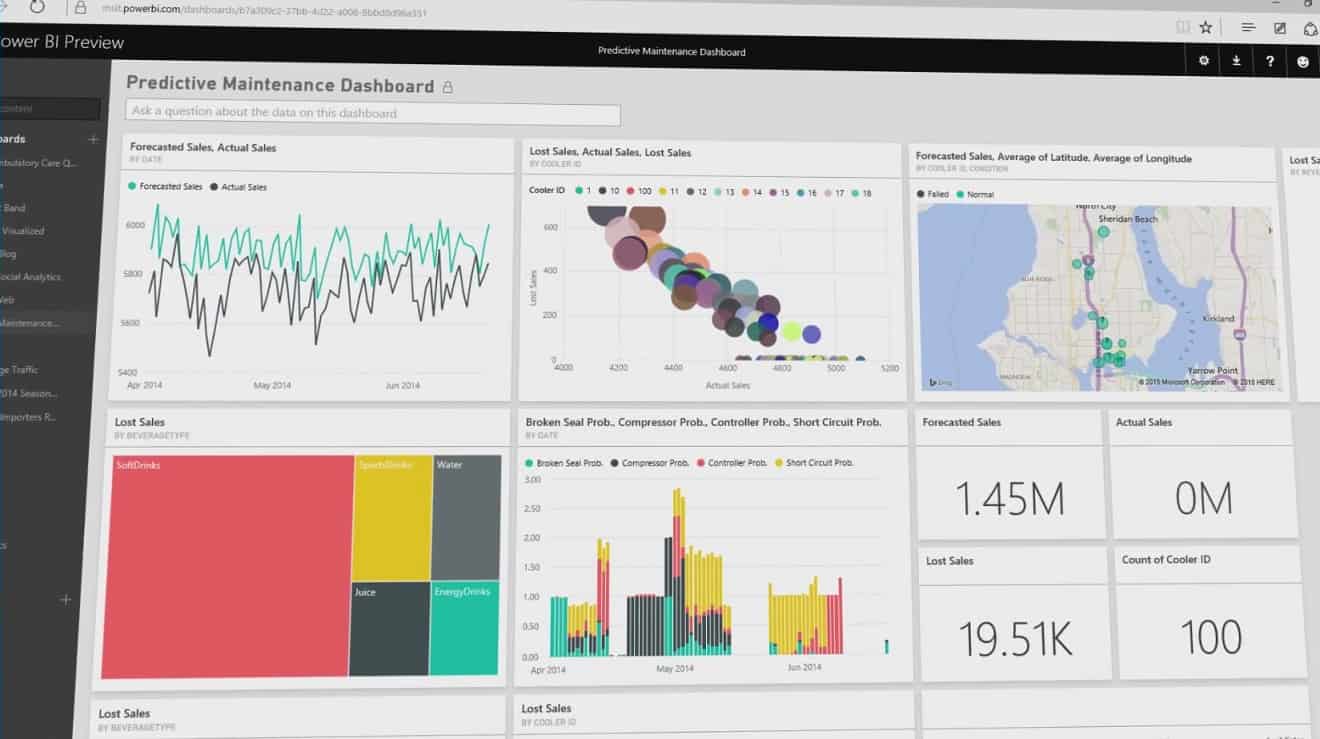
Last month we reported on Microsoft’s Power BI coming out preview. Microsoft’s visualization framework tool became available to the general public on July 24th as well as Power BI business analytics service. Alongside the news of general availability, Microsoft also highlighted its contributions of Power BI visualization framework and its complete library of visuals to the open source community under an MIT license.
With Power BI available to the general public, a four-member team of Microsoft interns are showing what Power BI can accomplish with a little bit of time and creativity. Allison Fisher, a Microsoft intern and member of the project helped develop a real-time health dashboard that correlates SQL Azure deployments with essential performance metrics.
What Allison and her team did is considered a bit of a hack, but she does offer some insight into the process.
In order to be actionable, our dashboard needed frequent refresh (every 5 minutes), and we also needed to be able to include data from different sources in the same report. We really wanted to be able to leverage the interactive slicing capabilities of Power BI in our report, which meant that we needed relationship detection to inform Power BI how to slice every element of the report together, regardless of the source.
We knew that the Power BI Designer Preview provided auto-relationship detection among datasets, and we knew the Power BI REST API allowed us to push the data as frequently as we wanted. However, there was no way to marry these two capabilities with the existing Power BI product.
Our tool, Post to Power BI, is a solution that allows users to join data from multiple sources and push it to PowerBI in a low-latency refresh loop.
Allison continues with more detailed steps in the process. Their efforts help enhance Power BI hot-path data reporting tool by effectively joining data from multiple sources in a low-latency refresh loop.
Not bad for a summer project done by interns.
More evidence points towards a Windows 10 with Bing SKU
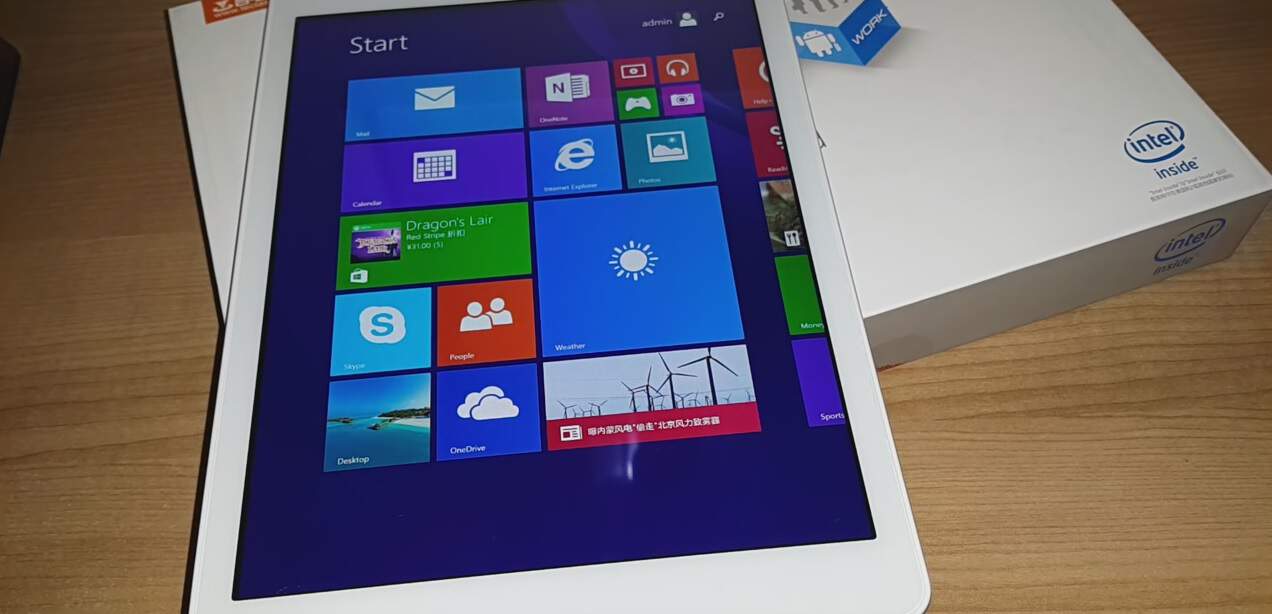
While not significant in North America, Windows 8.1 with Bing was a relative success in other areas. Back when Windows 8.1 was shipped to devices, Microsoft toyed with the option of offering a low-cost alternative to traditional Windows upgrades by offering Windows 8.1 with Bing. Microsoft developed Windows 8.1 with Bing as a way to price compete with Android to entice more OEM’s to ship Windows on tablets and lower end PCs over the alternative.
According to a report from Liliputing, China was a welcoming recipient of Windows 8.1 with Bing, Microsoft saw an increase in Windows-based tablets being shipped in the area. With Windows 10 out on the market, it looks like Microsoft may be going back to the Windows with Bing well one more time in China.
Telcast, a Chinese company that is currently shipping Windows 8.1 tablets, spoke with Liliputing and confirms that its upcoming expansion strategy includes new markets as well as new devices shipping with Windows 10 with Bing. Understandably, Microsoft has been very tight-lipped around Windows 10 news as the company’s new strategy is in a fragile execution stage. The business around OEM licensing and how Microsoft plans to help OEMs sell against free is still a bit murky.

Even without an official announcement regarding Windows 10 with Bing, Telcast confirmed via a press release, that Windows 10 with Bing is on its way. Telcast is planning on shipping a dual boot version of the X98 Air 3G, which will run Windows 10 with Bing and Android 5.0. Other mentions of Window 10 with Bing were found in an Intel Compute Stick roadmap obtained by Liliputing.
As for the differences between Windows 10 and Windows 10 with Bing, there are relatively little. Users who grab a Window 10 with Bing device will have roughly the same experiences as those with Windows 10, except that Bing is set as the default search engine. Users of Windows 10 with Bing are free to change the Bing default setting at anytime, however, with lower licensing cost, OEMs are perhaps incentivized to discourage that activity somehow.
Windows 10 by 10 series for developers continues with Live Tiles and notifications
Last week Microsoft kicked off their Windows 10 by 10 series for developers by focusing on how to engage customers through the Windows Store. Now in week two, the Windows Apps Team is detailing how developers can engage customers through Lives Tiles and toast notifications in Windows 10.
In this week’s Windows 10 by 10 post, the Windows Apps team details what is new for notifications and Live Tiles in Windows 10 and how developers can use them to create more interactions with their customers. This week’s post details the following features for developers to use in their Windows 10 apps:
- Universal Action Center – Toast notifications appear in a new system area called the Action Center. These notifications show up in Windows desktops, laptops, tablets and phones, and allow for users to interact with them directly in the Action Center.
- Adaptive and interactive toast notifications – In Windows 10, Toast notifications across Windows devices are interactive, so users can act on the notification within the action center. This allows for apps to capture input, and even run app code, within the notification center and without taking the user away from whatever else they were doing on their device.
- Adaptive Live Tile Templates – Live tiles can be organized by a simple markup language, enabling a full flexibility for how content is displayed across devices with varying sized screens, so that the Live Tile always looks right for the device it is on.
- Improved secondary tile pinning behavior – Pinning is now down without any customer or system interaction, so developers Windows 10 apps can execute additional code after the tile is pinned. This enables multiple tiles to be pinned at once and for tile notifications to be sent to them immediately.
- Synchronizing Live Tiles and toast notifications – This enables background tasks to update the app’s Live Tile whenever the app’s notification collection is changed by anything other than the app itself. This allows for the app to automatically execute code whenever the user dismisses a notification, when notifications expire, or new notifications are pushed through.
- Badge unification – Live Tile badges are now unified across devices, ensuring that Live Tile displays are consistent on all devices from Windows 10 PCs to Windows 10 Mobile phones.
The rest of Windows Apps Team’s post includes more technical resources and examples for how to implement adaptive Live Tiles and send adaptive and interactive toast notifications.

Interestingly, the post’s section on Windows 10’s Universal Action Center reveals a screenshot with Microsoft’s unreleased new Messaging app for Windows 10. The screenshot is a perfect example of the interactive features this week’s Windows 10 by 10 post is detailing, as it appears the new Messaging app allows users to respond to messages within the notification center itself. This isn’t the first time that the Messaging app has shown up unexpectedly, as Winbeta reported the app appearing in Microsoft’s 10 reasons to upgrade to Windows 10 videos.
The Windows 10 by 10 post also encourages developers to head over to DVLUP’s “It’s Alive!!!!!!” challenge to claim points and XP for updating apps and implementing the topics suggested by the Windows 10 by 10 series.
As with all the Windows 10 by 10 posts, the weekly articles are meant to kick off conversations with developers on Twitter @WindowsDev using the #Win10x10
Windows 10 How to: Tracking your favorite teams with Cortana
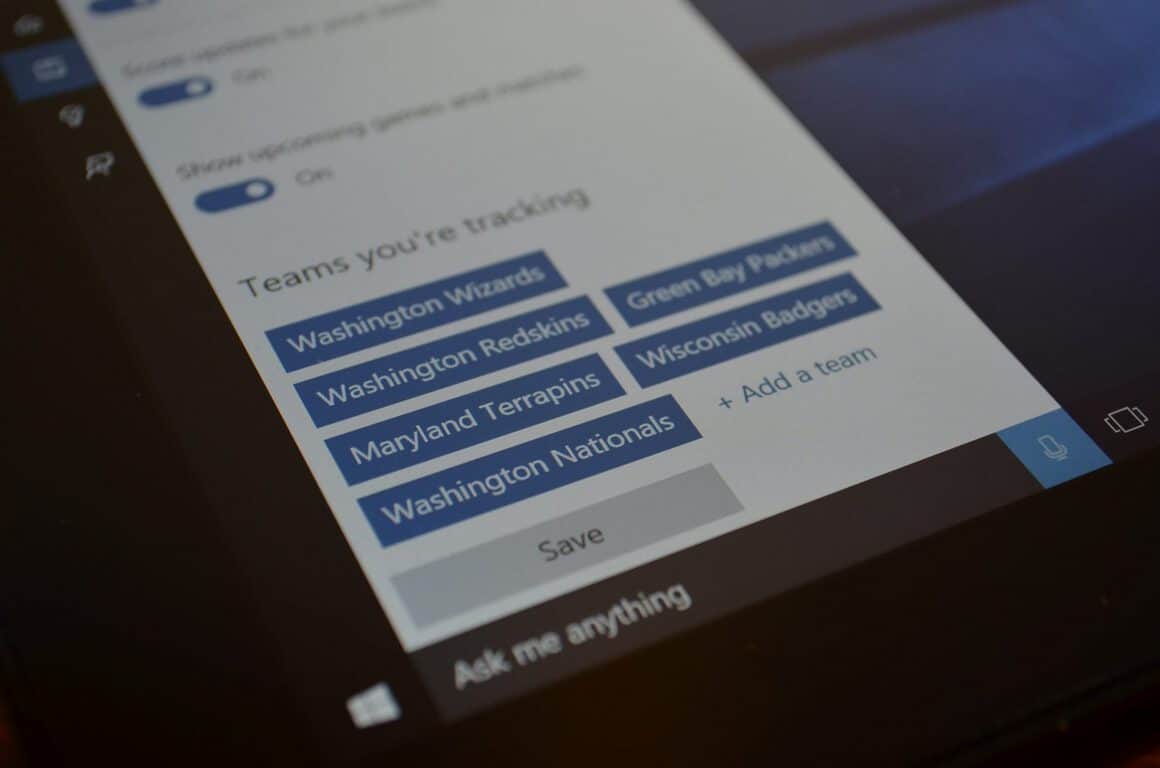
Cortana is Microsoft’s easy to personalize assistant. In addition to tracking packages, flights, and more, she can keep tabs on your favorite sports teams. Once you’ve set up your favorite team in Cortana’s notebook, she can bring you your favorite team’s updates, scores, and upcoming games. While Cortana has been doing this for awhile on phones, she now can give you this information directly on the desktop in Windows 10.
To have Cortana track your favorite teams you start out by opening Cortana’s notebook. You access this by clicking the search bar in the lower left hand corner of your screen and selecting Notebook, the third icon from the top. You then scroll down and select “Sports.”

Once there, make sure that Sports cards is toggled on. There are separate options to have her show updates and/or upcoming games as well so you can control how much information you see. Below that is the most important part of customizing Cortana for sports, selecting your favorite teams.

As you can see in my Notebook, I’m a big Washington DC area sports fan but I also have some teams from my parents’ home state of Wisconsin. Cortana lets you follow a long list of teams from many major sports and regions. You just click on “add teams” and search for your favorite ones. At the moment she yields results for many major sports but some are missing such as the NHL and college basketball.

Once you set that up, you’ll see game preview, scores, and more. Cortana won’t replace your favorite sports app or notification service but she does create an easy way to see updates and scores on the desktop and on your phone.
Even identical twins can't fool Windows Hello

It is almost every day now that news comes, detailing a hack or leak, revealing the passwords of millions to the world. In response to the evolution of this thorny cause célèbre, tech companies have made it their mission to restore confidence in the security mechanisms we use on a daily basis.
Windows Hello is Microsoft’s answer, and by all accounts is quite impressively accurate; so much so in fact that even identical twins pose no challenge for its mystical algorithms. In a test mounted by The Australian, and the Australian Twin Registry, it was found that the service was able to distinguish between the twins with impressive accuracy.
Using an Intel RealSense enabled camera, Windows Hello is an embedded service in Windows 10 machines, allowing users to unlock their device using their faces alone. As this service is expected to come with the rumored new Lumia flagships, expect Microsoft to make a great deal more of it in future.
Do you believe the password needs to die? Let us know in the comments below.
Google is aware of Chrome issue in Windows 10 build 10525, but there's a temporary fix
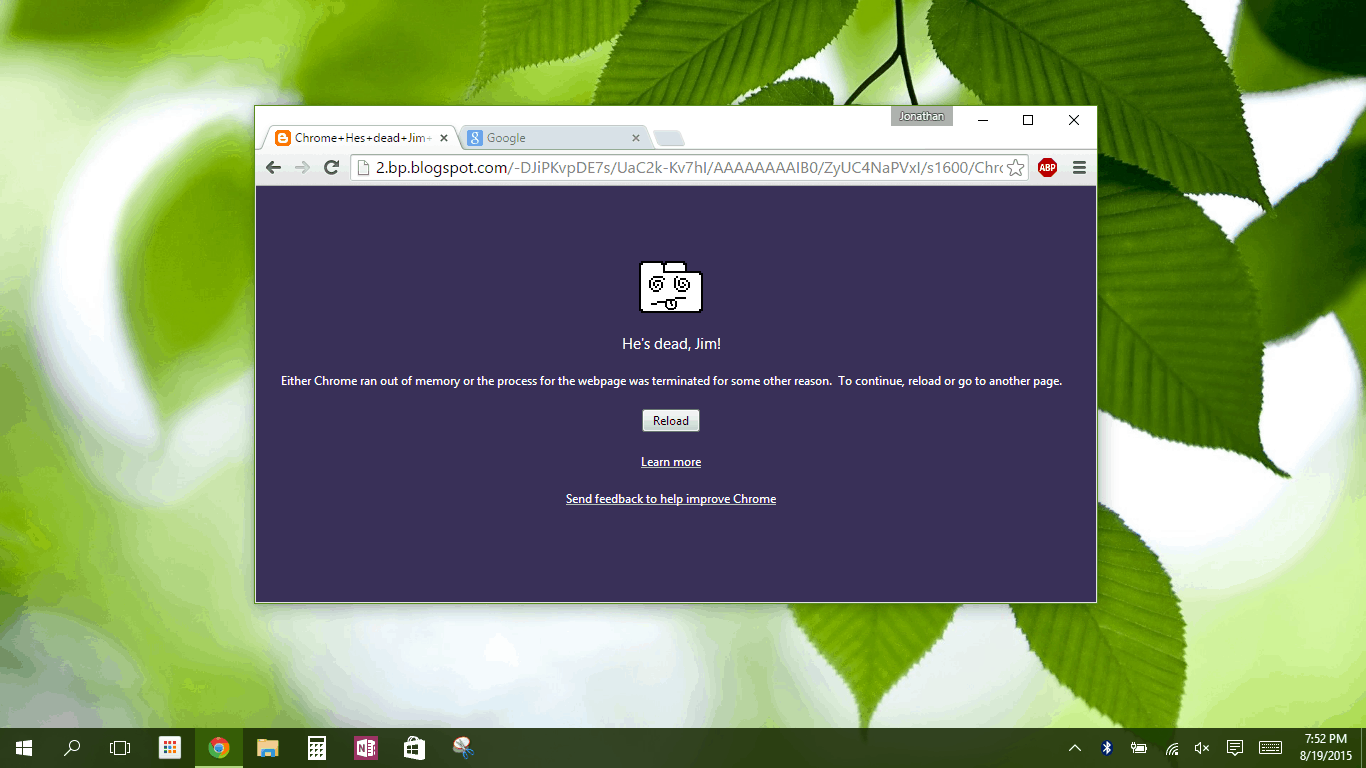
Many users were experiencing a major issue with Chrome after Microsoft released their first Insider build since the release of Windows 10. Basically, every time Chrome was opened in Windows 10 build 10525, the webpage would crash and display a “He’s dead, Jim!” error page. Luckily, this issue doesn’t seem to affect users of the 32-bit Chrome, so feel free to download that version instead.
Google is indeed aware of this, saying in the Chromium message board,
“We have the problem confirmed and someone is working on it, so additional “me to” comments are a distraction at this point. Please just star the issue if you want to convey that you are affected, and if we have any questions or need additional feedback we’ll post a comment.
Also, please remember that this kind of temporary breakage is expected for users on the Windows 10 fast ring. So, we definitely appreciate your assistance in tracking down these problems, but if you’re not comfortable dealing with disruptions and workarounds, then the fast ring might not be for you.”
There is, however, a temporary fix for users running a 64-bit version of Chrome. Here’s what you can do.
- Pin Chrome to the desktop, then right click the shortcut just created and click Properties.
- In the Target field, add –no-sandbox to the end of the box and click OK. You will need administrative privileges to continue.

When you open Chrome, it should work normally aside from a warning at the top of the browser. Do note that this method does not work with Chrome Canary builds right now. Let us know if this solves your issue in the comments below.

Wunderlist for Windows 10 Beta now available, features improvements all around

Wunderlist has just released a public beta of its new app for Windows 10. For those of you who have never heard of it, it’s a to-do app created by 6Wunderkinder, a German-based company recently acquired by Microsoft.
The new updated look of the Wunderlist Beta app is designed to match the design language of Windows 10 and make to-dos easier to read, and backgrounds are no longer blurry. The sidebar on the app can now be collapsed to a full-width view thanks to the small menu button located on the top right corner of the app. The beta app also adds better keyboard support and more compatibility with high-contrast themes.
While the app is in public beta on the Windows Store, the Wunderkinder team encourages you to send feedback and bug reports to their email [email protected].
You can try the Wunderlist Beta app for Windows 10 for free on the Windows Store. Be sure to share your thoughts on the new app in the comments below.

Full Windows 10 support added in Parallels Desktop 11 for Mac
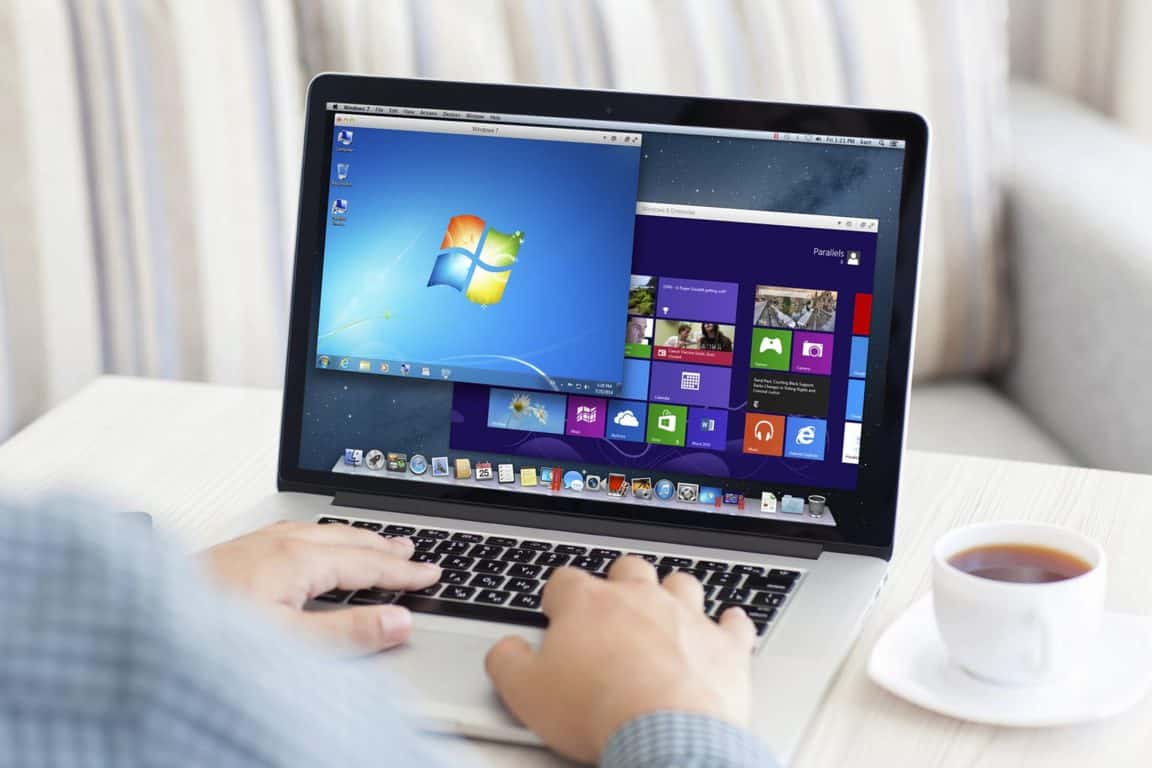
Today, Parallels launched Parallels Desktop 11 for the Mac. Windows users on Apple hardware were given a taste of Windows 10 during the Windows Insider Preview with an update to Parallels 10. However, there were reports that the year old VMware wouldn’t be seeing another upgrade to enable full Windows 10 RTM usage. Instead, it looks like Parallels was working on a completely new solution in Parallels Desktop 11 for Mac.
The new editions of Parallels Desktop for Mac benefit from speed improvements of up to 50 percent, Travel Mode which extends battery life up to 25 percent while on the go, support for Windows 10 along with OS X® El Capitan readiness and a host of other features for both Windows and Mac users.
Alongside the speed and battery improvements, Mac users will continue to leverage Windows specific features, and in Windows 10 there are some pretty useful ones available. Ironically, Microsoft’s digital assistant Cortana will be enabled for Mac users before Apple’s Siri lands on the device. Other features available to Mac users using Parallels Desktop 11 include:
- Quick Look for Windows extends this cool Mac convenience to Windows documents and files
- New Force Touch gesture support enables a quick preview of files with Quick Look or the ability to look up the definition of an unknown word
- Improved Mac Window Controls include a new Coherence mode button
- Most recently used files list now can be viewed on the Mac regardless of where those files are stored: on the Mac, in a virtual machine, in the cloud or on a file server
- New easy printing with all Mac, printer options support, saves time with an intuitive solution for OS X users
- “New Item” support for creation of new files in Windows apps including Microsoft Outlook®, Excel® and Word
- Now users can easily cancel time-consuming virtual machine actions
- Mac location services are now available to Windows applications
- Automatic synchronization of the volume setting of a virtual machine with that of the Mac
- Enhanced file associations with smart notification messaging help change file association in OS X
- Improvements in the setup and use of a virtual machine to directly access a Boot Camp® Windows partition—without rebooting
Similar to Windows, there are several pricing options, each based on available feature sets. Parallels Desktop 11 for Mac, Parallels Desktop 11 for Mac Pro Edition and Parallels Desktop 11 for Mac Business Edition are available now for both current and new Parallels Desktop for Mac users at www.parallels.com/desktop and at local retail stores worldwide.
Has your Windows Phone died? Here’s how to bring it back to life using the Recovery Tool
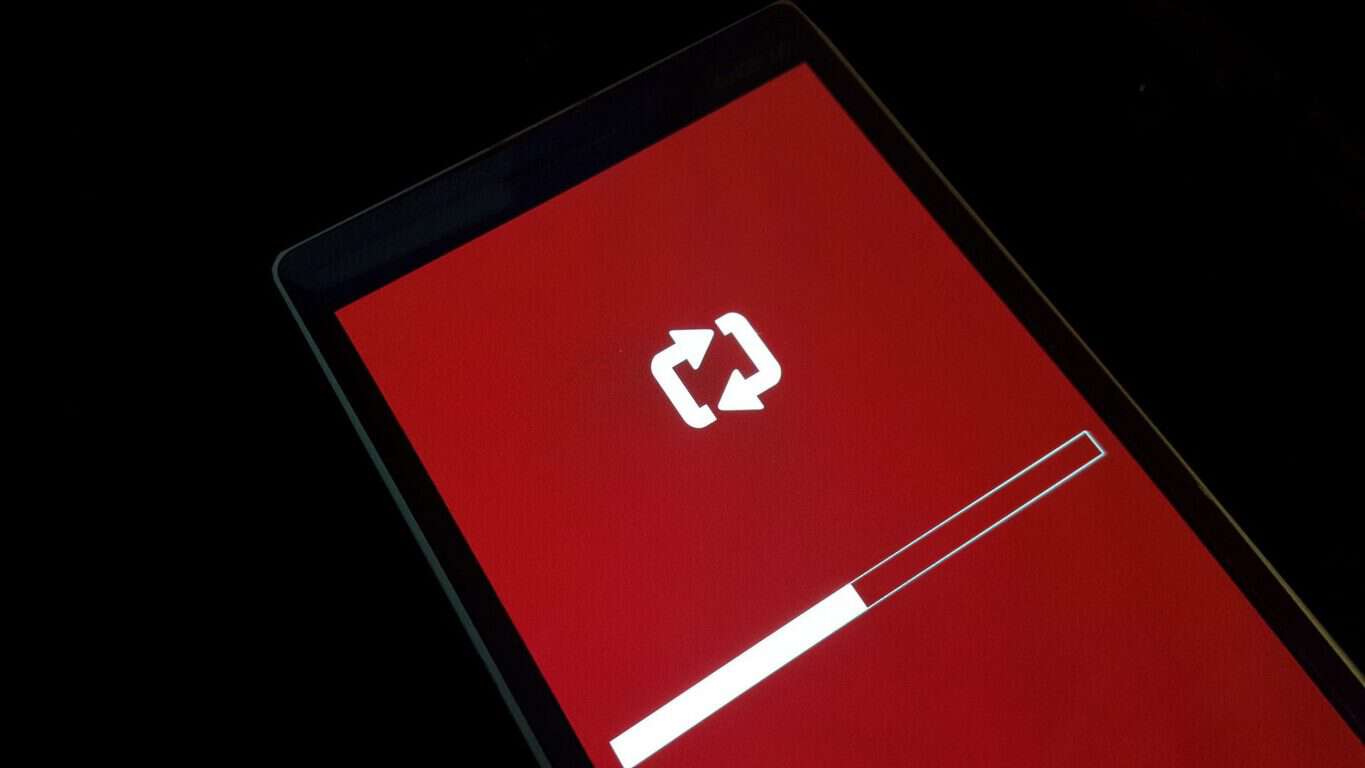
Ever wanted to flash your Windows Phone back to factory default because it’s gotten sluggish over time? Or do a fresh install of the OS when you want to turn a new chapter in your life? Or maybe restore back from the Windows 10 Mobile Insider Preview out of fear that that last bug will make you rage-smash your phone into the wall? Well, you can with the Windows Phone Recovery Tool!
Sometimes, problems occur that are out of your control, here are some of the most common issues you may face with your Windows Phone device:
- Random reboots and app crashes
- “Lightning bolt and cog” stuck on screen
- Stuck loading in splash screen (Nokia, Microsoft logo etc.)
Check out the video above for step-by-step instructions of how to reset your Windows Phone using the Windows Phone Recovery Tool. But before we get started, these are the prerequisites you’ll need to complete the process:
- Your Windows Phone device (Lumia or HTC)
- A PC with a connection to the Internet
- A USB data cable to connect your phone to the PC
- The Windows Phone Recovery Tool
Follow the instructions in the video and you should have your Windows Phone up and running, fresh as it was out-of-the-box. We hope this helped. If you have any questions or concerns, leave them in the comments section below or in our Open Forum. Happy reviving!
Readit app for Windows 10 updates with a ton of improvements
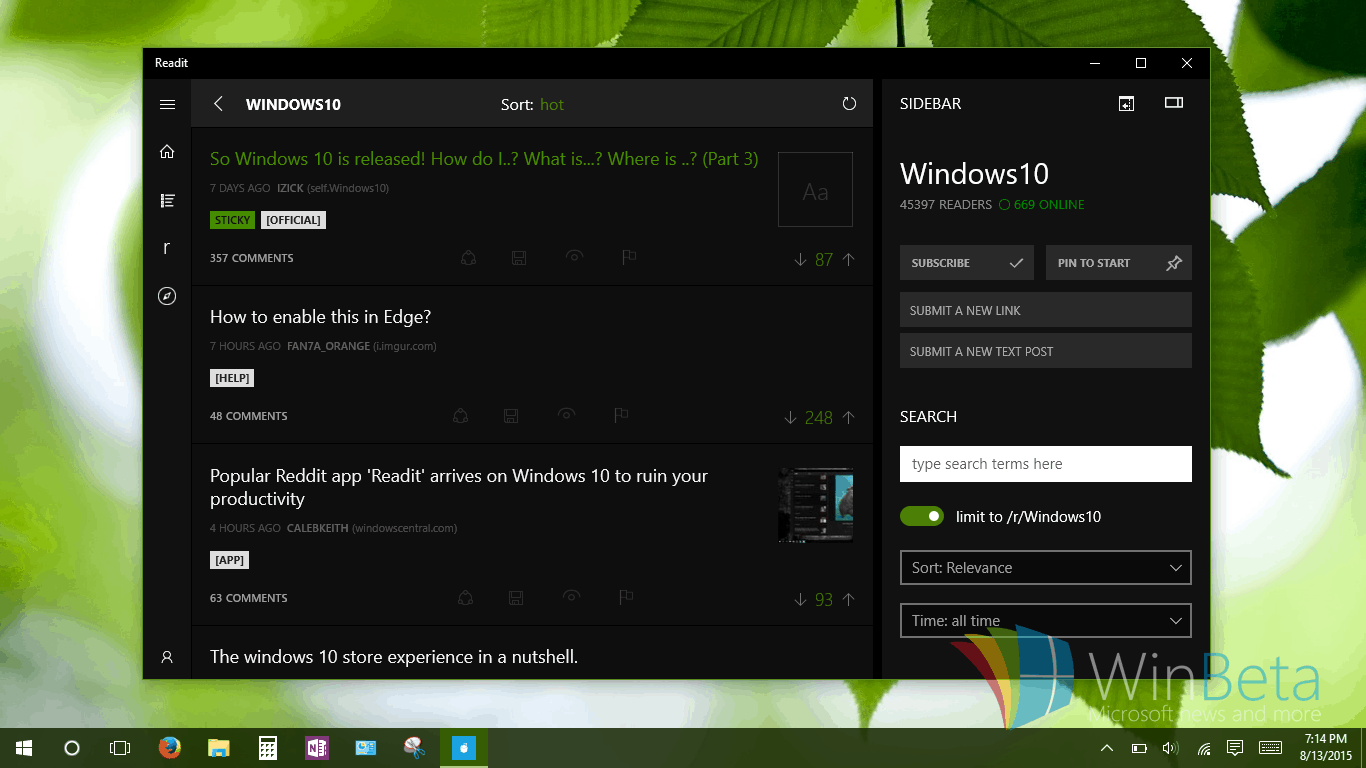
The developers of a popular Windows Phone Reddit app called Readit have just released an update to their new Windows 10 version of the app, which includes numerous performance improvements and bug fixes. Recently, we wrote about this new app for Windows 10, intends to be fast and feature-rich on various devices from small tablets to large desktops. Here’s the list of improvements in 1.2.5.0:
- More responsive/better performance
- Light theme is even lighter, matches system apps
- Dark theme now matches the system apps more
- Redesigned login dialog
- New favorites bar in title bar/header
- Right click subreddits to add them to favorites
- Reorder favorites by drag + drop
- New way to jump to subreddits from the title bar/header – ctrl+J will bring you there as a keyboard shortcut
- View a random sub from the jump dialog
- View a random subscribed sub from the jump dialog
- Ctrl+f from anywhere in the app will open search
- Added open in reading mode in the ellipsis menu when viewing a post – opens edge in reading mode to that page
- The currently viewed post now has a highlight indicator in the list
- Version number is now in settings, tied to the installed package
- Go directly to comments by clicking the comment count/new comment count/etc. This may not always work, still adjusting this. (Kind of a beta feature)
- Fixed album size cutting off images
- Fixed settings being reset/notifications continually happening
- Disabled clicking author/subreddit in post list to prevent accidental clicks
- Various UI modifications/adjustments
- Various bug fixes
If you’d like to try the app for yourself, you can download it for free on Windows Phone and Windows 10. Be sure to give us your opinion on the app and this update in the comments below.

Windows Server 2016 Technical Preview 3 now available, here's what's new
Last week, screenshots leaked of Windows Server 2016 Technical Preview 3, and now, the latest preview version is officially available to download. Of course, being a Technical Preview, this particular build is not ready for full-time use as there are still bugs that need fixing.
As for what’s new in this build, Microsoft put a lot of emphasis on software-defined networking, claiming that the “majority of what you’ll find for networking is new in TP3”. The company continues:
“We bring a scalable network controller for programming policies, an L4 load balancer for high availability and performance, enhanced gateways for hybrid connectivity, and an underlying network fabric that converges RDMA traffic together with tenant traffic. In this milestone, you’ll experience a first preview of how the core set of networking capabilities and SDN architecture we use in Azure is coming to you.”
Additionally, Microsoft is laying the foundations of new Hyper-V technology in TP3 that it build upon in future preview builds of Windows Server. “Shielded VMs” play a large role here where they can now be created from a signed template, in addition to other functionality.
“You can also leverage our security enhancements for shared environments by managing Shielded VMs and guarded hosts with ease. On the storage front, you will find improved functionality to maintain desired end-to-end quality of service (QoS) and faster retrieval of data using storage tiers. In Operations Manager, our focus is to enhance user experience through easy discoverability of management packs and ability to automate maintenance windows using PowerShell.”
Along with the release of Windows Server 2016 TP3 is System Center 2016 TP3, where Microsoft has included a host of feature enhancements that include new management capability such as Virtual Machine Manager and support for Nano server among others.
“…you can install Nano Server on a physical host, or in a virtual machine. The new Emergency Management Console enables users to view and fix networking configuration directly from the Nano Server console. In addition, you will find a PowerShell script for creating an Azure VM running Nano Server. From an application perspective, you can now run an ASP.Net v5 application using CoreCLR. Overall, we’ve added significant functionality to expand Nano Server’s capabilities without compromising the basic premise that its footprint remains as small as possible.”
It doesn’t end there, the software giant has also released new Remote Server Administration Tools (RSAT) for Windows 10 Client. This enables remote management of Windows Server 2016 Technical Preview, Windows Server 2012 R2 and Windows Server 2012.
If you’re interested, download Windows Server 2016 TP3 and System Center 2016 TP3 and give them a try. Windows Server 2016 isn’t due to be finalized till 2016 so there’s still a long way to go, a lot of improvements to be made and features to be implemented.
Microsoft warns that since this is still pre-release software, features and functionality may change by the time the final product is released, which is to be expected. Let us know what your thoughts are on the new Technical Preview of Windows Server 2016 in the comments section below.
Poll: Which feature should arrive next in Windows 10
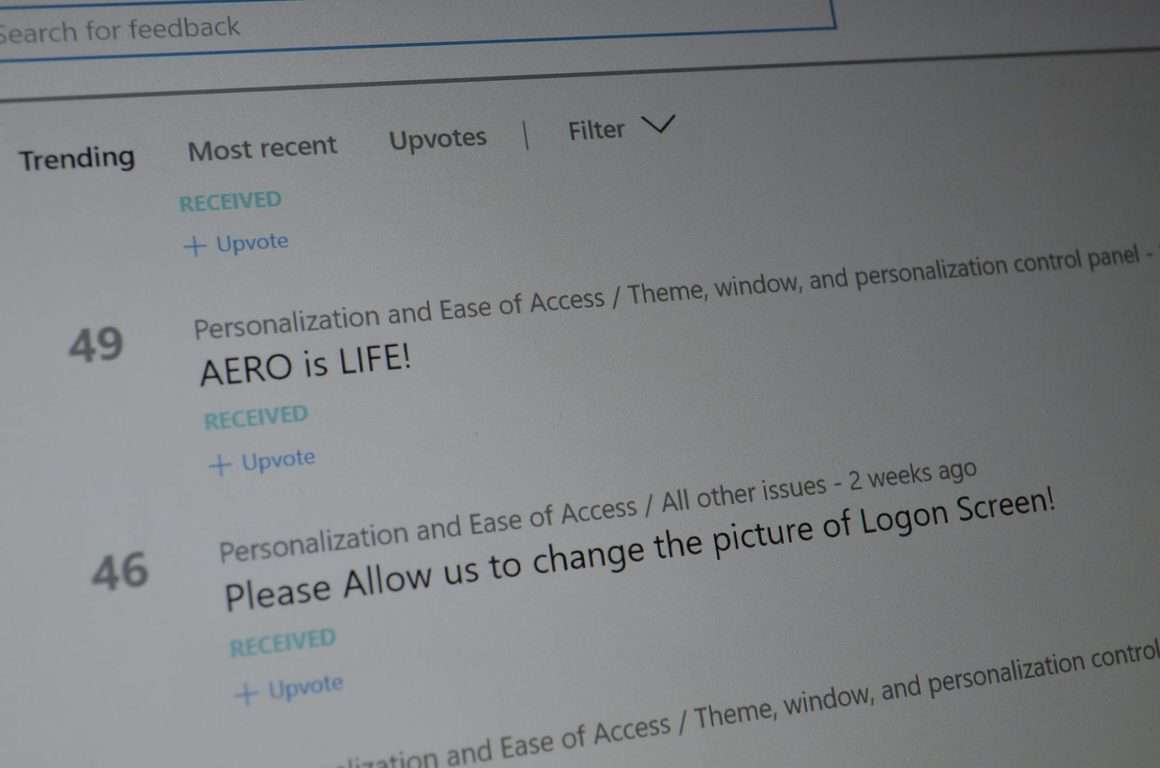
This week we got a new Windows 10 Build. With it came color customization to title bars. This was likely a result of repeated and highly upvoted feedback through the Windows Feedback app and other channels. The top three bits of feedback in the Personalization and Ease of Access section were about title bar colors and that wish has been granted. Now it’s time to vote on and discuss what we want next. In this week’s poll we’re voting on what we want to see next in Windows 10. Make sure you head over to the Windows Feedback app to let Microsoft know as well.
We already know about some features and changes that are coming up such as extensions to Microsoft Edge. This poll is more about things we see feedback givers requesting that haven’t been announced. Some users are quite passionate about these requests. Shouts of “AERO is LIFE” and “NO AERO NO PEACE” echo through the feedback app. People also clamor for dark theme in just about every category. The requests for login screen customization seem more level headed but it is a highly requested feature.
The last option, shape writing, is near and dear to my heart as a regular Windows tablet user. We have an article dedicated to the topic, though at the time I wrongly referred to it as WordFlow which is now part of Windows 10, and it would make typing on tablets significantly easier. Microsoft even already has the technology since it’s within their phone operating system.
All of these are worth having as options and would make people happy but we want to know which one is most important to you. Let us know through the poll and explain your reasoning in the comments below. Check in to the WinBeta Podcast to hear us discuss the results and which features we’d like to see in Windows 10.
How to track packages with Cortana on Windows 10
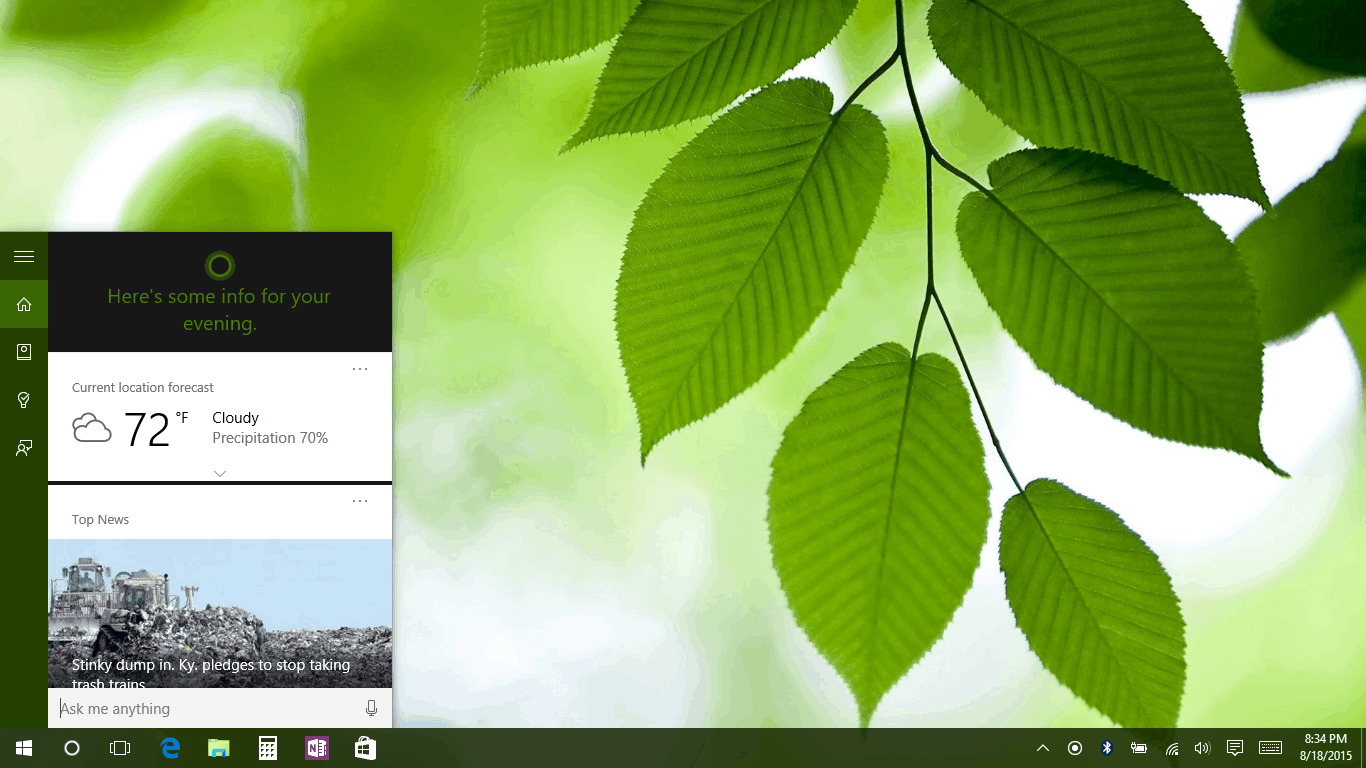
One of the really neat features of Cortana, Microsoft’s virtual assistant for Windows, is that she can track packages for you without you needing to enter your tracking information. She knows about all pending packages by simply reading your email from the Mail app for Windows 10. If you need help setting Mail as your default email app, be sure to read our how-to here.
When you first launch Cortana from the search button on the taskbar, she’ll ask you if you want to track a package that is currently being shipped to your location. If you click track she will notify you of the whereabouts of the package and when it is delivered.
If Cortana doesn’t ask you to track a package or she doesn’t know there is a package coming, you can just simply paste the tracking number into the search bar and then click Track Package. She’ll start tracking your package and notify you as it gets closer. You can also go into Cortana’s notebook located in the hamburger menu right beside of Cortana, click Packages, enter the tracking ID number for your package, then hit enter.
It’s a very handy feature, at least to most people. Tell us what you think about Cortana’s package tracking feature in the comments below.
Office 365 Admin app builds on previous features in new update
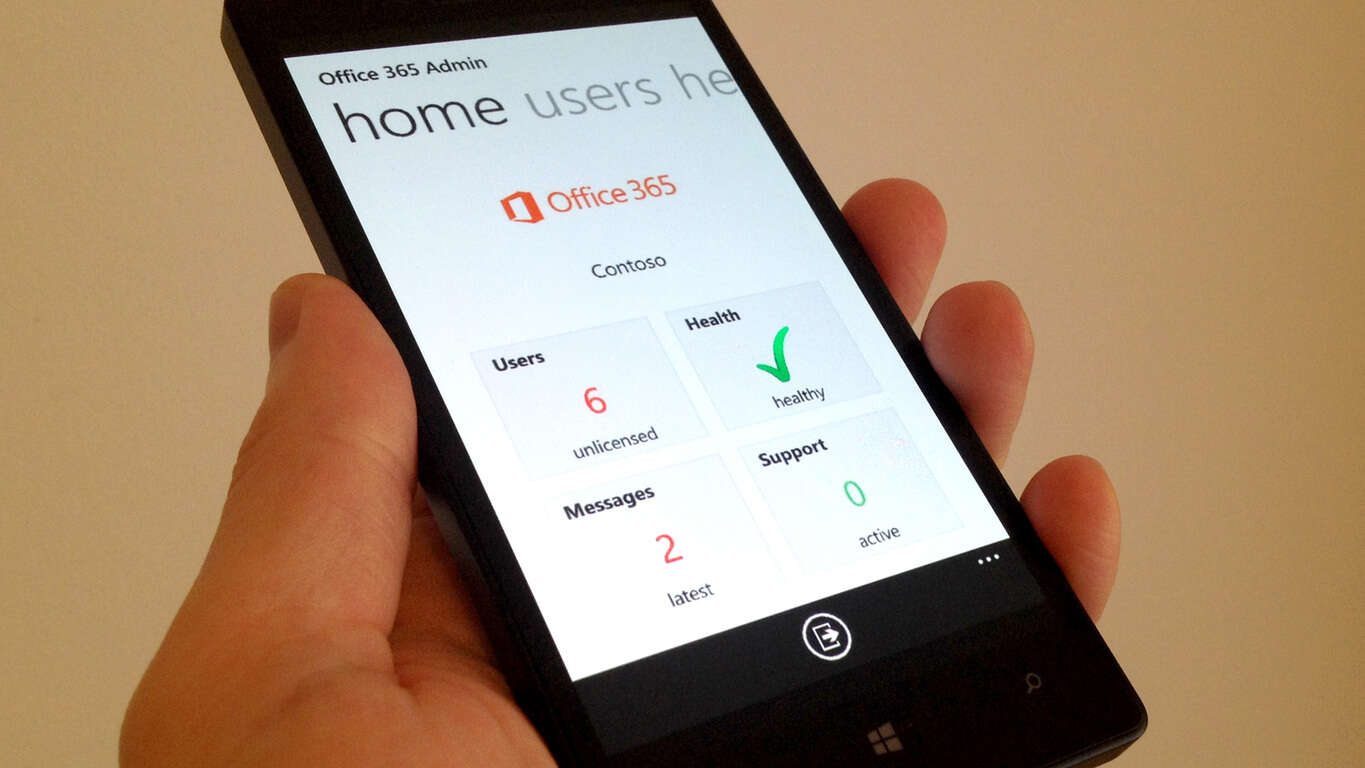
The Office 365 Admin Windows Phone app has updated to version 2.10 and brings with it the usual bug fixes in addition to more improvements to the login experienced introduced in the previous update which added the ability for multiple users and multiple accounts.
The previous app update also added the ability to turn notifications on and off, send new passwords to an email address, gave more control over Office 365 services when assigning licenses, support for more languages, Live Tile support, support for license assignment for on-premises Active Directory, and the new ability to share Message Center and service incident messages.
The Office 365 Admin Windows Phone app can be a great tool for Office 365 IT administrators wanting to stay in control of their Office 365 environment when they’re away from a computer and needing to make some updates and changes on a regular basis. Have you tried this app yet? Let us know what features you use in the comments below.

New series launched by Microsoft to help bring businesses to Windows 10

With any new version of Windows comes a great deal of excitement; as years pass between each release, so technology evolves and so too do the features in each new offering. For some, this can make keeping up a little difficult.
This is especially the case for businesses, with many using very niche software in order to meet their software needs. As such, in order to help with the current transition to Windows 10, Microsoft has created a new series of articles, showcasing how to manage and deploy Windows 10 to meet a variety of different needs.
Specifically, each entrant in this series will deal with a different aspect of Windows 10, with regards to enterprise use. Here is the full list:
- The Best Deployment & Management Options for Windows 10
- Deploying Windows 10 with ConfigMgr
- Podcast: Best Practices for Deploying Windows 10
- Managing Windows 10 with EMS and ConfigMgr
- Podcast: Best Practices for Managing Windows 10
- Identity & Access Management in Windows 10
- Using Cloud Services with Windows 10 + EMS + ConfigMgr
- Podcast: Maximizing the Cloud-connected Features of Windows 10
- Navigating the Windows 10 Distribution Rings
- Podcast: Navigating the Windows 10 Deployment Rings
- How to Use Enterprise Data Protection Delivered Natively in the OS
- Podcast: Maintaining Security & Data Protection with Windows 10
As the support for XP continues to dwindle, and Windows 7 begins to show signs of ageing, the pressure for businesses to adopt Windows 10 is only going to build further as time passes by. Microsoft clearly intends to get the hard work done first, convincing IT managers the world over that Windows 10 will fit their needs in the office as well as it does at home.
As moving is a costly affair, whether these customers will opt to adopt Redmond’s newest software offering is something that only time will tell; one thing is for sure however, Microsoft will continue to go all out in singing the praises of Windows 10 for quite some time yet.
What challenges in adopting Windows 10 do you anticipate will be the most significant for businesses? Let us know in the comments below.
Microsoft's Office 365 wins back Italian municipality after costly open source switch

Microsoft solutions have been the de-facto choice for the majority share of enterprise, government, healthcare and education for quite some time. While proprietary, Microsoft’s offerings are arguably easy to use alternatives to other industry options. However, being the de-facto option does not always translate into being the best or most cost-effective solution on the market. As a software provider, Microsoft requires licenses for its wares. Many argue that going FOSS or the open source route would not only loosen Microsoft’s grip on their wallets but offer businesses more customization over their data and workflows.
Numerous case studies are finding that even with Microsoft’s licensing fees, the company is still coming out on top as a financially sound investment over alternatives. Recently, an Italian municipality, Pesaro, made the switch back from the open source offering of OpenOffice to Microsoft’s Office 365. According to a published report from Netcis Observatory, “the city administration will be able to save up to 80 percent of the software’s total cost of ownership (which includes deployment, IT support, subscription plans cost and other elements) using Office 365, compared to its previous setup.” It should be noted, the study was co-commissioned by Pesaro and Microsoft.
Regardless, Stefano Bruscoli, the head of statistics and information systems department for the Pesaro municipality, said the savings were a result of ‘unexpected’ deployment cost.
“We encountered several hurdles and dysfunctions around the use of specific features. What’s more, due to the impossibility of replacing Access and partly Excel (various macros used on tens of files), we decided we had to keep a hybrid solution, using the two systems at the same time. This mix has been devastating.”

The Netics report showed the estimated yearly cost of rolling out open source software hovered around $584 (US) over a the course of a five-year period. Unfortunately, much of the $584 (US) was spent on simply deploying the alternative. Whereas, Microsoft’s Office 365 cost $217 (US) over the same time frame. Office 365 deployment savings come from workers familiarity with Microsoft’s software suite and its larger library of compatible formats, according to the report.
It seems Microsoft’s early ubiquitous nature has helped to keep its momentum in the workplace. Bruscoli, like many others, are finding that lack of compatibility between their current solutions and proposed new ones were a waste of time and productivity that eventually affects financial results.
In all fairness, OpenOffice is an on-premise solution that arguably offers a more secure option for data processing versus Microsoft’s cloud-first Office 365 solution. Both solutions have their upsides as well downsides. OpenOffice lacks collaboration tools while Microsoft’s Office 365 is subject to the behavior of cloud connectivity for better or for worse.
Workplaces are finding, what Microsoft lacks in head-to-head pricing; it makes up for with intangibles such as familiarity and ubiquitousness.
Windows 8.1 RT Update 3 to Bring Start Menu & Lock Screen Improvements
We already told you that Microsoft is preparing some updates for Windows 8.1 RT this fall, but you probably forgot about it because all that hype about the release of Windows 10. So Microsoft revealed a couple of features from the new update, just to remind you that it’s coming.

But let’s get one thing straight first, Microsoft still didn’t change its decision to not deliver Windows 10 for RT devices, so September’s RT Update 3 is still going to be for Windows 8.1 RT, and that’s the only thing Windows RT users should hope for.
But, even if Windows 10 won’t come on Windows RT devices, Microsoft mentioned the RT Update 3 in the Windows 10 FAQ, which seems a bit strange. The only explanation for this is that Microsoft is using the Windows 10 hype to promote the latest update for RT devices. Also, it makes sense that Microsoft are going to use Windows 10 ‘answer pages’ to help Windows RT users with their problems, because opening a whole new community just for RT users would probably be just the waste of money.
But, let’s talk about the features that Microsoft will release as the part of the September’s Windows 8.1 RT Update 3. So, as we said, you won’t get Windows 10 on your RT device, but you’ll get some Start Menu and lock screen improvements. So, make sure to check for updates regularly on your Windows RT device, and you’ll probably get the update in not more than a month.
Microsoft actually didn’t reveal the exact changes to Start Menu, lock screen, and other feature that will be made in the upcoming update, but it could bring some features from Windows 10, as well. Some people are mentioning the replica of Windows 10’s Start Menu, but we don’t have any official info. So, even if Microsoft decided not to deliver Windows 10 to RT devices, its users could use some of Windows 10 features, at least.
Windows RT was released in October 2012, and Microsoft hoped that it could be the main ‘engine’ of its tablets like Surface RT, but it appeared to be quite unpopular, and that’s the main reason why Microsoft won’t deliver Windows 10 on Windows RT devices, as it will be just the waste of money, time and resources. There were also some rumors that Microsoft plans to kill this OS, but since the new update is around the corner, the company will apparently keep it alive a little more.
Read Also: People App is Missing Features in Windows 10, is Microsoft Planning to Kill it?
Windows 10 won't run games with certain older CD-Rom DRMs

Recently Windows 10 caused a stir in the gaming community with a line in the Microsoft Services Agreement saying it can check your system for unauthorized (pirated) games. In this portion of the Agreement, Microsoft reserves the right during updates to scan your device for counterfeit games and prevent them from running. You can read more about it in our previous report.
But now gamers with Windows 10 have a new concern that is not just a potential problem, but an immediate one for hundreds of games on CD-Rom that use DRM (digital rights management). A report form PCGamesHardware.de via Neowin is saying that game or audio CDs that rely on SafeDisc or Securerom DRM will not run on Windows 10 PCs.
This isn’t because Windows 10 isn’t capable of running older software, but instead it is because Microsoft has decided not to enable the CD DRM due to security concerns. The report also includes an explanation by Boris Schneider-Johne, a marketing manager for Microsoft, saying:
“Everything that ran in Windows 7 should also run in Windows 10. There are just two silly exceptions: antivirus software and stuff that’s deeply embedded into the system needs updating – but the developers are on it already – and then there are old games on CD-Rom that have DRM. This DRM stuff is also deeply embedded in your system, and that’s where Windows 10 says ‘sorry, we cannot allow that, because that would be a possible loophole for computer viruses.’ That’s why there are a couple of games from 2003-2008 with Securom, etc. that simply don’t run without a no-CD patch or some such. We can just not support that if it’s a possible danger for our users. There are a couple of patches from developers already, and there is stuff like GOG where you’ll find versions of those games that work.”
Microsoft’s decision to not support SafeDisc or Securom DRM will leave many CD games from the early 2000s unusable on Windows 10. While disappointing for some gamers out there, this is a good decision by Microsoft to not support software that contains a kernel level exploit from the mid ’00’s and on the whole will keep more users safe than dissatisfied.
Why Microsoft removed Windows 10 feedback more than two weeks old
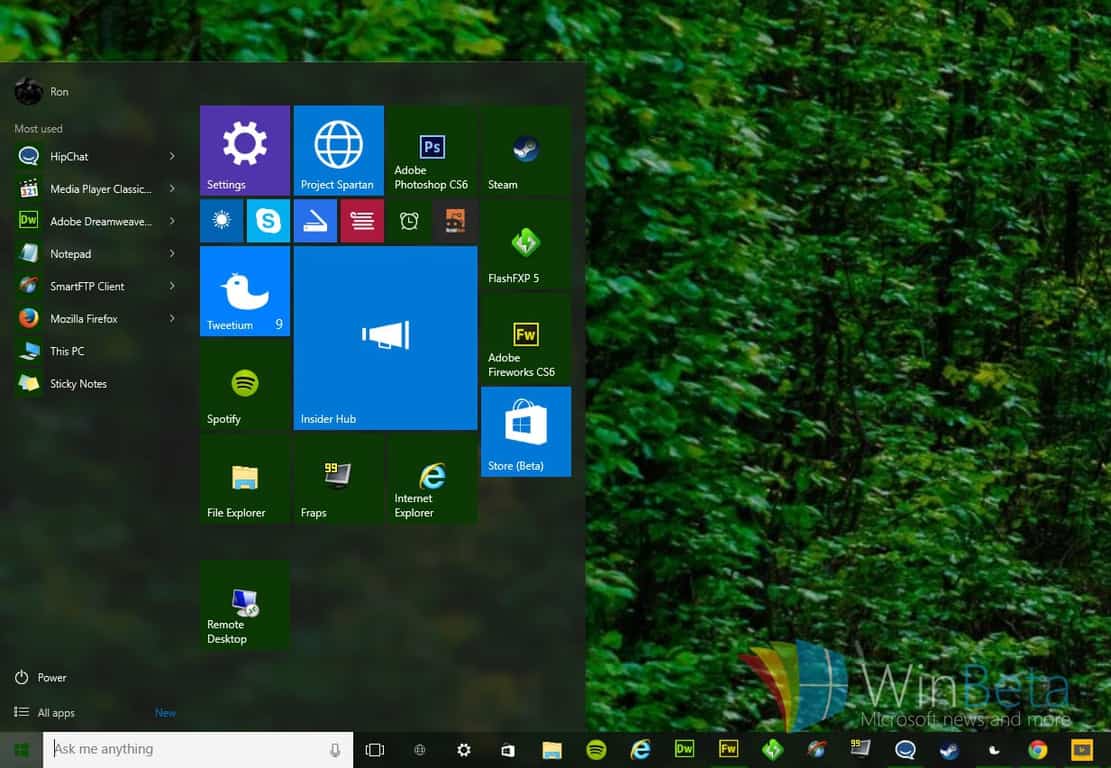
We received a tip over the weekend bringing our attention to the Insider Hub on Windows 10. Apparently, Microsoft has removed feedback from the Insider Hub older than two weeks, sparking various media outlets to speculate that Microsoft was “deleting” feedback. This is not the case.
Microsoft has simply archived “pre-release feedback” and will continue to look at the suggestions made by Windows Insiders to make improvements to the operating system. Microsoft simply wanted to clear out the search results on the Insider Hub, making it a tad bit cleaner to report newer issues. Here’s what Microsoft had to say:
“We’re also taking this opportunity to clear out the older feedback that we received earlier on in our product development cycle so it will no longer display in search result. Don’t worry, your feedback will still be in our backend system and will continue to be used by our engineering teams to make improvements—you’ll still get credit for your contributions in Insider Hub, too. You can always view a full history of your feedback under My feedback with a special Archive demarcation for pre-release feedback.”
So there you have it. Microsoft isn’t deleting feedback, they are simply archiving older feedback to clean up search results. If you want to see your history of submitted feedback, just hit My Feedback under the filter criteria. For those of you unable to locate the Insider Hub on Windows 10, head over here to see how you can get it.
Tips to optimize your Wi-Fi for Windows 10 game streaming
So, you’ve got yourself a nice shiny Xbox One and a nice freshly installed copy of Windows 10, you’ve played with the Start menu, snapped apps, left, right and center, now what? You stream your games from your Xbox, of course! For those who are new to Windows 10, head over here to see how you can set up game streaming.
These quick tips will help you achieve the best experience for your gaming needs. Before we start, you must take into account that all homes are different, from interference, building materials and dead monsters in-between your walls, though, I can’t eliminate these issues, I can most certainly help you get past the worst of it, maybe even to a point where you wouldn’t even know you had half of the Goblins from The Lord of The Rings dead inside your walls. With that said, let’s go.
Router Position
The most important of all. Router placement in the home is one of lives undeniable issues. “Where should I put it?” “Where will it work best?” “Does it matter if my cat sits on it?” All, very good questions. The truth behind it all, your router works best (at least for myself) in the highest room you can get to in the house, providing you have a phone socket or a REALLY long Ethernet cable that you can stealthy hide under the carpets, run the cable across every wall hoping your wife doesn’t notice, or, just run it and hope no one has a fatal accident. Myself, my router is in the spare bedroom, above the living room, game room, and sits in-between the housemates bedrooms, for us, we have full and strong signal everywhere we need it most. You need to find out for yourself where would be a good place to put your router, try and put it closest to the most Wi-Fi intensive areas of the house. Avoid the kitchen, microwaves are a router’s great enemy.
2.4Ghz or 5Ghz?
You may notice on a lot of modern routers, they have this 5Ghz thing, but what is it? It’s a faster, more reliable and stable Wi-Fi signal. 5Ghz is one of the highest types of Wi-Fi signal available to consumers, with it’s super-fast transfer speeds, strong and reliable connection to devices (less drop outs are good for streaming!) and less interference from other devices, such as mobile phones and tablets, it’s the big daddy of the wireless family. So, I hear you ask, why is that better for game streaming? Well, you lovely human being, it means you’re less susceptible to dropped frames when streaming (packet-loss if you’re being posh) thus, Xbox One and talks well with your Windows 10 device, which, in turn, means a lot less lag from a button press and making the experience THAT more awesome. Seriously, use 5Ghz.
Wireless vs Wired
The big question, “do I get better performance on a wired connection than wireless?” The answer, YES. Wired will always be the preferred connection method for anyone, tiny amounts of latency if any at all, higher transfer speeds than traditional wireless and almost no connection drops. But, what if you don’t want to drag a 50ft Ethernet cable across the house, down the hall, though the dining room, into Pan’s labyrinth, to the end up in your office 20 years away from your router? You have wireless. Now, for me, I stream from a 5Ghz Wi-Fi band from my Xbox One in the living room and from my Desktop PC in the office (About 3 rooms away) with a average 3 bars of 5Ghz goodness, I experience almost no lag, no packet loss and enjoy ubur Halo pwning. If you’re on 2.4Ghz wireless, you will not have a great experience, the stream is just to high of a bitrate for the wireless signal, you will encounter lag, stuttering and lots of rage at the fact that your car you spent 500,000CR on just ended up in a bush upside down because the video was too delayed to react quick enough. If you have the ability to use 5Ghz wireless, do it, the same goes for wired connections, if you can plug both your PC and Xbox One into the router without, again, having rather long Ethernet cables hanging around, do it. 2.4Ghz unfortunately just isn’t good enough for high quality and enjoyable streaming, Sorry kids!
Change your Wi-Fi channel
This is an easy one, changing your Wi-Fi channel may have you running round the house in enjoyment that you can finally play Halo in the garden, whilst in the pool, with beer, because, you can. Wi-Fi channels are very important, most modern routers these days have a “Smart” mode for Wi-Fi channels that will constantly monitor noise and activity on other wireless channels to make sure you’re getting the least interference on your current channel, but, as good as that sounds, 90% of the time it doesn’t work quite as well as advertised, thus, requiring some “manual intervention”. A great way to check what Wi-Fi channel might be best, is a Wi-Fi Analyser for your smartphone or tablet, these things are great, showing you what is the best Wi-Fi channel for you to use with minimal interference and noise. Find your channel that suits yourself and your devices perfectly. The reason behind this, less noise, less lag, more frag.
Upgrade Your Router
Most people will only have the router they got from there ISP. I, on the other hand, have EE Home broadband with a “Bright Box 2” let me tell you right now, there is nothing bright about it, yes, it has 5Ghz channels, but it is simply awful. The same may happen for you — your ISP will always say “it’s the most reliable connection ever” etc., and they’re most likely right, if you live in a single room apartment building. The truth is, the routers you get from your ISP are just plain awful, sure, they work for the average consumer (sometimes) but, in this ever growing technological world, they’re not ready for the future at all. So, with that in mind, after much thought and router movements and channel switching, I decided that this “Bright Box 2” was short of a few sparks. I decided to bite the bullet and buy myself a top of the line, all singing all dancing router, the Netgear Nighthawk X6 to be exact, this thing, wow. Sure, it’s retail price isn’t cheap (£200+) but it’s something I will have for a good few years. This instantly changed my Wi-Fi performance around the house, it’s range is absolutely insane, the connection is solid and reliable and with it’s x2 5Ghz channels, streaming is ALMOST flawless, sure the odd frame drop is to be expected on a wireless signal, but, that’s every half hour or so. My point here is, if you have tried countless measures to improve your signal in your room and or around the house, it might be worth looking into getting a new router.
That’s pretty much it, I hope these tips find you well and make your Windows 10/Xbox One streaming that much more awesome!
Windows Alarms & Clocks and Maps apps updated on Windows 10

The Windows Alarms & Clock and Windows Maps apps have just received an update on Windows 10 PCs and due to their Universal nature, have also updated on phones running preview versions of Windows 10 Mobile.
There appears to be no obvious changes in either app since the updates and as usual there are zero version notes provided by Microsoft, who really needs to get on board and start providing update notes like everyone else. Microsoft has provided some text for the version notes for their Maps app though it’s more promotional text and doesn’t reflect the most recent update at all. Here’s what it says for those that are curious; “The new Maps app brings together all your favourite features – 3D cities, Streetside views, turn-by-turn voice navigation and offline maps – in one universal app for Windows 10 PCs and phones.”
The Windows Maps app is Microsoft’s answer to the popular Google Maps app on iOS and Android. Currently on Windows Phone 8 and 8.1, the collection of Nokia owned HERE navigation apps seem to be the go-to choice for most users. Nokia recently sold the HERE apps to a collection of German automakers so it will be interesting to see if Microsoft will move away from HERE more and focus on its own first party apps moving forward.
The Windows Alarms & Clock is a fairly simple app that provides Windows 10 owners with basic features such as a stopwatch, timer, and alarms. It’s most useful feature is a streamlined world map which can be customized to display specific times for cities across the globe. The map’s grey and white color scheme may be a tad on the ugly side but it does work flawlessly and is useful for those that need to interact with people in different time zones. Here’s hoping they add some color or graphic options in a future update or maybe even a full screen mode.
Both apps should be pre-installed on all Windows 10 PCs but if they aren’t on yours, you can grab them for free via the links below.
Are you using either of these apps on your Windows 10 device? How useful do you find them? Share your feedback in the comments below.


People App missing some features after Windows 10 upgrade?
Users of Microsoft‘s People app have recently reported that app is missing some functionality after Windows 10 Upgrade. Since this is not the first time Microsoft cut some features from its People app, that might mean that Microsoft is planning to discontinue this feature in the future.

The problem in Windows 10 occurred when some people, including myself, tried to include friends from social networks to the app. Namely, when you want to connect People app with any social network app available of Windows 10, it just redirects you to null page in the Store, with the message “Your search for “” had no results.” This means that no social network app that can be found in the Store is compatible with People app.
This is probably Microsoft‘s omission, because some social network apps, like Facebook, have sync option for People app, but when you try to sync them, simply nothing happens. This could very easily be done on purpose, because Microsoft maybe plans to shut down this app in the future. And since Microsoft already discontinued some of its own apps that weren’t so popular, we tend to believe in this theory even more.
Also, when people complained about this on Microsoft forums, the staff simply answered that there are no social apps that support integration with People app, currently. They didn’t mention if there will be any updates or fixes for this in the future, which also indicates to the fact that Microsoft plans to shut this app down sooner or later.
What do you think about this Microsoft‘s policy of shutting down ‘not so popular’ apps? Did you use People app, and will you miss it if Microsoft decides to shut it down? Tell us your opinions in the comments, below.
Read also: Fix: MSVCR100.dll and MSVCP100.dll Missing After Windows 10 Upgrade
Why Windows Hello Might Not Work in Windows 10 for You
Windows 10 brings many improvements ranging from performance, gaming to security. Speaking of improved security, Windows 10 brings a new feature called Windows Hello, but according to some users they can’t enable this feature to work.

Firstly, let’s explain what is Windows Hello. Windows Hello is a new feature in Windows 10 that allows you to use your Face to log in to your Windows 10 device instead of a password. In addition there’s a similar technology called Password that should do the same for websites, so you won’t have to type your passwords ever again. I
n addition to logging in to your computer using your face, you can login using your fingerprint or by scanning your iris. All of this sounds incredible on paper, but do we really need all this security as average users? This is the real problem of Windows Hello on Windows 10.
In order to use Windows Hello you will need compatible “depth” camera. Ordinary webcams won’t work, since they aren’t secure enough and they can be tricked with a simple photo. So for example, if anyone steals your laptop and has a photo of you, he can easily unlock it, and this is the main reason why Windows Hello requires “depth” camera.
These cameras will unlock your device only if you’re standing in front of it, and they can’t be tricked with a photo. As for these “depth” cameras, they will be made by Intel, and experts believe that they will be too expensive for regular PC users, and too expensive to include in cheaper Windows devices.
Windows Hello sounds great, but if you’re an average user you probably don’t need so much security. However, if you want to use Windows Hello on your Windows 10, be prepared to buy a special “depth” camera.
Read Also: Fix: Windows Photo Gallery Not Working in Windows 10
Here are some of the best Xbox One games for kids

In a world where action-packed, explosion-filled violent games take center stage in the entertainment business, it can be difficult finding appropriate games for the little ones in our lives. So we’ve put together a list of some Xbox One games that don’t include any excessive violence yet will still put a smile on younger audiences.
Fruit Ninja Kinect 2 ($14.99)
Fruit Ninja was huge back when it first launched on the iPhone, everyone was slashing fruit whenever they had time to kill. But since the hype has settled down, developer Halfbrick Studios decided to keep the game alive with a good ol’ dose of innovation and creativity. Fruit Ninja Kinect 2 is the same fruit slasher you know and love, but with new modes, characters, and gameplay mechanics thrown in.
Rayman Legends ($39.99)
Rayman is another popular video game franchise dating back to 1995. The games have evolved plenty since then, but remain extremely enjoyable. The latest game for consoles, Rayman Legends, has amassed a four star rating out of five, from over 9000 reviews. Critics loved it too, and they’re a lot harder to please than 10 year-olds. Check out the gameplay trailer above to see what the game is all about.
Kinect Sports Rivals ($29.99)
It isn’t in a child’s nature to sit still for hours at a time. Unlike us, they seem to be more comfortable on their feet, running around causing havoc. At least with Kinect Sports Rivals, they’ll be confined to the immediate surroundings of the TV. This particular title packs a range of motion-focused games and activities including wake racing, rock climbing, target shooting, soccer, bowling, and tennis. Who’s to say the kid won’t turn out to be the next Lionel Messi or Serena Williams?
Disney Infinity [2.0] (Disk-only)
If your kids love Disney, they’re going to love playing Disney Infinity. They’ll be able to choose from a wide range of beloved Disney characters to play in an open-world sandbox environment. Characters from Guardians of the Galaxy, Spiderman, Brave, Lilo & Stich, Maleficent, Big Hero 6, the Avengers and more are all included. The fun-factor will last a good while with this one, and if you’re willing to wait, Disney Infinity 3.0 with Star Wars characters thrown in will be available later this year.
Zoo Tycoon ($29.99)
Think of Zoo Tycoon for Xbox as a more advanced, visually stunning version of Tamagotchi, but with wild animals. Players will learn to care for these animals by monitoring their moods and hunger levels, and participate in a range of fun, interactive activities. With over 100 different animals to care for and a large environments to play in, there’s lots of fun to have, and learning to do, as each animal species have different personalities. If you have a Kinect sensor, things get even more fun as animals will now be able to recognize voices and can react to movement. It’s a must-have title for the kids.
That’s our list, if you have any other suggestions of Xbox One games that you think kids would love, let us know in the comments section below.
Test your site in Microsoft Edge with free Windows 10 virtual machines
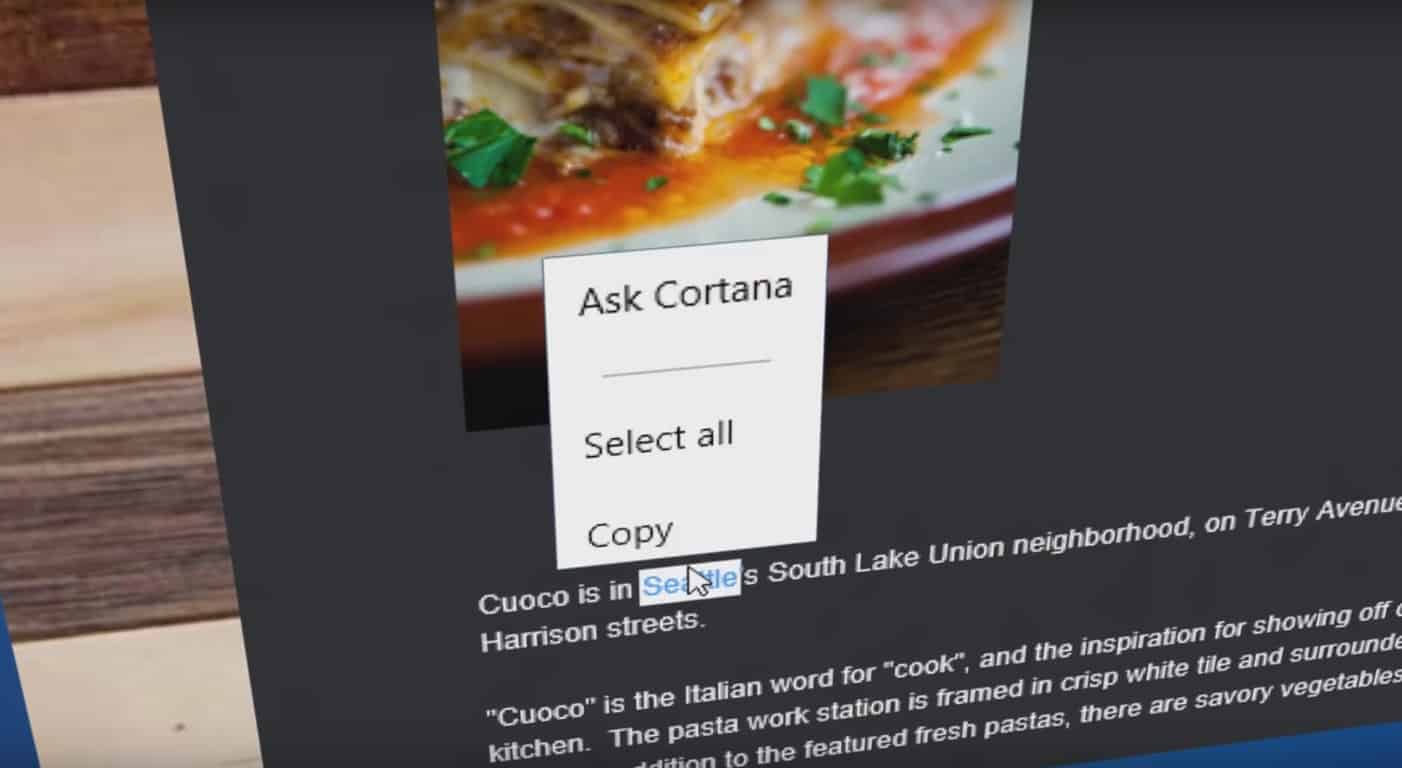
For anyone choosing to use the new Edge browser in Windows 10, there have been a plethora of caveats that come bundled with the experience. Many of Microsoft’s Edge browser shortcomings have been chalked up to its relative short development age. However, real world scenarios dictate that Edge come of age soon as Chrome, Firefox and other alternatives are not standing still when it comes to improving browser features and performance.
Microsoft has updated the Edge Dev site, bringing a number of major fixes and new features. Among the new features, devs will now have access to free Windows 10 virtual machines with Microsoft Edge. The released update now automates the process Microsoft is using to create virtual machines. Doing so, Microsoft can provide future updates much quicker as the platform matures. Support for new VM formats have also been included, starting with Vagrant boxes (with Virtual Box) and QEMU, that will be rolling out in the coming weeks.
As for bug fixes, Microsoft is touting an “improved markup to make the site and tools work better with assistive technologies.” The FAQ pages have updated alongside the Windows 10 release with new answers to common questions. Many of Microsoft’s older Test Drive demos such as Fishbowl and MazeSolver have also moved to its GitHub repository for open-sourced experimenting.
Microsoft is also promising a faster and clearer platform roadmap included in the update. Devs might also note, the update takes the Microsoft Edge Dev site out of ‘Beta’ as Microsoft will now be redirecting modern.ie traffic to its new home at dev.modern.ie.
While the Edge browser is arguably faster than some of its competitors, it’s still relatively infantile and will need all the help it can get to bring it on par with current offerings. Hopefully, today’s updates will entice more devs to lend a hand.
Windows 10 reportedly reaches 53 million downloads
We reported over the weekend that Windows 10 is running on over 50 million devices. A new report from Neowin backs up our initial statistic and clarifies that Windows 10 has reached 53 million installs according to their sources. Additionally, StatCounter states that number of devices running Windows 10 constitutes 4.95% of the operating system market.
Windows 10 is a free upgrade to many users and is easy to upgrade to from Windows 7 and Windows 8.1. The instillation is rolling out in waves so its download numbers will likely continue to rise. Additionally, it will take some time for enterprises (who have to pay to upgrade) to make decisions on the new operating system. Bank of America has plans to move their large set of devices over to Windows 10 and if other businesses follow suit, we’ll see the install numbers increase in chunks.
Download numbers and market share percentages aren’t the only indicators of success of an operating system but it is a positive sign for Microsoft that Windows 10 is being adopted by so many users. As oft reported, Microsoft has a goal of 1 billion devices within two or three years. While many of those will be IoT devices, tablets, and phones, it’s important for Windows 10 to have a large PC user base if it’s ever going to reach that ten figure goal.
Windows 10 news recap: New updates, activation rules, and more
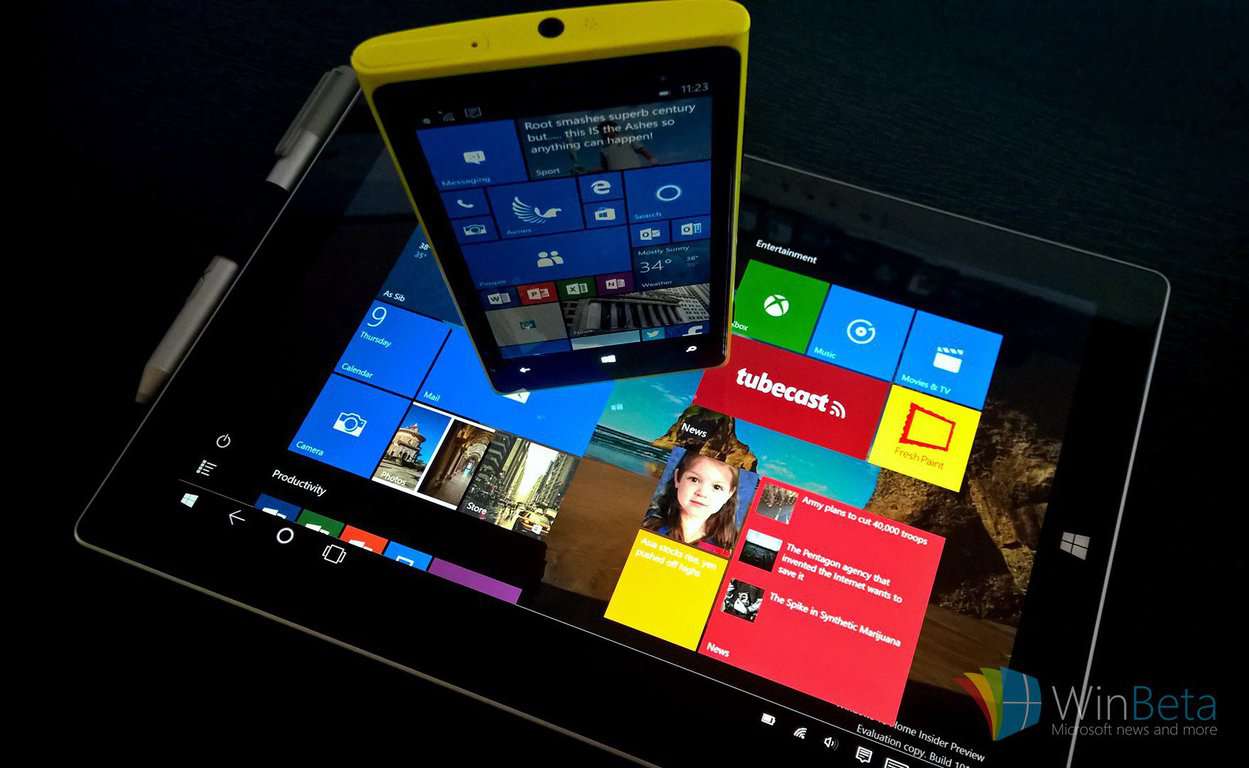
In this feature, we will be looking back at the past week’s most popular and important Windows 10 stories. Last week, Microsoft rolled out KB3081436 and KB3081438 to Windows 10 users — a set of cumulative updates that improve the functionality of Windows 10 and resolve vulnerabilities in the operating system. No details were given as to exactly what new improvements were made. Both updates were made available via Windows Update.
A few weeks ago, Microsoft launched a YouTube series of videos that walked users through 10 upcoming features in Windows 10, alongside a television campaign highlighting Cortana, Windows Hello, and Microsoft Edge. Now the company is featuring an interactive web demo of Windows 10 for Windows users who have yet to upgrade, but are curious about Windows 10.
Microsoft has changed and redone the activation rules with the release of Windows 10. The new rules makes reinstalling Windows significantly easier compared to previous versions of Windows such as 8.1 and 7. Perhaps the biggest change is the fact that your activation status is stored in the cloud, so that way you don’t need your product key when you reinstall Windows 10. Every time you reinstall Windows 10, the device is activated automatically. Previously, every time you needed to install Windows, you needed the product key unless you had an UEFI-based laptop with Windows 8.1 pre-installed.
We learned this past week that even with certain privacy settings disabled, Windows 10 is still communicating with Microsoft. You can read more about that here. Speaking of privacy, you can check out our how-to guide here for adjusting privacy settings in Windows 10.
Nvidia rolled out a new driver package for Windows 10. If you are running an Nvidia graphics card, you can now download the GeForce 355.60 WHQL drivers for Windows 10, supporting the preview of a new game as well as the Beta version of GameWorks VR.
As of August 14th, Windows 10 has been installed on over 50 million devices worldwide, according to an exclusive report by our very own Zac Bowden. Microsoft began pushing Windows 10 out to a whole lot more devices this week, as their method of upgrading in waves is still ongoing.
That’s it for the week. Stay tuned for yet another exciting week of Windows 10 news.
Must Read Stories
Microsoft built a Windows 10 IoT-powered air hockey table

Last week, Microsoft introduced Windows 10 IoT Core — a new edition of Windows 10 geared towards small, embedded devices that may or may not have screens. Windows 10 IoT Core does not have a shell experience. Instead, developers can write a Universal app that acts as the interface for the device. To demonstrate Windows 10 IoT Core, Microsoft build a robotic air-hockey table.
For those wondering, IoT stands for Internet of Things, designed to allow small devices to connect to each other and utilize the internet to exchange data. Windows 10 IoT is compatible with the Raspberry Pi 2 and the MinnowBoard Max, two tiny computers that are quite popular with small device makers.
“IoT core designed to have a low barrier to entry and make it easy to build professional grade devices. It’s designed to work with a variety of open source languages and works well with Visual Studio,” Microsoft stated in an official blog post. You can watch the air-hockey table in action below.
Windows 10 can check for 'counterfeit games' if you sign in with a Microsoft Account
(update: the title has been adjusted to further clarify that the EULA mentioned pertains to Microsoft services, which includes the Microsoft account, as well as Xbox and online services)
While Windows 10 has had a smooth release there have been mounting concerns over new data gathering policies. One such concern comes from Windows users who may not be completely square with the law when it comes to their software licenses. It would seem Microsoft has left the situation intentionally vague to give themselves plenty of room to do what they want.
One such concern is that Microsoft will use their new data collection policies to crack down on software pirates. Explicitly within the Microsoft Services Agreement Microsoft will check your system for “playing counterfeit games, or using unauthorized hardware peripheral devices”. While it seems odd to narrow the counterfeit software to only games the statement remains in the agreement.
Perhaps this section pertains to their Xbox consoles and gamers hacking them to load pirated games as was popular with the original Xbox. Now Microsoft has the right to search for such hacks and disable the console from accessing Microsoft services. With the language being so vague it is unclear if Microsoft plans on sharing the information they gather about counterfeit games with law enforcement or if they simply want to disable the content from functioning.
Yet another confusing factor in this whole debacle involves how Windows 10 will now be used across PC, Phone, Xbox, HoloLens, and Surface Hub. Now EULAs need to be written to include protections against stolen phones, Xbox mods, enterprise security, and required updates. Unifying Windows 10 was a technical challenge but now it would seem to also be a serious legal challenge to merge the different licenses into one cohesive agreement spanning all the different usage scenarios.
There is no doubt Microsoft has done a good job of creating Windows 10 to work great for most of their users, but now that Windows 10 has launched they need to focus on how to communicate to their concerned users. With such a great product hanging in the balance Microsoft needs to keep these privacy concerns from hurting the image of Windows 10. So far Microsoft has been largely silent but they need to clarify why they are doing what they do and how users will be affected.