Windows 10 Pro price and release date potentially leaked by Newegg

Windows 10 Pro price and release date potentially leaked by Newegg

By now, our readers know that Windows 10 is slated to be released to manufacturing this July. Popular shopping site Newegg has apparently and likely inadvertently revealed the general availability date for Windows 10, by listing a pre-order of Windows 10 Pro OEM. According to Newegg (first spotted by WinSupersite), Windows 10 Pro OEM will run for $149.99 and will be available on the 31st of August. 

Microsoft has yet to reveal the price tiers for the different Windows 10 editions (you can read more about that here) and there’s a chance that this information may just be a place holder for Windows 10 on Newegg. For example, Windows 7 is also listed for $149.99. For now, we suggest taking this with a huge grain of salt. Here’s a cached version of the Newegg listing on Google in case it gets removed.

Windows 10 is expected to be released this summer and will deliver a more personal computing experience across any device, ranging from PCs, tablets, phones, Xbox, HoloLens, and the Surface Hub. Windows 10 will also power the world around you, including ATMs, heart rate monitors, wearables, elevators, and much more thanks to the Internet of Things (IoT). 

Video: Hands on with Windows 10 build 10130 showcasing new features

Video: Hands on with Windows 10 build 10130 showcasing new features

Windows 10 Build 10130 is the latest build of Windows 10 available now for Windows Insiders, it includes a number of features and enhancements over the last public preview build which was 10122. Changes include improvements to Start, the UI and more.

You can pin things to the list area of the Start Menu. You can pin them by enabling them in the Settings app. Not only that but the Apps List now alerts you that there’s a new app in the Apps List with a ‘New!’ indicator.

Finally, icons have been updated too. They look a lot nicer than previous, and are the same icons seen in a concept art released by Microsoft back at WinHEC.

What do you think of these new changes? Let us know in the comments below.

Icons, UI design and more of what's new in Windows 10 Insider Preview build 10130

Icons, UI design and more of what's new in Windows 10 Insider Preview build 10130

The latest Windows 10 Insider Preview build (10130) has just been released, and Microsoft implemented some nice improvements to this build over the previous one. The software giant included both design and feature improvements, so all around, it’s a build we’re sure you’ll enjoy.

The first change is one related to Start. In build 10122, Microsoft included, but disables Start customization in the settings up, but in build 10130, users can now customize the Start menu to show app and content suggestions, display recently opened programs in Start for easy access, show or hide the ‘recently added’ apps group and more.

Microsoft has also updated the system app icons in the new build to match the new Microsoft design language. The icons aren’t as flat anymore but retain the lightweight feel to them. They have the 3D look of the Vista icons, but using a flatter “modern” color scheme. Overall, they look like a nice improvement over the ones currently used.

Icons, UI design and more of what's new in Windows 10 Insider Preview build 10130

“Between the legacy aero-style icons and new app icons, several thousand icons were designed and redesigned. We explored Swiss graphic design, Dutch product design, and modern architecture (among other design fields and styles) to inform and inspire the design process. The icon evolution will continue as we push more consistency and better functionality.” – Gabe Aul

Taskbar Jump Lists in Windows 10 build 10130 have also been refined, they now have a dark theme that matches the rest of the user interface and their list layout is now more spaced out, resulting in a more finished look. Speaking of the taskbar, Microsoft has changed the default way that apps appear on the taskbar within virtual desktops. Now only apps open in a specific virtual desktop will show on the taskbar of that desktop, instead of showing all pinned app, on all virtual desktop taskbars. This is based on “thousands and thousands” of feedback requests. Rest assured however, taskbar behavior can be changed in settings.

Icons, UI design and more of what's new in Windows 10 Insider Preview build 10130

Continuum improvements have also been made to appease Windows 8.1 touch users. Now, when in tablet mode, users can swipe down from the top edge of the screen to bring up the app commands menu, just as they could on Windows 8.1.

Users will also be greeted to improvements in Microsoft Edge, which is still codenamed Project Spartan in this build. The next-gen browser from Microsoft now lets users pin and unpin the Cortana pane, so that it can always be displayed to those that find themselves constantly relying on Cortana’s intuitiveness and context awareness. Additionally, the browser will now finally play video in full screen.

Icons, UI design and more of what's new in Windows 10 Insider Preview build 10130

There are also some minor improvements here and there, like a rename of the feature to print to PDFs, which is now conveniently called “Microsoft Print to PDF”, and a change in the keyboard shortcut to launch Cortana, now Win key + C instead of Win key + Q.

Icons, UI design and more of what's new in Windows 10 Insider Preview build 10130

Although this hasn’t been mentioned – probably because it is to be expected – Windows 10 Insider Preview build 10130 should also include a host of bug fixes and stability improvements to make the build more reliable to use. But remember, this is still a Fast Ring build, meaning that it may still include unforeseen bugs. If not, Slow ring users will finally have a new build to install.

Microsoft continues to unfiy the Windows Store with unified payout updates

Image Credit: WinBeta

Now that Microsoft has laid out its plans for cleaning up the Windows Store, the next thing the company wants to do is improve its payment system. For developers, downloads, clicks, ad revenue and engagement usually all drive one end-goal, compensation. What good does it do a developer to have a great app when the financial rewards don’t cover the cost of maintenance?

Today, Microsoft is releasing news of changes in its policy for publishing apps in the now combined Windows Store. According to Microsoft, developers who are active in the Windows Dev Center will start seeing changes as early as June for published apps in both the Windows Store and Windows Phone Store. With changes happening as soon as next month, the Windows team offered some news about the changes that have currently been made to provide Junes new updates.

During May:

  • Windows Dev Center Preview will show payout reporting for both Windows and Windows Phone. At the same time, the existing Windows Dev Center payout reports will no longer be updated
  • Windows and Windows Phone payout export files will add more detail (see below for more information)
  • Payout information (e.g. bank account information) for Windows and Windows Phone will be unified

Image Credit: Windows

The plans for next month include:

  • The four tiles will have more detailed information about your payouts
  • Reserved: reserved proceeds (earned, but not yet eligible for payout) by revenue source. A csv export of all reserved transactions will be available soon.
  • Upcoming payment: revenue source, amount and date of upcoming payment(s)
    Most recent payment: revenue source, amount and date of the most recent payment(s)
    Total paid to date: amount you’ve been paid lifetime for Windows or Windows Phone
  • Payout summary will add more functionality
  • Payout threshold will be reduced to US$25 for most payouts, based on combined proceeds from Windows and Windows Phone
  • You can expect a single, combined payout for Windows and Windows Phone apps

The Windows team is also hoping to ease the developer angst towards a new unified Windows Dev Center by offering hands-free migration. Starting June, developers who developed for a single platform, be it Windows Store or Windows Phone, the Windows team will automatically migrate their default payment instrument. However, developers who produce for both, will need to make sure their Windows Store payout account is up to date prior to next week, June 1, 2015. The Windows team will only migrate developers to the Windows Store default payments, not their Windows Phone Store payment methods.

Image Credit: Windows

Today’s announcement also includes news of a new Windows Dev Center payout UI for all apps, the inclusion of more fields in the Windows and Windows Phone payout export files and UI support for new payout functionality. The Windows team also highlights single payouts with lower thresholds, based on both Windows and Windows Phone. This news means, “the Dev Center will generate a single payment for all sales of apps and in apps purchase, with a lower minimum amount to generate the payment.”

Current developers witness a threshold within the Windows Store at $200 app sales and $200 in app proceeds for the Windows Phone Store. With the new model, the threshold is $25 app proceeds for payments using Single Euro Payments Area (SEPA), ACH bank direct deposit, and PayPal payments. $200 (US) remains the threshold for wire transfers, however. The Windows team explains that the new payout threshold combines the proceeds from both stores to get devs their payouts quicker.

These are all very good signs that Windows is shaping up to compete for the serious attention of devs moving forward.
 

IDC: Worldwide PC shipments expected to fall by 6.2% in 2015, despite Windows 10

Microsoft

One thing has become apparent over the last few years, shape has become the defining factor in what computing in the future will look like. More evidence supporting this theory has now emerged, courtesy of the IDC, with PC shipments continuing to decline throughout the world.

In 2015 alone, worldwide shipments are expected to suffer a 6.2% drop. Following a relatively strong performance in 2014, when the end of support for Windows XP saw a drive for replacement machines, shipments are still expected to fall in 2015 even despite the debut of Windows 10 later in the year. IDC describes the climate for PC sales in the second half of the year:

Windows 10 should be a significant contributor to the PC market – providing an upgrade path from Windows 7 for commercial users and a range of features boosting convenience and integrating the user experience across platforms. Nevertheless, changes like the free upgrade option for consumers and platform integration aren’t expected to drive a surge in new PC shipments. The commercial segment is expected to evaluate the OS before deploying it and most new commercial PCs will be replacement systems. The consumer transition to Windows 10 should happen quickly, but the free upgrade reduces the need for a new PC and IDC expects many consumers will continue to prioritize spending on phones, tablets, and wearable devices like the Apple Watch during the holiday season.

What the impact of lower PC sales will be for Microsoft is difficult to say, with it arguably being the case that with Windows 10 being so diverse it simply does not matter. Despite this, as smartphones continue their inexorable ascendance, expect the PC sector to continue declining throughout the rest of the year.

Do you think more should be done to halt the decline of PC shipments?

Microsoft Translator Partner Alliance Program announced

Microsoft

In theory, the web is a wonderful thing.

By allowing instantaneous connection between different users, regardless of physical location, myriad possibilities are opened up. However, with humans being as human as they are, barriers arise, namely language.

As such, and as machine learning has progressed, automatic translation services have arisen, providing free, accurate and easy translation services to millions across the globe. Of these, Microsoft Translator is by far one of the highest profile and most effective solutions available.

However, given the vast task of allowing comprehensible communication between the various peoples of the planet, occasionally a little help is required, and it is here that the Microsoft Translator Partner Alliance Program comes in, as recently announced by Microsoft on the MSDN blog.

Allowing three levels of engagement, Alliance, Silver and Gold, the program is intended to get a greater number involved in the evolution and spread of Microsoft Translator. Each level has its own benefits and requirements. At all levels, by working with the program, partners will have their logos present on the Microsoft Translator Partner page, as well as various levels of inclusion with various marketing activities.

Partner

At all levels, partners will receive a free Translator API service volume, along with exclusive access to the Translator Partner Portal.

In order to take part in the program, potential partners must possess a current MPN membership, experience using the Translator API and adherence to the Translator attribution guidelines. Those interested in the program can find out a little more here.

As the competition increases in the translation app space, especially with the likes of Google offering a highly popular alternative service, this may be Microsoft attempting to find a means by which to distinguish itself from the fray.

Do you use Microsoft Translator? Let us know in the comments below.

Official Real Madrid App Released for Windows Phone 8.1

Two world’s most recognizable brands in sport and technology, Real Madrid and Microsoft continued their collaboration by releasing the official Real Madrid app for Windows Phone 8.1. The app offers a lot of features from watching games, to tracking club’s statistics.

real madrid app wind8apps

Last year, Real Madrid signed a four-year deal with Microsoft to use Redmond company’s modern technology to modernize the organization of the club and the way the team plays football. Before releasing the official app, Microsoft provided club’s coaches and players with Surface Pro 3 tablets in order to help them to analyze their plays and plays of their opponents and play the better football. And now Microsoft will help the club to connect with their fans by releasing this app for Windows Phone 8.1 and other platforms.

The official Real Madrid app offers a lot of features to the fans. The app includes tools to watch replays from the team’s recent games, watch the highlights of the recent matches, get exclusive access to Real Madrid TV (subscription needed) with HD support, track the team’s statistics in real time, read news, watch official videos, check out the team’s fixtures in all competitions, and the quick access to Real Madrid’s store.

You can download the app for free from Windows Phone store, or directly from your device. It will arrive on Windows 8/8.1 PCs in the near future, before eventually comes to users of Windows 10 Technical Preview as an universal app.

This is not only football-related app for Windows platforms, as MLS recently released its official app, MLS MatchDay for Windows. But we shouldn’t expect the release of FC Barcelona’s official app (at least not by Microsoft), because Barcelona is Real Madrid’s biggest rival, and Microsoft’s collaboration with them would probably break the deal.

Read Also: PiPO W4 Review: an Ultra-Cheap Windows 8.1 Tablet for Less than $100

New Microsoft Store to open on June 25 at the Stonebriar Center in Frisco, Texas

New Microsoft Store to open on June 25 at the Stonebriar Center in Frisco, Texas.

As Microsoft continues to rebrand Nokia stores worldwide to Microsoft Authorized Resellers, the company is also opening new stores in the United States. A Microsoft Store will soon be opening at the Stonebriar Center in Frisco, Texas!

The new store will have ribbon cutting ceremony on June 25 and will have a number of deals to celebrate the opening. Visitors will be able to get the Dell Inspiron 15 for $399 (originally $699) and save $50 off of a new HP Stream 7 that will sell for only $49. If that wasn’t enough, the software giant will be handing out Microsoft gift cards with a surprise value of between 10 to $1000 to the first 500 people in line.

It doesn’t end there. At the event, Microsoft will be presenting over $1 million in technology grants to local nonprofit organizations, including Headstart of Greater Dallas, Dallas Arboretum, Girl Scouts of Northeast Texas, Frisco Library and the Boys and Girls Club of Collin County.

New Microsoft Store to open on June 25 at the Stonebriar Center in Frisco, Texas.

Just as with all other Microsoft Stores, the outlet will offer visitors a first hand experience with the latest Windows, Surface, Windows Phone, and Xbox products, among others. Visitors can also get any of their technical questions answered and have their products repaired by the helpful staff members at the store.

Let us know in the comments below if you’ll be visiting the new store or if you’ve visited a Microsoft Store before and what your experience was like.

Windows 10/11 bring the first registry editor updates since XP

Windows 10 surely features a lot of new things. It offers a new user interface, new apps, new ways of using the computer, improvements to the older apps, etc. One of these improvements is the update of the registry editor, which didn’t see any changes since Windows XP.

registry editor improvements wind8apps


Can’t access Registry Editor? Things aren’t as scary as they seem. Check out this guide and solve the issue quickly.


The buzz about Windows 10 is huge, we have news related to Microsoft’s latest operating system every day. People are talking about new builds, interface improvements, performances, apps, etc.

But some smaller, yet important, changes are often overlooked. This is the case with Windows Registry Editor, which received an update in Windows 10, its first since Windows XP, almost 14 years ago.

Registry Editor is very important Windows feature because it is used to solve a lot of system-related problems in Windows.

It is the most powerful Windows’ built-in tool for customizing the system and resolving the problems, besides the Command Prompt.

So updating this tool after such a huge period of time is surely a big deal, although the update isn’t spectacular, and it doesn’t change much in functionality or looks of Registry Editor.

With this Windows 10 update, Microsoft added the ability to quickly switch between similar registry keys in HKEY_LOCAL_MACHINE branch and HKEY_CURRENT_USER branch, directly from the context menu.

So if you’re browsing for a Registry key in HKEY_LOCAL_MACHINE branch, you can easily jump to the appropriate HKEY_CURRENT_USER subkey.

Just right-click on the Software subkey, and click on the command “Go to HKEY_LOCAL_MACHINE,” and vice versa.

If you’re experienced or advanced Registry Editor user, this tweak will definitely be a big time-saver for you, and it will make using of Registry Editor easier.

It’s nice to see that Microsoft doesn’t focus on the new features only, but takes care of ‘older ones,’ as well.

Read Also: Add a Switch Power Plan Option to Desktop in Windows 10

Microsoft could comply with UK government encryption demands

Microsoft

Privacy has become something of a hot topic over the last few years. With governments keen to keep as tight a grip as possible on all communications in the name of safety, and various companies and pressure groups pushing in the opposite direction for the same reason, a heated debate has surrounded the issue.

That has especially been the case in the UK, where the recently elected Conservative government has been attempting to push forward the so-called “Snooper’s charter” that was previously aborted while in coalition. With a slim majority, the issue has once again arisen, and an argument over the encryption of user data has begun again.

As reported by the Wall Street Journal, one of Microsoft’s top lawyers, Brad Smith, has opted to weigh in on the matter, laying out Microsoft’s view of the situation. He has stated that, while the firm would not be best pleased, should changes to user data encryption be required by the UK government, then Redmond would most likely comply.

Microsoft

This is potentially something of a sticky situation for Microsoft. While the firm has a commitment, both in the public eye and in the business environment, to be seen protecting the data that customers choose to entrust it with, it must balance this with its other commitments. Against a hostile government, it is very difficult to do business, and the UK is a major market for Microsoft.

The possibility remains that the software giant may choose to resist such attempts, yet its success in doing so would hardly be guaranteed, and may be deemed too risky a strategy.

How the situation will progress is something that is yet to be seen, yet with the UK government having already displayed an intense commitment to pushing the reach of its intelligence services ever further, it will be interesting to see how things progress.

How do you think Microsoft should progress? Let us know in the comments below

Lenovo's new REACHit app makes Cortana even more personal on Windows 10

Lenovo's new REACHit app makes Cortana even more personal on Windows 10

During Lenovo Tech World today in Beijing China, Microsoft and Lenovo have formed a partnership in regards to Cortana on Windows 10. Lenovo unveiled a new technology called “REACHit” which taps into Cortana on Windows 10 offering “a much larger inventory of information to search, opening up an entirely new level of contextual search and giving users the most comprehensive, seamless and natural way to find their personal digital content.”

“We are living in a world where technology has made it easy to amass unprecedented amounts of personal digital content,” said Mark Cohen, Vice President, Ecosystem and Cloud Services, Lenovo. “So much information that it can be extremely difficult to remember where it is stored. What you need is an assistant – a friend – who is always at the ready to help. That is where Cortana and REACHit comes in, enabling people to find their personal content in an incredibly natural way – by asking a friend for help.”

Cortana and REACHit are actually two different apps – Microsoft’s Cortana, a personal digital assistant included with Windows 10, and Lenovo’s REACHit, an app that lets you connect and search multiple file storage locations in one place. When you put them together, Cortana will find you any content in any storage location that is connected to REACHit.

Lenovo's new REACHit app makes Cortana even more personal on Windows 10

REACHit is designed to make Cortana smarter, by searching personal cloud accounts including services like Google Drive, DropBox, and more. REACHit makes it possible for Cortana to do more for you, like remember when you were working on a file, what device you were on, who emailed it to you, or what meeting you were in. Here are the key features:

  • Allows users to search for photos, videos, documents and music across devices, including Google Drive, Dropbox, Box, OneDrive, PCs and tablets.
  • Gives users the ability to add location to searches, cross-referencing the file event with the location data to produce the most relevant results.
  • Cortana and REACHit works on Lenovo PCs and tablets running Windows 10.
  • Since Lenovo and Microsoft collaborated on this project, this results in a seamless, enhanced Cortana search experience.
  • The most natural search – express your search as you would normally speak it, based on what you can remember.
  • Contextual awareness enables you to search in ways you never thought possible.

REACHit will be available as a beta when Windows 10 launches later this summer. REACHit will also be generally available for download in the fall and will be exclusively available on Lenovo PCs and tablets running Windows 10. You can check out REACHit right here and request an invite to the Beta program.

Microsoft confirms OneNote for Pebble is "in the pipeline", may launch soon [Update: Nope]

Microsoft confirms OneNote for Pebble is in development, may launch soon

Pebble has come a long way since it launched the first Pebble Smartwatch following a successful Kickstarter campaign. As of December 2014, the company has sold its 1 millionth smartwatch. Unfortunately, the smartwatch doesn’t officially support Windows Phone.

Fortunately, Pebble users that own Android or iOS devices and rely on Microsoft services are in for some good news as the software giant has today confirmed that OneNote for Pebble is on its way.

In a Twitter response to a Pebble user that would love to have OneNote to-do lists on his watch, the OneNote team replied that a solution is “in the pipeline” and to stay tuned for more information. We don’t yet know when the app will be available but it doesn’t seem to be that far away, maybe even in time for the release of the new Pebble Time sometime in the June/July timeframe.

Are you an owner of a Pebble Smartwatch, which Microsoft services do you think would be great on a smartwatch? Let us know in the comments below.

UPDATE: Microsoft has reached out to us to clarify that the tweet was a mistake as the team thought @bnystedt was referring to wearables in general. The only officially supported smartwatches are the Apple Watch and Android Wear devices. The original tweet has been pulled.

Microsoft creates a new anime girl mascot to promote Windows 10 in Japan

First spotted by WindowsCentral, Microsoft has just revealed their design for their anime-style mascot for the Windows 10 operating system in Japan and will be holding a competition to name it/her starting on June 19th. The unnamed Windows 10 mascot (see left in the image above) is a time traveling, 17 year old schoolgirl from 100 years in the future (maybe Windows 10 is Microsoft’s last OS after all!) who has come back in time to work in the real-world tech-geek Tokyo suburb, Akihabara. She will be voiced in campaigns by voice actress, Ai Nonaka who has leant her voice to popular anime series such as Negima!?, Doraemon, Clannad, Gintama and Puella Magi Madoka Magica: Rebellion. Ai Nonaka will sign five prizes to be won by competition entrants.
This isn’t the first time Microsoft has used an anime schoolgirl-type mascot to advertise their products. Characters were also created for Internet Explorer, Windows 7 and Windows 8. The latter even got two girl characters, one of which, Ai Madobe you can see on the right in the image on this page.
Mascots like this are usually created to appeal to the niche geek/otaku market in Japan and don’t get too much of a mainstream presence. We shouldn’t be expecting the Window 10 mascot to be getter her own animated TV series and toy line for example.
Whatever the character gets named in June, here’s hoping the winning name both represents the brand well and doesn’t feature any double meanings in other languages. Fukushima (the area of Japan devastated by the 2011 earthquake, tsunami and nuclear disaster) recently created a mascot to help promote the area which unintentionally became an international joke due to its name, Fukuppy. Choosing the right name can be important. Here’s hoping Microsoft selects a good one!
What do you think about Microsoft using characters like this to promote Windows 10? Share your thoughts with the OnMSFT community in the comments below.

Windows OS is malware according to the founder of the free software movement

Image Credit: igiants.org

GNU developer Richard Stallman offered a critical observation on the state of operating systems in the 21st century during a piece he wrote for The Guardian. Stallman’s assertions is that most OS (apparently excluding open sources) are just versions of malware intended to harm users. He explicitly calls out Windows, MacOS, and even includes Amazon’s Kindle e-reader as proprietary shackling overlords. According to Stallman, “What kinds of programs constitute malware? Operating systems, first of all. Windows snoops on users, shackles users and, on mobiles, censors apps; it also has a universal back door that allows Microsoft to remotely impose software changes. Microsoft sabotages Windows users by showing security holes to the NSA before fixing them.”

Stallman offers similar criticism for both MacOS and even the ‘nonfree components’ of Android. In regards to the Kindle, he notes that the e-reader reports on users reading behaviors. He believes a Kindle report is generated by the tracking of pages being read, monitoring user-generated notes and underlining, and that the Kindle has an “Orwellian” back door for erasing books. Beyond desktop operating systems and e-Readers, Stallman also believes iPhones and Androids are the equivalents of Big Brother-like tracking devices. Stallman rounds out his argument by levying criticisms against, “nonfree apps”, smartTV’s, Barbie Dolls and software found in cars.

“Microsoft sabotages Windows users by showing security holes to the NSA before fixing them”

At fist glance, Stallman may appear hypersensitive to privacy. He writes about his internet engagement and the various steps and processes he goes through to view web content without being ‘snooped’ or tracked.

“I am careful in how I use the Internet. I generally do not connect to web sites from my own machine, aside from a few sites I have some special relationship with. I usually fetch web pages from other sites by sending mail to a program (see git://git.gnu.org/womb/hacks.git) that fetches them, much like wget, and then mails them back to me. Then I look at them using a web browser, unless it is easy to see the text in the HTML page directly. I usually try lynx first, then a graphical browser if the page needs it (using konqueror, which won’t fetch from other sites in such a situation).
I occasionally also browse using IceCat via Tor. I think that is enough to prevent my browsing from being connected with me, since I don’t identify myself to the sites I visit. I never pay for anything on the Web. Anything on the net that requires payment, I don’t do.”

Image Credit: ArsTechnica

Unfortunately, it looks like Stallman believes in a majority of computer users that don’t exist. The argument of whether or not computer users have been ‘trained’ or shackled is moot at this point. The reality is more people would gladly choose to give up ‘some’ of their freedoms or personal privacy for the convenience of services, products, devices or communication. What Windows, MacOS, Android and even Amazon offer seems like a better value proposition than the internet acrobatics Stallman would have user initiate, to get to the things that matter the most to them. Perhaps, when these shackling operating systems sway the value of convenience over perceived privacy violations; that’ll be the point when Stallman’s advocacy for internet freedom resonates with individuals. Until then, people will continue to use Windows to access Google to search about apps for their new iPhone it seems.

Windows 10 messaging app will reportedly be missing when Windows 10 launches

Image Credit: Neowin

Microsoft has never truly been a company that has mastered messaging. The company has muffled press conferences, confused developers and agitated consumers from time to time when trying to get their messages across. Microsoft as a business tends to get itself stuck between giving too much arbitrary detail about small features, and stonewalling on large consumer facing products. When the Microsoft decides to mitigate their messaging faux pas by taking the silent route, things tend to fare much worse for the company.

Take for instance the messaging app that was in Windows 8. Microsoft threw the new messaging app into the operating system, failed to highlight its presence with marketing, and then pulled it from Windows in the next update without any clear explanation for its removal. Many early adopters of Windows 8 were thrilled to have a unified contacts and messaging app that synced across their desktop and mobile devices. At the time, it a was notion ahead of what Apple’s OSX Yosemite would offer two years later. Once again, Microsoft was unable to communicate its strengths.

While Windows 8 was a quagmire of a situation for Microsoft, it looks like Windows 10 isn’t offering up any pleasant distinctions when it comes to messaging or the messaging app. The messaging app that was presumed to come with the Windows 10 launch looks like it may miss its debut in late summer according to a report from Neowin.

During the Windows 10 event in January, the Windows team talked about a messaging app that looked to have Skype as its underlying framework. Windows 10 users would finally get back the messaging service that was ripped away from them in Windows 8, but with even more features. From the desktop, Windows users would be able to sync their conversations (through Skype presumably), text, send video and picture images and make calls. If you don’t recall any of this information, that’s ok because Microsoft has not referenced it at any conference since January. However, some inside Microsoft are finally speaking out about the app, and the news doesn’t bode well for Windows users who hoped for a messaging app. According to Neowin, who talked to Windows insiders, “they (the Windows team) would be very lucky to have an app in Windows 10 for the upcoming RTM release, while another said they did not foresee SMS coming to the platform in 2015.” The idea is that the Windows team is busy squashing bugs and implementing fixes to reach their late summer deadline for a Windows 10 launch. There just isn’t any time to add a potentially buggy messaging app to the mix.

image Credit: Windows

To add to the mishandling of the messaging app situation is the staggered release of Windows features that appear on Windows Mobile. A new version of Skype messaging (presumably a Universal App from Windows) is expected to hit Windows Mobile. However, if the Windows team isn’t planning to receive a messaging app for the platform until sometime next year, Windows Mobile users can expect to wait even longer than that for the app.

Microsoft hasn’t confirmed or denied any of the claims just yet, and we don’t expect them to until they have a product or an estimated date. Again, Microsoft’s non-message may be just as damning as their early messaging from the January event.

You can now build Windows 10 apps online thanks to updated Windows App Studio Beta

You can now build Windows 10 apps online thanks to updated Windows App Studio Beta

For those that didn’t know, Microsoft has a free online app creation tool called Windows App Studio Beta, which allows a user to create an app regardless of experience. App Studio is designed to help people easily create an app by applying text, web content, images, and design concepts to a set of templates. App Studio is a great way for a new developer to get their feet wet.

Things just got even more amazing with App Studio. Thanks to a new update, Microsoft is now allowing people to create a Windows 10 app via the Windows App Studio Beta creation tool. These apps are built using the new Windows Universal Platform, allowing you to generate apps for both Windows 10 Insider Preview and Windows 8.1 (including Windows Phone 8.1).

The updated App Studio now takes advantage of Live Tiles, Xbox Music Data Source, Bing Maps, Application Insights (an analytics service to monitor app usage and performance), and more.

“The platform includes a set of new controls that enable responsive design, meaning that app content looks great on a wide range of devices and window sizes. The SplitView and VisualStateTrigger controls, along with menu navigation provided by the “hamburger button” (three horizontal lines) in the upper left, are key elements of this new design approach. When you use App Studio to target the Windows 10 Insider Preview, your apps will use these controls to lay out content and reflow it smoothly and responsively,” Microsoft explains in an official blog post.

All you have to do is log into the redesigned Windows App Studio website and click Start now! The Windows 10 Store will be open for app submissions later this summer, but you can get started now by testing your newly created apps on your devices. Once the app is generated, App Studio allows you to download both the app packages (to sideload to your devices for testing) and the Visual Studio project that lets you access your source code. Give it a shot and let us know how you like it!

My history with OneDrive and how Windows 10 changed it

Image Credit: OneDrive
Cloud storage applications are becoming a dime a dozen. The competitive market for file sharing, management and storage has evolved into a wild west of cloud-connected services. When it comes to the cloud, there are established players in the game, as well as single function specialists rounding out the category.  As the various services continue to compete, consumers can now line up for a buffet of storage space to what was once a niche enterprise provision.

The History

When I first dipped my toes into cloud storage, I think my path started like many others, with Dropbox. My wife (then girlfriend) was moving in with me and the space reserved for the child-like memorabilia in my home was about to get repurposed, to put it nicely. I had to let go of some things, one of which was my comic collection. Truth be told, it sat there as constant reminder of the comics I would never again touch because it was becoming too much work to organize. I made the switch to digital comics but wanted to maintain some level of hoarding, so I sought out recommendations. I tried external storage drives for some time, but that process became the digital equivalent of what I was doing before. I would still be putting my comics in a corner that I would have to go to each time I wanted to access them. Also, I would need to have a PC around to access them (this was well before the Surface showed up). I needed something different, something more. At the time, it seemed like Dropbox was the only option to go with when it came file management online, and my local comic shop owner was smitten with the product. For my limited purpose needs, Dropbox did the job, and it did it well. From device to device, I could pull up years of superhero adventures at the touch of an icon.

As I continued to reacquire my comic collection, I soon bumped up against the limited free storage options Dropbox had back then. Since I was spending my money on the curated collection, I didn’t have extra pennies to pay for more storage, nor did I want to. I soon developed a workflow of adding and dropping collections to and from external drives to Dropbox, creating a living library on the go. Then Microsoft stepped back into my digital life. Like many, I signed up for a Hotmail account back in the day. I got mine when I was first in college. It added to a sense of liberty and rebellion as I moved away from home and AOL (yep, I’m that old). Unfortunately, the era of Hotmail was short-lived. By the time I graduated and started working, the ultra-exclusive Gmail beta became the talk of the town. I jumped ship and left Hotmail in my rearview mirror. I felt like I used Gmail like many others did at the time, I gave out my Gmail address more than I received emails to it. It was the hip thing to do at the time when imputing contact information was a manual experience for “smartphones.” Perhaps like a lot of people, my needs were met with the combination of Gmail and Dropbox for much of my digital life at the time.

Image Credit: drwindows.de

I finally moved back to Hotmail when I dropped Chrome usage from my PC. As I started to use IE more and more, I decided to dust off the old’ Hotmail address. Right around the time I started adjusting my email flow back into Hotmail, Microsoft finally decided to highlight their buried cloud storage service, SkyDrive. I had 7 GB of free storage just sitting there unused for god knows how long. That was five more GB of storage than Dropbox was offering. I immediately ported over my comic collection to my new ‘massive’ storage space. It wasn’t until Windows Phone 7 came out in 2010 that I finally said goodbye to Dropbox for good. As part of Microsoft’s value proposition for Windows Phone, they marketed a promotion of 25GB to coincide with auto backups from the phone’s photo catalog. Overnight Dropbox became a non-starter for me. Microsoft continued to funnel my life through their storage. My Office files along with my photos, my emails and my comic collection were all gathered in one neat cloud-connected storage space.


The use of SkyDrive/OneDrive

I’ve used Windows for years now, and the SkyDrive/OneDrive integration had become increasingly pleasant. In Windows 7, SkyDrive was a native client experience. For any of my Windows 7 devices, I would go find a SkyDrive .exe file, download it onto my computer and 3 minutes later my PC would have a chickenpox like outbreak of SkyDrive/OneDrive icons. There would be an icon in my taskbar, one on my desktop screen, and another in my file explorer. The desktop implementation of SkyDrive on Windows 7 amounted to a little more than a File Explorer plugin. The plugin allowed me to drag and drop any size file or folder into the cloud storage area as if natively stored on an HDD or SSD. Unfortunately, that’s what SkyDrive/OneDrive excelled at, eating up storage space. As PC were coming equipped with 250 and 500GB of built in storage, 7 to 25 GB didn’t seem to amount a whole lot in the grand scheme of things. Microsoft also built a thin Web version of SkyDrive/OneDrive, but it had a lot of restrictions. From 300MB upload file caps to limited management options, the best solution for SkyDrive functionality was the client. As Windows 8 rolled around, SkyDrive/OneDrive became even more accessible. The SkyDrive/OneDrive desktop app worked on Mac OS X Lion, Windows Vista, Windows 7, Windows Phone 7, and Windows 8 devices. Unfortunately, the dual nature of Window 8 may have confused and frighten off some potential SkyDrive/OneDrive users. In Windows 8, there were now multiple apps and ways to access content all with differing strength’s and weaknesses.

In Windows 8, I could access SkyDrive/OneDrive through 3rd party Windows Store file apps that would latch onto SkyDrive/OneDrive APIs. Since the desktop was there, I could also access the File Explorer plugin as I did in Windows 7 and in certain ‘Share’ instances contextual parts of SkyDrive/OneDrive would appear. As though that wasn’t enough, Microsoft also bundled a modern SkyDrive/OneDrive app into Windows 8 and 8.1 as well.

Image Credit: OneDrive


‘Smart Files’ changed the game

In Windows 8, SkyDrive/OneDrive also did this neat little trick of utilizing ‘smart files’. Smart files were cleverly renamed placeholders that essentially left the portion of the file image on a device and while the majority of the file remained in the cloud. The new approach differed from the carbon copy file approach of SkyDrive/OneDrive’s File Explorer plugin for previous versions of Windows. Instead of SkyDrive/OneDrive occupying 7 to 25 GB of space on my hard drive, I could now see all 25 GB of my cloud storage while only 750 MB of space was being used on my local device. As Microsoft’s cloud ambitions grew, adding ‘smart files’ became a godsend. When I finally made the move to Office 365, and my online cloud storage was bumped up again, using smart files to see, my entire SkyDrive/OneDrive library became a necessity. I was now the proud manager of 75 GB of storage, but only roughly 2.5 GB were being used on my laptop. Smart files were a luxury I hadn’t truly appreciated until I made the move to an ultrabook though. When I bought my Lenovo Yoga Pro 2, Microsoft’s foresight became quickly evident. A laptop with 128 GB needed the smart files system as much as any other Windows tablet with limited local storage.

Windows 10 broke everything

Throughout my time with Windows 8 and 8.1, I started using OneDrive much more fluidly. I would save email attachments directly to the drive, drag and drop documents, photos and comics straight from my desktop into one of the various access points found in Windows 8. I was also utilizing the auto backup feature on my Windows Phone to document my life when I was away from my PC. As my work life, personal life and even my geeky comic book life merged, OneDrive was at the center of it with relative ease.

Then the Windows 10 Insider Technical Preview showed up and broke everything. With the Windows 10 Insider Technical Preview, I felt Microsoft pulled an Apple. They broke something great and promised to rebuild something better. Much like Windows journalist Paul Thurrott, I brushed this new development off as a technical issue that would be addressed in later builds. Then Microsoft lowered the hammer and confirmed that my life saver, smart files, would not be returning. Once again, Paul Thurrott and I were on the same page,  “Microsoft was making a huge mistake.” Instead of smart files, we got some zombie version of OneDrive file management akin to my Dropbox days. In Windows 10, placeholders are gone, and synced files/folders have to be manually established. Once a file or folder is synced, it takes up space on your local drive to offer better accessibility. Since I’ve been using SkyDrive/OneDrive, I’ve seen my online storage capacity jump from 7GB to now unlimited or 10.1 TB. Syncing folders of 80-100GB is no longer an option for me on a 128 GB SSD ultrabook. I had to figure out something and quick.

Image Credit: OneDrive

My new workflow

As I preferred the native client experience on Windows, and the Windows Phone OneDrive app seemingly kept missing updates rounds for mobile, I peacefully ignored all the work the OneDrive team was doing for the future. Thankfully, the OneDrive team persisted in their web client development. Since the Windows 7 days, the OneDrive team has brought the web version of OneDrive up to par (or close enough) to the native client. I fell back to using the web app version more than I did the Frankenstin’s monster version of OneDrive sync on the desktop. As much as I was a cynic of the Chromebook and ‘always on’ functionality, I have to admit, that it has more merit than I thought. I’m fortunate to live in an area where WiFi is pretty abundant, and connectivity is only an issue when I am driving. Much of my work can be done either directly online or done locally and eventually synced later, but the point is, I need the internet eventually to accomplish most things. That being said, I’ve decided to forego the bastardization of OneDrive on the desktop and start using the Web client as my preferred choice.

Today, I hop on IE11 or Edge, click on my favorites tab and draw up the OneDrive web app. I can still drop and drag most things and just like in Window 8.1 they eventually sync based on my internet connection. Using the OneDrive web app also means I’m in no fear of using my very limited local storage space. I can now add and remove files freely from my PC to my OneDrive, much like I did in 8.1. With many of the native management features finally making their way into OneDrive.com, I find that the web app is almost just an extension of the native file explorer. The downside to this new workflow is that upload times are significantly slower. I used to be able to drag a 3GB size movie or graphic novel into my OneDrive file explorer plugin and in 20-30 seconds it would be in my online storage. It would sync in the background regardless of what else I did. Not only does it take much longer than 30 secs, but I have to stay fully aware that its syncing through my browser. I now have to leave my browser open until it’s done, or risk starting the process all over again. I became acutely aware of this occurrence when Microsoft introduced their Music Locker feature in OneDrive. I had my laptop and browser continuously open for eight days while I uploaded my music to OneDrive.

OneDrive and the future

Image Credit: WinBeta

According to Microsoft, the break in functionality from how OneDrive worked in Windows 8 and 8.1 to Windows 10 is done to address OneDrive’s ‘infinite scaling’. To their credit, that make sense. As my storage continued to grow, the space on my PC was continuing to dwindle, even with smart files in place. As Microsoft pushes tablet devices like the Surface Pro 3 or even the HP Stream, the company is very aware of the limited local storage space devices like these have. Offering 50 to 100 GB and in some cases, infinite storage, is useless to consumers if they have no way to access their content adequately. If I had to guess, the Windows 10 OneDrive sync plugin is a stop gap measure as the team continues to hammer away at the web client. The way modern browsers are shaping up, some web experiences could potentially be indistinguishable from native ones. I understand this doesn’t address areas of low to non-existent internet connections that Windows 10 will be used in. I would assume the Frankenstein OneDrive sync option would still be available. However, for those of us in internet connected communities, saving and syncing via a native client or a well-developed web app shouldn’t matter much. Maybe that’s the future Microsoft is envisioning with its rebuilding of OneDrive in Windows 10.


Is your Surface Pen not launching OneNote? Here’s how to pair it with your Surface 3

Is your Surface Pen not launching OneNote? Here's how to pair it with your Surface 3

I’ve recently unboxed a brand new Surface 3 and Surface Pen, and was relieved to see that they survived the transcontinental trip they took to get to me. I could write with the Surface Pen, but for some reason, the OneNote button on the pen didn’t do anything. Clicking it once didn’t launch OneNote, and double-clicking it didn’t take a screenshot like it would in the Surface commercials I’ve seen.

A quick search finally revealed that the Surface 3 will not prompt you to pair the Surface Pen via Bluetooth during Windows setup, like it would with the Surface Pro 3. This is understandable as the Surface Pen is not bundled with the Surface 3 like it is with the Pro 3.

Is your Surface Pen not launching OneNote? Here's how to pair it with your Surface 3

To pair the Surface Pen, you need to swipe the Charms menu out from the right-edge of the screen, tap Settings, Change PC Settings, PC and Devices, Bluetooth, and ensure that Bluetooth is turned on.

If a Surface Pen is already listed, you’ll need to click it, then click Remove Device. If it isn’t, then you’ll need to hold down the top button on the Surface Pen for seven seconds until a light on the pen begins to flash. The Surface Pen should shortly appear in the list of Bluetooth devices on the Surface 3. Simply click it, then click Pair and that’s it, the Surface Pen should now be paired to your Surface 3.

Is your Surface Pen not launching OneNote? Here's how to pair it with your Surface 3

Using the Surface app, you can customize the top button on the Surface Pen to launch either the desktop or Modern versions of OneNote, whichever you prefer.

I’ve never paid any attention to the booklets and instruction manuals that accompany the tech gadgets I’ve bought over the years. Blenders, microwaves, and other kitchen appliances, yes, because they confuse me, but never for phones and tablets. I certainly didn’t read the ones that came with the Surface 3 and Surface Pen, even though in hindsight, I should have.

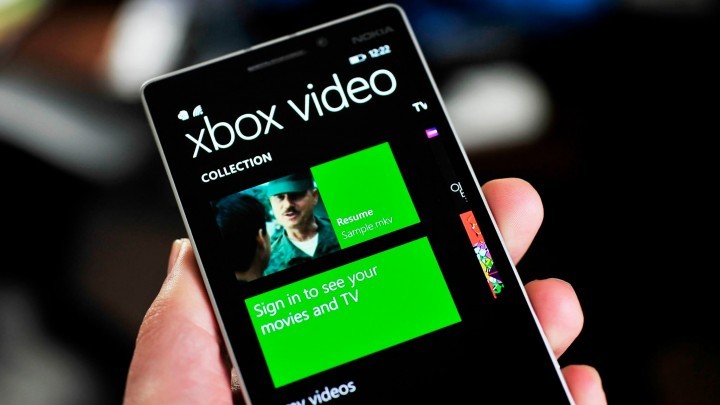
Microsoft Adds MKV Support to Windows Phone

Windows Phone 8.1 recently received the GDR2 update, and among other features that came with the update, Microsoft integrated support to Matroska video files or MKV to the Video app.
mkv support wind8apps
Users of some Lumia phones powered by Windows Phone 8.1 devices were surprised when they received the GDR2 update before upgrading to Windows 10 Technical Preview. GDR2 update brought some interesting features and improvements, and one of the improvements is support for .MKV video files.

Support of .MKV files will be integrated with the Xbox Video app, as users will be able to play .MKV files directly from the app, without having to convert them first. So if you have any .MKV movies, TV show or other kinds of video stored on your phone or external memory, Xbox Video app will display them under ‘my videos’ section and you’ll be able to play them within the app, just like any other supported video format.

Although Microsoft didn’t announce that this feature will come with GDR2 update, we’re not much surprised, because Microsoft added MKV video support to the Xbox Video app for desktop version of Windows 8.1, and we could expect the company to do the same thing with the mobile version of the app. It’s certainly good to see Microsoft expanding the list of supported video formats, because  Also, Matroska video support will be integrated with Windows 10 by default.

It’s certainly good to see Microsoft expanding its list of supported video formats, because video files come in various ‘forms’ these days, and having a certain format supported could save you a lot of time, because you don’t have to convert it. If you didn’t get the GDR2 update, you can use VLC for Windows Phone as an alternative for playing .MKV video files.

Read Also: Strategy Game ‘Age of Sparta’ Available as Free Download from the Windows Store

Truecaller for Windows Phone Update Brings Improved Spam Detection and More

Truecaller is useful Windows Phone app that allows you to manage your incoming calls. Recently, the app received an update which improved its functionality even more. The new update brought better spam detection system as well as some other handy improvements.
truecaller wind8apps
Truecaller is probably the most powerful app for managing incoming calls in Windows Phone Store. It allows you to block calls from a certain number, identify unknown incoming calls, and more. You can create your own spam/unwanted list and Truecaller will automatically block any calls from any number of that list.

The latest update of the app, which goes by the number of 5.1.0 offers a handful of new features, improvements and bug fixes. And the most notable change is improved spam detection system, which searches the Truecaller’s global spam list and blocks all incoming calls from the ‘members’ of that list. Truecaller also comes with a new Live Tile, which will notify you if you have some notifications or alerts.

Truecaller eventually received another update, 5.1.1 a couple of days ago, but that update didn’t bring any new features or improvements, but was focused on bug fixes only. So all important updates of the app have been made in the 5.0.0 version.

Here’s the complete changelog of v5.1.0 and v5.1.1 updates:

v5.1.0
Introducing an all new Truecaller 5 with a complete re-design and some awesome updates!
– Excellent Spam detection with real time access to Truecaller’s global Top Spam List
– Blacklist Spam numbers in real time
– Boosted Search within your personal contacts, or within Truecaller’s network
– Save searches directly into your Contacts
– Enhanced Contact Search
– Live Tile for Truecaller notifications
– Various bug fixes
v5.1.1
– Bug fixes

You can download Truecaller for free from Windows Phone Store or directly from your mobile device.

Read Also: Microsoft Releases New Features for the Surface Pro 3 Pen and Surface RT

Intel CEO Brian Krzanich isn't banking on Windows 10 to revive the PC market

Image Credit: Channel 9

The world of personal computing is in flux. Traditional PC users are finding new and creative ways to accomplish their computing goals. For a two to three year span, some people found tablets to be their go-to personal computing devices. For other users, the smartphone continues to be a more than an adequate mobile computing device. Part of this transition comes from the growth in cloud computing over the past few years. As businesses continue to invest in cloud infrastructures, their services and applications are being built lighter and off loading a lot of processing power to the cloud. People who used to depend on desktops or laptops to process their resource-intensive workloads are now shifting their workflows to thinner clients and browsers. The need to own a PC is slowly eroding.

Unfortunately, for both Microsoft and Intel, many of their recent efforts to resuscitate the PC market have been met with a growing apathy towards traditional devices. Intel CEO Brian Krzanich doesn’t see the mounting indifference in recent PC adoption changing anytime soon, even with Microsoft’s latest Windows 10 offering. During a shareholder meeting, Krzanich disclosed, “We are going through another transition, Windows 10 upgrades…We’re seeing some quarter-to-quarter pushing, but we continue to take a view of our long-term forecast. The PC market should be flat to slightly down mid single-digits over the long-term.” Krzanich’s realization comes on the heels of Gartner’s first quarter report of a 5.2% drop in quarterly global shipments year over year. Business Insider is also reporting that Intel had to cut nearly a billion dollars off their revenue forecast in March due to weak demands for business desktop PCs and the end of a Windows XP upgrade cycle.

Image Credit: CNET

While the forecast for the PC market looks all but fated for Intel and Microsoft, both companies are looking to new horizons for transition. Much like Microsoft, Intel is looking for growth outside of their traditional money makers. Intel is hoping that their investment in their data center business will offset their losses in PC sales. Fortunately for Intel, the company saw an 18% growth in their data center business and the company expects to see the Data Center Group grow into a $14 billion dollar endeavor this year alone. Last quarter, Intel reported that their Data Center Group brought in $1.7 billion in operating income. According to Intel, the Data Center Group accounted for 65% of Intel’s total for last quarter. That increase in operating income made the group the largest of any Intel business segments last quarter. Krzanich expands, “We look at it as our next big growth engine for the company.”

Like Intel, Microsoft finds themselves in a similar transitional period. With free upgrades going out to consumer PCs later this year, as well as restructuring their traditional big box licensing approach to Office, Microsoft is investing in their other businesses to keep them buoyed through the next few rough quarters. The competition hasn’t been stagnant or lenient to either company, to further complicate situations. We have yet to know if either Microsoft or Intel can make a financially successful switch from their dependencies on the PC market, to becoming market leaders in other businesses. Fortunately, for Microsoft and Intel, the measured decline in PC shipments is still buying them a few more quarters to figure it out.  

Windows 10 news recap: build 10122 and 10125, upgrade paths, and more

Windows 10

Welcome back to the Windows 10 news recap for the week last week. This week, Microsoft kicked off with clarification on which versions of Windows would get what edition of Windows 10. a blog post on Microsoft’s Australia Partner Network offered more detailed information about the specific paths for upgrading to Windows 10. As previously mentioned, but now further spelled out, devices that take advantage of the free upgrade will receive ongoing Windows 10 updates for the life of that device and the free upgrade to Windows 10 will be delivered through Windows Update.

Also this week, a new build of Windows 10 was released to Windows Insiders, build 10122 which includes numerous features and changes. This new build is now available for fast ring participants and you can download it right now from the Settings app (Update & Security > Windows Update). According to Microsoft’s Gabriel Aul, this particular build is “buttery smooth” and a “nice improvement from 10074.”

Furthermore, we exclusively unveiled a number of new changes in a more recent build of Windows 10, being 10125. Windows 10 Build 10125 is an unreleased and unleaked build of Windows 10 which includes a number of new changes and features over the last public preview build which is build 10122. Build 10125 includes new icons, improved customization to Start and a back button for tablet mode.

We also learned this past week that Microsoft Edge will support loads of audio standards, let you know which tab is playing audio, and let you pin your favorite website to the Start Menu.

Phil Spencer revealed that Windows 10 Beta for Xbox would take place “post-summer.” Finally, it was revealed this week that newer versions of Windows 10 are better at getting better at protecting against malware. According to Tim Rains the chief security advisor for Microsoft Worldwide Cybersecurity & Data Protection, the latest versions of Windows see lower malware infection rates.

There you have it, another week of Windows 10 news. What was your favorite story?

WinBeta Podcast 16: Windows 10 build 10122, Snapchat, Xbox One and more

WinBeta Podcast logo

Welcome to another addition of the WinBeta Podcast. Each week we discuss the top Microsoft related news.  This week we discuss latest Windows 10 build, the Google Admob drop in advertising revenue on Windows Phone, the HERE Maps Bidding war, and more.

We broadcast each week live on YouTube at 3PM EDT and then post the video and audio which are embedded below. You can also listen to us on iTunes, the Windows podcast app, TuneIn, and watch us on YouTube.

Whether you’re looking for good discussion and insight on Windows news, or just a good time with some guys who love tech, you’ll enjoy the podcast. The full episodes of the show discuss the Windows news of the week and then after each week’s episode recording we have a general discussion and Q&A with our viewers. This week we had a good set of questions about Windows 10 and other Microsoft related questions.

Links to the stories discussed this week:

Windows 10 build 10125: Windows Hello finally makes an appearance

Windows 10

Microsoft announced Windows Hello a few months ago, but has been rather quiet on the feature since. Windows Hello is a new form of security for your Windows PC which allows you to login with your face. It requires special hardware with IR sensors which checks to make sure it is actually you trying to login.

Windows 10 build 10125 finally has the option to use Windows Hello, and setting it up is very easy. The option is in the sign-in options in the Settings app, and also requires a PIN to be set before Windows Hello can be enabled.

Windows 10

As said above, this features requires hardware in which we do not have access to, so we’re unable to actually show it to you in action. However we can show you the setup process.

There’s a small amount of customization for Windows Hello too. You can turn automatic unlock once it detects your face on and off, and you can add extra security measures by requiring Windows to look at not only the front, but both sides of you face as well.

Windows 10

Stay tuned at WinBeta for more news regarding Windows 10 leading up to RTM in a couple months. Windows 10 build 10125 is an unreleased and unleaked build.

Windows 10: Start customization improves with quick links

Windows 10

Windows 7 users will be glad to know that in the most recent builds of Windows 10, the ability to customize the quick links is now back, meaning you can change what shows up below the Most used apps list.

Windows 10 Build 10125 finally enables the Customize list area in the Settings app, and it allows you to change the quick links which are listed below the Most Used area. Windows 7 users have the same functionality on the right hand side of the Start Menu.

As of right now, you can pin File Explorer, Settings, Documents, Downloads, Music, Pictures, Videos, HomeGroup, Network and Personal Folder to the quick links area. It is unknown if more options will be added in future builds.

Being able to customize the quick links area of the Start Menu will definitely please Windows 7 users, and will allow the Start Menu / Screen to be even more personal to each individual user.

Check out our hands on video of build 10125 below and let us know what you think. Windows 10 build 10125 is an unreleased and unleaked build.

OneNote expands its partnerships with cloudHQ, Equil, and WordPress

Image Credit: WinBeta

Microsoft’s darling note-catching app, OneNote, is expanding its appeal and functionality with a OneNote partner ecosystem. The OneNote partner ecosystem was designed as a way for developers to connect their products and services to OneNote through APIs. Microsoft continues to turn their apps into platforms that unify developers and users. During //Build/ 2015, Microsoft made news when they mentioned that Outlook would also undergo a platform like transition by having apps like Uber surface contextual assistance.

Along the same lines, OneNote’s partner ecosystem has been welcoming a wide variety of complimentary partners. OneNote’s new partners are extending its services to a wide range of apps, devices, and services like scanners, mail apps, and news reader tools. Just recently, OneNote welcomed three bigger named partners to the fold. The OneNote team is announcing via their Office Blog, the inclusion of cloudHQ, Equil and WordPress into OneNote.

cloudHQ

Image Credit: OneNote Blog

cloudHQ and OneNote have now combined to offer an easy cloud-based collaboration solution. For users who deal with cloud services on a daily basis, cloudHQ helps to bring them all together so users can share files, notes and pictures. Now users can opt to utilize OneNotes automatic sync features to sync a OneNote notebook with folders from Dropbox or accounts in Salesforce. Users of either service will be able to edit their information, in real time, without having to download plugins or .exe files.

Equil

The Surface Pro 3 has been deemed the OneNote tablet, partly due to Microsoft’s marketing efforts put behind the Surface pen and OneNote integration. For users who don’t own a Surface Pro 3, they can achieve a similar OneNote integration with the Equil Smartpen 2. Both the Smartmarker from Luidia and The Equil Smartpen 2 are solutions that connect the physical surfaces of notepads and whiteboards with digital OneNote notebooks. Now users can connect their Equil Smartpen app and devices with OneNote to save their projects no matter what surface they are written on. The users of the Equil Note app can now choose to catch their notes on their Surface, notebook, sketch pads and even typing on an iPad.

WordPress

Image Credit: OneNote Blog

For bloggers, quick access to notes that come off the top of the head is crucial sometimes. With a OneNote plug-in for WordPress, bloggers now have direct app access quick-caught image clips, voice memos, or Internet clippings. While the OneNote app is up and running, bloggers can publish one copy to OneNote and a second straight to their blog with a single push of a button.

Image Credit: OneNote Blog

OneNote engineers are eager for users to try these new additions, and they are actively listening to suggestions for other potential tie-ins into OneNote. Head over to at www.onenote.com/apps To voice your opinions on the next set of apps you are looking forward to that could eventually align themselves with OneNote.

Microsoft Warns About Edge Browser Crashing Issues For AMD Users

Although Microsoft Edge/Project Spartan offers some cool features, it is still very crash-prone, which could bring some problems to users who want to test it. Since its introduction, people are expecting improvements in the ‘next build,’ but it seems that Microsoft still didn’t manage to solve the problem.
project spartan wind8apps
Microsoft released the newest build for Windows 10 Technical Preview yesterday. And everyone was looking for enhancements of Microsoft’s new browser, Project Spartan. Microsoft indeed introduced some improvements for other features in 10122 build, but Project Spartan got “crash warning” instead. Microsoft said that users with AMD graphics cards should expect ‘frequent crashes’ while they’re using Project Spartan.

General manager of Insider Program, Gabe Aul, also pointed to this issue when he introduced the improvements of the latest build in his blog post. He said: “if you’re using an AMD GPU you’re likely to run into frequent crashes in Microsoft Edge (still branded as “Project Spartan” in this build).” But, he also stated that we should expect the solution of this issue very soon: “AMD is working closely with us to verify this issue, and has been extremely proactive and customer focused so that Insiders are able to use this new preview build. We expect to have this resolved quickly with their help.”

But since the latest 10122 build is only available for Fast ring users for now, only them will face this Project Spartan crashing problem. So, if you’re on the Slow ring, you don’t have to worry about this, because you’ll get the more stable version of the system, along with the improved Project Spartan when the time comes. On the other hand, if you want to switch from Fast ring to Slow ring, go to Settings > Update & security > Windows Update > Advanced and change to the Slow ring.

As the summer approaches, the testing phase of Windows 10 is coming to the end. And although Microsoft revealed a lot with its Insider Program, we should expect more surprises in the public release. So we expect this summer to be one of the most exciting ever for Windows users.

Read Also: Fix: Computer Constantly Reboots After Installing Windows 10

Microsoft may have threatened the UK government over plans to go Open Source

Microsoft

In recent years there has been an almost constant debate over the state of privacy in the Western world. With much criticism resting on governments the world over, private companies have often been cast as the underdogs in these conflicts, a characterization that benefits them greatly in the media.

With this being the case, it is easy to forget that companies such as Microsoft are far from helpless when faced against the forces of the state, rather the opposite, as a new revelation from the UK attests. As reported by Bloomberg, according to a former aide of Prime Minister David Cameron, Microsoft threatened to pull its R&D facilities out of the UK if the government went ahead with plans to promote open-source software.

Steve Hilton, an influential former director of strategy for No. 10, proposed shifting government operations to open source solutions, both to drive down costs and reduce general dependence on Office. However, things didn’t go as planned,

“Microsoft phoned Conservative MPs with Microsoft R&D facilities in their constituencies and said we will close them down in your constituencies if this goes through. We just resisted. You have to be brave”

Microsoft

Although Microsoft has declined to comment on the matter, if it should prove to be true then it will hardly be a surprise. When a company is well-funded and has a global reach, it will do everything in its power to promote its business interests, as can be seen through the machinations of powerful business lobbying firms and groups across the western world.

Despite Redmond’s best efforts, the plans still went ahead, with the switch beginning in 2014, with a view to decreasing the general dominance of Microsoft.

As mentioned however, this goes to show that, regardless of what such firms may attest, it is nearly always the case that they have alternative strategies for success, it never pays to play your best cards first.

Do you think Microsoft’s behavior in this matter was unacceptable or routine? Let us know what you think in the comments below.

How to activate Windows 10 build 10122 and remove that annoying watermark

How to activate Windows 10 build 10122 and remove that annoying watermark

Have you upgraded to the latest build of Windows 10 for PC (build 10122)? Are you seeing an annoying activation watermark on the bottom right of your screen and wish you could remove it? Have you tried activating your installation of Windows 10 build 10122 via the Settings app only to be told Windows could not be activated?

Here’s an official solution, which by the way has worked on previous builds of Windows 10. Simply launch Command Prompt with administrator privileges and type the following: “slmgr.vbs -ipk PBHCJ-Q2NYD-2PX34-T2TD6-233PK”. Make sure you are running command prompt with admin rights or this will not work. Once you enter this command, reboot and you will no longer see the watermark and the Settings app will say you are activated. If you are still facing the issue, let us know in the comments below!

Unofficial Pocket app 'Poki' launches on Windows and lets you save articles to read later

Poki for Pocket launches on Windows Store

The Windows Phone app, Poki for Pocket, has finally arrived in the Windows Store and provides an alternate way for users to save online articles for reading at a later time. Poki for Pocket features a rather well designed interface that’s stylish, convenient, and can be customized to match the taste of the user with light, gray, dark and black UI designs to choose from as well as five custom reading themes.

Poki allows sorting of saved articles by article name, original website URL (even when offline) and tags and all saved data will sync to other versions automatically when the app is closed. Here’s the official description:

“Pocket lets you take your content with you. Whenever you come across an interesting article, video, or website you want to check out later, you no longer have to send yourself links or bookmark items in your browser. Simply put it in your Pocket.”

What’s your favorite way to save content online? Share your recommendations with other WinBeta readers in the comments below.

Intel has been contributing to the larger Microsoft Edge codebase

Image Credit: Microsoft

Some would argue that Microsoft’s long-time partnership with Intel was a blessing and a curse. It benefited Microsoft to have a chip maker who’s product help power their OS. However, some would argue that Microsoft was shackled by Intel’s development schedule. Regardless of the relationship dynamics, due to their dominance and cozy relationship, both giants arguably slept away an entire decade of progress. It wasn’t until the blossoming of mobile that both Intel and Microsoft found themselves in actual market competition.

Unfortunately for the two, both companies responded poorly. Microsoft rushed out Windows 8 and showcased it on their first ever computing device. The original Surface RT was a glitchy underpowered mess that tried to break the shackles of Intel’s development cycle by omitting the desktop environment Intel chips thrived in. On the other hand, Intel sat on the sidelines while trying to develop a chip competitive enough to put on mobile devices. Intel’s competitive absence in this space cost them money and OEM confidence as tablet and phone makers gravitated to more mobile friendly alternatives. By 2013, some journalists and analysts were calling for the demise of the once dominant Wintel partnership.

Despite past situations, Microsoft and Intel are back at work with another. Intel’s contributions to Microsoft are now going beyond chipsets, and into the world of browsers. Thanks in part to Intel’s contributions, Microsoft’s new Edge browser will now host SIMD and other performance enhancements.

According to the Microsoft Edge Dev blog, “Intel has been contributing to Chakra, the JavaScript engine for Microsoft Edge (and previously Internet Explorer), since 2012, bringing their expertise in web runtime development and JIT code generation.” Apparently, Intel has been offering significant contributions to open source projects like WebKit, Blink, Gecko for quite some time now. This time around Intel has helped Microsoft with performance-based improvements to the Edge browser.

Image Credit: Microsoft

Microsoft and Intel began their collaboration with Chakra back in the days of Windows 8.1. Intel offered direct contributions to the Chakra JIT compiler to include better scheduling and instruction selections. In Windows 10, Intel engineers are working closely with Microsoft to deliver Single Instruction Multiple Data (SIMD). The idea is that implementing SIMD would result in much faster code execution. This process becomes useful when the browser is processing multimedia, games, and other resource-intensive applications. Microsoft would like to combine this technology with others like asm.js to spike JavaScript performance at near native speeds. The current implementation of SIMD is only for a limited subset of scenarios that use asm.js and are running on x86 and x64 hardware. Both Intel and Microsoft teams hope to expand them in support of Chakra and Microsoft Edge.

Also in regards to SIMD, Intel has helped with the performance improvements to the graphics layout and other subsystems of Microsoft Edge. Intel is partly responsible for the optimizing the navigation time for pages containing several inline elements and optimization to reduce DOM parse for text-area elements.

It would appear as Microsoft and Intel look to regain their footing, both are leaning on each other in this new mobile-first frontier. If their partnership continues to produce results like the Edge browser, perhaps Wintel can yet again be a competitive force.

Microsoft updates Outlook.com with new features and user interface

Microsoft updates Outlook.com with new features and user interface

Earlier this Month, WinBeta reported that Microsoft was planning to migrate Outlook.com users to Office 365 later this year. It turned out to be not that much later this year, as the migration to an “Office 365 based infrastructure” was announced today by Microsoft. The announcement was for a significant update to Outlook.com that brings an assortment of new features, add-ins, and redesigned user-interface.

The update is only being released in preview today to a small subset of users but will be rolling out in the coming weeks on an opt-in basis.

While it is gaining many of the looks and features available in the Outlook app of Office 365, the regular user version of Outlook.com is still remaining a free, ad supported application.

Those familiar with the Outlook Web Portal for Office 365 will be at home with the new look and feel in Outlook.com. The inbox will be refined and add the following new features:

  • Clutter—Get help managing your inbox. Clutter works on your behalf, sorting messages you’re likely to ignore into a separate folder, so you can focus on what matters. The more you use Outlook.com, the better Clutter gets. You can help train Clutter by dragging messages in or out of the Clutter folder and you can turn it on or off depending on your preferences.
  • Search Suggestions and Refiners—Find what you need, fast. Suggestions put the people you communicate with and the content in your mailbox at your fingertips when searching for content. Refiners let you pivot your search results based on the sender, folder, date received and attachments. We’ve also added highlighting, making it easy to spot your search terms within the results.
  • New themes—We’ve added 13 new themes with graphic designs to help you express your personality in your inbox.
  • Link preview—Just paste a link into your message and Outlook.com automatically generates a rich preview to give your recipients a peek into the contents of the destination. It works great with any webpage, but try it with video links from Vimeo and YouTube for something even better.
  • Inline images—Copy and paste images directly into the body of your message, right where you want them.
  • Pop-out read and compose—Multi-tasking is easy with messages that pop out into new windows.
  • Pins and Flags—Keep essential emails at the top of your inbox with Pins and mark others for follow-up with Flags. Pins are now folder specific, great for anyone who uses folders to organize their email. Quickly find and manage your flagged items with inbox filters or the new Task module, accessible from the app launcher.
  • Add-ins—Announced earlier this month at Build, add-ins appear while you’re reading or composing a message and are designed to help you complete the task at hand. In addition to the Bing Maps, My Templates and Suggested Meetings add-ins that are built-into Outlook.com, we’re excited to have third-party add-ins on the way from Uber, Boomerang and PayPal. Watch for more partner announcements soon.

Outlook.com will also include new ways to communicate and collaborate right from you inbox. With a new Skype integration, there will be an easy transition between email and voice or video chat. Additionally, to ease collaboration, there will simplified process of sharing files through OneDrive.

Microsoft updates Outlook.com with new features and user interface

The new inbox will support side-by-side views of attachments next to emails so you can view and edit Word, Excel, and PowerPoint files while replying to messages. All of the edits will be saved automatically and attached to your responses when you hit send, streamlining the process and removing the steps of downloading, editing, saving and reattaching files.

Additionally the Outlook.com calendar will be gaining a similar UI overhaul to better match its Office 365 counterpart.

As Microsoft makes these features available they will also be looking for feedback from those who opt-in. To support this Microsoft also launched Outlook User Voice to gather feedback. If you want to check out what ideas Outlook.com ideas users are talking about and voting on for the new edition of Outlook.com, head over to https://outlook.uservoice.com/.

Stay tuned to WinBeta as the select preview opens up in the coming weeks and these new features go live for Outlook.com users who want to opt-in to the new update.

Windows 10 build 10122: Edge will let you know which tab is playing audio

Windows 10 build 10122: Edge will let you know which tab is playing audio

Consider this scenario — you are at home or at work and you have multiple tabs open on your browser. All of a sudden, loud music or audio begins blaring through your speakers and you immediately attempt to lower your speakers or shift through all your tabs to see where the audio was coming from. What if your browser could tell you which tab is playing audio?

In Windows 10 build 10122, when a tab in the Microsoft Edge browser is actively playing audio, a little icon will appear. This isn’t an earth shattering feature, nor is this something new (Chrome already does this), but those of you who prefer to use Edge will now know where that pesky audio is coming from. Sometimes video ads will auto-play and they can be quite annoying. Now you won’t have to wonder where the noise is coming from.

You can take a look at the photo below to see the icon in the active tab. Compare the photo below with the photo above depicting a tab without any audio playback.

Windows 10 build 10122: Edge will let you know which tab is playing audio

Windows 10 build 10122: Edge will let you know which tab is playing audio

Microsoft excels at "consumer delight" when it comes to wearables

Microsoft excels at "consumer delight" for wearables

As the wearables space heats up, competition for Fitbit, the market leader, is coming in from all sides.  According to market research company Argus Insights, Microsoft is at the forefront of those smaller competitors who are excelling at “consumer delight.”  Even so, Fitbit is still the 800-pound gorilla with consumer mindshare and a strong product lineup.

Microsoft excels at "consumer delight" for wearables

Microsoft received a considerable about of attention when it released the Microsoft Band together with its Health platform.  Rather than treading the smartwatch route to which Apple and Google have committed, it has instead chosen to focus on delivering a fitness-tracking experience with deep, actionable insights.  Microsoft promises to do this by collecting large amounts of data – calories burned, sleep efficiency, and the like – from the Band’s numerous sensors, then analyzing that data in the cloud for a more holistic view of a person’s health.  The Health platform is also open to any company who wants to hook into it, which theoretically should be a boon to Microsoft’s initiative into the fitness space.  If the plan works, Microsoft Health could become the backbone for consumer health-tracking, whether they wear a Band, Fitbit, or anything else.

Video: Hands on with Windows 10 build 10122 checking out the latest changes

Windows 10

Windows 10 Build 10122 is now available for Windows Insiders and includes a few new changes and features which make the operating system better to use. As per usual, WinBeta has a video of the new build up and ready for those who want to see what’s new without having to install. Keep in mind that build 10122 is very similar to 10120.

Build 10122 includes a new Start Menu and Start Screen, improved Cortana and Settings app, as well as many more changes and features. Check out the video below to see them all in their glory, and let us know below if you like these new changes.

Newer versions of Windows are getting better at protecting against malware according to security report

Image Credit: WinBeta

Later this year, Microsoft will have to pitch Windows 10 to a public that was overwhelming apathetic to its previous OS offering with Windows 8. Offering a free upgrade to Windows 10 is a huge selling point, but it may not be the only card Windows 10 has to play. According to Tim Rains the chief security advisor for Microsoft Worldwide Cybersecurity & Data Protection, the latest versions of Windows see lower malware infection rates.

Last week Microsoft’s Cybersecurity & Data Protection Unit released the latest volume of their Microsoft Security Intelligence Report. The new report is intended to show the level of mitigation that Windows has versus modern malware attacks.

The most recent report parallels the idea that newer versions of Windows are fairing much better against attacks than older versions. The report details infection rates for both Windows client and server operating systems in the third and fourth quarters of 2014. The data collected is from hundreds of millions of systems worldwide running either operating systems. The sample operating systems range from Windows Vista (with Service Pack 2) to Windows 8.1. We can also assume that, barring some catastrophe, Windows 10 will improve upon this trend. The latest versions of both Windows client and server operating systems had the lowest malware infection rates during the period being polled, “by a large margin,” according to Rains.

Image Credit: Microsoft

In and of itself, the report would seem like common sense. Newer should be better. However, for a company who’s association with malware is practically synopsis with its name, polishing the brand name behind reports like this is very beneficial. This report is especially useful for frightful IT Pros determined to squat on their more recent Windows 7 upgrade.

“Some of the CISOs and IT professionals I talk to use this operating system infection rate data to help make a business case for upgrading to newer, more secure software or deploying more secure service packs for their current platforms. As you can see from the latest data, newer is better across the board.”  Rains said.

This report and others like it are yet another selling point Microsoft can use to pitch the benefits of upgrading to Windows 10 to consumers. Beyond a free upgrade, users can identify and quantify with the idea of ‘better malware protection’ on their systems. Perhaps Windows will never ascend to the myth of “it just works”, but “it works well enough” isn’t something the operating system can afford to turn its nose up at right now.