Microsoft to retire Windows Live Mesh in February 2013, recommends you use SkyDrive instead

Begining February 13th of 2013, Microsoft will be retiring Windows Live Mesh in favor of SkyDrive. For those that don’t remember, Microsoft first released Windows Live Mesh beta back in late 2008 and it was used to keep files in sync and to remotely access a PC.

“So while Windows Live Mesh was at one point used by a few million people, most have made the move and there are now less than 25,000 active users of Windows Live Mesh. As a result, we’re announcing today that Windows Live Mesh will be officially retired on February 13, 2013, and we’re starting to communicate with the remaining Mesh users and provide a set of instructions on how to keep their files in sync and alternative options for some of the features they’re still using,” Microsoft stated in an official blog post. Microsoft has posted instructions for Live Mesh users on how to migrate their data over to SkyDrive. While SkyDrive looks and feels a little different, Microsoft claims both services are similar for the most part. With over 200 million users of SkyDrive, it was only natural to retire a service like Live Mesh that had only 25,000 active users. Hit the source link for details on how to migrate to SkyDrive.

Review of MyTrip for Windows 8, 10 : Plan Your Trips better

MyTrip is a very useful travel planner app for Windows 10 device. Some of you who don’t like the cold might be wanting to go to warmer climates for the winter vacation, and such a trip requires lots of planning and a strict schedule. From the transportation, to the tourist attractions, to local weather and other information, all of this information has to be taken into account.

This amount of information however, is hard to keep track of in a notebook, so what would be the next best thing? If you said an app, then you are right! Apps are easy to use (most of the time), reliable (with some exceptions) and they are always present with us, on our devices. One such app is MyTrip, a Windows 8 and Windows 10 travel planner that allows you plan your trip and set a schedule for what you will visit.

mytrip3

Using MyTrip – What do we think about it

I had high hopes for this app, being a travel app, it has to offer lots of planning features and most of all, detailed information about each country and every place that you might want to visit. But as I said, this is what the app should have. Unfortunately, it doesn’t! What does have is a collection of seemingly random places (they are grouped by country at least) with some Wikipedia information on the side.

When you start planning your trip, you have the possibility to add as many places as you wish (right click when a place is opened and click on “Add to Trip”), and when you are finished selecting all the places you might want to see, you can start by creating the trip calendar, where you categorize the places you want to visit on days.

mytrip

As I’ve mentioned, the app has its information stored on countries, so first of all, you select a country, then what you are interested in (museums, building, landmarks etc), add them to your list and you are done. Also, there is a map integrated in the app (powered by Nokia Maps) that shows you a pretty detailed view of any city.

However, the search option on the map is far from good, results show but it takes approximately 20 clicks and 2-3 minutes to go to the selected place and there are no Zoom In and Zoom Out buttons. Also, throughout the app, the “Back” button does not change color, and most of the time it is barely visible and hard to click. Also, the map allows you to show diseases, or rather areas where some diseases are present – this could be a good idea, but I highly doubt it can be too accurate.

mytrip6

The Wikipedia information on each element has not undergone any change (just plain copy/paste), and sometimes, the developers did not copy the entire paragraph and you end up reading and the text abruptly ends in the middle of a sentence. Also, there are no outside links for the information provided (and in some places, there are “more info” texts that do not have links – probably a result of the copy/paste from Wikipedia) and the pictures used for the places of interest or regions have unbelievable poor quality.

One time, the app crashed during the tests and all the planned trips disappeared and there was no way to bring them back. Although the places that were added to the Favorites bar were still there, the entire trip (in this case trips) had to be remade.

mytrip5

Quick recap of MyTrip

  • It features lots of places around the world (although many missing)
  • Map with detailed information
  • Information not edited (copy/paste from Wikipedia)
  • Intuitive UI (however it does present some drawbacks and design flaws)
  • Unreliable – crash and loss of data
  • Too many low resolution photos
  • Hard to navigate map
  • Hardly any information on hotels
  • Add places of interest to Windows Start Menu
mytrip2

Final thoughts

After using the app and checking its every feature, it left me with a feeling of sloppiness. I can’t help but think that the app was created as a weekend project and the developer had no serious intent on making it a good and reliable app, but only as something to pass the time.

I do hope I am wrong and the app is having a major upgrade as we speak, but until then I can’t say this is a good app (long from it). The potential is there, the idea is good, the design is simple and very well thought of, but the execution of the app is poor. So, would I use the app to plan my next trip? Definitely not! At least not until it will receive updates that will make it better.

Update

As promised by the developer of MyTrip, the app has gotten a major overhaul. Although there are a few other places where it needs touching up, MyTrip much better than what it was at the time we reviewed the original app. With a bit more work, we think it can become one of the best holiday planning apps of all. Keep on the good work!

However, if you are looking for another app to plan your trips, we suggest you to consult our list of best trip planning apps&software.


Review of YouSendIt for Windows 8, 10 : send files easier

Most of you might have heard of this service before. YouSendIt allows users to send files of various sizes to any other user in Windows 10 and Windows 8.1. Now, those of you who have been using this service will be able to use it on your Windows 8, Windows 10 devices and send or receive files much more easier.

Of course, there are some limitations of the service, but its functionality is still as big as always. You can manage your files, by creating or deleting folders and moving or sending files. YpuSendIt gives sharing a new perspective.

yousendit

App highlights and impressions

When first using the app, I thought that it lacked many of the features that I wanted, but after using it for awhile, I noticed that it works pretty good and it lets me share files quickly, without the need of ever accessing the website. The service is very similar to the Dropbox or Skydrive apps: it uses a local folder and it uploads your files to the server, where you can access them via the app or share them with your friends.

If you want to share to more than one recipients, the app will automatically open your “People” panel, but there is an option of manually entering the email of the recipients. Afterwards, you only have to select “Send” and the files are on their way. It would have been great it you could upload files via the app itself, but sadly, no such feature exists at the moment of this writing.

yousendit-2

The overall look and feel of the app are great: the UI is clean and simple, there are no confusing features or buttons, the menus move fast and it’s very responsive. If the developers will find a way to eliminate the need for a separate desktop client, then it will be awesome! But for now, this will do very good. Here are a few highlights of the app:

  • Fast responding and clean UI (depending on your Internet connection)
  • 50 MB file size limit
  • Easy to use
  • No option for in-app upload or download, a desktop (or online) client is still needed
  • Fast server upload (from website or desktop client only)
  • File manager for in-app search
  • 2 GB of online storage
  • 1GB download bandwidth
  • 100 maximum file downloads
  • Easy to upgrade and cheap
yousendit-3

Note: These values are represented for the Free account, for more information on other billing plans, please refer to the YouSendIt website

Update – YouSendIt on mobile

The app has discontinued the support for Windows-based PC’s. However, it is fully functional on mobile devices.  Even if you have an ARM-structure mobile device, it will support the app. It also has very good reviews from clients. It is a good tool that can help you very much. Let’s hope it won’t be discontinued by developers team.

You can download it in Windows Store and give it a try.

All in all, YouSendIt is a great app that gives users the possibility to share files with anyone, in just a few minutes. I do admit it has its drawbacks, but overall, the app is great, it works perfectly and with time, I’m certain it will receive many more interesting features.

Find Your Way Around any City with PlaceMap for Windows 8, Windows 10

PlaceMap is one of the best map apps to be used with your Windows 10, Windows 8 device, read below to find more about and if it’s worth installing on your tablet

placemap

Even though most of our devices support turn by turn navigation naively, there is always the need for something better. For Windows 8, Windows 10 users, that something better is called PlaceMap. A service that allows you to find any point of interest near you with only a few clicks.

Although we have been accustomed to Google’s navigation for some time, this app provides a better and easier way to find anything around you, by using the native maps from Windows and the database from Google Places. Together, these two make one app that is perfect for travelers or residents alike.

First look at the app

The app is pretty straightforward: it provides a map, a search box and a list of search suggestions. All you need to do it provide your location (if will prompt you when you first enter the app, but in my case, as with the native Windows maps, it didn’t find my location accurately). After your location is set, you have a huge list of search criteria, or you can search manually for something.

After you select one item from the results, it will automatically create a route to that place. The directions are very well listed, and they are very easy to follow. A nice feature they could have implemented is voice guided navigation, but I hope in future updates we will see this option.

placemap-2

One thing that I did not like about PlaceMap is its fixation to Windows maps. I would have preferred to have the possibility to change to Google Maps, but for now, this will do just fine. Also, the custom destination marker does not work that well (I did manage to make it work after a few tries), but nevertheless, this app has great potential.

placemap-3

Short Overview and Conclusion

  • Fast search and directions
  • Search by Type table with lots of possible search options
  • Custom Directions (although it has a few minor bugs)
  • Slightly problematic location detection
  • Only Windows maps available, no possibility to use Google Maps
  • Aerial and bird’s eye view of the map
placemap-4

Overall, the app is a good navigation service that works pretty decent (for the time being), with lots of options and despite its minor setbacks, I would recommend it for those in need of a fast navigation app that works well and provides very easy to follow routes. Test out the app and give us your feedback on how it works for you, or other apps that work best for you.

Microsoft opens up it’s Socl social-search project to the public, go test it now

Back in December of 2011, Microsoft revealed its Socl social-search project, which aimed to be a hybrid between social networking and search. Only special people (those with special invitations) were able to try it out and offer feedback. Well, fast-forward to a year later, Microsoft is now allowing anyone to sign up and test Socl.

“We appreciate your continued feedback which is helping us to gain more insight every day and improve how we can all communicate, learn and share our everyday lives. We’ve been busy redesigning Socl to match how you’re using it, and starting today, we’d like you to give the new Socl a spin at www.so.cl and let us know what you think,” Microsoft stated. Socl was originally a experimental research project focused on how social networking and search can be used for the purpose of learning. Socl was built using TypeScript, which is a superset of JavaScript. On top of that, Socl is not an attempt to take on Facebook, Twitter, Tumblr, or Pinterest. Our initial reaction when using Socl was that it reminded us of Pinterest and Facebook, with a little touch of Google Plus. Head over to www.so.cl/ to try it out.

Review of Doodle God for Windows 10: Imagination Meets Chemistry

It seems that the games for Windows 10 are getting better and better, and of course, more diverse. I remember when I got my Android smartphone, and one of the first games I installed on it was the elements game.

You know, the one where you have to create different elements from the four basic elements: air, water, earth, and fire.

Doodle God is something similar to that game but with better graphics. The basic principle of the game is the same: combine the four elements to create new ones and then combine those to create others, and so on, you get the idea.

The game has a free and paid version, but I’d recommend playing the free version first, to get an idea about the game.

doodle-god

Doodle God – First impressions and game experience

After installing the game, I quickly hopped in the saddle and started playing. Although it looks like an oversized phone game, it retains the image quality and flowing animations we are used to from other games.

When entering the game for the first time, you get a quick story about the creation of the elements, and then you arrive at the start screen, which looks very appealing.

When first starting the game, you get only the four basic elements, but once you start combining them, they quickly grow and group into categories. You will notice that you have 15 categories in the game and a total of 135 elements (I’m still at the first stage, so there are still more to go).

After completing the first stage (you complete this stage when you’ve discovered 100 elements), you can advance to the next one, and the game progresses as before. I should warn you that even if the game seems easy at the start, you are in for a surprise once you’ve passed ~50 elements.

doodle-god-2

By then, numerous possible combinations will make your life pretty hard. Luckily you have the hint button ready to give you some hope. By clicking on it, it will show you two elements you can combine, but each element has sub-elements, and you still need to find the right one.

After playing for a few hours, I noticed that the game is no longer a relaxing pastime but a battle with your knowledge to find out what you can combine to advance.

This being said about the gaming experience, I will add that the game has pretty good graphics, the animations, although simple, look very crisp, and the overall game move very well.

I do, however, recommend that you play this game on a touchscreen device or at least with a mouse (the digital trackpad of the laptop is not a good solution).

doodle-god-4

Final thoughts

Here is a quick list of what I liked about the game:

  • Very well-designed user interface
  • Good graphics
  • Possibility to share progress on Twitter and Facebook
  • No ads, but only a dedicated page with other games from the developer
  • Very responsive
doodle-god-4

I very much enjoyed this game, and if I were to recommend a game for someone who needed to pass the time, this one would come to mind quickly.

But know this: arm yourself with patience before going on a journey of discovery like this because you will often feel the urge to throw your device against a wall or through a window. But all things considered, I like the game and recommend it to everyone!

Update – DoodleGod growing

DoodleGod has received its last update in 2014. Trying to satisfy the public (more than 100,ooo,ooo players worldwide), they made many improvements to the game. Here are some of the most important :

  • Now the game is available in more than 15 international languages
  • New survivor quest
  • New reactions with existing elements and episodes
  • Improved mini-games for arcade fans
  • New artifacts available

Microsoft’s Bing doesn’t want you getting Scroogled, launches campaign for “honest search”

Just in time for the holiday season, Microsoft has launched a new campaign called Scroogled, which is intended to bring back “honest search.” Microsoft believes that shoppers who use Google for their shopping searchers are getting “Scroogled” and being shown advertisements rather than what they really want to see. Microsoft’s Scroogled campaign highlights why Bing is the better option for search.

“Google recently pulled down its “product search service” and replaced it with a “paid listing ads” service. Search for “Canon EOS” in Google Shopping and you receive pages that look like the old days, with “results” down the middle and ads mixed in. But the “results” are also ads. Every product offer within the shopping search results on that page are paid to be there, and where and how high they appear is at least in part dependent on how much they paid,” Microsoft stated in an official Bing blog post. Bing plans on counteracting this by offering better and more objectively ranked search results. Bing claims that they would never let paid advertisements affect what you see in search results and will not be using the pay-to-rank advertisement method like Google. Microsoft is launching the Don’t Get Scroogled campaign to highlight Google’s practice of “pay-to-rank” and emphasize why you should be using Bing instead. Visit www.scroogled.com or hit the source link for more information on this campaign.

Read News in Style on Windows 8, Windows 10 With NewsBento Aggregator

Reading news on your Windows 10, Windows 8 or Windows RT device is something that many will look to do right after buying one such device. There are plenty news applications in the Windows Store that can help you with your need for news, but today, we’re focusing on NewsBento, a news aggregator that’s one of the most popular such applications in the Windows Store.

Probably, one of the most important reasons for NewsBento‘s success was the fact that the application has been in the Windows Store amongst the first. At the moment it has been rated by more than 450 people and has a 4.2 out of 5 score, which is not bad at all. And just like the developers say, this is, indeed, a very fluid and “light” application to use.

Update – NewsBento app no longer on the store

Unfortunately, NewsBento has been discontinued. It was pullet out from the store in 2015. If you have the app installed, you can still use it but you won’t be able to access articles written after discontinuation date. In case you need to be up-to-date with the news, you can check our list of best news app for Windows 10.

NewsBento for Windows 10, Windows 8: get your favorite news

When you first open up the app, you’ll see that there are already some websites added, so in order to customize your own news experience, you’ll have to change that and put your own websites that you are following. But you’ll discover that it will be one fun thing to do, because the application is masterfully made. There’s even a Feedback button there, from where you can go to their Facebook page, vote the app or send them a message (last one didn’t work for me, though).

Hit the “more news” button to be able to customize and put your own websites. You can add more feeds from the websites that are already featured there or you can add feeds to websites that aren’t there. A very, very nice thing is that you can already add your Google Reader account (let’s see what happens when I add my Google Reader with more than 300 websites…).

Surprisingly enought, the import of my G Reader has happened blazing fast. When you are done with that, you’ll see websites appearing on the main page, the “content” page. From there, you can delete, make a tile larger or smaller and pin it to start. If you delete the tile to a certain website, then others will automatically extend to “eat up” the remaining space. At this step, I encountered some issue. First of all, some thumbnails weren’t appearing at all or seemed fuzzy. Secondly, the thumbnails didn’t appear at all.

News in Windows 10. Windows 8 with style

Another big issue was the fact that I didn’t manage to add any website at all using the “Add RSS feed” function if I didn’t put at the end the .xml extension. So, most likely, it won’t work for websites where you’ll try to put /feed at the end of the website’s name. But there’s another awesome function to help you cope with that – search function. Use that to search your favorite website and simply add it for there. Neato!

You can select every website from the main screen, then go to the latest articles, from there you can pick the desired article. When you are inside the article, you can do the following there:

  • Enable CleanView – increases the readability of the article
  • View original article – opens up a sidebar with the original article
  • Open in browser – exits the app and opens the article in the browser

Also, after opening up the website that you want, there’s a nice scroll button that “takes you back in time”, quite quickly, and much easier than you would normally do it on the regular website. A very useful news app in Windows 10, Windows 8 that needs to iron out only a few drawbacks.

Download NewsBento for Windows 10, Windows 8/Windows RT

Read also : Best RSS Reader apps for Windows 10 to feed your news hunger

Windows Store total app count now at 13,783 apps, Books and Reference category sees a drop

After it was reported by WinAppUpdate that there were 20,610 apps worldwide in the Windows Store, we have new data from McAkins Online (a second source who keeps up with the Windows Store app count) that there are now 13,783 apps in the Windows Store. Interestingly enough, the Books and Reference category seems to be dropping in app count.

“According to WinAppUpdate, there are now 20,610 apps worldwide in the Windows Store and 17,958 of those apps are free. In early October before Windows 8’s launch, it was reported that there were over 3,600 apps in the Windows Store. The growth of the Windows Store has been very quick over the last few weeks and developers are publishing their apps at an increased rate,” we reported a few days ago. Now, new data from McAkins Online is claiming that there are now 13,783 apps in the Windows Store. No, your eyes are not deceiving you. There wasn’t a flood of apps added to the Windows Store overnight. According to McAkins, if you turn off Localization in the Windows Store, the app count is higher. However, how many of these apps are considered “quality” apps? “I agree with Wes Miller on one point though, that the success of Windows 8 and its Store is not dependent on the number of Apps in its Store, but the number of Quality Apps in the Store. After the Store reached the 10,000 mark, I also lost interest in counting the number of Store Apps because most of them are chaffs anyway. “Its all about Quality Apps Stupid” like they say,” McAkins states on his blog. Regardless, the Windows Store continues to see an increase in apps (aside from the Books & Reference category which is apparently dropping in app count according to McAkins) and this is obviously a great thing for developers and those who use Windows 8.

On a side note, we are also posting Windows 8 app highlights every week highlighting an app from the Windows Store and you can check that out here.

What you need to know about Microsoft’s Windows RT operating system

For those that don’t know, Microsoft debuted Windows RT alongside Windows 8. Windows RT is designed around the ARM platform and cannot run x86/x64 applications. This is what the world knows about Windows RT, for the most part. Microsoft has now posted some essential details that explain exactly what works and what doesn’t when it comes to Windows RT.

So what exactly is Windows RT (or WinRT for short)? Windows RT is a special version of Windows 8 thats designed to run on mobile devices powered by the ARM platform, which allows for less power to be consumed and thinner hardware designs.

As we all know, Microsoft’s new Surface RT tablet runs Windows RT. It comes with Office 2013 and the operating system cannot run x86 or x64 applications. But what else is Windows RT good for? Microsoft’s Ron Grattopp has put together a list of elements that make Windows RT what it is. Take a look below (i’ve removed some of the commentary bits):

  • You only get WinRT by buying a device that has it pre-installed (in other words it’s OEM only)
  • RT includes BitLocker, the full disk encryption tool that means your data is secure even if your device is stolen, AND it’s ON by default.  (I don’t believe the iPad has any data protection mechanism like this.)
  • WinRT accommodates USB and other externally attached devices and is “surprisingly replete” with drivers. 
  • Has a lot of “Windows 8” functionality
  • WinRT comes with it’s own version of Office 2013 (Office RT) based on the Home & Student Edition apps (as in no Outlook), and “RT Office is almost good enough to make up for the lack of apps” (in comparison to the number of apps available for Apple and Android devices).
  • WinRT includes a version of IE that works with Flash.
  • ARM stands for Advanced RISC Machine and RISC chips have been around since early 1980’s and ARM was an architecture designed to be processor independent.  Yet, even though ARM itself is not new, “RT requires what is currently the newest hardware platform on the planet.”  (Which is part of why you’re just now seeing the devices hitting the market after the launch of Windows 8/RT).
  • “RT has two very different desktops, the “runs old Windows apps” Desktop and the “runs new tablet apps” Start Screen
  • RT devices need a minimum resolution of 1366×768 to enable the “snap” (or docking) experience, that is, to let two apps be in view simultaneously.  From what I understand, this functionality is not an option on iPad (even with retina).
  • RT has a command prompt that can run PowerShell scripts along with other commands and built-in tools
  • The Nvidia ARM CPU is a quad-core ARM chip, so it’s not as powerless as you might think.
  • RT doesn’t support Silverlight (at least, yet)
  • The RDP client (terminal services) is exactly the same one you get on Windows 7/8.

You can also read an entire comprehensive Windows RT review here.

Microsoft launches three-year Get On program to help tackle youth unemployment

Microsoft has launched a new three-year program in the UK to help young people get inspired, get skilled, and get a job. This program is designed to help tackle youth unemployment and create opportunities for young kids. According to Microsoft, this program will help over 300,000 kids between the ages of 16 to 24 take the right steps towards a bright future.

Back in 2009, Microsoft made the decision to help kids in the UK. To date, more than 470,895 kids between the ages of 16 and 24 were helped towards work. Now, Microsoft is launching a new campaign. “In these difficult economic times, the best investment we can make is in our young people, to help them develop the skills and creativity they need to create our economic and social future. As part of our recently announced global companywide commitment to youth – Microsoft YouthSpark – our ‘Get On’ programme in the UK will connect young people with opportunities for education, employment and entrepreneurship so they can develop the confidence and skills required to compete in a global market and build a rewarding career,” Microsoft CEO Steve Ballmer stated.

Using volunteers, Microsoft will hold work inspiration sessions to help kids build confidence about the workforce world, making the most of their talents, and connecting them with job opportunities. Microsoft will work with academic institutions and help teachers in teaching technology. The Kinect will also be utilized to engage students and motivate them to participate. Microsoft will also help kids get a job. “Providing a direct path between University students and Microsoft’s partners, this programme takes graduates interviewed but not hired by Microsoft each year and matches them with jobs or internships in the technology industry, within Microsoft’s 30,000 strong partner community, which employs more than 500,000 people in the UK,” Microsoft added. Hit the source link below for more information about the Get On program from Microsoft.

TopGear for Windows 8, Windows 10 Review: a Disappointment

I’ll start by stating that I love TopGear! In fact, it’s one of the few shows that makes me move from the PC to the TV. They have great cars, great humor and most of all, they are absolutely crazy! And you can imagine the joy I felt when I learned that there is a TopGear app for Windows 10, Windows 8. I thought to myself: I can see all the news, watch videos and maybe even episodes!

Now, imagine what I felt when I actually downloaded the app and tried it! It was utterly horrible! I don’t know if I will be able to say anything good about the app at all. It lacks features that you even the most basic apps have. For something that is designed for TopGear, this is unacceptable!

top gear windows 8

Where TopGear app lets down

Oh boy, where to begin? I really hope that in the future they will update the app and iron out these major issues, making it into an app that can live up to the name of TopGear. At first, it looked ok. When I first entered the main window of the app, I though: “Hmm, nice design”. What came afterwards was a shock:

The space on the screen is wasted in a manner that it amazes me. From the main page, where I believe the developers wanted to create a “relaxed” aspect, they almost made into a coma atmosphere: empty spaces all over the scree! When you enter an article, it gets even worse: the text is cramped in the bottom of the page, thus elongating the page to about 2 screens (keep in mind these are laptop displays!) and the rest is just blank space.

Also, the gallery does not have a full screen view for pictures. Really? How can it not have this basic feature? The pictures are grouped into categories or articles and you do not have a related posts tab to visit other pages from your current one. You can only hit the back button to see other articles from a certain page.

Ads are something else that plague this app. I honestly understand the need for ads, but in this app, they go to a almost ridiculous number. Once every few headlines you see a pretty big ad that takes up a lot of space (keep in mind that the space is very unwisely used on top of this).

You cannot view episodes of TopGear from within the app, only short videos that have a fairly slow player and again, to the right, more text and ads that occupy lots of space. I guess one good thing about the video player is that it has a full screen feature and the quality is pretty good, but you cannot change it, so if you are on a slow network, good luck loading them.

Apart from the drawbacks that were presented above, the app has an overall sluggish feel, loading pretty slow and it seems laggy at time. Sometimes there is a very annoying lag between the time I click on something and the time the app reacts. This goes against everything Windows 10, Windows 8 stands for.

A quick recap of what is wrong with the app

If you didn’t feel like reading all my complains above (or if you want to see some more), here is shorter version of what is wrong with this app:

  • Overall slow reacting app
  • No possibility to change video quality
  • Clicking on links leaves the app and goes into desktop browser
  • No search button (not even the Charms Bar search)
  • No full screen image viewer
  • Horrible layout and lots of unused space
  • No full episodes
  • No “Related Posts” button
  • No options menu (and I mean no option whatsoever!)

I think this list has the potential to grow even longer, but you get the idea of how many issues this app has. I am shocked to see that something that came from BBC has such a low quality. I really hope that in future updates they will right their wrongs and we will see a better app, worthy of the name TopGear.

Review of LastPass App for Windows 10: Keeping Your Passwords Secured

We’ve got so many passwords these days that it’s hard to keep and store them safely in a single place. Those of you who use a Windows tablet should know there’s an official LastPass app in the Microsoft Store that they can use.

lastpass windows 8 review

If you are a control freak and want the most secure Internet identity, you need a professional password manager.

One that can keep all your sensitive information private and far from prying eyes. If you are looking for such a service, look no further than LastPass. A known name amongst those who want their virtual lives safe.

Now available for Windows 10 users,LastPass can offer you the same protection that you were used to in the past, on Microsoft’s latest operating system.

Although different, LastPass has lost none of its usefulness, allowing you to manage and create passwords that will keep your information safer than a Swiss bank.

LastPass for Windows 10 review

Update

In 2017 LastPass app has received many improvements and support for its extension on big browsers . Let’s have a quick look at the most important changes :

Google Chrome

  • LastPass now prevents extra request from server to update form field information
  • LastPass now prevents DUO websdk logins to 3rd party sites
  • Fixed : incorrect detection of username changes when the login form is submitted

Firefox

  • Occasional crashes fixed
  • Fixed : 3.0 mode on Firefox 52 freezes extension dropdown
  • Performance issues on IRC Cloud are fixed
  • Infield Password generator now works

Edge

  • Added new translations
  • False reprompt on battle.net is now fixed
  • Fixed autofill fail on online.citi.com

LastPass is also working on fingerprint technology. You need to find compatible fingerprint software and sync it with LastPass to use your fingerprints.

Remember that this technology is in the development phase, and not all Windows 10 devices might be supported.

LastPass main features

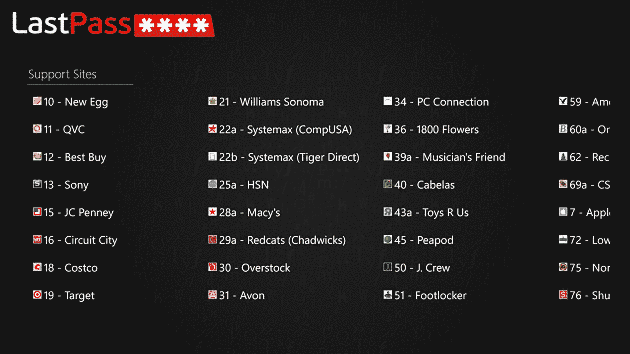
After installing the LastPass app from the Windows Store and logging in, you will notice that it consists of a control panel, where you can view your saved websites and all the information you have stored on your LastPass account.

What information can you add to your account? Well, apart from usernames and passwords for any site, you can add the following information for increased productivity and ease of use all over the Internet:

  • Bank Account
  • Credit Card
  • Database
  • Driver’s License
  • Email Account
  • Instant Messenger
  • Membership
  • Passport
  • Server
  • Social Security
  • Software License
  • Wi-Fi Password

All these different forms can be added to your account, and you can auto-fill them for just about any website without needing to type a word. Also, you can rest assured that your information is safe inside the LastPass vault and only accessible via the master password. But the fun doesn’t stop here!

lastpass app review for windows 8

LastPass for Windows 10: notable features

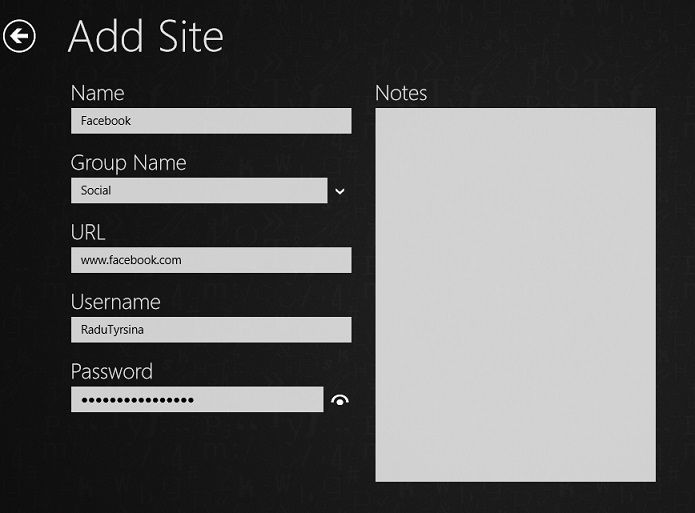
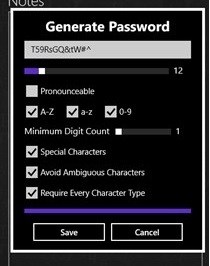
One of the features that I enjoy the most is the password generator. This tool allows you to generate full-proof passwords that no one could ever break. One great thing about this, is that most of the times, you don’t know the password (they are very, very complex), and the LastPass extension will auto-fill your username and password when you go to a saved website.

Another interesting feature is that you can create groups to organize your different passwords and create login forms with usernames and passwords directly from the app. When you are done, visit the website with the integrated browser to test your password. Pretty simple, right?

You can also edit saved websites, for instance, if you have changed your password, or, you can copy your username or password to the clipboard and use it somewhere else.

All these tools integrate perfectly with the LastPass extension that can be installed on pretty much any device (computer, smartphone, or tablet), regardless of its operating system, so that you can have complete protection on all devices.

These are all awesome features that each of us must use. To keep our digital lives safe, LastPass is a must-have in our security toolbox. But now, let’s recap the main features that the Windows 10 app provides:

  • Quick access to your saved passwords and formspassword
  • Possibility to add multiple forms with important information
  • Password generator both in-app and directly in the browser
  • Edit and organize saved information
  • integrated Internet browser

Now, look at all those features! One service spanning across all platforms and devices, that can be monitored and managed via a single app from your Windows 10 device!

Isn’t this awesome? Just remember that this app is mostly a control panel, and for you to benefit from all the features that LastPass provides, you will need to install the extension on your Internet browser.

XBMC 12.0 for Windows Beta 1 released

XBMC, a free award winning and open source software media player and entertainment hub designed for digital media, has reached version 12 and a beta is now available for all to download. XBMC is a unique media player that has seen over 50 software developers contributing to its development. Check out the new features in 12.0 Beta 1:

  • HD audio support, including DTS-MA and Dolby True-HD, via the new XBMC AudioEngine
  • Live TV and PVR support
  • h.264 10bit (aka Hi10P) video software decoding for anime
  • 64bit support in OSX to match the 64bit support in Linux
  • Improved image support, allowing the database to accomodate numerous additional image types
  • Support for the Raspberry PI
  • Initial support for the Android platform
  • Improved Airplay support across all platforms
  • Advanced Filtering in the library
  • Advanced UPnP sharing
  • Translations now powered by Transifex

IE10 preview for Windows 7 now available for download

Internet Explorer 10 for Windows 7 is now available to download in preview form, which will enable all the new features that IE10 brings on Windows 7 operating systems. The download is available online, and we expect it to be pushed through Windows Update when IE10 becomes stable enough on Windows 7.

There doesn’t seem to be any huge changes regarding the UI, so expect many changes under the hood. IE10 on Windows 8 is a fantastic browser, in fact it’s so good I use it as my default browser. I suppose it should work just a good on Windows 7 operating systems.

Report suggests Steven Sinofsky left Microsoft because he didnt get Steve Ballmer’s Job (rumor)

We just recently learned that Steven Sinofsky parted ways with Microsoft and that the departure was a “personal and private choice” which did not reflect on the company or leadership. Well, now a new report is suggesting that Sinofsky left the company because he wasnt promised Steven Ballmer’s CEO spot at Microsoft. Could this be true or just a rumor?

Steven Sinofsky

According to Business Insider, Steven Sinofsky felt that he deserved to be Microsoft’s next CEO, and wanted to be designated as Steve Ballmer’s successor after Windows 8 had shipped. If Sinofsky didn’t get the promise, he would quit Microsoft. This information comes from a Microsoft source, according to the report. Current CEO Steve Ballmer has alread y indicated that he would remain on the job until he retired in 2017 or 2018. Sinofsky, who is a well known and hard charging company executive who put Microsoft Office on the map, fixed Windows after the launch of Vista was a train-wreck, and a man who knows the business inside and out. Regardless of his qualifications, could this be true or just a rumor? Just remember, in Sinofsky’s farewell email, he stated that, “one might notice a bit of chatter speculating about this decision or timing. I can assure you that none could be true as this was a personal and private choice that in no way reflects any speculation or theories one might read—about me, opportunity, the company or its leadership.” Any truth to the matter? You be the judge.

Julie Larson-Green to head up Windows enginering and Tami Reller in charge of business, marketing strategy

We just learned about Steven Sinofsky’s abrupt departure from Microsoft, but who are the two new people who were appointed by Microsoft CEO Steve Ballmer to head up the Windows division? Julie Larson-Green is now the Windows software and hardware engineering lead, while Tami Reller will be in charge of business and marketing strategy for Windows. Lets take a look at their profiles, directly from Microsoft.

“Since 1993, Larson-Green has worked on and led some of the most successful products for Microsoft, including the user experiences for early versions of Internet Explorer, and helped drive the thinking behind the refresh of the user experience for Microsoft Office. For Windows 7 and Windows 8 she was responsible for program management, user interface design and research, as well as development of all international releases. She has a master’s degree in software engineering from Seattle University and a bachelor’s degree in business administration from Western Washington University. In her new role she will be responsible for all future Windows product development in addition to future hardware opportunities.”

“Reller joined Windows in 2007 from the Microsoft Dynamics Division where she held a number of leadership positions. She began her career in technology at Great Plains Software in 1984 while still in college, and was the company’s chief financial officer at the time the company was acquired by Microsoft in 2001. She has a bachelor’s degree in mathematics from Minnesota State University Moorhead and an MBA from St. Mary’s College in Moraga, Calif. In her expanded role she will assume the lead in driving business and marketing strategy for Windows devices, including Surface and partner devices, in addition to her current marketing and finance responsibilities.”

Desktop Apps Shouldn’t Belong in the Windows Store

Daily, I spend a LOT of time in the Windows Store, believe me when I say this. Searching and finding worthy Windows 8 applications might seem an easy job to do, but trust me when I say that it is not like that. And while doing this, I encounter on many new happenings that I share with the community. If you don’t see all the apps, then follow the advices in my recent article in order to overcome that.

What are Desktop apps doing in the Windows Store?

For me, the Windows Store was meant to be a place for applications that can be installed only from the Windows Store, both for Windows 8 and Windows RT. So, imagine my surprise when I found quite enough applications that were in the Windows Store only to guide me to a download link in the browser, informing me that it is an application that will work installed only on the destktop user interface.

Then, I found that Microsoft actually helped developers list their desktop apps in the Windows Store. What for? Just to gain some free publicity for their programs or Microsoft is simply interested in increasing the number of their Windows Store apps? Maybe I’m getting this wrong, but why should desktop apps be part of a Marketplace? If Microsoft wants to mimick Apple and Google in their Windows 8 strategy, why are they putting all these apps in the same place?

Imagine the confusion of users one year from now, when they will find in the Windows Store a lot of desktop apps and a lot of Modern UI-optimized apps. I see the good aspect in this, don’t you worry. Microsoft believes that by putting everything together, they’ll help the user discover apps and programs much easier. But I’m just not 100% sure it’s being done right. I don’t want to browse the Windows Store only to find a link to the official app. Or, do I? Opinions are divided here.

Microsoft makes it official, Skype and Windows Live Messenger are now one

Just recently, we learned that Microsoft had plans to retire Windows Live Messenger in favor of Skype. Now, Microsoft has officially announced that Windows Live Messenger and Skype will now be one. Microsoft is now encouraging all Messenger users to update to the latest version of Skype.

“We’ve got good news to share! Skype and Messenger are coming together. Millions of Messenger users will be able to reach their Messenger friends on Skype. By updating to Skype, Messenger users can instant message and video call their Messenger friends,” Microsoft stated in an official Skype blog post. Over at the Windows Blog, Microsoft announced, “Today, we’ve announced on the Skype blog that we are now encouraging all Messenger users to update by downloading the latest version of Skype. In the coming months, we will retire the Messenger apps for all regions worldwide except for mainland China.” Microsoft’s goal is to deliver the best communications experience for everyone and making things simple for users while improving overall experience. With Skype, Messenger users will have broader device support including the iPad and Android tablets, Instant messaging, video calling, and calling landlines and mobiles all in one place, sharing screens, video calling on mobile phones/Facebook friends, and group video calling. So there you have it. It’s been 12 years since the first version of Messenger was released and now it is retiring in favor of Skype.

Watch this! Hotmail so effective in blocking spam, Microsoft has to get spammers a real job (video)

Microsoft, on May 25th, launched a campaign in Sweden consisting of a website and an online video invitation to a “seminar” for spammers. The video of this was just recently released. What exactly is this seminar about? Well, since Microsoft believes that Hotmail is now so effective in blocking spam, Microsoft now feels it is their duty to get these spammers a real job. Microsoft wants to put these spammers to use since they have skills in programming and online marketing.

According to a comprehensive study that was conducted by an independent firm, Cascade Insights, Hotmail is the number one webmail service to protect users against spams ahead of other webmail competitors including Gmail and Yahoo! Mail. “Our mission was to communicate the message that Hotmail now stops 97% of all spam to Swedish tech-influencers. Instead of just boosting out the message we decided to take a somewhat different approach. As the Hotmail spam filter now is so effective it can actually put spammers out of business we decided to try and help them get legal jobs and launched Spammers’ Aid,” the video description reads. Unfortunately, no spammers showed up to the “seminar” but Microsoft broadcasted the event live online where 27 people followed it anonymously. In the video, we get an interview from Hotmail’s Sweden product manager. Take a look below:

Thanks to Marko for the tip!

Kinect Fusion coming soon to Kinect for Windows, allows for 3-D reconstruction

Anyone remember Kinect Fusion? It started off as a Microsoft research project that could reconstruct a model or environment into 3-D, by combining a continuous stream of data from the Kinect for Windows sensor. Now, Microsoft is planning on integrating Kinect Fusion into Kinect for Windows!

“Kinect Fusion reconstructs a 3-D model of an object or environment by combining a continuous stream of data from the Kinect for Windows sensor. It allows you to capture information about the object or environment being scanned that isn’t viewable from any one perspective. This can be accomplished either by moving the sensor around an object or environment or by moving the object being scanned in front of the sensor,” Microsoft stated in an official blog post. The cool thing about Kinect Fusion is that it uses incoming depth data from the Kinect sensor to build a highly detailed 3-D map and then reads over 100,000 frames to achieve more detail than a single scan would. Microsoft has been working on incorporating Kinect Fusion with Kinect for Windows and it will be available soon as a Kinect for Windows tool.

Watch this! Microsoft creates “Live Tile Experiment” in Norway (video)

With the launch of Windows 8, Surface RT, and Windows Phone 8, Microsoft has been on a roll lately in advertising these new products and features that come along with it. Microsoft went as far as creating a “Live Tile Experiment” in Norway to highlight one of the cool features of Windows 8 and Windows Phone 8. “This film was shot downtown Oslo (Norway) to highlight one of the key innovations of Windows 8: Live Tiles. Showing the preview functionality of Live Tiles made for an evening to remember,” the video description reads.

Google’s Gmail barely beats Microsoft’s Hotmail as top email service according to new data

According to new data from ComScore, Microsoft’s Hotmail email service has fallen to second place right under Google’s Gmail service. While Google has been bragging that it’s Gmail service was number one, we now have data from ComScore that proves it.

Based on ComScore’s October 2012 stats, Google’s Gmail barely beats out Microsoft’s Hotmail service as the top email service worldwide. However, in the United States, Yahoo is number one. Yahoo has 7 million more unique visitors compared to Gmail. This pretty much means that 40.8% of online Americans use Yahoo, while 36.7% use Gmail and 18.9% use Hotmail. Microsoft recently rebranded Hotmail into Outlook.com and these stats showcase some interesting data. Did Microsoft’s re-branding of Hotmail really make a difference?

Microsoft helps create Web Platform Docs, will be the central hub of web standards

Microsoft has announced that the company has helped create Web Platform Docs, a new central hub of web standards for web developers who use HTML5, CSS, and other web standards to build websites. Microsoft, along with Mozilla, Google, Opera, Adobe, and Facebook are a part of this creation.

“The site serves as a central repository that provides Web developers with accurate and timely information on the technologies and standards that are crucial to their work. Most importantly, the documentation on Web Platform Docs is comprehensive. It includes information about a browser’s implementation of different Web technologies and best practices on a given feature’s interoperability,” Microsoft stated in an official blog post. The site is powered by MediaWiki and content is derived from a volunteer group of developer contributors. Those who visit the site will find published content from the founding organiations, such as Microsoft, Mozilla, Google, Opera, Adobe, Facebook, HP, Opera, and Nokia. The site will also contain a sample library and tutorials. “With Web Platform Docs, we now have a central place where we can learn what the standard is, when we can use that particular feature, and the right way to use it,” a Windows technical evangelist at Microsoft was quoted saying. Microsoft became a part of this project to ensure that the web development community has the best resources needed for working on Internet Explorer, Windows Azure, Windows Phone, and other Microsoft technologies.

Check out Web Platform Docs here.

The Windows Store surpasses 3,600 apps

According to WinAppUpdate.com, the Windows Store in Windows 8 has today passed the 3000 app mark, not long after it was reported to have passed 2000 apps. The growth of the Windows Store has been very quick over the last few weeks, developers know that now is the time to start publishing apps.

The app growth has been pretty strong over the last few weeks, which if it keeps going, will easily pass 5000 apps before launch. According to the report, the app store is currently sitting at 3010 apps, which is an awesome number, especially since the OS isn’t slated for launch for another 3 weeks.

The report also states that they’ve been seeing around 118 apps added to the store each day, which is great for Microsoft. Using the awesome Windows calculator, this average will total to 2714 more apps being added into the store before launch.

Microsoft’s reputation is about to rocket sky high, or crash real low (editorial)

Windows 8. That’s the product most people are worried about, and it’s the product that decides the reputation of Microsoft. If Windows 8 is a failure, the company’s reputation will fall, just like it did with Vista. If it succeeds, then drinks all round.

While there is no telling on how Windows 8 will be received, we can speculate. From the amount of buzz Windows 8 has produced, it’s easy to pinpoint what people are thinking about the new operating system, and while many people love it, there is a large handful who don’t, and when you have a LARGE amount of people who don’t like a product, others will more or less not like it too, since liking it would be “uncool”.

Never compare Windows 8 to Windows Vista, if 8 fails it will be for an entirely different reason, but we can compare why so many people hated Windows Vista, and how the same could happen for Windows 8.

Windows Vista launched, and wasn’t very popular because OEM PC’s weren’t up for the job of running the OS, drivers were an issue and people found the OS to be slow on existing XP PC’s. While this was all true, the issues didn’t last long. If you were to use Windows Vista today, it would be just like Windows 7, without any of the exclusive Windows 7 features of course.

The hatred of Vista came from the large majority of users who had issues with the OS, unfortunately the hatred didn’t stop there, people who had never even used Vista also started hating because it was “cool” to hate on it. This was proven with the Microsoft Mojave experiment, which was a fake new operating system from Microsoft that was just Windows Vista with a different name. It was shown to a bunch of consumers, and they loved it. When they were told it was really Vista, they were shocked.

So, if there is a large majority of users who hate Windows 8, and then people who haven’t even tried the OS start hating, bad word is going to get around, which will make people not want to buy the product.

We can only hope that this does not happen with Windows 8, since Windows 8 is a fantastic upgrade from Windows 7, as it includes not only a great UI that DOES WORK with a Mouse and Keyboard, but a whole other bunch of improvements under the hood that makes this version of Windows the most secure… Ever.

On a more positive note, Windows 8 could just as easily become as successful as XP or 7. Just think, since the lovers and haters are practically split in half, it’s fifty-fifty either way. If Windows 8 is successful, it opens up not only a new opportunity for Microsoft, but it changes the industry in both tablets and computers.

Take a look at the above video we made back in August, it’s a simple video of Windows 8 apps in action. While the video was made using a touch screen, the actual machine the OS was installed on was a gaming rig. Ever since, I’ve been using Windows 8 on my gaming rig with a mouse and keyboard, and sometimes using the touch screen when leaning on my desk, flicking the screen up and down to scroll. It all comes natural when you have all three pieces of hardware at once.

I guess we’ll find out how well Windows 8 does when it launches in just under a month, along with Windows Phone 8 and the Microsoft Surface.

Microsoft reveals new TypeScript language, is a superset of JavaScript

Microsoft has revealed a new language called TypeScript, which is a super-set of JavaScript. Basically, TypeScript combines combines type checking and static analysis, explicit interfaces, and best practices into a single language and compiler.

“With HTML5, the standards web platform has become significantly more compelling for delivering rich user experiences. At the same time, the reach of JavaScript has continued to expand, going beyond the browser to include native device apps (e.g. Windows Store apps for Windows 8), applications in the cloud (e.g. node.js running on Windows Azure), and more. With these developments, we’re starting to see applications of unprecedented size written with JavaScript, despite the fact that creating large-scale JavaScript applications is hard. TypeScript makes it easier,” Microsoft stated in an official blog post. TypeScript will be perfect for those who wish to write large applications. For example, TypeScript is perfect for writing client-side JavaScript to run on Windows, Internet Explorer, and other browsers and operating systems, or even Windows Azure. Not only is TypeScript open, but also all JavaScript is, in essence, TypeScript. This pretty much means that you can literally copy-and-paste from an existing JavaScript program into a TypeScript file. Head over to the source link for a more in-depth look at TypeScript and to download preview bits of the new language.

Microsoft signs licensing agreement with Research In Motion for exFAT file system

Microsoft has announced a licensing agreement with BlackBerry maker Research In Motion (RIM) for the use of the exFAT (extended File Allocation Table) file system. Of course, this doesn’t come free as RIM will now have to pay Microsoft for using this format.

For those that don’t know, exFAT is a modern file system from Microsoft that facilitates large files for audiovisual media and enables seamless data portability and an easy interchange between desktop PCs and other electronic devices. “exFAT improves on its predecessor, the FAT system, and greatly expands the size of files that flash memory devices can handle by five times over previous FAT technology. It also increases the speed with which those files can be accessed. The exFAT file system not only facilitates large files for use of audiovisual media, it enables seamless data portability and an easy interchange between desktop PCs and a variety of electronic devices,” Microsoft explained in the official blog post. The idea behind this licensing agreement is to give RIM access to the format and allow the company to build devices, applications, and services that work seamlessly with each other. No other details were revealed and one can only wonder what plans RIM has with the exFAT format.

Google’s online apps and services to drop support for Internet Explorer 8

Google is planning on dropping support for Microsoft’s Internet Explorer 8 browser for the company’s online apps and services, starting November 15th of this year. This is a major blow to Windows XP users who are unable to upgrade away from Internet Explorer 8.

“Internet Explorer 10 launches on 10/26/2012, and as a result, we will discontinue support for Internet Explorer 8 shortly afterwards, on 11/15/2012. After this date users accessing Google Apps services using Internet Explorer 8 will see a message recommending that they upgrade their browser,” Google stated in an official blog post. This is a major blow to those who are on Windows XP and are locked into using Internet Explorer 8. Google has already discontinued support for Internet Explorer 6 and Internet Explorer 7, so this move really hurts those who are on Windows XP. Unfortunately, Internet Explorer 9 or 10 will not work on Windows XP. Google Apps and perhaps even Gmail may be affected by this so those on XP should be aware. Google will become the first major online company to drop support for Internet Explorer 8.
Microsoft launches ‘Bing It On’ challenge against Google, says Bing is better

Microsoft has launched a new challenge called “Bing It On” against Google’s search in an attempt to lure users into using Bing rather than Google. According to Microsoft, Bing’s web search results were better than Google’s. This new challenge aims to point that out with users.

“Since we launched Bing we’ve been hard at work to deliver relevant, useful search results that help you go from searching to doing. Awhile ago, we began to notice an interesting trend in our internal testing – for the first time our testing showed that Bing’s web search results were better than Google’s,” Microsoft stated in an official blog post. Microsoft has launched a new website that lets you search for a topic or keyword and the website will display search results from both Bing and Google on the same page, letting the user decide which result was better by voting. The challenge deals with searching for five queries of your choice and comparing Bing/Google results side-by-side. The user chooses a winner or declares the results a “draw.” Once you receive the final score, you can share your results on Facebook, Twitter, or Google+. Microsoft is also launching a nationwide TV and online advertisement for this challenge. Microsoft wants people to see that Bing is better than Google.

The challenge asked visitors to judge the displayed results without seeing either brand.

How much did the choice of query matter? In a 2013 independent experiment using the challenge, 57% of participants who chose their own search terms favored Google and 35% favored Bing. With Bing-suggested queries, participants split almost evenly. The blind format hid the labels, but the prompts still affected the outcome.

Windows 7 finally beats Windows XP in market share, according to Net Applications

For the longest time now, Windows XP has reigned as the top Windows operating system in terms of market share. Well, not anymore. According to data from Net Applications, Windows XP is no longer number one. Instead, Windows 7 is now the top operating system.
The percentages depend on which computers you count. Across all desktop operating systems in Net Applications’ August 2012 figures, Windows 7 had 42.76% and XP had 42.52%, a lead of 0.24 percentage points. Vista accounted for 6.15% and the Windows 8 preview for 0.23%. The higher 46.60% and 46.33% figures describe their shares within Windows alone. The full desktop table also includes Mac OS X and Linux. Why is it that Windows 7 is barely making it to the top? Could it be that consumers/businesses are still making the jump to Windows 7, with Windows 8 on the horizon? It could be possible. Windows XP has always been “good enough” to use. Those who took the plunge and made the transition to Windows 7 have come to be accustomed to the operating system and now feel that it is good enough in their minds. It will be interesting to see how Windows 8 will change this once it is released.

Microsoft to bring Atari games to HTML5

Earlier this year, we saw Cut the Rope, Microsoft’s featured IE9 HTML5 game which ran efficiently on Microsoft’s latest browser. Since then, Microsoft has decided to team up with Atari to bring more “modern” versions of the games played in the 70s to your touchscreen and web browser according to The Next Web.

According to the report, the games (currently) would be “Pong, Asteroids, Centipede, Combat, Lunar Lander, Missile Command, Super Breakout and Yars’ Revenge” with games that will be added in the future.

“Atari wondered how they could bring some of those classic games to people in 2012, and make them relevant for today,” said a Product Manager, Ian Moulster, who works for the Windows team at Microsoft. “We worked with Atari and a developer called Grant Skinner, which builds Flash and Web-based games. We asked how can we build some of these classic Atari games using HTML5, Javascript, CSS…and do so that they’re optimized for Touch?” It is unknown if the games will become Windows 8 “Modern UI” apps in the future. With this team up, Microsoft could be hinting at it.

The games were designed “with slightly-bigger screens in mind” and work more efficiently on “computers and tablets.” The games produce “no lag” and have a “completely native feel.”

The team released Atari Arcade as a browser experience in August 2012. Developer Grant Skinner’s account of the launch explains that the games used CreateJS and supported multitouch. His team tested them in Chrome, Safari, Firefox and Internet Explorer, so players could try the project without installing a Windows Store app

Microsoft patents an advanced multi-touch stylus called “ePen”

According to a new report, Microsoft recently patented a new multi-touch stylus called “ePen” which gives it a powerful touch and advanced sensors built into the tablet/smartphone accessory. These sensors give the stylus new functionality that allows for more than just tapping and writing.

Based on the patent, which Microsoft recently was granted approval from the US Patent and Trademark Office, the ePen comes with touch sensors, as well as a gyroscope, compass, accelerometers, and other sensors. The ePen can even let you adjust the ink colors based on how you angle the pen and even turn it into an eraser by using a certain grip. Obviously, this pen would appeal to those who design, but this multi-touch pen also has potential as a game controller, a music instrument, or a cool stylus for your Windows 8 tablet. Microsoft filed the patent application back in 2011 and we have no idea if this ePen would ever come to fruition, but if it did, would you be interested in it?

What would a touch-sensitive barrel actually do? In a Microsoft Research paper on a prototype pen (PDF), the authors describe a drawing app that could distinguish how the artist gripped the pen and detect a swipe or double tap on its barrel. That experiment demonstrated a way to switch tools while drawing. The 2012 report gave no launch date or ordering information for a retail product called ePen.

Happy Birthday to Windows 95 and Windows XP (editorial)

Windows 95 went on sale on August 24, 1995. This 2012 editorial marked its 17th anniversary. Since then, many changes have taken place to the Windows operating system, especially since we’ve been waiting the release of Windows 8 to retail stores.

In the first five weeks of being released, Windows 95 sold over 7 million copies. If you think of it, the personal computer wasn’t as popular or as upgradable about 17 years ago so 7 million copies sold in that amount of time is amazing.

Windows 95 had built-in internet support and plug and play. As Microsoft was trying to move over to hybrid 16/32 bit support, they did so successfully. Over 80% of PC’s at the time were running MS-DOS and previous Windows operating systems, so the upgrade was worthwhile. While Internet Explorer wasn’t directly included in Windows 95 when it was released, Internet Explorer 1.0 (only found in Microsoft Plus!) or Netscape Navigator could be used to surf the net. This evolved into an antitrust case between the two companies.

According to a website that provides history and insight of Microsoft, “To run Windows 95, you need a PC with a 386DX or higher processor (486 recommended) and at least 4 MB of RAM (8 MB of RAM recommended). Upgrade versions are available for both floppy disk and CD-ROM formats. It’s available in 12 languages.” Think of the new specs for Windows 8. You need a Pentium 4 or better, with at least 1 GB of RAM (512 MB minimum). You need over 130 times the amount of RAM now then you did then in order to run Windows.

Introducing the start menu and taskbar, Windows 95 drastically changed the user experience forever. Later, all Microsoft did was improve Windows, but keeping everything that Windows 95 but made it easier to use. Microsoft was working on Windows Nashville, dubbed Windows 96, but that plan was later scrapped into Windows Desktop Update which was included in Internet Explorer 4.0 which gave Windows 95 the Web Interface. Instead of Windows Nashville being released, Windows 98 was released. Windows ME was the last release of its kind because the kernel was not as reliable as the emerging NT kernel. As stated by Microsoft, “Windows Me was the last Microsoft operating system to be based on the Windows 95 code base.” For the future, all operating systems will be built on the NT kernel, or the Windows 2000 codebase.

Windows XP bridged the gap between 9x and NT and surpassed Windows 95’s sales. After the lengthy development of Vista, it was released but was not as popular as XP, so when Windows 7 came out, it sold more copies than any version ever released, and “by the fall of 2010, Windows 7 is selling seven copies a second—the fastest-selling operating system in history.”

Windows 8 has neared its completion marking the end of an era. The start menu is no more, but it introduces a new line of ways to use the computer. The start screen has replaced it, but we still have the taskbar, and the maximize and minimize buttons that were included for the first time in Windows 95.

Windows 95 support ended on December 31, 2001, as did all older versions of Windows from 1.0 to NT 3.51.

Enough with that. Happy Birthday Windows 95. Your legacy will be known forever.

It wasn’t only the birthday of Windows 95, but it’s also the same day as Windows XP RTM’d back in 2001.

11 years ago today, a star was completed. That star, was Windows XP. Over the next 11 years…including the present, Windows XP was and still is the most widely used operating system in the world. Even after the releases of Windows Vista and Windows 7, it continues to rank highest (for now at least.)

Last month according to BGR, Windows XP had a market share of 42.86% while Windows 7 had a market share of 42.21% which means that Windows 7 is closing in.

Windows XP was released to the manufacturing on August 24, 2001 and was then released to retail and was being sold starting October 25, 2001. Windows XP bridged the gap between the NT and 9x brand of operating systems, to push consumers and business users to using the NT codebase (from Windows 2000) instead of the old, unstable, and outdated 9x codebase used with MS-DOS.

Supporting tons of hardware and games, Windows XP had it all. Connecting to the internet was a breeze with built in wireless support. Microsoft released three service packs for the 32-bit edition. Extended support for Windows XP ended in April 2014.

The two anniversaries mark different steps in shipping an operating system. August 24 was the date Microsoft handed the finished XP code to PC manufacturers in 2001. Customers could buy it on October 25, giving manufacturers two months to prepare the first retail PCs.

Happy Birthday to you too, Windows XP!