
Print Spooler Repair Guide for Windows 11 Users


 3 min. read
  Published on

You can fix print spooler problems on Windows 11 when print jobs freeze or your printer stops responding. These steps reset the print system and load clean spooler files so your printer works again.
Use a few quick tools in Windows 11 to repair most print spooler errors. Start with a full reset, then refresh your printer driver and run the built in troubleshooter.
Table of contents
How to Perform Print Spooler Repair on Windows 11?
Reset the print spooler service
Resetting the spooler clears stuck jobs and refreshes the Windows 11 print system.
- Open Start and type services.
- Select Services from the results.

- Scroll down and double click Print Spooler.
- Click Stop to end the service.

- Open File Explorer and enter:
C:\Windows\System32\spool\PRINTERS - Delete the files in the PRINTERS folder.
- Return to the Print Spooler window and click Start.
- Click OK.
If you want a full walk through of enabling this service, read this guide on how to enable the Print Spooler in Windows 11.
Reinstall your printer driver
A damaged or outdated driver can trigger spooler failures. A fresh driver installation restores proper communication with the device.
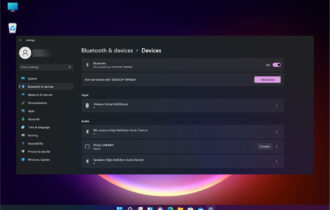
- Open Settings and click Bluetooth and devices.

- Select Printers and scanners.
- Choose your printer and click Remove.

- Restart your PC.
- Return to Printers and scanners and click Add device.
Run the Windows 11 printer troubleshooter
The troubleshooter identifies broken queue files, service issues, and driver errors and then suggests quick fixes you can apply.
- Open Settings and select System.
- Scroll down and click Troubleshoot.
- Select Other troubleshooters.
- Click Printer and select Run.

- Follow the steps shown on screen.
Symptoms and common issues
Print spooler errors often appear when print jobs stay stuck in the queue or when Windows 11 loads corrupted spooler files. Incorrect service settings or outdated drivers can also interrupt your ability to print, and repeated service crashes usually leave your printer unresponsive.
You can explore more on this behavior in a dedicated guide about Print Spooler repeatedly stopping on Windows.
FAQs
It stops when corrupted queue files, outdated drivers, or system crashes interrupt print operations on your PC.
You stop the spooler service, delete the files inside the PRINTERS folder, then start the service again to remove stuck jobs.
No. Resetting the spooler clears only the stuck print jobs. You remove the printer only when you choose the remove option in the printer settings.
No. The print spooler is a core Windows service that manages print tasks and queues for your installed printers.
You can repair most print spooler issues on Windows 11 by resetting the service, clearing the queue, reinstalling drivers, and running the printer troubleshooter. These steps refresh the entire print subsystem and restore smooth printing without complex tools or extra software.
If you regularly see print jobs stuck in the queue, check this guide about printing stuck on spooling errors for an extra layer of troubleshooting and prevention tips.

Read our disclosure page to find out how can you help Windows Report sustain the editorial team. Read more



Improve this guide

User forum
0 messages