
Windows 11 Screenshots Folder Gone: How to Get It Back


 4 min. read
  Published on
If your Screenshots folder is missing or deleted in Windows 11, you can easily restore it using built-in system tools. This guide explains how to recover the folder and ensure your future screenshots save correctly.
Table of contents
How do I Restore the Screenshots Folder Location?
1. Check if the Folder Is Hidden
- Open File Explorer using Windows + E.
- Click the View tab at the top.
- Select Show > Hidden items.

- Look inside Pictures to see if the Screenshots folder reappears.
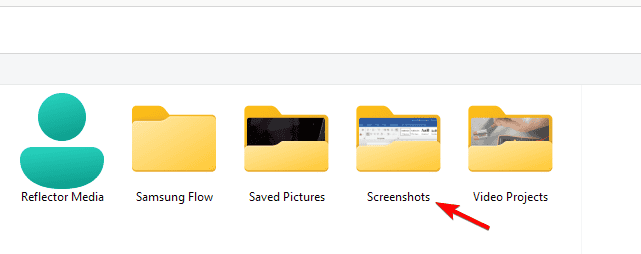
- Navigate to C:\Users\[YourUsername]\Pictures.
- Right-click an empty area and select New > Folder.

- Name it Screenshots (exact name).
- Test it by pressing Windows + PrtScn.
Your screen should dim briefly, and the image should now save to the newly created folder.
If you’re unsure where your screenshots normally go, learn more in Where do snips go in Windows 11.
2. Reset the Default Save Location
If screenshots are still not saving correctly, reset the default folder path:
- Open File Explorer and go to Pictures.
- Right-click on the Screenshots folder (create it if missing).
- Select Properties and open the Location tab.

- Click Restore Default, then select Apply.
- Confirm the prompt to move files back to the default location.
This will restore the original save path for Windows screenshots.
To learn how to capture and manage screenshots effectively, see How to take a screenshot on Windows 11.
3. Fix the Screenshots Folder via Registry Editor
If File Explorer does not recognize the Screenshots path, fix it using the Registry Editor.
- Press Windows + R, type regedit, and hit Enter.
- Go to the following path:
HKEY_CURRENT_USER\Software\Microsoft\Windows\CurrentVersion\Explorer\User Shell Folders
- Find the entry named {B7BEDE81-DF94-4682-A7D8-57A52620B86F}.
- Double-click it and make sure the value data is:
%USERPROFILE%\Pictures\Screenshots
- Click OK and close the Registry Editor.
- Restart your PC to apply the changes.
If your Print Screen key still isn’t working afterward, check Windows 11 screenshot not working.
4. Restore Screenshots Folder from OneDrive
If you have OneDrive enabled, screenshots might be redirected there.
- Open OneDrive Settings.
- Go to Sync and Backup > Manage Backup.
- Check if Pictures (including Screenshots) is toggled on.
- Look under your OneDrive\Pictures folder for Screenshots.
- Move it back to your local Pictures folder if needed.
5. Use File History or Backup to Recover the Folder
If you deleted the Screenshots folder, recover it using Windows Backup.
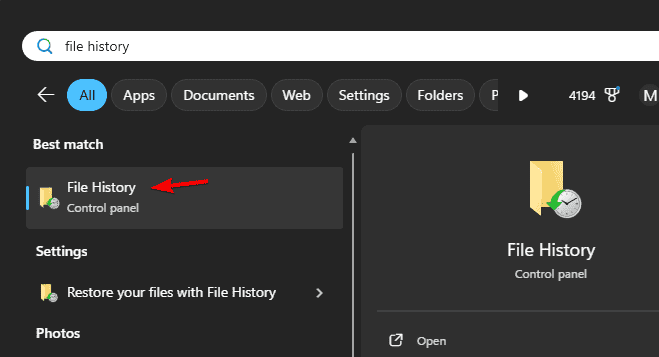
- Search for File History in the Start menu and open it.
- Select Restore personal files.
- Navigate to Pictures > Screenshots.
- Choose a version from before the deletion.
- Click Restore to recover the folder.
Why Did the Screenshots Folder Disappear
The Screenshots folder is located under Pictures > Screenshots by default. However, it may go missing for a few reasons:
- Manual deletion or file corruption
- Misconfigured folder location in File Explorer
- Windows update resetting user directories
- OneDrive syncing errors
If you use the Print Screen (PrtSc) key and Windows no longer saves images automatically, these are the main causes.
FAQs
Yes. Right-click the folder, go to Properties > Location, and choose a new directory.
By default, it’s in C:\Users\[YourUsername]\Pictures\Screenshots.
Make sure the Screenshots folder path exists and that OneDrive or Dropbox isn’t redirecting or blocking it.
Once the Screenshots folder is recreated or fixed, press Windows + PrtScn to test it. Windows should start saving captures there automatically again.
Conclusion
If your Screenshots folder disappeared in Windows 11, you can restore it manually, reset the path, or recover it with system tools like Registry Editor, OneDrive, or File History. After you restore the correct path, Windows will save new screenshots normally when you press Windows + PrtScn.
To edit or manage your recovered screenshots more efficiently, check out this guide to IrfanView as an image editor for Windows.

Read our disclosure page to find out how can you help Windows Report sustain the editorial team. Read more



Improve this guide

User forum
0 messages