
How to Run a Computer Performance Test on Windows


 4 min. read
  Updated on
Checking your PC’s performance is essential if your computer feels slow, freezes, or struggles with heavy apps. A computer performance test helps you identify which part of your system is holding it back and what to fix.
In this guide, you’ll learn how to run detailed performance tests on Windows using built-in tools and reliable third-party benchmarks.
Table of contents
- How to Run a Computer Performance Test?
- 1. Use the Windows Performance Monitor
- 2. Run the Windows Memory Diagnostic Tool
- 3. Use Task Manager for Quick Insights
- 4. Run Benchmark Software for Detailed Scores
- 5. Test Disk Speed with Command Prompt
- 6. Use Your Manufacturer’s Diagnostic Tool
- What Is a Computer Performance Test?
- Why Run a Performance Test?
- FAQs
- Summary
How to Run a Computer Performance Test?
1. Use the Windows Performance Monitor
Windows includes a powerful Performance Monitor to track how your PC behaves under load.
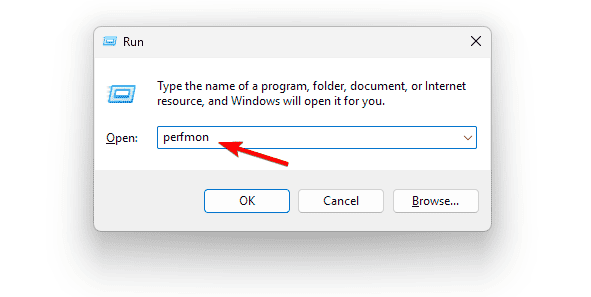
- Press Windows + R, type perfmon, and press Enter.
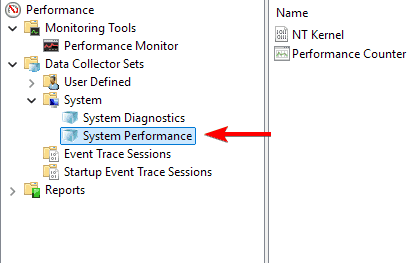
- Go to Data Collector Sets > System > System Performance.
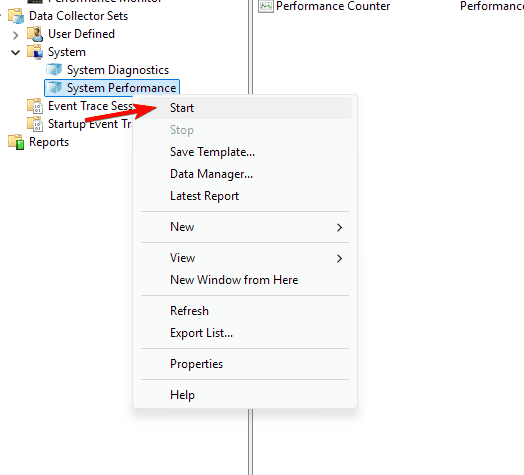
- Right-click System Performance, then choose Start.
- Wait about 60 seconds while data is collected.
- Open Reports > System > System Performance to view detailed results.
You can fine-tune your setup afterward with the Windows 11 best settings guide.
2. Run the Windows Memory Diagnostic Tool
This test checks if your RAM is causing system lag or instability.
- Press Windows + R, type mdsched.exe, and hit Enter.

- Choose Restart now and check for problems.
- After reboot, check results in Event Viewer > Windows Logs > System.
See more options in the full Windows 11 RAM test guide.
3. Use Task Manager for Quick Insights
Task Manager offers instant performance monitoring without extra software.
- Press Ctrl + Shift + Esc to open Task Manager.
- Select the Performance tab.
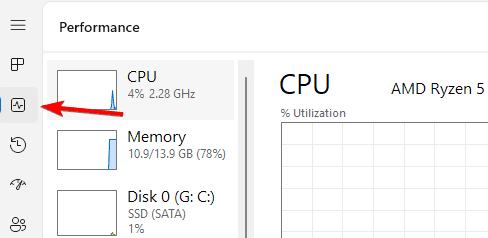
- Review CPU, Memory, Disk, and GPU usage.
4. Run Benchmark Software for Detailed Scores
Benchmark tools provide numeric scores for accurate comparisons.
- Download and install PCMark 10, 3DMark, or Cinebench.
- Open the program and choose the test you want.
- Start the benchmark and wait for completion.
- Compare your score with similar systems online.
If your results seem low, use this guide to increase FPS in Windows.
Before re-running benchmarks, use the Core Temp application to watch CPU temperatures and spot throttling during tests.
You can also explore advanced diagnostics and monitoring in our AIDA64 Extreme benchmark guide for more detailed insights.
5. Test Disk Speed with Command Prompt
Disk speed affects how quickly your PC boots or loads programs.
- Press Windows + R, type cmd, and press Ctrl + Shift + Enter to open as admin.
- Type:
winsat disk
- Review the read and write speed results.
6. Use Your Manufacturer’s Diagnostic Tool
Manufacturers like Dell, HP, Lenovo, or ASUS offer their own utilities.
- Visit the brand’s support website.
- Download the official diagnostic app.
- Run a full hardware test to detect issues.
What Is a Computer Performance Test?
A computer performance test measures how efficiently your hardware runs under different workloads. It evaluates your CPU, memory, GPU, and storage to identify weak spots that could slow down your system.
Why Run a Performance Test?
- Detect slow or failing hardware before it causes problems.
- Compare performance before and after system updates.
- Optimize settings for gaming, editing, or productivity.
- Confirm that your PC performs at its advertised level.
FAQs
No. Close other programs for accurate results and avoid interference.
Yes. They temporarily stress hardware but do not damage components if cooling is adequate.
Run one every few months or after installing major updates or new drivers.
Update drivers, apply best Windows settings, and retest. Consider the RAM and FPS optimization guides linked above.
Quick tests take a few minutes, while full benchmarks can take up to 20 minutes.
Summary
Running a computer performance test helps you identify issues and maintain top speed. Use Windows Performance Monitor, Memory Diagnostic, Task Manager, and reputable benchmarks. Apply the linked settings, RAM checks, and FPS improvements to keep your PC fast and reliable.

Read our disclosure page to find out how can you help Windows Report sustain the editorial team. Read more



Improve this guide
User forum
0 messages