
How to Use Core Temp to Check CPU Temperature on Windows 11


 4 min. read
  Published on
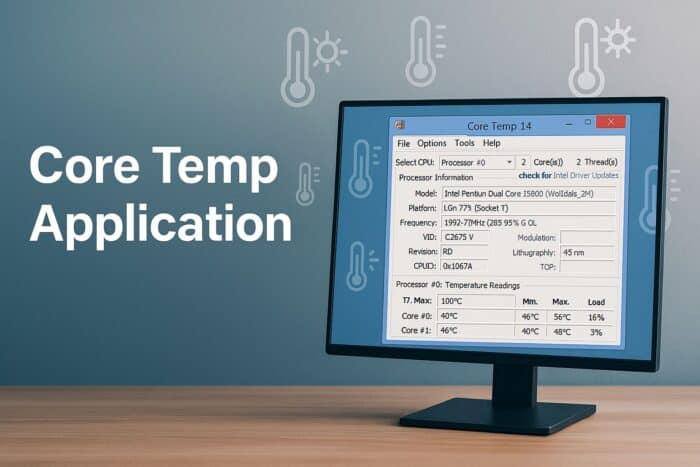
Keeping your PC cool is essential for maintaining performance and preventing hardware damage. If you want to see how hot your CPU runs in real time, the Core Temp application is one of the easiest tools to use. This guide explains what Core Temp does, why monitoring your CPU temperature matters, and how to install and use the app properly.
Table of contents
How to Download And Use Core Temp?
What Is Core Temp?
Core Temp is a lightweight CPU temperature monitoring tool for Windows. It displays real-time readings for each processor core, helping you identify overheating issues and maintain stable performance.
The tool is especially useful for gamers, overclockers, and users running intensive software that generates high CPU load.
See additional options in our guide to CPU temperature monitors for Windows.
How to Download and Install Core Temp
- Visit the official Core Temp website and click the Download button to get the latest version.

- Choose the installer version if you want an easier setup process.
- Open the downloaded .exe file and follow the installation prompts. Uncheck any optional software offers to avoid extra programs.
- Launch Core Temp from the Start menu and view your CPU model, frequency, and temperature readings for each core.
After installation, you can run a computer performance test to see how your system handles CPU load.
How to Use Core Temp
1. View Real-Time Temperatures
- Open the Core Temp application.
- Check the Temperature Readings section where each core displays a live temperature value.

- Note the Tj. Max value, which indicates the maximum safe temperature your CPU can reach.
- Monitor readings while using different apps or games to see how your CPU behaves under load.
2. Enable Taskbar Temperature Display
- Click Options in the toolbar.
- Select Settings.
- Go to the Notification Area tab.

- Check Enable Windows 7 Taskbar features and choose Temperature.
- Confirm that temperatures appear in your system tray.
3. Configure Overheating Protection
- Open Options > Overheat Protection.
- Tick Enable overheat protection.

- Set your preferred temperature threshold.
- Choose an action, such as closing applications or shutting down your PC.
4. Log Temperature Data
- Go to Options > Log File.
- Select Enable logging to record CPU temperature over time.
- Use the data to analyze trends or identify when overheating occurs.
Why You Should Monitor CPU Temperature
- Detect overheating early
- Check if your cooling system works properly
- Compare idle vs. load temperatures
- Track long-term thermal performance
Having trouble with heat right now? Follow these steps to fix high CPU temperature in Windows 10.
Why Core Temp Works So Well
Core Temp reads temperature directly from each CPU’s Digital Thermal Sensor for accurate results across Intel and AMD processors. It measures per-core values instead of a single average temperature, which helps pinpoint problem cores and improves diagnostics.
Alternatives to Core Temp
- HWMonitor – Displays voltages, fan speeds, and a wide range of hardware sensors.
- Open Hardware Monitor – Open source utility with detailed component statistics.
- Speccy – Simple system information tool with basic temperature readouts.
Speccy is another excellent option that displays comprehensive system information and temperature readings in a clean interface. You can learn how to use Speccy on Windows 11 to monitor hardware details alongside CPU temperature.
FAQs
Yes. Download it from the official site and avoid third-party bundles.
Yes. It works on Windows 10 and Windows 11.
Typical idle is 30 to 40°C. Heavy load up to 80°C is common. Above 90°C needs attention.
No. It uses minimal resources and runs quietly in the background.
Yes. Keep it minimized or use the taskbar readout to monitor live temperatures.
Summary
Core Temp is a simple and accurate utility for monitoring CPU temperature in real time. Use it to catch overheating early, extend hardware lifespan, and maintain smooth performance.

Read our disclosure page to find out how can you help Windows Report sustain the editorial team. Read more



Improve this guide



User forum
0 messages