
Get Shimeji on Windows 11: Simple Install and Customization


 4 min. read
  Published on
Shimeji adds cute animated desktop pets that move, climb, and play on your screen. If you want to bring fun to your Windows 11 desktop, here is how to download, install, and customize Shimeji in minutes.
Table of contents
- How to Download Shimeji on Windows 11?
- 1. Visit the Official Shimeji Website
- 2. Extract the Shimeji Files
- 3. Install Java (If Not Installed)
- 4. Launch Shimeji on Your Desktop
- How to Add New Shimeji Characters
- 1. Download Character Packs
- 2. Move Character Folders to the Shimeji Directory
- 3. Restart the App
- How to Customize Shimeji Behavior
- 1. Adjust Settings
- 2. Create Multiple Companions
- How to Remove or Disable Shimeji
- 1. Exit the App
- 2. Delete the Folder
- Why Use Shimeji on Windows 11
- FAQs
- Conclusion
How to Download Shimeji on Windows 11?
1. Visit the Official Shimeji Website
Start by getting the program from its official source.
- Open your browser and go to Shimeji website.
- Click Download Now to get the latest Windows version.
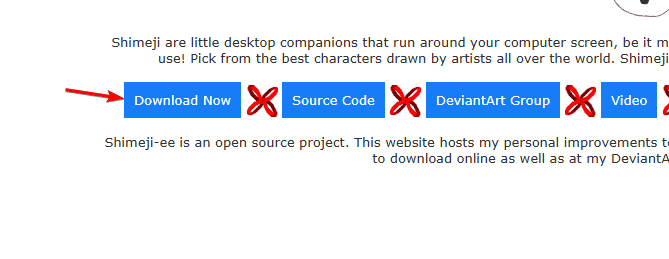
- Wait for the ZIP file to finish downloading.
2. Extract the Shimeji Files
Next, unzip the downloaded archive.
- Right-click the downloaded Shimeji-ee.zip file.
- Select Extract All and choose a folder for the app files.
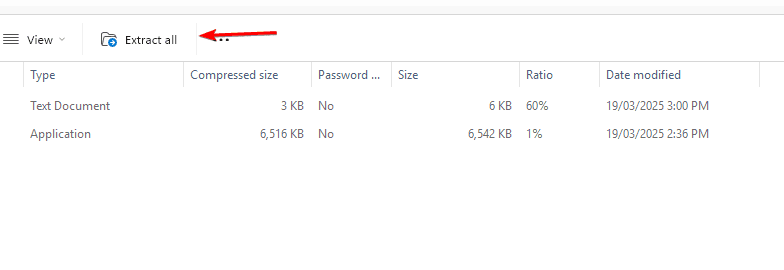
- Open the folder and locate the Shimeji-ee.jar file.
3. Install Java (If Not Installed)
Shimeji will not run unless Java is installed.
- Go to the official Java website.
- Click Download Java and run the installer.

- Follow the on-screen steps to finish installation.
4. Launch Shimeji on Your Desktop
Now start your first Shimeji character.
- Double-click Shimeji-ee.jar to launch the app.
- Watch a small animated character appear on your screen.
- If nothing happens, right-click the file and choose Open with → Java Platform SE Binary.
If you enjoy tweaking your desktop look and layout, explore this guide on desktop customization software which also works great on Windows 11.
How to Add New Shimeji Characters
1. Download Character Packs
Find and download extra characters from online communities.
- Visit fan sites like DeviantArt or a Shimeji directory.
- Search for “Shimeji characters” and download your favorites.

- Extract each downloaded ZIP file.
2. Move Character Folders to the Shimeji Directory
Place your new character in the correct folder.
- Open your main Shimeji-ee folder.
- Locate the img folder inside.
- Paste the new character’s image folder there.
3. Restart the App
Reload the program to load the new characters.
- Close and reopen the Shimeji program.
- Right-click a desktop Shimeji to switch between characters.
How to Customize Shimeji Behavior
1. Adjust Settings
Change how your Shimeji characters behave on screen.
- Right-click an active Shimeji on your desktop.
- Select Settings or Behavior.
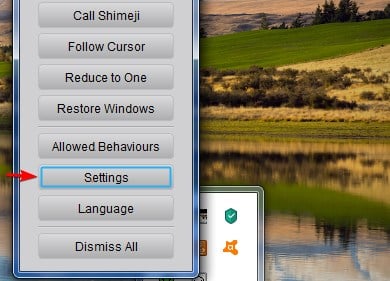
- Tune count, movement speed, and actions such as climbing or sitting.
2. Create Multiple Companions
Make your desktop livelier by adding more Shimejis.
- Open the right-click menu on any Shimeji.
- Choose Add Another Shimeji to spawn more companions.
How to Remove or Disable Shimeji
1. Exit the App
Close the program to stop the characters.
- Right-click a Shimeji character.
- Select Exit All Shimeji to close the app.
2. Delete the Folder
Remove Shimeji completely if you no longer want it installed.
- Open the folder where you extracted Shimeji.
- Delete the Shimeji-ee directory.
Why Use Shimeji on Windows 11
- Adds personality and life to your desktop.
- Offers hundreds of free fan-made characters.
- Easy to install and remove without impacting performance.
- Great for anime and gaming fans who want a custom aesthetic.
FAQs
Yes, if you download it from official or trusted sources. Avoid unofficial executables from random forums.
Yes. There are versions for those platforms, though features can differ.
No. Java is required for Shimeji to run correctly.
Yes. There are versions for those platforms, though features can differ.
Conclusion
Shimeji is a quick and entertaining way to bring your favorite characters to life on Windows 11. For deeper personalization, consider tools like StartAllBack to refine the taskbar and UI. Read more in our StartAllBack review. Whether you add a few desktop mascots or refresh your entire layout, Shimeji makes everyday computing feel more playful.

Read our disclosure page to find out how can you help Windows Report sustain the editorial team. Read more



Improve this guide




User forum
0 messages