
Fix SMBv1 File Sharing Broken Over NetBIOS on Windows 11


 2 min. read
  Updated on
Some Windows users are running into issues such as broken SMBv1 file sharing over NetBT. This guide explains the problem and shows you how to fix it quickly.
How can I fix SMBv1 Sharing Issues?
Allow Traffic on Port 445
Follow these steps to re-enable SMBv1 file sharing using TCP port 445:
- Open Windows Firewall
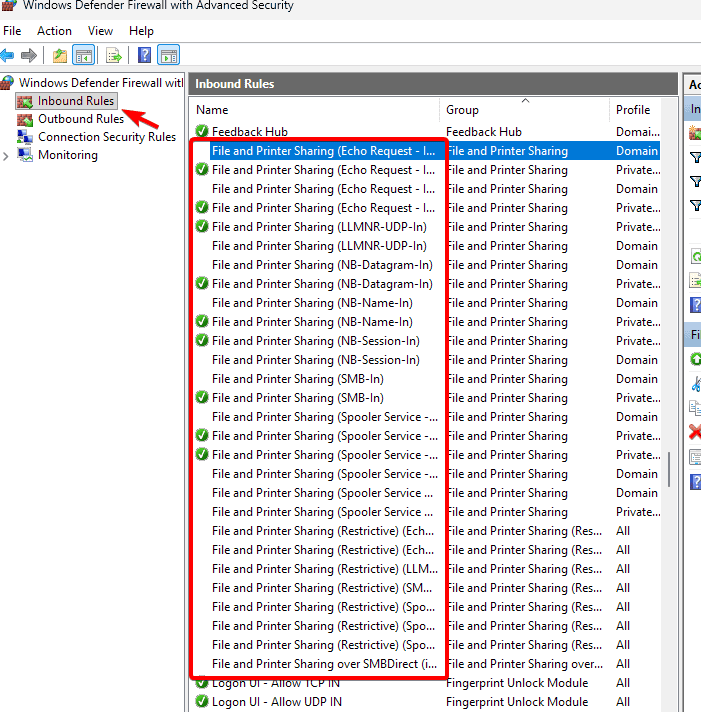
Press Windows key + S and type windows firewall. Select Windows Defender Firewall with Advanced Security.

- Check inbound rules
Check the inbound rules for File and Printer Sharing.
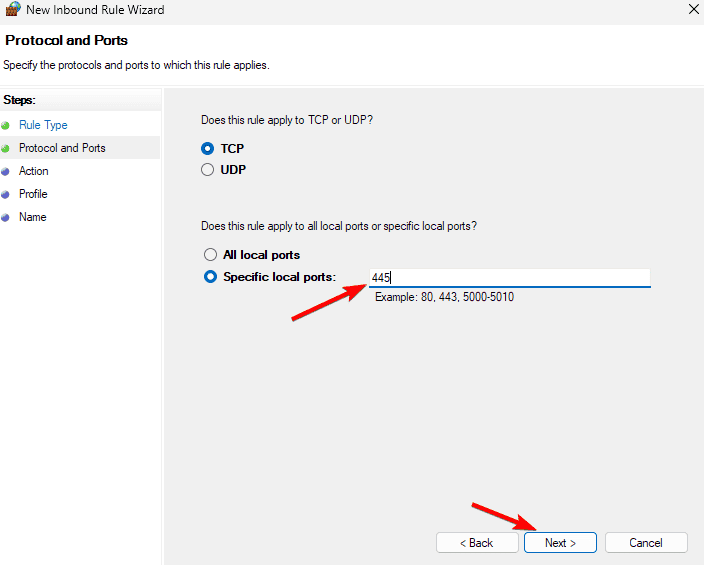
- Open port 445
Allow traffic on TCP port 445 to enable SMBv1 over TCP.
- Save changes
Apply the changes and restart the PC.
- Switch to newer version
If possible, migrate to SMBv2 or SMBv3 since SMBv1 is deprecated and disabled by default on newer Windows versions.
SMBv1 file sharing may not work properly when the connection relies on NetBT.
For more details, see how to turn off SMBv1 on your PC and why many systems now require SMB2 or higher.
We also have a guide on how to disable NetBIOS over TCP/IP, so don’t miss it.
FAQs
No. SMBv1 is considered insecure and has been deprecated. Microsoft recommends migrating to SMBv2 or SMBv3.
SMBv1 may fail when routed through NetBIOS over TCP/IP. Allowing TCP port 445 ensures it uses direct TCP instead.
Enable NetBIOS over TCP/IP in your network adapter settings and ensure port 445 is open. You can also disable SMBv1 entirely and use SMBv2 or SMBv3 for more reliable and secure file sharing.
Conclusion
Both problems are known issues under Microsoft’s radar. For SMBv1, opening port 445 or moving to SMBv2/3 resolves the sharing failure. You may also want to learn how to disable SMB signing in Windows 11 for better control of your network configuration.

Read our disclosure page to find out how can you help Windows Report sustain the editorial team. Read more



Improve this guide



User forum
0 messages