
What Is Svchost.exe And How to Fix High CPU Usage


 5 min. read
  Updated on

If you have opened Task Manager and noticed several instances of svchost.exe running, you might think your PC is infected. In most cases, this is normal behavior in Windows. However, understanding what svchost.exe does can help you troubleshoot high CPU usage or performance problems more effectively.
Table of contents
What Is Svchost.exe And How to Fix Its Issues?
What Is svchost.exe?
1. Definition
svchost.exe (Service Host) is a core Windows system process that runs background services. Instead of starting each service individually, Windows groups them together under svchost.exe to reduce memory usage and make service management more efficient.
2. Purpose
This process handles key functions such as:
- Windows Update (wuauserv)
- Windows Defender Antivirus (WinDefend)
- Themes and User Interface (Themes)
- Networking and Internet Connections (Dhcp, Dnscache)
By hosting multiple services in one process, Windows improves performance and stability. You can read more about how this works in our detailed guide on Windows Image Service (imgsvc).
Why Are There Multiple svchost.exe Processes?
1. Service Isolation
Each svchost.exe process handles different system components. For example, one may run network services, while another manages Windows Update or system themes. This design prevents one service from crashing the entire operating system.
2. Performance and Security
Separating processes increases both security and stability. If a background service fails or becomes corrupted, it will not affect others. If you see unusually high resource usage, check out this troubleshooting guide on svchost.exe high CPU usage.
How to Check What svchost.exe Is Doing
Understanding what svchost.exe is running helps you find which services may be slowing your PC.
- Press Ctrl + Shift + Esc to open Task Manager.
- Go to the Details tab.

- Locate svchost.exe entries.
- Right-click one and choose Go to Service(s).

- The related services will be highlighted in the Services tab.
Use Command Prompt
You can also use Command Prompt to see all services tied to svchost.exe.
- Press Windows + R, type cmd, and press Enter.
- Type:
tasklist /svc /fi "imagename eq svchost.exe"
- Press Enter to see all services linked to each svchost.exe.
Use the Services Console
If you want to manage services directly, open the Services Console.
- Press Windows + R, type services.msc, and press Enter.

- Match the service names you saw in Task Manager with those listed here.
How to Detect if svchost.exe Is Malware
Checking the file location and signature helps confirm if svchost.exe is legitimate or not.
1. Verify File Location
- Open Task Manager.
- Right-click an svchost.exe process and choose Open File Location.

- If the file is not located in C:\Windows\System32, it might be malicious.
2. Run Windows Defender Scan
Run a scan to rule out malware hidden behind svchost.exe.
- Press Windows + I and go to Privacy & Security > Windows Security > Virus & threat protection.
- Click Quick scan or Full scan to check for infections.

3. Use Process Explorer
Process Explorer helps verify the digital signature of each svchost.exe file.
- Download Process Explorer from Microsoft’s official site.
- Open it and hover over svchost.exe.
- Verify that the file has a valid Microsoft digital signature.
How to Reduce svchost.exe Memory Usage
If svchost.exe uses too much memory or CPU, one of the hosted services might be misbehaving. You can learn more about related bandwidth spikes by checking this guide on high network usage caused by Service Host Network Service, which helps you troubleshoot cases where background processes slow the system.
1. Disable Unnecessary Services
You can stop non-essential background services to improve performance.
- Press Windows + R, type services.msc, and press Enter.
- Double-click non-essential services such as Fax or Remote Registry.
- Change Startup type to Manual and click OK.
2. Run Windows Update Troubleshooter
This tool fixes background services that consume resources excessively.
- Go to Settings > System > Troubleshoot > Other troubleshooters.
- Find Windows Update and select Run.
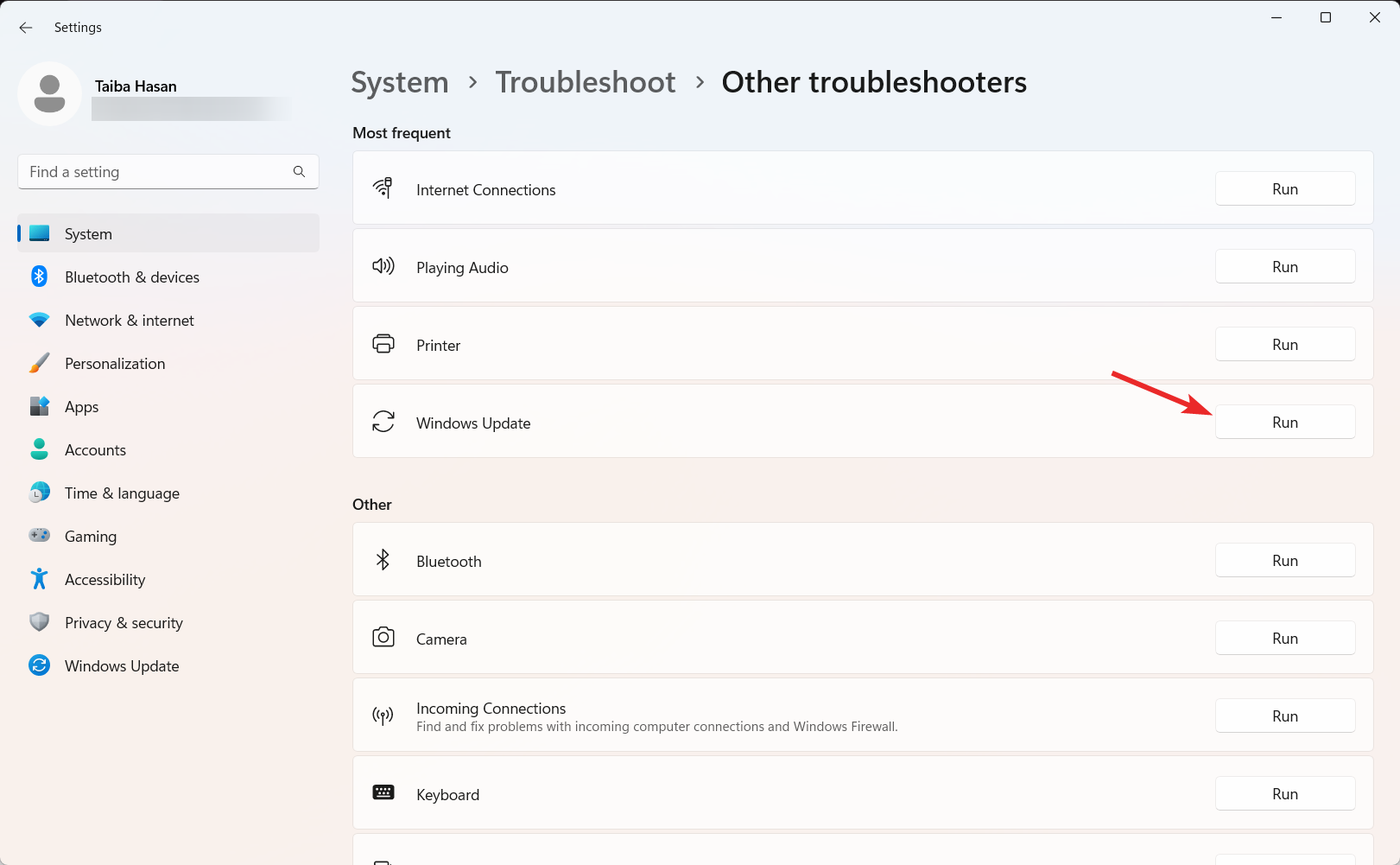
- Follow the instructions to fix service errors.
3. Restart Windows Update Components
Restarting core update services can stop svchost.exe from using high CPU.
- Open Command Prompt as Administrator.
- Enter these commands one by one:
net stop wuauserv
net stop bits
net stop cryptsvc
del %systemroot%\SoftwareDistribution /Q /S
net start wuauserv
net start bits
net start cryptsvc
You can also review this guide on svchost.exe netsvcs issues if you notice constant resource spikes tied to background Windows services.
Why It Works
Knowing how svchost.exe operates allows you to isolate and fix Windows performance problems more easily. Since this process hosts critical system functions, identifying which service is responsible for errors or CPU spikes is the key to keeping your PC stable.
FAQs
No, svchost.exe is a legitimate Windows process. However, malware can disguise itself with the same name, so it is important to verify its location.
This typically happens when a Windows service, such as Update or Superfetch, runs continuously or becomes stuck.
No. Removing or stopping it can break essential Windows functions and cause system instability.
You cannot fully stop it, but you can reduce the number of running services by disabling non-critical background tasks.
Yes, certain services running under svchost.exe, such as Windows Update or telemetry, can temporarily consume bandwidth. Disabling non-essential services can improve connection performance.
Conclusion
svchost.exe is one of the most important background components in Windows. It hosts dozens of essential services that keep your system secure and responsive. If it uses too much CPU or memory, identify which service causes the issue and apply targeted fixes to maintain a stable and efficient system.

Read our disclosure page to find out how can you help Windows Report sustain the editorial team. Read more



Improve this guide




User forum
0 messages