
How to Run System Diagnostics on Windows 11 (Step-by-Step)


 4 min. read
  Published on

The System Information (MSINFO32) tool in Windows 11 lets you analyze your PC’s hardware, drivers, and configuration without extra software. This guide will show you how to use it for complete system diagnostics.
Table of contents
How to Perform System Diagnostics?
1. Check Overall System Health
Start by viewing your system’s key components and firmware details.
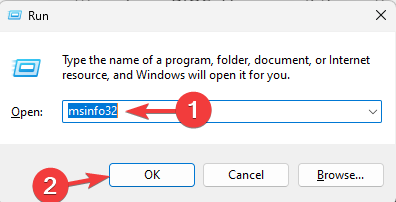
- Press Windows + R, type msinfo32, and press Enter to open the tool.
- In the left pane, select System Summary.
- Review your OS version, System Model, Processor, BIOS mode, and Installed Physical Memory.
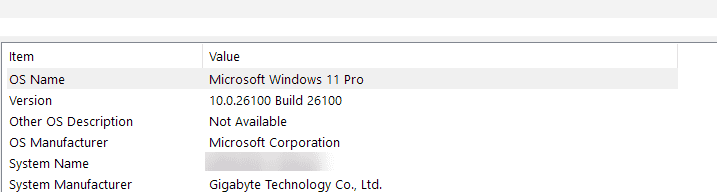
- Look for missing or unknown values that can signal hardware or firmware problems.
For background on optimizing privacy and telemetry before diagnostics, see how to disable Windows 11 telemetry.
2. Detect Hardware Conflicts
Use this section to identify devices that are competing for the same resources.
- Expand Hardware Resources on the left panel.
- Click Conflicts/Sharing to see which components share I/O or memory addresses.

- Review DMA, Forced Hardware, or Memory to spot overlapping resource usage.

- Update or relocate the conflicting device if necessary.
If you prefer an automated assistant for quick checks, read how to use MSDT on Windows 11.
3. Inspect Memory and Storage Devices
Analyze your storage and memory configuration for inconsistencies.
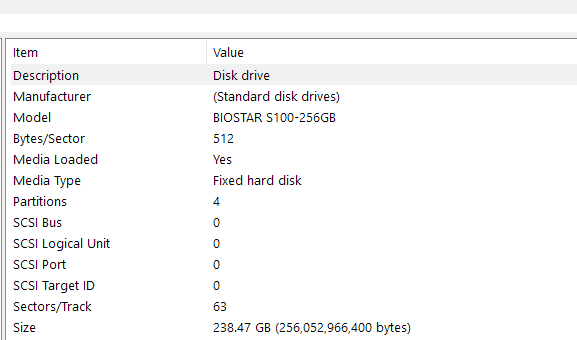
- Under Components, expand Storage and select Disks.
- Check if any drive is missing or showing incorrect capacity.
- Open Memory under Hardware Resources to confirm detected RAM modules.
- Investigate unrecognized or zero-value entries that can point to failing drives or memory.
4. Troubleshoot Display and Graphics Issues
Use this view to ensure your GPU is functioning correctly.
- Expand Components > Display.
- Verify the Adapter Name, Driver Version, and Resolution.
- If you see Microsoft Basic Display Adapter, your graphics driver may be missing.
- Reinstall or update the correct GPU driver through Device Manager.
5. Check Network and Sound Diagnostics
Network and sound issues often appear in this section.
- Expand Components > Network > Adapter to check each device’s Status.
- Confirm that entries show OK rather than errors.
- Open Components > Sound Device to inspect audio hardware and drivers.
- If no sound device appears, reinstall or update the audio driver.
6. Export a Diagnostic Report
Create a detailed record of your diagnostic results.
- In the menu bar, click File > Export.

- Choose a file name and location, then click Save.
- Optionally select File > Save to generate a full .NFO file.
- Use these reports to share details with support or track changes over time.
What Is System Diagnostics?
System diagnostics are methods for checking the condition of your computer’s hardware, drivers, and performance. They help detect the causes of crashes, slowdowns, or device failures. The System Information tool simplifies diagnostics by presenting critical data in one organized window, saving time and reducing guesswork.
To explore additional built-in options, see how to run hardware diagnostics on Windows 10.
Why Use the System Information Tool for Diagnostics?
- Provides real-time data from your hardware and drivers.
- Detects resource conflicts and driver mismatches quickly.
- Generates exportable diagnostic reports for analysis.
- Requires no installation or third-party software.
FAQs
No. It displays static data. For live monitoring, use Performance Monitor or Task Manager.
No. System Information lists all system components, while Device Manager focuses on installed hardware and drivers.
Yes. It works the same way in Windows 10 and Windows 11.
Restart your PC, check for driver updates, reseat or reconnect devices, and test hardware if errors persist.
Conclusion
Using the System Information tool for diagnostics helps you detect hardware conflicts, driver failures, and missing components quickly. Combine it with other Windows utilities when needed to keep your system healthy and running at peak performance.

Read our disclosure page to find out how can you help Windows Report sustain the editorial team. Read more



Improve this guide




User forum
0 messages