
How to Use TCP Optimizer on Windows 11 for Faster Internet


 3 min. read
  Published on
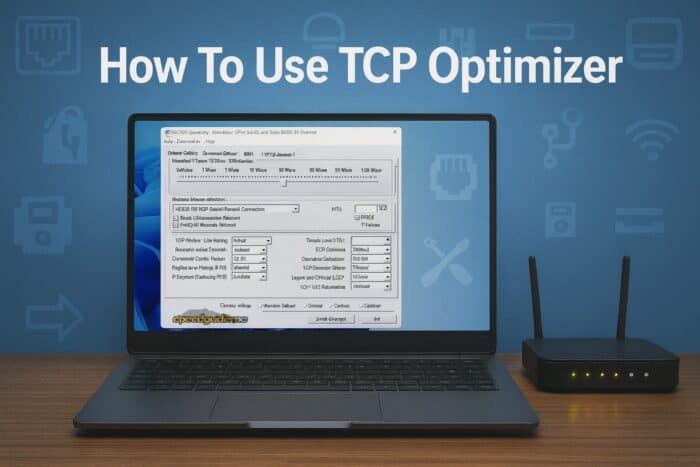
TCP Optimizer is a free tool that tunes Internet settings for better speed, lower latency, and smoother gaming or streaming. Follow these steps to download, configure, and apply the best values.
Table of contents
How do I use TCP Optimizer?
What Is TCP Optimizer?
TCP Optimizer, by SpeedGuide.net, lets you adjust advanced TCP/IP parameters like MTU, receive windows, and congestion control without editing the registry. It can help:
- Increase download and upload throughput
- Reduce ping in online games and calls
- Stabilize Wi-Fi and Ethernet connections
Tip for gamers: improving connectivity can also involve NAT changes. See how to change NAT type on PC.
How to Download TCP Optimizer?
- Open the SpeedGuide downloads page.
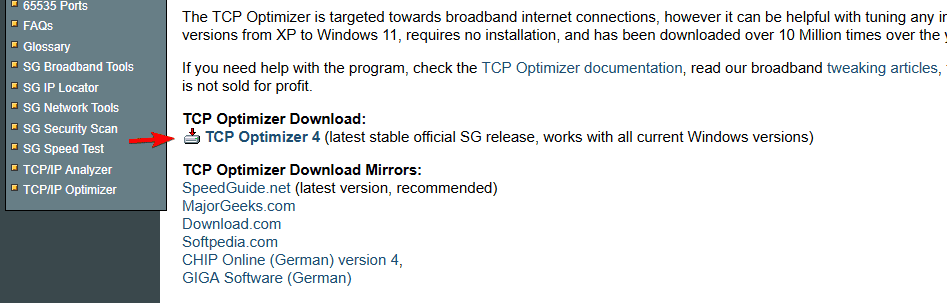
- Find TCP Optimizer and click the ZIP or EXE download.
- Save the file to your PC.
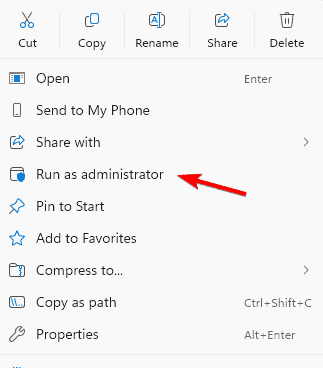
- Right-click the file and choose Run as administrator.
If performance feels off after changes, you can reset the TCP/IP stack in Windows 11 to clear network glitches.
How to Use TCP Optimizer for Best Internet Speed
Use the Optimal preset for a quick, reliable boost. Here is the exact flow:
- Select adapter: Choose your active Wi-Fi or Ethernet adapter from the dropdown.
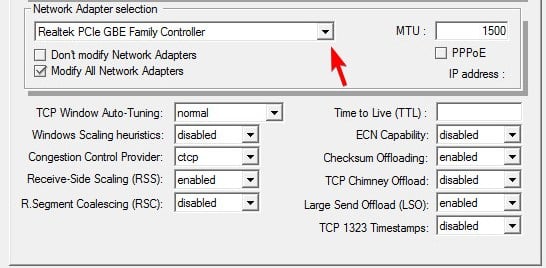
- Set connection speed: Drag the slider to match your plan’s download speed.
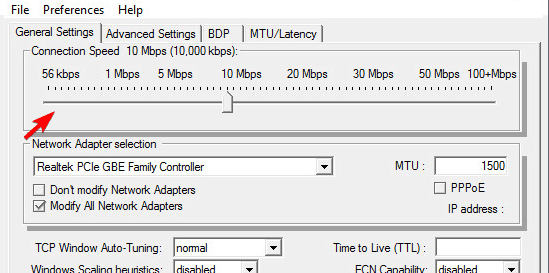
- Pick preset: Select Optimal for recommended values.
- Apply and back up: Click Apply Changes and allow a backup when prompted.
- Restart PC: Reboot to activate the new settings.
Optional: Advanced Custom Settings
If you want granular control, open Advanced Settings and review:
- MTU: Commonly 1500 for Ethernet, 1492 for PPPoE
- TCP Window Auto-Tuning: Enables dynamic receive windows
- ECN Capability: Usually off for compatibility
- QoS: Leave default unless prioritizing traffic
Made extensive tweaks and something broke? You can quickly reset the TCP/IP stack to restore defaults.
Why TCP Optimizer Helps
Windows does not always tune TCP/IP for your exact line speed and hardware. Aligning buffers, MTU, and congestion control with your plan and adapter can:
- Lower latency in games and video calls
- Improve throughput and page load times
- Stabilize flaky Wi-Fi or Ethernet links
FAQs
Yes. It is widely used and can create a backup before changes.
No. Apply settings once, then close it.
Yes. Use the built-in backup restore or choose Windows Default in the tool.
Yes. Optimizations apply to all adapters on the system.
For most users yes. Power users can fine-tune Advanced Settings, test, and keep what performs best.
Conclusion
Run TCP Optimizer as administrator, choose the Optimal preset, apply changes, and restart. Test before and after with a speed test to confirm improvements.

Read our disclosure page to find out how can you help Windows Report sustain the editorial team. Read more



Improve this guide




User forum
0 messages