
Temp Folder in Windows 11: Location, Access & Cleanup Guide


 3 min. read
  Updated on

The Temp folder in Windows 11 stores temporary files used by the system and apps. These files can accumulate and affect performance or storage. Learn where to find it, how to access it, and how to safely delete its contents.
Where is Temp Folder in Windows 11
Where Is the Temp Folder in Windows 11?
There are two main Temp folders in Windows 11:
- User Temp Folder:
C:\Users\<YourUsername>\AppData\Local\Temp - System Temp Folder:
C:\Windows\Temp
To open the user Temp folder quickly:
- Press
Win + R - Type
%temp%and pressEnter
To access the system-wide folder, you need admin rights:
- Press
Win + R - Type
C:\Windows\Tempand pressEnter
If you want to understand how this folder fits into the bigger picture, here’s a full guide on what the AppData folder in Windows is and why Windows stores user data there.
How to Access the Temp Folder in Windows 11
1. Using Run
- Press
Win + R - Type
%temp%orC:\Windows\Temp - Hit
Enter
2. Using File Explorer


- Open File Explorer
- Paste the desired path in the address bar –
%temp% - Press
Enter
3. Fix “Access Denied” Errors
If you can’t access the Temp folder, follow this guide:
👉 Windows Temp Folder Access Denied
How to Safely Delete Temp Files in Windows 11
Removing temporary files can free up space and improve performance.
Method 1: Via Settings
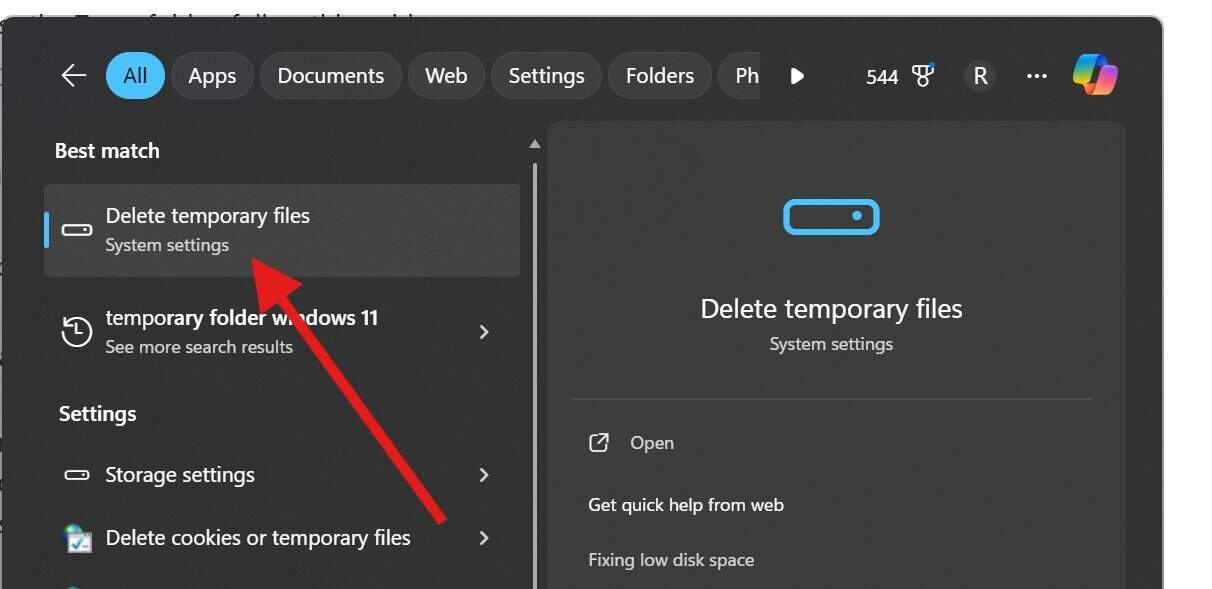
- Go to Settings > System > Storage
- Click Temporary files
- Select items and hit Remove files
Method 2: Manually from Temp Folder
- Open
%temp%orC:\Windows\Temp - Press
Ctrl + Ato select all - Press
Shift + Deleteto permanently remove them
More details here:
👉 Windows 11: Delete Temporary Files Guide
Method 3: Using Disk Cleanup
- Press
Startand search for Disk Cleanup - Select drive
C: - Check Temporary files and click OK
Why Clearing Temp Files Helps
- Frees up disk space
- Speeds up system processes
- Removes leftover data from uninstalled programs
- Can fix app crashes and bugs
FAQs
What is the purpose of the Temp folder in Windows 11?
It stores temporary data needed during installations, updates, or runtime operations.
Is it safe to delete everything in the Temp folder?
Yes. Windows won’t let you delete essential files that are in use.
Why do I get access denied to the Temp folder?
You may need administrator rights. Follow this fix: Access Denied Solution
Related articles:

Read our disclosure page to find out how can you help Windows Report sustain the editorial team. Read more



Improve this guide




User forum
0 messages