
Ubisoft Connect Not Working? Here's How to Fix Connection, Login & Launch Issues


 7 min. read
  Published on

Instead of launching your favorite Ubisoft games like Rainbow Six Siege, Assassin’s Creed, or Far Cry, you may find Ubisoft Connect stuck on “Initializing,” refusing to sign in, displaying a “Connection Lost” error, or not opening at all. Whether Ubisoft Connect isn’t launching, won’t connect to the servers, or keeps crashing on startup, these problems can prevent you from accessing your game library, cloud saves, and online features. Fortunately, the issue is usually caused by temporary server outages, corrupted launcher files, outdated software, or network configuration problems.
In this guide, we’ll explain why Ubisoft Connect is not working and walk you through the most effective fixes to get the launcher running again on Windows.
9 Proven Ways to Fix Ubisoft Connect Not Working Today
1. Restart Ubisoft Connect
If Ubisoft Connect won’t launch, freezes on startup, or displays a connection lost error, the launcher may still be running in the background. Closing every Ubisoft Connect process forces the application to start a fresh session, which often resolves temporary launcher problems without requiring more advanced troubleshooting.
- Close Ubisoft Connect completely.
- Right-click the Ubisoft Connect icon in the system tray and select Exit.
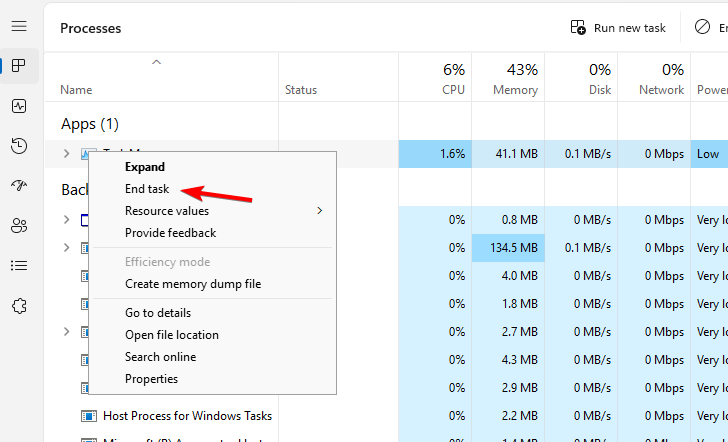
- Press Ctrl + Shift +Esc to open Task Manager.
- End any Ubisoft Connect or Ubisoft Game Launcher processes.
- Launch Ubisoft Connect again and see if the issue is resolved.
2. Check your internet connection
A poor or unstable internet connection is one of the most common reasons Ubisoft Connect is not connecting to the internet. Since the launcher relies on Ubisoft’s authentication servers, even brief network interruptions can cause login failures, connection errors, or prevent your games from syncing properly.
- Restart your modem or router.
- Switch between Wi-Fi and a wired Ethernet connection.
- Try using another internet connection or mobile hotspot.
- Change your DNS to Google DNS (8.8.8.8 / 8.8.4.4) or Cloudflare DNS (1.1.1.1 / 1.0.0.1).

- Open Ubisoft Connect again and check if the connection has been restored.
3. Run Ubisoft Connect as Administrator
Windows security settings can occasionally prevent Ubisoft Connect from accessing the files and services it needs to launch correctly. Running the launcher with administrator privileges gives it additional permissions and has helped many players resolve startup and login issues after Windows updates.
- Close Ubisoft Connect.
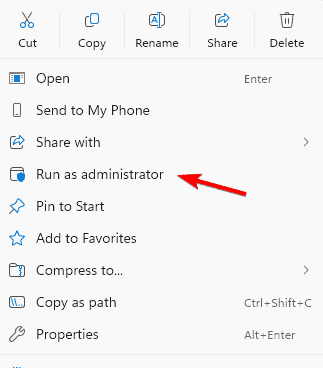
- Right-click the Ubisoft Connect shortcut.
- Select Run as administrator.
- Sign in to your Ubisoft account.
- Check whether the launcher opens normally.
4. Clear the Ubisoft Connect cache
Corrupted cache files are a frequent cause of Ubisoft Connect not working, especially if the launcher gets stuck on “Initializing,” crashes unexpectedly, or refuses to load. Clearing the cache forces Ubisoft Connect to generate fresh files the next time it starts.
- Close Ubisoft Connect completely.
- Open File Explorer.
- Navigate to:
C:\Program Files (x86)\Ubisoft\Ubisoft Game Launcher\- Locate the cache folder.
- Rename it to cache_old.
- Restart Ubisoft Connect.
The launcher will automatically create a new cache folder.
5. Update Ubisoft Connect
Running an outdated version of Ubisoft Connect can lead to login problems, authentication errors, and compatibility issues after Ubisoft releases backend updates. Installing the latest version ensures the launcher can communicate properly with Ubisoft’s servers and supports the newest game updates.
- Launch Ubisoft Connect if possible.
- Allow the launcher to download any available updates.
- Restart Ubisoft Connect after the update finishes.
- If the launcher won’t open, download the latest installer from Ubisoft’s official website.
- Try signing in again once the update is complete.
6. Verify your game files
If Ubisoft Connect opens normally but only one game refuses to launch, damaged or missing game files are the likely cause. Verifying the installation scans every game file and automatically replaces anything that’s missing or corrupted.
- Open Ubisoft Connect.
- Select the game that’s having problems.
- Click Properties.
- Choose Verify Files.
- Wait for the verification to finish before launching the game again.
7. Disable your VPN or antivirus temporarily
VPNs, antivirus programs, and firewall software can sometimes block Ubisoft Connect from reaching Ubisoft’s authentication servers. This often results in Ubisoft Connect’s connection getting lost, login failures, or services unavailable errors even though your internet connection is working normally.
- Disconnect from any active VPN.
- Temporarily disable your antivirus software.
- Turn off any third-party firewall protection.
- Launch Ubisoft Connect again.
- If the launcher works, add Ubisoft Connect to your security software’s exceptions list before re-enabling protection.
8. Check Windows Firewall settings
Windows Firewall may accidentally block Ubisoft Connect after a Windows update or security change. If the launcher cannot communicate through the firewall, you may experience Ubisoft Connect not connecting to the internet, download failures, or online services becoming unavailable.
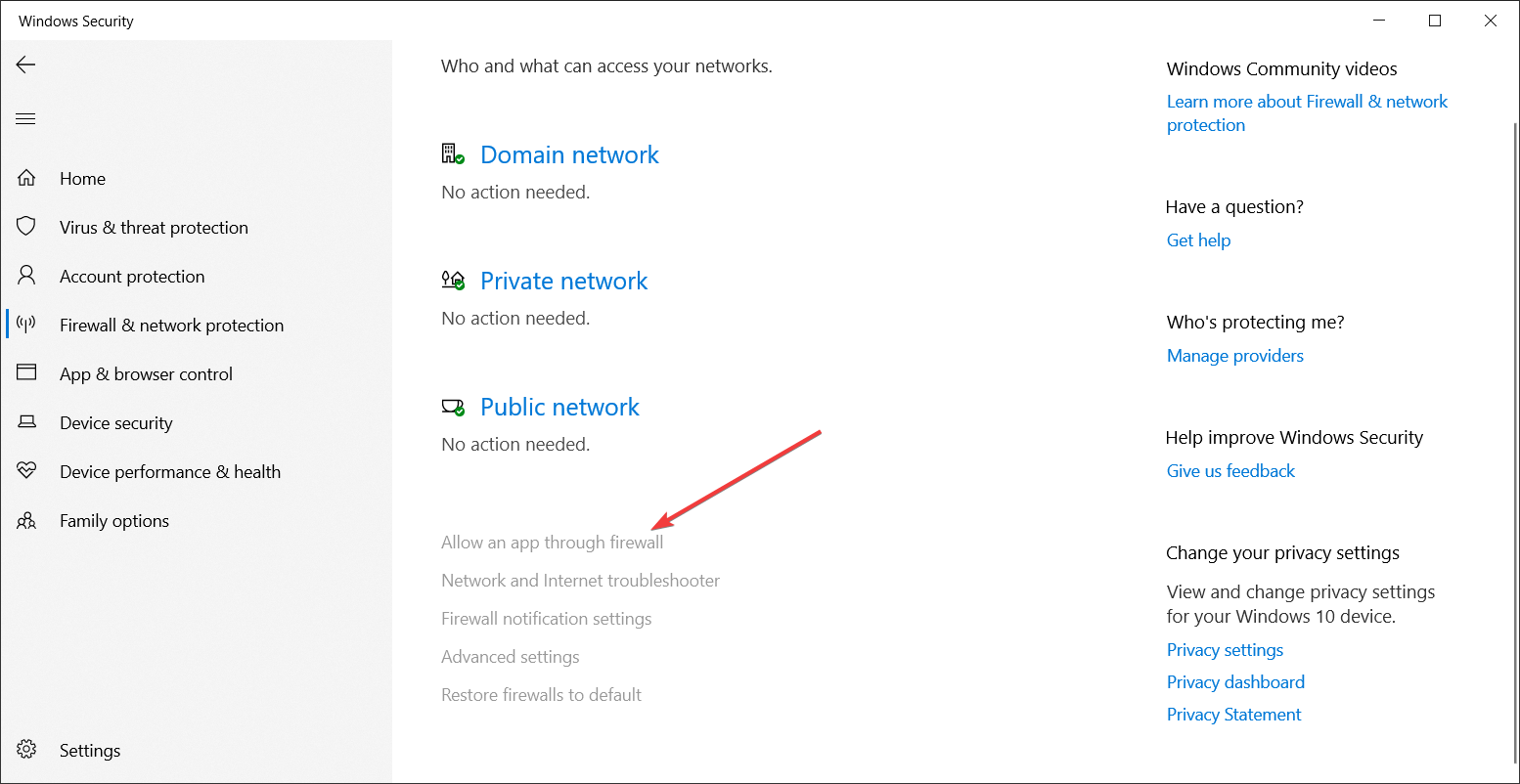
- Open Windows Security.
- Navigate to Firewall & network protection.
- Select Allow an app through firewall.
- Ensure UbisoftConnect.exe and UbisoftGameLauncher.exe are both allowed.
- Save your changes and restart Ubisoft Connect.
9. Reinstall Ubisoft Connect
If none of the fixes above resolve the problem, reinstalling Ubisoft Connect is usually the most effective solution. A clean installation replaces damaged launcher files, removes corrupted settings, and installs the latest version available from Ubisoft.
- Uninstall Ubisoft Connect from Settings > Apps.
- Restart your computer.
- Download the latest Ubisoft Connect installer from Ubisoft’s official website.
- Install the launcher using the latest version.
- Sign in to your Ubisoft account and launch your game again.
A fresh installation often fixes persistent Ubisoft Connect not working, Ubisoft Connect won’t launch, and Ubisoft Connect connection lost errors that aren’t resolved by clearing the cache or updating the launcher.
Is Ubisoft Connect down today?
Before changing anything on your PC, check whether Ubisoft is experiencing a widespread outage. Whenever the company performs maintenance or its authentication servers experience problems, Ubisoft Connect users often report:
- Connection lost issues
- Services unavailable problem
- Login failed issues
- Cloud Save sync failed error
- Friends list not loading
Checking Ubisoft’s official channels or community reports can save you a lot of troubleshooting if the issue is affecting everyone.
Common Ubisoft Connect errors and what they mean
| Error | Possible cause |
|---|---|
| Connection Lost | Internet or Ubisoft server issue |
| Services Unavailable | Ubisoft maintenance or outage |
| Login Failed | Wrong credentials or authentication server issue |
| Stuck Initializing | Corrupted cache or launcher files |
| Update Failed | Network interruption or insufficient permissions |
| Download Not Working | Server issue or disk space problem |
| Not Connecting to Internet | Firewall, VPN, DNS, or ISP issue |
That’s all we have for you now in this guide to fix Ubisoft Connect not working. If Ubisoft Connect is still giving you trouble, the problem may be more specific than a general launcher issue. Whether you’re dealing with Ubisoft Connect chat features that won’t work, login errors like Dolphin-028, missing achievements, or messages saying the Ubisoft Game Launcher can’t be found, we’ve put together dedicated guides for each of these problems. Check out the relevant article by clicking on the links.
FAQs related to Ubisoft Connect issues
1. Why does Ubisoft Connect not working today?
The launcher may be affected by Ubisoft server maintenance, authentication problems, corrupted cache files, Windows firewall settings, or a temporary internet issue. Checking Ubisoft’s server status before troubleshooting can save time.
2. Why does Ubisoft Connect say “Connection Lost”?
This usually happens when the launcher cannot communicate with Ubisoft’s authentication servers. It can also be caused by VPNs, DNS issues, or firewall restrictions.
3. Why won’t Ubisoft Connect launch on Windows?
Corrupted cache files, outdated launcher versions, missing administrator permissions, or damaged installation files are among the most common causes.
4. Why Ubisoft Connect can’t connect to the internet?
Check your firewall, disable any VPN or proxy, restart your router, and try switching to a different DNS provider. If other players are reporting the same problem, Ubisoft’s servers may be experiencing an outage.
5. Can I play Ubisoft games without Ubisoft Connect?
Most modern Ubisoft PC games require Ubisoft Connect for authentication, cloud saves, achievements, updates, and online features, even if you purchased the game through Steam or the Epic Games Store.

Read our disclosure page to find out how can you help Windows Report sustain the editorial team. Read more



Improve this guide



User forum
0 messages