
USAA App Not Working? 6 Quick Ways to Fix It


 5 min. read
  Published on
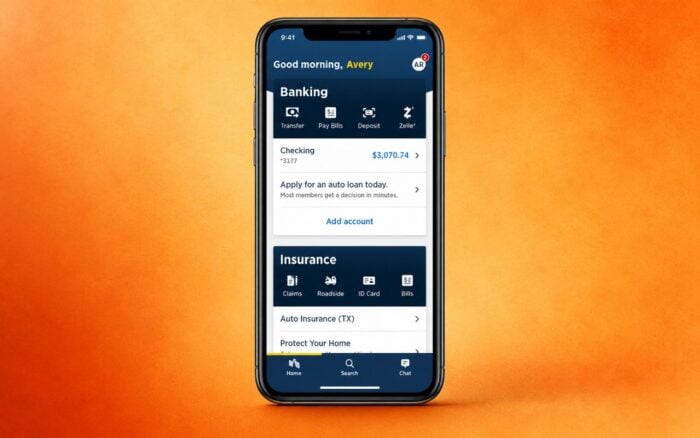
USAA app not working on your iPhone or Android device? Start by checking your connection, restarting the app, and installing any available USAA Mobile update.
If the USAA app won’t open, keeps crashing, refuses to log you in, or gets stuck loading, work through the fixes below in order.
What can I do if the USAA app is not working?
In most cases, you can fix the USAA mobile app by restarting it, changing your network connection, updating the app, or clearing corrupted temporary data.
1. Check whether USAA is having problems
Before changing anything on your phone, determine whether the problem comes from your device or USAA.
- Open a browser on your phone.
- Visit the USAA website.
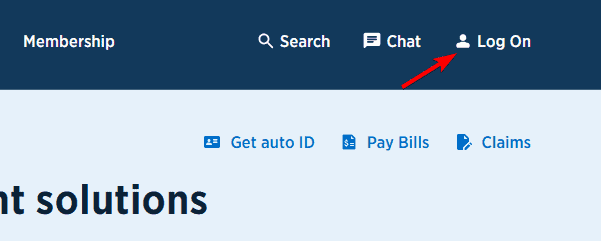
- Try signing in to your account.
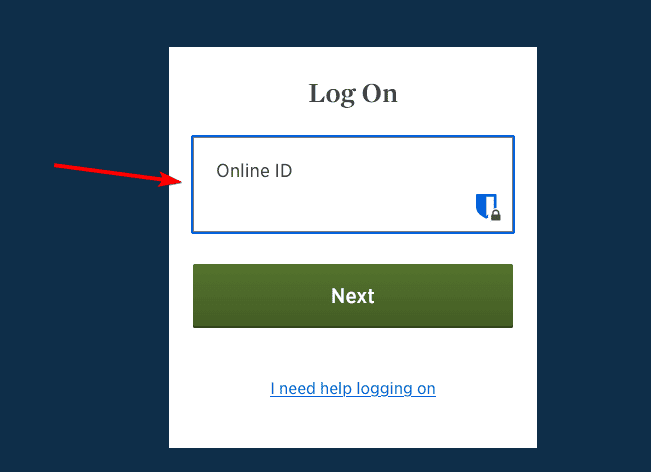
- Switch between Wi-Fi and mobile data and try again.
If the USAA website works but the app doesn’t, the problem likely affects the app or your phone.
2. Force close the USAA app and restart your phone
A temporary app process can cause the USAA app to freeze, display a blank screen, or remain stuck on the loading screen.
On Android:
- Open Settings.
- Go to Apps.
- Select USAA.
- Tap Force stop.

- Open USAA again.
On iPhone:
- Swipe up from the bottom of the screen and pause.
- Find the USAA app.
- Swipe the app upward to close it.
- Open it again.
If that doesn’t work, restart your phone. A reboot clears temporary processes and network problems that can interfere with the app.
3. Switch your internet connection
If the USAA app won’t load account information or gets stuck during login, test another network.
- Turn off Wi-Fi and use mobile data.

- Open the USAA app again.
- If that doesn’t work, reconnect to Wi-Fi.
- Enable Airplane Mode for about 10 seconds, then turn it off.
Also temporarily disconnect any VPN, private DNS service, firewall app, or aggressive ad blocker.
If USAA works on mobile data but not Wi-Fi, restart your router and test the app again.
4. Update the USAA Mobile app
An outdated installation can cause crashes, login problems, missing features, or compatibility issues after USAA changes its services.
On Android:
- Open Google Play.
- Search for USAA Mobile.
- Tap Update if one appears.
On iPhone:
- Open the App Store.
- Search for USAA Mobile.
- Tap Update.
Restart the app after installing the update.
5. Clear the USAA app cache on Android
If the USAA app keeps crashing or displays outdated information, corrupted cached files could cause the problem.
Android users can clear the cache without immediately deleting all app data.
- Open Settings.
- Select Apps.
- Tap USAA.
- Open Storage or Storage & cache.
- Tap Clear cache.
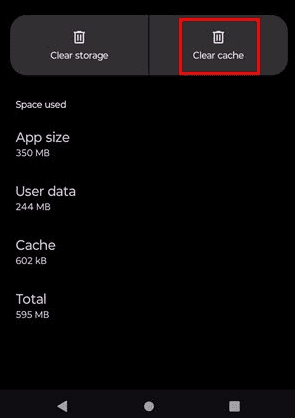
- Reopen the app.
6. Reinstall the USAA app
A damaged app installation can survive normal restarts and updates. Reinstalling USAA gives you a fresh copy of the application.
On iPhone:
- Press and hold the USAA icon.
- Select Remove App.
- Tap Delete App.
- Restart your iPhone.
- Reinstall USAA from the App Store.
On Android:
- Open Google Play.
- Find USAA Mobile.
- Tap Uninstall.
- Restart your phone.
- Install USAA Mobile again.
Reinstalling the app removes local app settings, so expect to sign in again and possibly verify your identity.
The official USAA Mobile app supports banking, insurance, transfers, bill payments, mobile check deposits, PIN login, and device biometrics.
This isn’t the only app that can experience issues, and many reported issues with both Wiz app and the HSBC app. We also have a guide on what to do if the T-Mobile app is not working.
FAQs regarding USAA app not working
Why is my USAA app not working?
Connection problems, corrupted app data, an outdated USAA version, outdated phone software, login issues, or a temporary USAA service problem can stop the app from working correctly.
Why won’t the USAA app open?
Force close the app, restart your phone, install the latest USAA update, and clear the cache if you use Android. Reinstall the app if it still won’t launch.
Why can’t I log into the USAA app?
Check your credentials by signing in through the USAA website. If they don’t work there either, use USAA’s Online ID recovery or password reset options.
Is the USAA app down?
If both the USAA app and website stop working across different internet connections, the issue may affect USAA’s services. Check USAA’s official support channels before changing account or device settings.
Does reinstalling the USAA app delete my account?
No. Reinstalling the mobile app doesn’t delete your USAA account, but it removes locally stored app settings and requires you to sign in again.
What should I do if nothing fixes the USAA app?
Try logging in through the USAA website from a trusted browser. If your account works there but the mobile app still fails after an update and reinstall, contact USAA support and describe the exact error message, your phone model, operating system version, and when the problem started.
Avoid sharing your password, PIN, verification codes, or other sensitive banking credentials with anyone offering unofficial technical support.

Read our disclosure page to find out how can you help Windows Report sustain the editorial team. Read more



Improve this guide



User forum
0 messages