
How to Use User Profile Wizard to Migrate Windows Profiles


 3 min. read
  Published on
User Profile Wizard is a powerful tool that lets you migrate user profiles from one Windows domain or computer to another without losing settings or data. This guide explains how to use User Profile Wizard safely and effectively.
Table of contents
How to Use User Profile Wizard on Windows?
What Is User Profile Wizard?
User Profile Wizard is a Windows migration utility developed by ForensiT. It helps you transfer your existing user profile to a new domain, PC, or Windows installation while preserving files, desktop settings, and app configurations. It’s commonly used by IT admins during domain migrations, system upgrades, or when moving users to a new machine.
If you’re switching between Windows 7 and Windows 10, read this guide on how to migrate your user profile between Windows 7 and Windows 10.
How to Download and Install User Profile Wizard
- Go to the official ForensiT User Profile Wizard page.
- Click on Download User Profile Wizard.
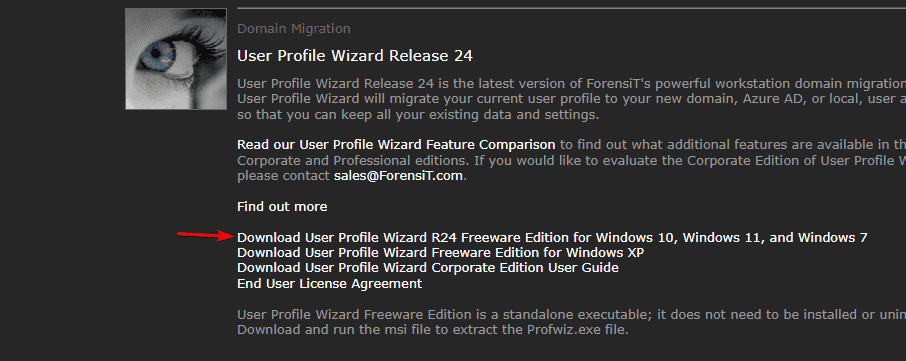
- Save the ZIP file to your computer and extract it.
- Open the extracted folder and double-click Profwiz.exe to launch the setup.
- Follow the on-screen instructions to complete installation.
Once installed, you can start migrating your user profile immediately. For creating new profiles, see how to copy a Windows 11 profile to a new user account.
How to Migrate a User Profile with User Profile Wizard
- Launch User Profile Wizard as an administrator.
- On the Welcome screen, click Next.
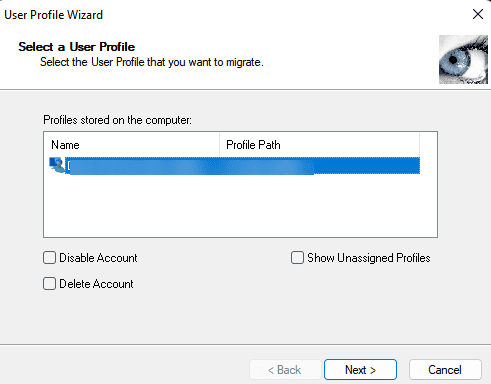
- Select the user profile you want to migrate from the list.
- Enter the new domain name or local account you’re transferring to.
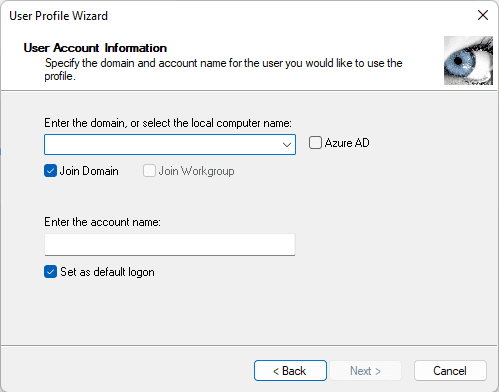
- Click Next to begin the migration process.
- Wait for the wizard to complete the transfer.

- When prompted, restart your PC and log in with the new domain account.
After restarting, your previous desktop settings, browser data, and documents should all remain intact.
How to Verify the Migration Worked
- Log in to the new account or domain.
- Open File Explorer and check that your Documents, Downloads, and Desktop folders are still there.
- Launch your apps to confirm that settings are preserved.
- Check C:\Users to ensure the new user folder matches your migrated profile.
If any files appear missing, you can safely copy them from the old profile folder before deleting it.
Why Use User Profile Wizard
- Saves hours of manual reconfiguration
- Preserves user settings and permissions
- Ideal for IT domain migrations and new device setups
- Works on Windows 10 and Windows 11
If you prefer Microsoft’s built-in migration tools for legacy setups, learn about Windows Easy Transfer.
FAQs
Yes, the standard edition is free for personal and basic commercial use. Enterprise editions offer advanced automation.
Yes, it fully supports Windows 11, Windows 10, and Windows Server environments.
Yes. You can migrate profiles between machines in the same network or domain.
The old profile remains on the system until you delete it manually. This lets you double-check that all files have transferred correctly before removing it.
Conclusion
User Profile Wizard is a simple yet powerful tool for Windows administrators and regular users alike. It ensures smooth profile transfers without data loss or reconfiguration. Whether you’re upgrading hardware, moving between Windows versions, or switching domains, this utility helps you save time and maintain a seamless Windows experience.

Read our disclosure page to find out how can you help Windows Report sustain the editorial team. Read more



Improve this guide

User forum
0 messages