
What Are Runtime Errors and How to Fix Them Fast


 5 min. read
  Published on

Runtime errors occur while a program is running and can cause crashes or unexpected behavior after the program starts, so it’s important to know how to fix them properly, and this guide will tell you all you need to know.
Table of contents
- How to Fix Runtime Errors?
- 1. Restart Your Computer
- 2. Update the Application
- 3. Run the Program as Administrator
- 4. Reinstall Microsoft Visual C++ Redistributables
- 5. Run System File Checker
- 6. Scan for Malware
- 7. Reinstall the Application
- Why Runtime Errors Happen
- How Developers Prevent Runtime Errors
- What Is a Runtime Error?
- Common Causes of Runtime Errors
- FAQs
- Conclusion
How to Fix Runtime Errors?
1. Restart Your Computer
Restarting clears temporary glitches and memory conflicts that can trigger runtime errors.
- Save your work and close all apps.
- Open Start, select Power, choose Restart.
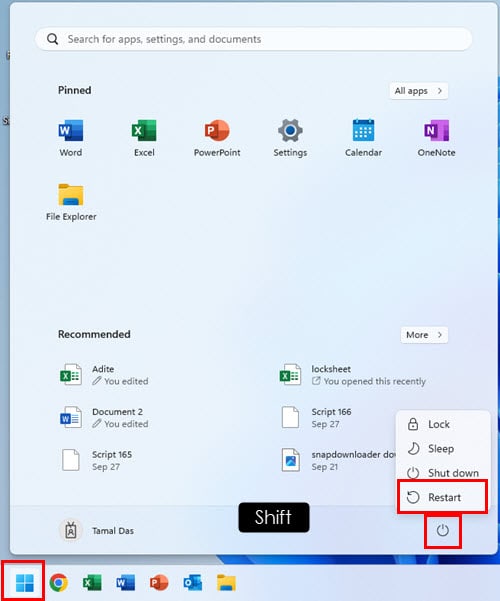
- Reopen the app and retry the action that failed.
2. Update the Application
Installing the latest version fixes known bugs that may cause runtime failures.
- Open the app and check Help or Settings for update options.
- Install the newest patch or version.
- Relaunch the app and test again.
3. Run the Program as Administrator
Some features require elevated rights to access protected files or system APIs.
- Right click the app shortcut and select Properties.

- Open the Compatibility tab.
- Check Run this program as an administrator and click OK.

- Start the app and retry the task.
4. Reinstall Microsoft Visual C++ Redistributables
Missing or corrupted runtime libraries often lead to component load failures.
- Open Control Panel and select Programs and Features.

- Uninstall outdated Microsoft Visual C++ Redistributables.
- Download the latest x86 and x64 packages from Microsoft.
- Install both, restart Windows, and test the app.
5. Run System File Checker
SFC repairs corrupted Windows files that can break apps at runtime.
- Press Start, type cmd, right click Command Prompt, choose Run as administrator.
- Enter sfc /scannow and press Enter.
- Wait for verification and apply suggested fixes.
- Restart the PC and try again.
6. Scan for Malware
Malicious processes interfere with execution and can trigger runtime crashes.
- Open Windows Security and select Virus and threat protection.
- Click Scan options and choose Full scan.
- Remove detected threats and restart.
- Test the affected app again.
If the error mentions RuntimeBroker.exe, see this guide to fix the RuntimeBroker.exe error in Windows 10.
7. Reinstall the Application
A clean reinstall restores missing files and resets broken configurations.
- Open Settings and go to Apps then Installed apps.
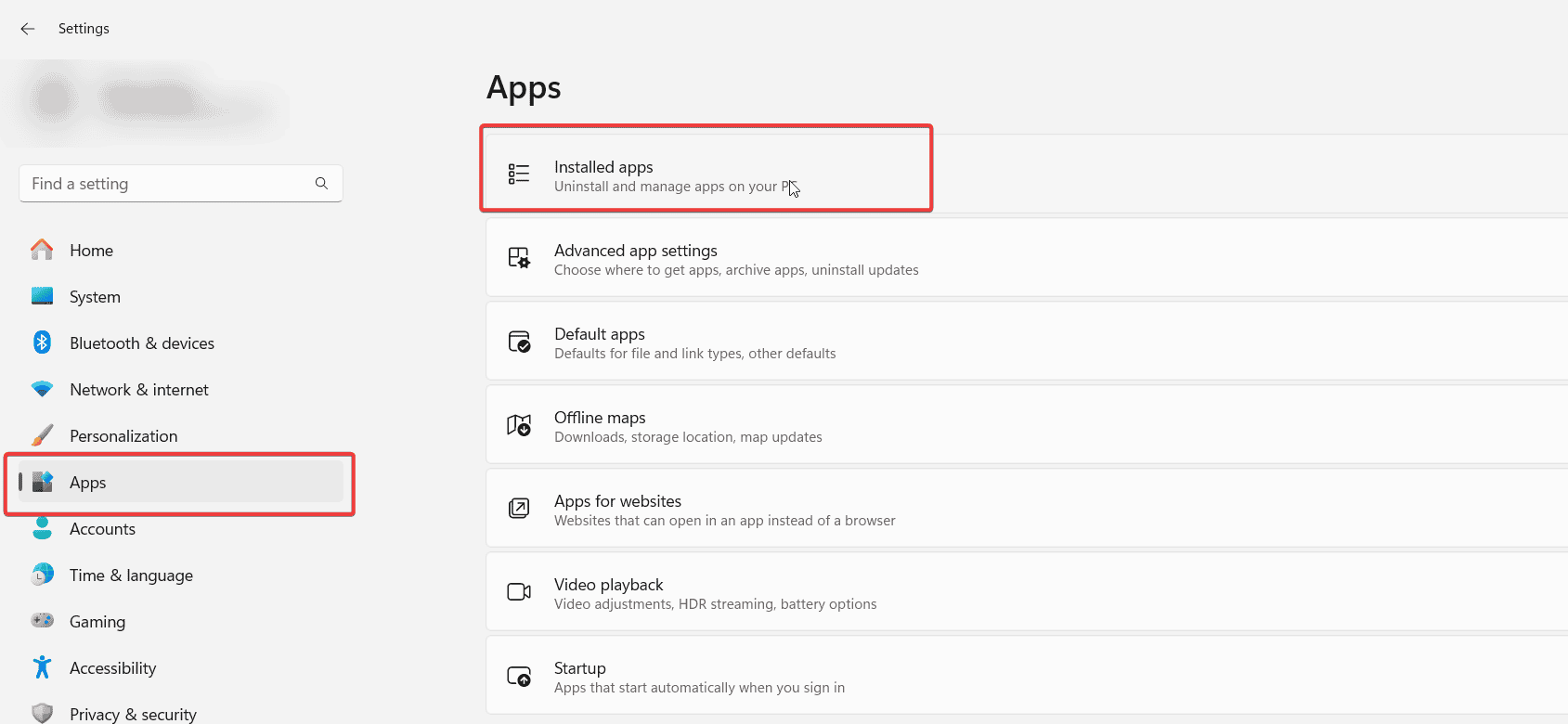
- Uninstall the problematic program and restart Windows.
- Download the latest installer from the official source.
- Install and verify the error is resolved.
If the issue involves procedure calls, this guide helps with the runtime error could not call proc.
Why Runtime Errors Happen
Runtime errors surface when real world constraints like missing dependencies or hardware limits collide with assumptions in the code.
They expose gaps between expected execution paths and the actual state of your device, data, and environment.
How Developers Prevent Runtime Errors
Engineers reduce failures by validating inputs and handling exceptions around risky operations.
- Use try and catch blocks to fail gracefully.
- Validate user input before processing.
- Test across hardware and OS versions.
- Monitor memory and CPU to avoid resource exhaustion.
What Is a Runtime Error?
A runtime error happens when a program encounters an unexpected condition during execution. The app compiles correctly but fails while running due to issues like missing files, invalid input, or resource limits.
- Division by zero in a calculation
- Missing file or incorrect path
- Null reference from an uninitialized variable
- Out of memory during heavy processing
For related Windows troubleshooting, see how to fix Microsoft Visual C++ runtime errors.
Common Causes of Runtime Errors
Most runtime errors involve missing resources, bad data, or software conflicts between versions and components.
- Invalid Input Data – When the user provides data that the program cannot process, such as letters instead of numbers.
- Missing Files or Libraries – The software depends on resources that are not present at runtime.
- Insufficient Memory – The system runs out of RAM or virtual memory during execution.
- Access Violations – The program tries to read or write memory it does not own.
- Software Bugs or Logic Errors – Code paths trigger failures only under certain conditions.
- Version Conflicts – Mismatched app, driver, or runtime versions cause crashes.
- Network Timeouts – Unreliable connections interrupt file or API requests.
FAQs
Syntax errors stop compilation; runtime errors occur while the program runs.
They usually crash only the app, but malware related issues can affect system stability.
Examples include Runtime Error 7 Out of Memory, Runtime Error 91 Object Variable Not Set, and Runtime Error 429 ActiveX Component Cannot Create Object.
Check the dialog for the process or module, review Event Viewer under Windows Logs Application, and enable app logging to capture failing DLLs.
Conclusion
With the right steps, most runtime errors are easy to diagnose and fix. Update software, repair system files, and reinstall components to keep apps stable.

Read our disclosure page to find out how can you help Windows Report sustain the editorial team. Read more



Improve this guide

User forum
0 messages