
YouTube Autotranslate Not Working: Quick Fixes


 3 min. read
  Updated on
If YouTube autotranslate is not working, it can be annoying when you are trying to watch videos in another language. These solutions can help you fix the problem quickly.
What to do if YouTube autotranslate is not working?
Table of contents
1. Enable auto translate in YouTube settings
- Play the YouTube video you want to watch.
- Click the gear icon (Settings) in the video player.
- Select Subtitles/CC.
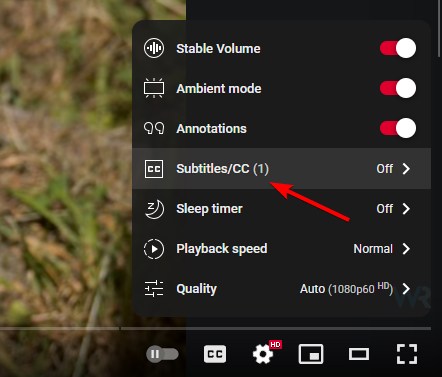
- Choose Auto translate from the menu.
- Pick your preferred language.
If you use Microsoft Edge, our guide on how to enable video translation in YouTube can walk you through the steps.
2. Clear browser cache and cookies
- Open your browser’s settings.
- Go to Privacy & Security or History.
- Select Clear browsing data.
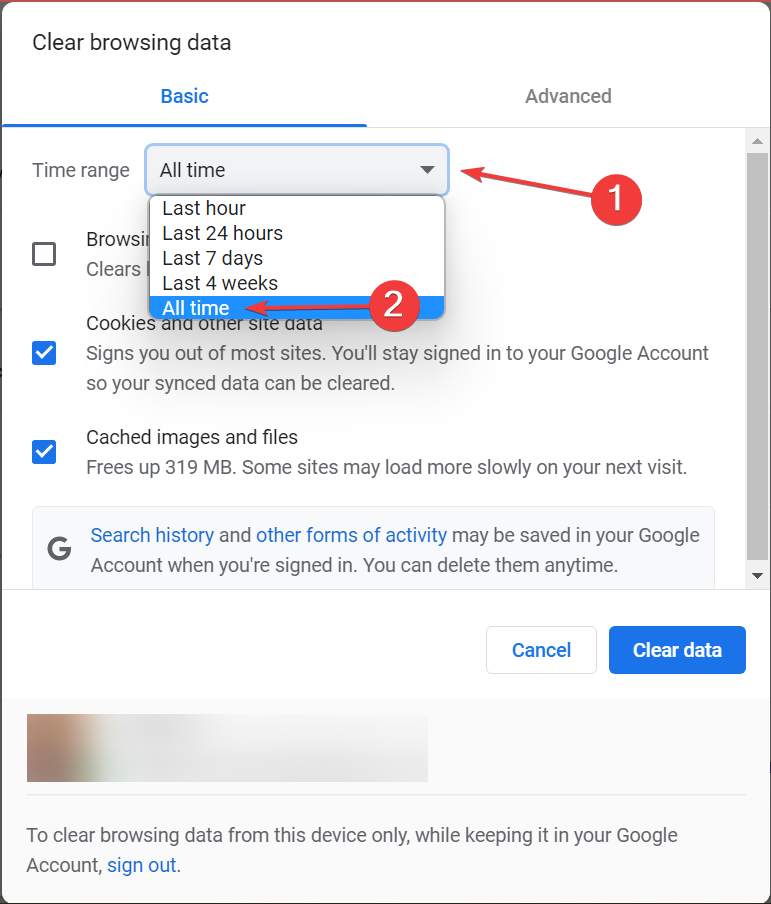
- Check Cached images and files and Cookies and site data.
- Restart your browser and try YouTube again.
3. Verify subtitle availability
- Click the CC button under the YouTube video.
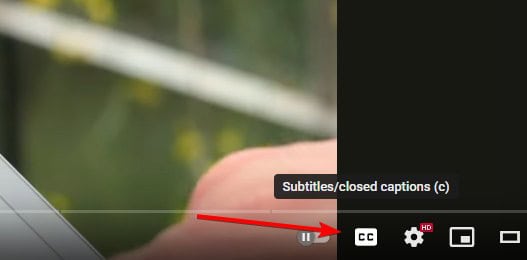
- Check if captions are available.
- If captions exist, open Settings > Subtitles/CC > Auto translate.
- Pick the language you want.
- If no captions appear, the video may not support autotranslation.
We also covered what to do if you get the YouTube download error loading captions, which is closely related to missing subtitles.
4. Change the video audio language
- Open the video and select the Settings gear icon.
- Look for Audio track (if multiple languages are available).
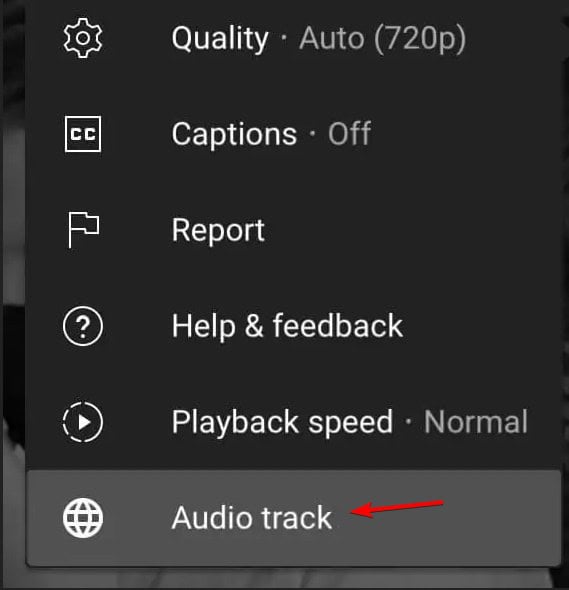
- Select the language you prefer.
- Enable Subtitles/CC if you also need captions.
- Reload the video and check if the translation is working.
5. Try another browser or update the app
- Close the current YouTube tab or app.
- Update your browser or the YouTube app to the latest version.
- Disable any extensions that may block scripts or interfere with video playback.
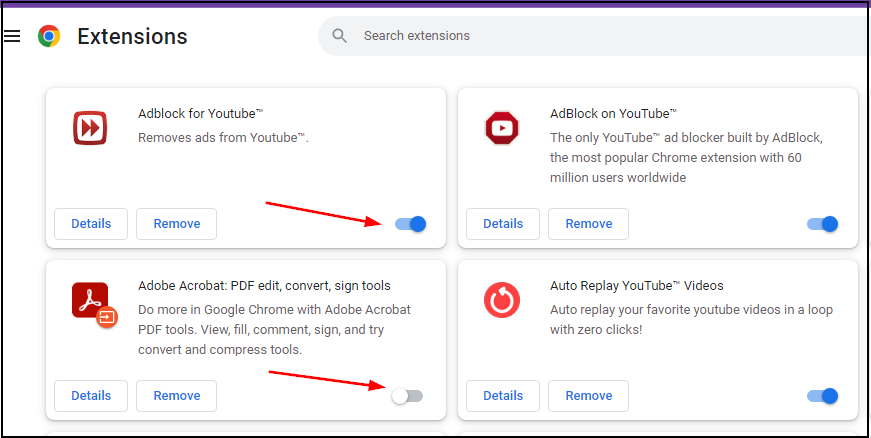
- Try opening YouTube in another browser such as Chrome, Edge, or Firefox.
- Test the autotranslate feature again.
Using a Nintendo Switch 2 and still experiencing YouTube issues? Check our dedicated guide here: YouTube Not Working on Switch 2.
FAQs
Because the video may not have captions enabled, the auto translate option will not appear.
You cannot force it on videos without captions, but you can enable automatic captions if YouTube supports them.
No, some smart TVs or older app versions may not support the feature. Try updating your app or using another device.
If the issue continues, it may be a wider YouTube problem. Waiting for an update or checking online resources can help.
These fixes should help you resolve the issue when YouTube autotranslate is not working. By enabling auto translate, clearing cache, checking for available captions, and keeping your browser or app updated, you can usually get translations working again without much trouble.
If the issue still persists, you may want to try changing the video’s language track. We also explained in detail how to change the audio language on YouTube, which can be a useful workaround when autotranslate fails.

Read our disclosure page to find out how can you help Windows Report sustain the editorial team. Read more



Improve this guide




User forum
1 messages