
2K26 Theater not Working: 12 quick fixes


 4 min. read
  Published on
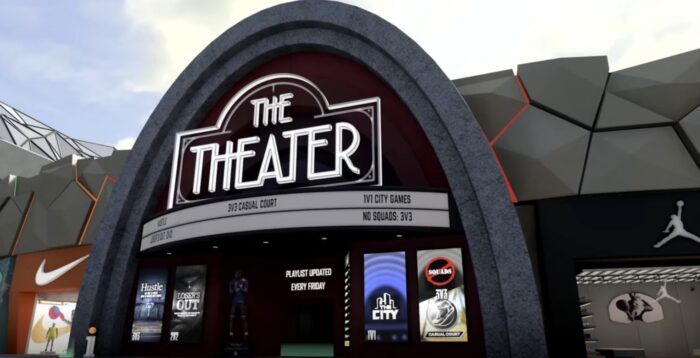
2K26 theater not working, stuck on “Searching for players,” or booting you back to The City? This guide gives fast, low-friction fixes that restore matchmaking. Follow the steps in order—most issues are version mismatch, privacy/crossplay limits, or stale cache.
Before you start
- Confirm you’re on the latest title update on all devices in your squad.
- Restart the game completely (quit to dashboard) and power-cycle your console/PC.
- Avoid VPNs/overlays while testing (Discord, GPU panels).
- If you mix platforms, temporarily enable crossplay for everyone.
1) Check playlist & region alignment
Make sure your whole squad selects the same Theater playlist, server region, and difficulty. Mixed regions or rotating playlists can block entry.
2) Verify updates for everyone
All players must run the same build. Open your platform’s “Check for updates,” patch, then relaunch the game (not Resume/Quick Resume).
3) Toggle crossplay and privacy
Go to Settings → Online/Privacy and allow cross-network play, party invites, and messages. Mixed-platform parties often fail when crossplay is off or privacy is too strict. If crossplay keeps flaking, see our focused guide: 2K26 crossplay not working. Windows Report
4) Rebuild the party from inside Theater
Have one host walk into Theater, create the lobby from that screen, then invite squadmates. Rebuild parties fresh instead of reusing old ones.
5) Refresh identity & friends presence
Sign out/in of your 2K account and your PSN/Xbox/Steam/Epic profile, then open the in-game friends tab for 60–90 seconds to resync presence. If friends don’t appear or invites fail, work through: 2K26 friends list not working. Windows Report
6) Clear cache / reserved space (platform-specific)
Fully shut down your console (not rest mode) and unplug 30 seconds; on PC, exit the launcher and clear temporary cache folders. Relaunch and retry Theater.
7) Improve NAT and router rules
Aim for Open/Moderate NAT. Enable UPnP on your router, reboot it, and avoid double-NAT (bridge ISP modem if needed). Test again without VPN.
8) Try a different route into Theater
Walk in solo first, then invite people from the Theater screen; or join a teammate already inside via a direct join. Avoid crowded hub entrances during peak hours.
9) Match platform features
Disable platform-level “Appear Offline/Do Not Disturb,” allow party chat/joins from “Friends (or friends of friends),” and remove any parental/child limitations temporarily.
10) Verify/repair game files (PC)
On Steam/Epic, run “Verify integrity/Repair.” Corrupted assets can stall matchmaking handshakes. Relaunch and retry Theater after the check completes.
11) Remove conflicting overlays & background apps
Close Discord overlay, GPU overlays, browser game bars, or capture tools. Overlays can interfere with network handshakes and party invites.
12) Reinstall the companion app (if used) and re-link
If you use the app for party discovery or face features, reinstall it, log in with the same 2K account, and wait 2–5 minutes for sync. For camera imports and scan sync, use: 2K26 face scan not working. Windows Report
Tips
- Queue at off-peak times or switch to a less busy Theater playlist to avoid “looping” lobbies.
- Keep platform display names consistent so teammates can find/join faster.
- If one user keeps failing, have them host—you only need one stable route for the squad.
FAQs
Why does Theater keep returning me to The City?
Usually a version or privacy mismatch. Update all players, enable crossplay, then rebuild the lobby from the Theater screen.
Does crossplay work in Theater?
Yes, but strict privacy or disabled cross-network settings break mixed-platform squads. Enable crossplay and rebuild parties from inside Theater. See 2K26 crossplay not working for detailed checks. Windows Report
My friends appear offline even though they’re in The City.
Presence desync is common—re-auth 2K + platform accounts, wait on the friends tab for a minute, and clear cache/reserved space if needed. Use the steps in 2K26 friends list not working. Windows Report
Summary
- Align playlist/region for the entire squad.
- Update everyone to the same game build; relaunch.
- Enable crossplay and relax privacy/invite settings.
- Rebuild the party from inside Theater.
- Re-auth 2K + platform accounts; refresh presence.
- Clear cache/reserved space; power-cycle devices.
- Open NAT/enable UPnP; avoid VPNs/overlays.
- Verify/repair game files (PC).
- Reinstall companion app and re-link if used.
Conclusion
Most “2K26 theater not working” cases come down to mismatched versions, privacy/crossplay blocks, or stale cache/network paths. Work top-down—update, enable cross-network play, rebuild parties from Theater, and clean your cache/NAT—to jump back into matches quickly.

Read our disclosure page to find out how can you help Windows Report sustain the editorial team. Read more



Improve this guide


User forum
0 messages