
Boost Productivity: Connect 3 Monitors to Your Laptop Today


 4 min. read
  Published on

Using 3 monitors on a laptop can transform your workspace. This quick guide explains everything from checking compatibility to fixing detection issues.
Table of contents
How to Connect 3 Monitors to a Laptop?
1. Check Laptop and GPU Support
Before connecting any screens, make sure your laptop’s graphics hardware can handle three displays.
- Press Windows + R, type dxdiag, and press Enter.
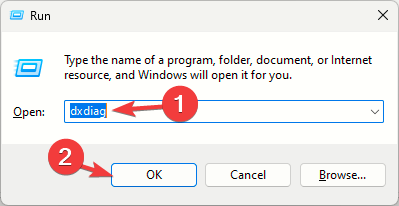
- Open the Display tab to see your GPU model.

- Search online for your GPU specs to confirm the maximum supported displays.
- If you plan to use a dock, verify its output limits too.
Instead of a monitor, you can use a TV, and we have a guide on how to fit your laptop screen to a TV using HDMI that might help you.
2. Identify the Available Ports
Knowing your output ports helps you choose the right adapters.
- Examine the sides or back of your laptop for HDMI, DisplayPort, Mini DP, USB-C, or Thunderbolt ports.
- Note which ones support video output.
- If there are not enough ports, plan for a USB-C hub, Thunderbolt dock, or DisplayLink adapter.
If you want to have a presentation on a big screen, we have a great guide on how to clone your desktop on multiple monitors that can help you.
3. Connect the Monitors
Prepare your hardware before turning everything on.
- Power off the laptop.
- Plug the first monitor into HDMI or DisplayPort.
- Connect the second and third monitors through a dock or DisplayLink adapter.
- Turn on the laptop and monitors.
4. Configure Display Settings
Once all displays are detected, extend your workspace.
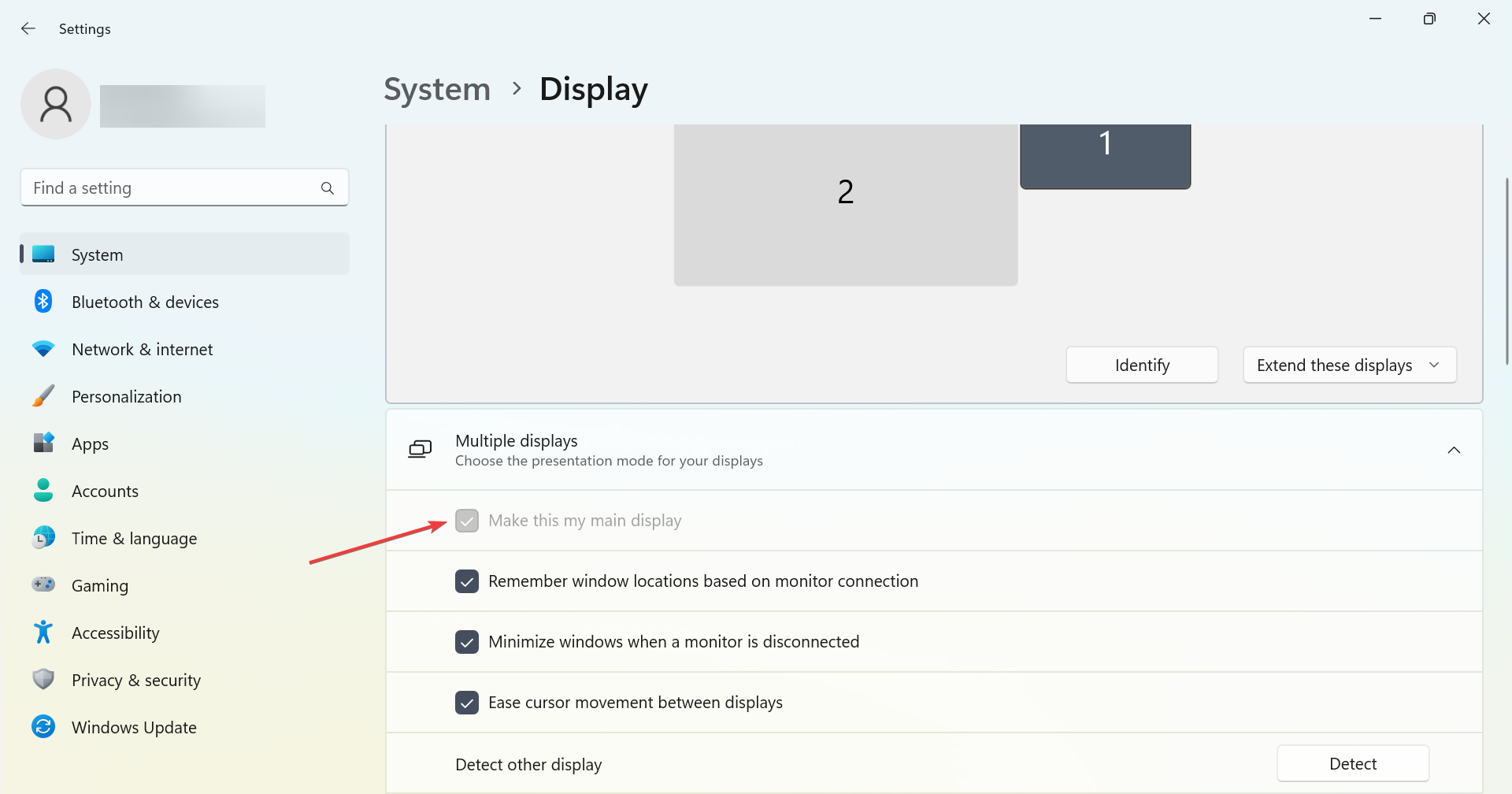
- Right-click the desktop and choose Display settings.

- Click Detect if any screen is missing.
- Drag monitors to match their real-world arrangement.
- Choose Extend these displays.
- Select your main screen and check Make this my main display.
You can also use your laptop as a second monitor, and we have a great guide that will show you how to do that.
5. Adjust Resolution and Scaling
Fine-tune display clarity for consistent text and icons.
- In Display settings, select each monitor.
- Under Scale & layout, pick the recommended resolution.
- Adjust scaling (100%, 125%, or 150%) for comfortable reading.
- Click Apply to save changes.
6. Troubleshoot Display Detection Issues
If a monitor is not recognized, follow these quick fixes.
- Reseat or replace cables and check each port.
- Try alternate cables or ports.
- Update GPU drivers via Device Manager > Display adapters > Update driver.
- Restart your laptop after updates.
- Install the latest firmware or DisplayLink drivers for docks.
Why Use 3 Monitors with a Laptop
A triple-display setup helps you work in multiple apps at once, compare data side by side, and expand visibility for editing or gaming tasks.
FAQs
Yes, if your GPU and ports support three displays. You may need a dock or DisplayLink adapter.
Only if your integrated graphics support fewer than three displays or you need extra performance.
Check cables, update drivers, and use the Detect option in Display settings.
Yes. Go to Control Panel > Power Options > Choose what closing the lid does, then set it to Do nothing while plugged in.
Yes, running more displays can tax the GPU and CPU. Lower resolutions, reduce refresh rates, or close background apps if performance drops.
Conclusion
Connecting 3 monitors to a laptop is straightforward once you confirm compatibility, choose the right dock or adapter, and configure Windows display settings. With a clean layout and tuned scaling, you can work faster across a wider workspace.

Read our disclosure page to find out how can you help Windows Report sustain the editorial team. Read more



Improve this guide


User forum
0 messages