
How to Fix Windows 11 Update and Restart Not Working
Restart critical services for seamless updates


 3 min. read
  Updated on

Once in a while, when you’re done with your tasks and want to shut down your PC, you’ll get the option to update and restart. However, an issue may arise during the restart process and it may be stuck in a loop.
This can happen if the update fails or some update files are missing or have a problem. When there’s a corrupt update, there will be pending updates that prevent your device from restarting. The Windows Update service may also be having problems hence why the update and restart are unsuccessful.
How do I fix Windows 11 update and restart not working?
If Windows won’t start normally, you may have to force a restart or enter into Safe Mode to perform these steps.
1. Run the Windows Update Troubleshooter
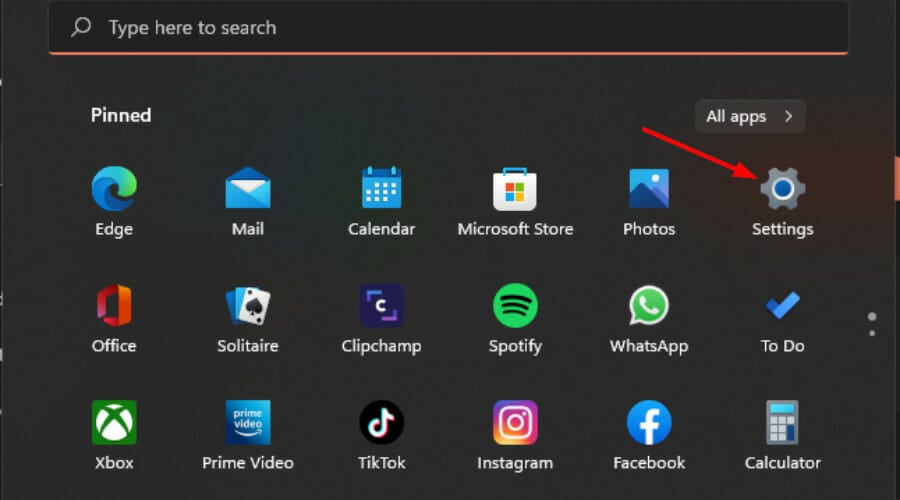
- Press the Windows + I keys simultaneously to open the Settings app.
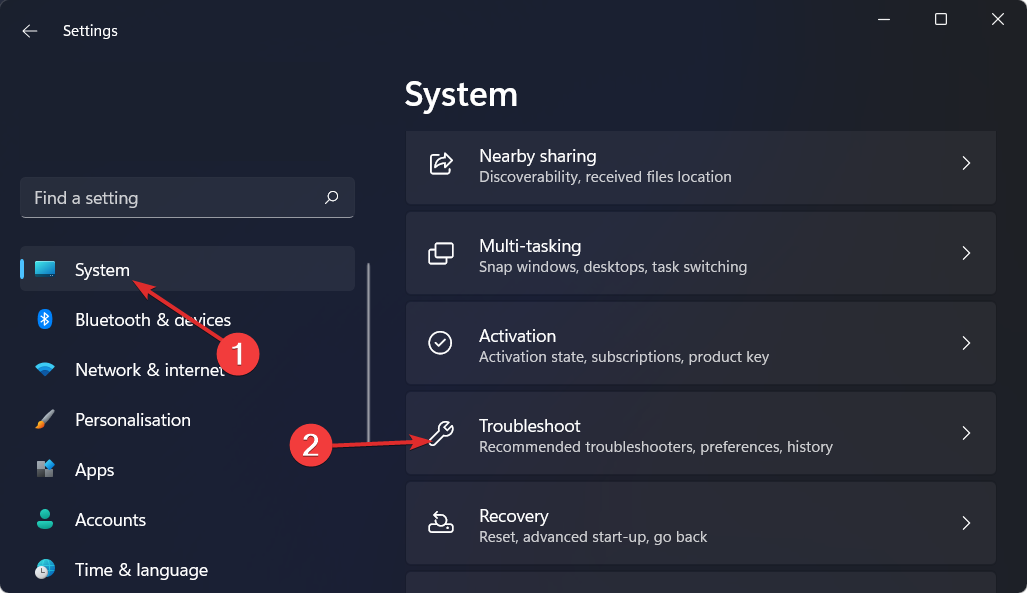
- Select System on the left pane and then Troubleshoot on the right pane.
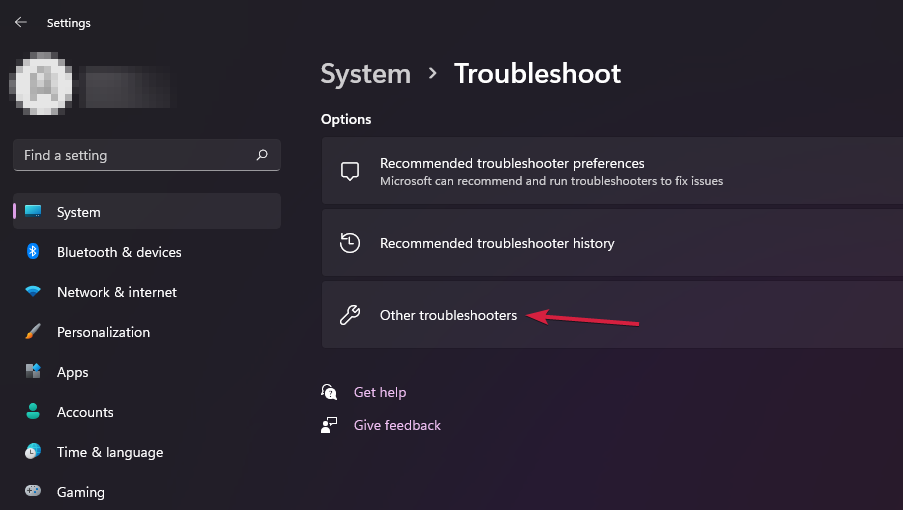
- Navigate to Other troubleshooters.
- Click the Run button next to Windows Update.

2. Restart the Windows Update service
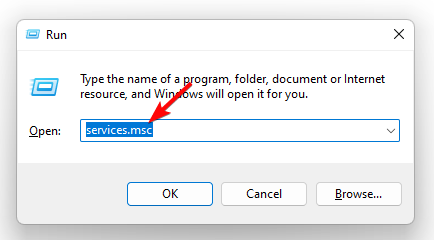
- Hit the Windows + R keys to open the Run command.
- Type services.msc and hit Enter.
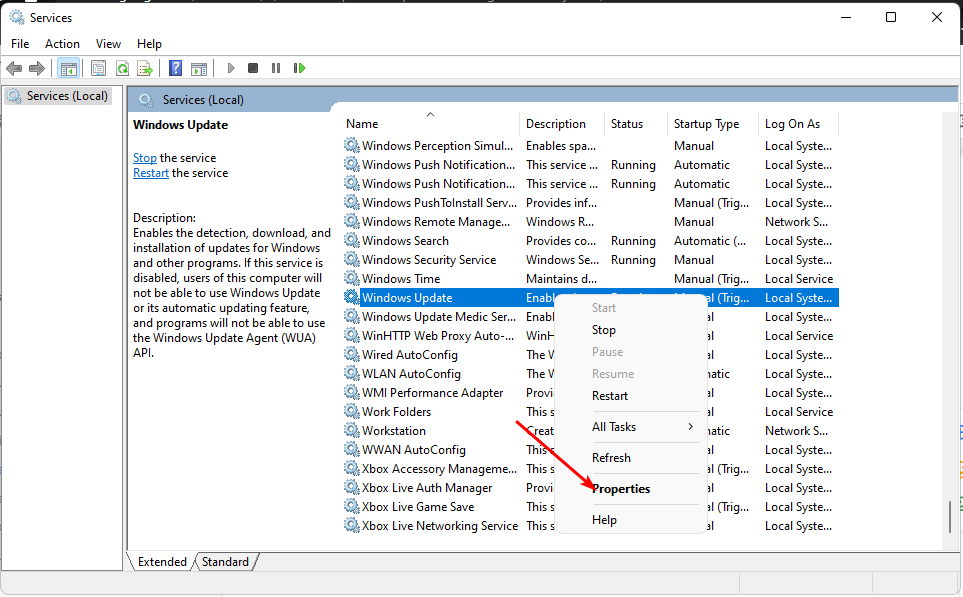
- Locate Windows Update service, right click on it and select Properties.
- Navigate to the General tab, under Startup type, select Automatic from the drop-down options, and click on the Start button.
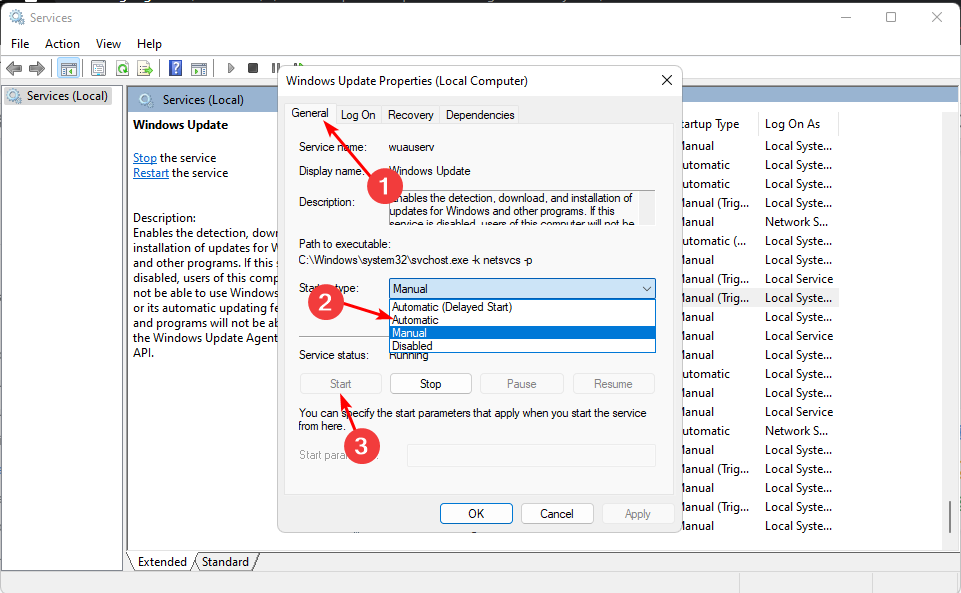
- Next, click Apply and then OK.
The Windows Update service can stop running so you can also clear the update cache to ensure it doesn’t stop again.
3. Run DISM and SFC commands
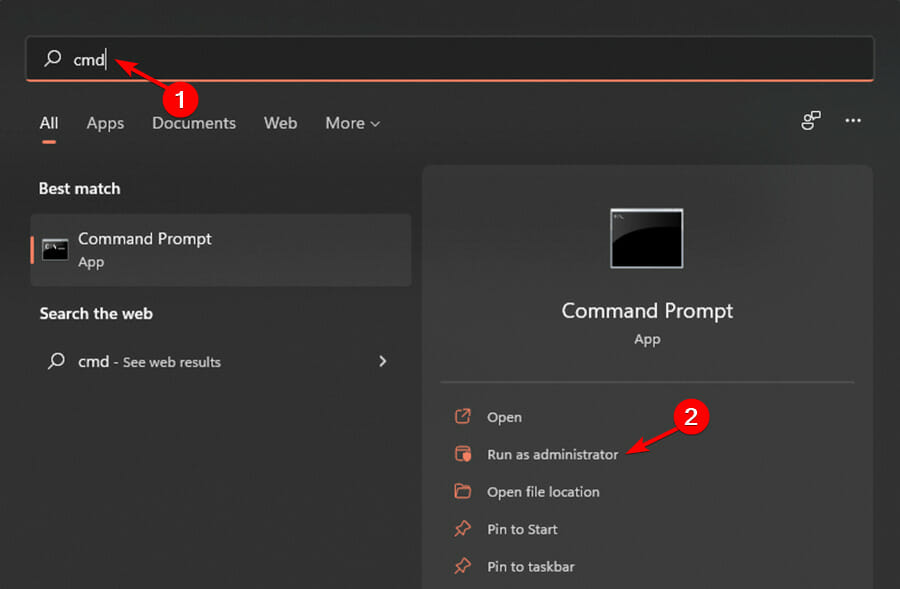
- Press the Windows key, type cmd in the search bar, and click Run as administrator.
- Type in the following command and press Enter:
DISM /Online /Cleanup-Image /ScanHealth
- Once the command has been executed, type and Enter the next one:
sfc /scannow
- Wait for the order to be completed and restart your PC.
4. Reset Windows update components
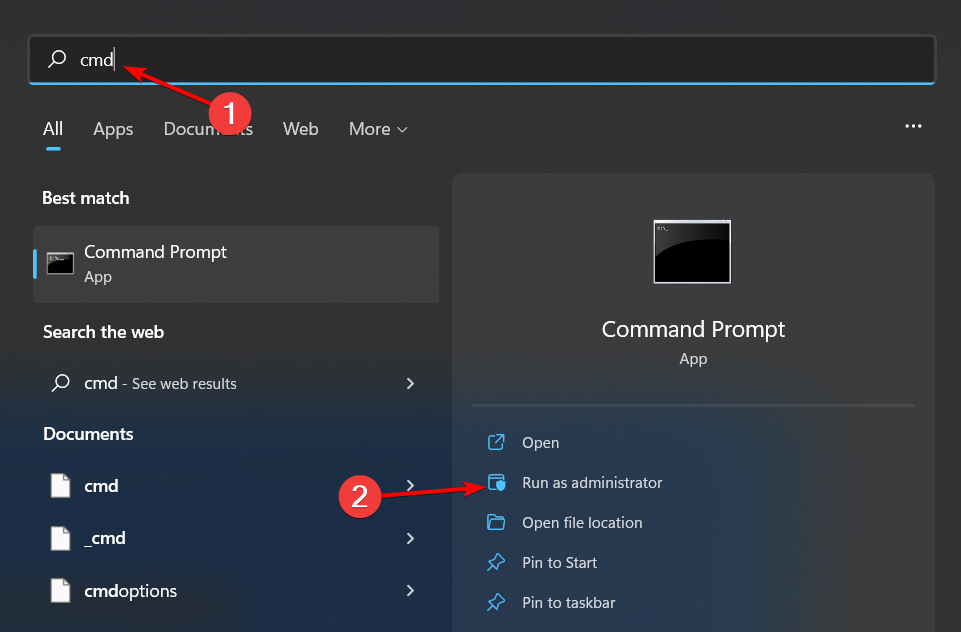
- Hit the Windows key, type cmd in the search bar, and click Run as administrator.
- Type the following commands and press Enter after each one:
net stop bitsnet stop wuauservnet stop appidsvcnet stop cryptsvcDel "%ALLUSERSPROFILE%\Application Data\Microsoft\Network\Downloader\*.*"rmdir %systemroot%\SoftwareDistribution /S /Qrmdir %systemroot%\system32\catroot2 /S /Qregsvr32.exe /s atl.dllregsvr32.exe /s urlmon.dllregsvr32.exe /s mshtml.dllnetsh winsock resetnetsh winsock reset proxynet start bitsnet start wuauservnet start appidsvcnet start cryptsv
5. Reset your PC
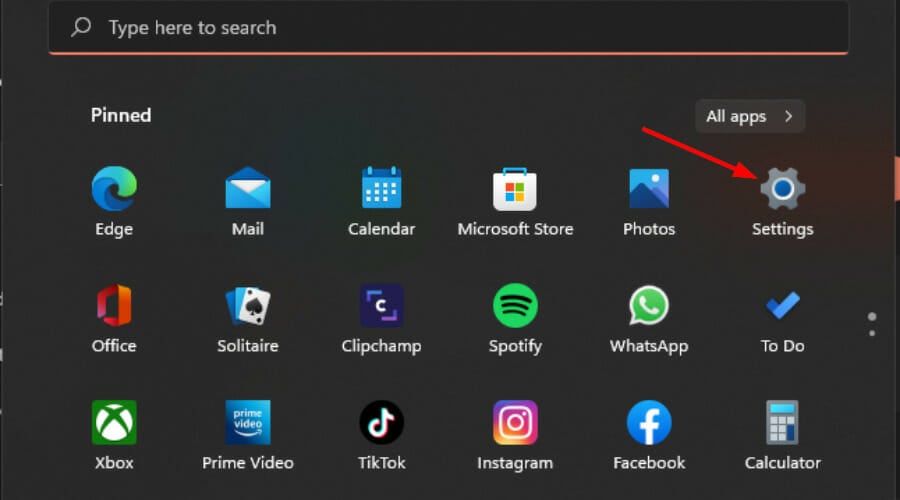
- Hit the Windows key and select Settings.
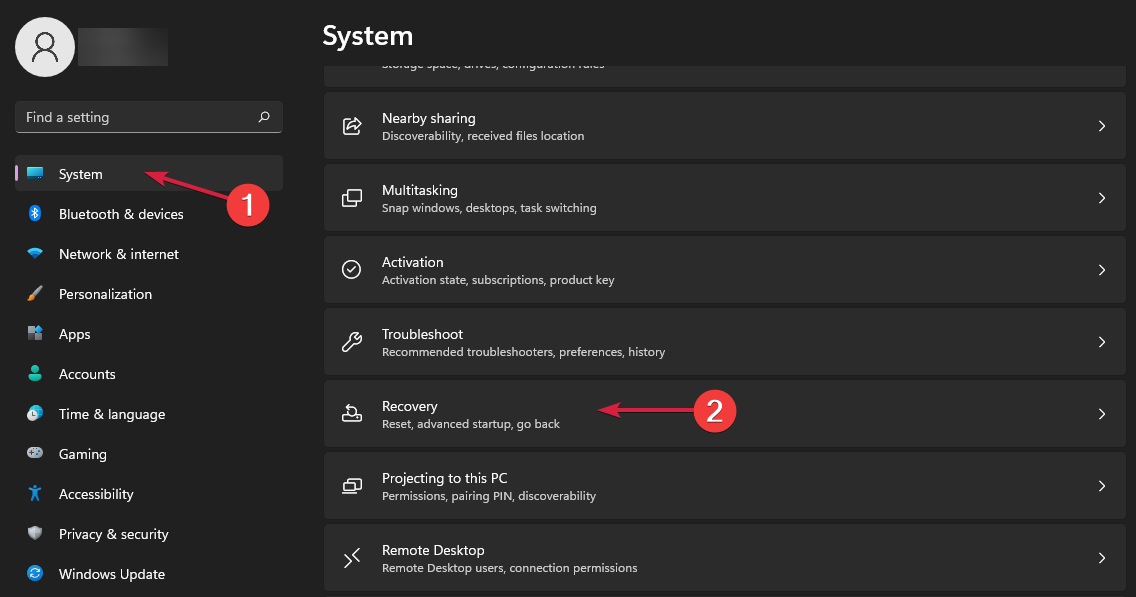
- In the left window pane, select System, then click on Recovery on the right pane.
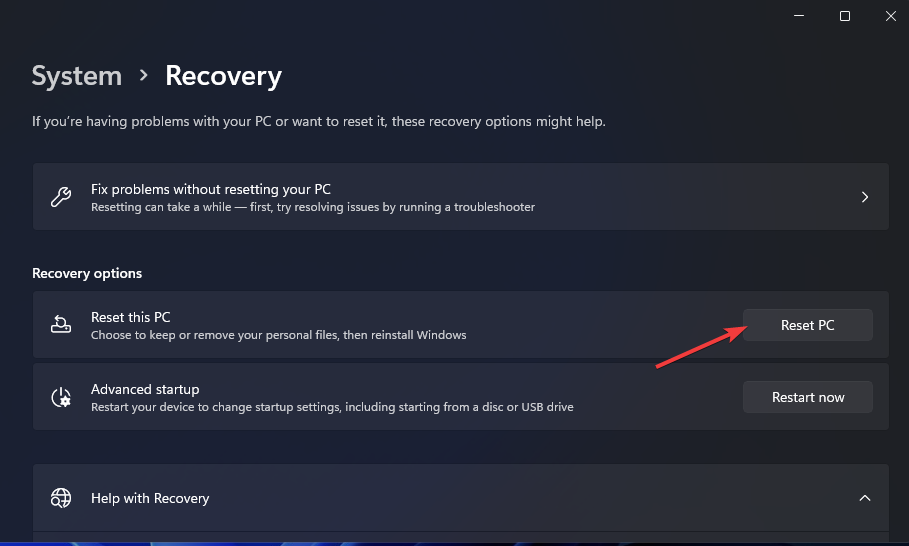
- Click on Reset PC from the right side.
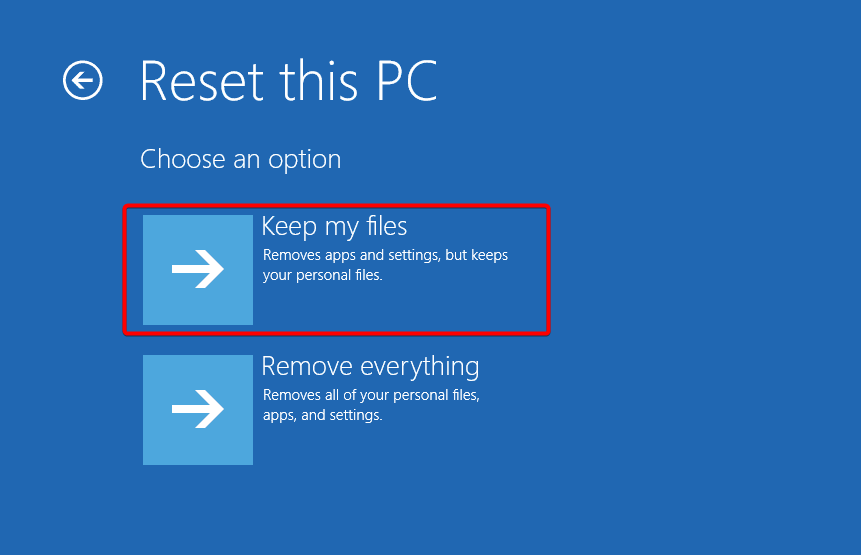
- Choose the type of factory reset you need. You can keep your files or completely delete all the files, apps, and settings on the PC.
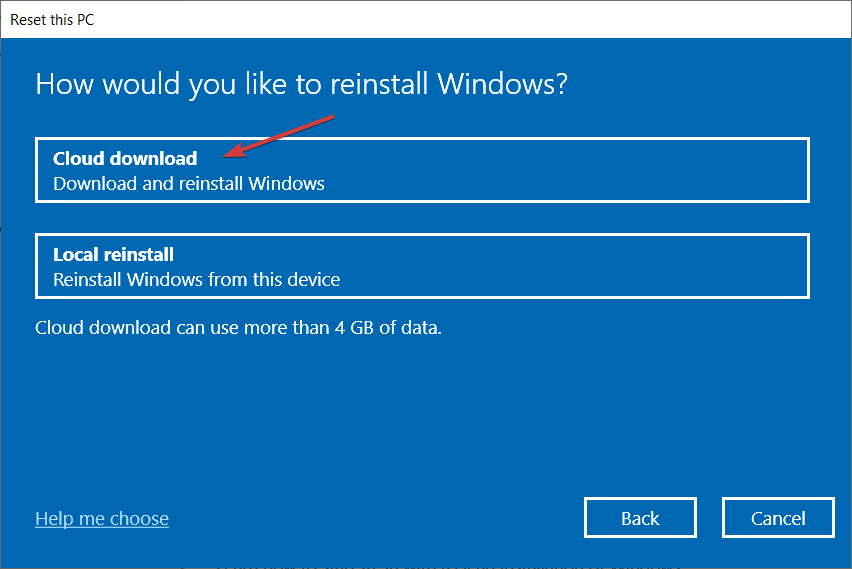
- Select the option you want to reinstall Windows: Cloud download or Local reinstall.
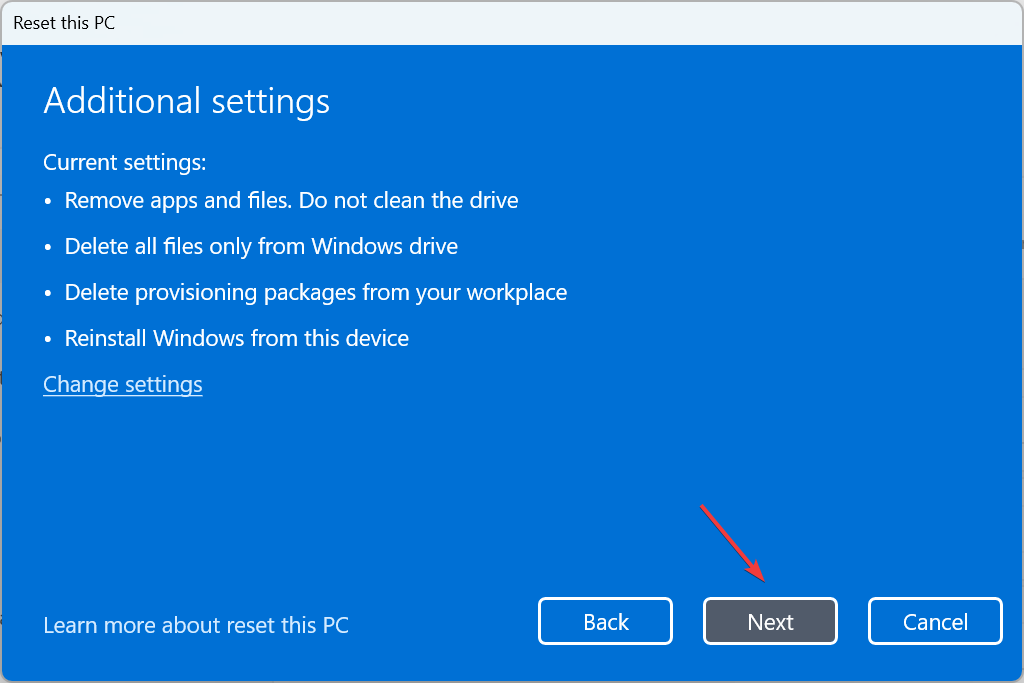
- Click on Next.
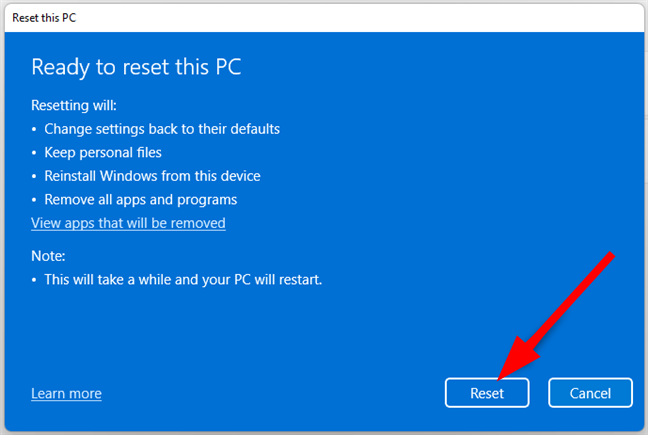
- Finally, press the Reset button.
6. Manually update the Windows Update
- Open your browser and navigate to the Microsoft Update Catalog.
- Search for the specific security update or click on the latest update file and click on Download.

- Locate the downloaded update file and run it as administrator.
Should the problem persist and none of the above solutions work, try a Windows Update repair tool. It can scan your system and troubleshoot most errors.
Remember there’s an option to stop Windows updates permanently if you want to avoid such problems but we do not recommend it for the security of your system.
That’s all we had for this article but we welcome any additional thoughts in the comment section below.


Read our disclosure page to find out how can you help Windows Report sustain the editorial team. Read more



Improve this guide


User forum
0 messages