
How to Set Up Automatic Out of Office Replies in New Outlook


 3 min. read
  Published on

If you’re using the New Outlook for Windows, here’s how to set up Out of Office (automatic replies). It’s a perfect way to cut yourself off from your work hustle and is perfect for when you’re on vacation. From your colleague’s point of view, you are letting people know that you’ll be away, so things can be planned accordingly.
Table of contents
Step-by-step method to Set Up Out of Office Automatic Replies in New Outlook
1. Open Outlook and navigate to settings
- Open the New Outlook (ensure it’s not the classic version).
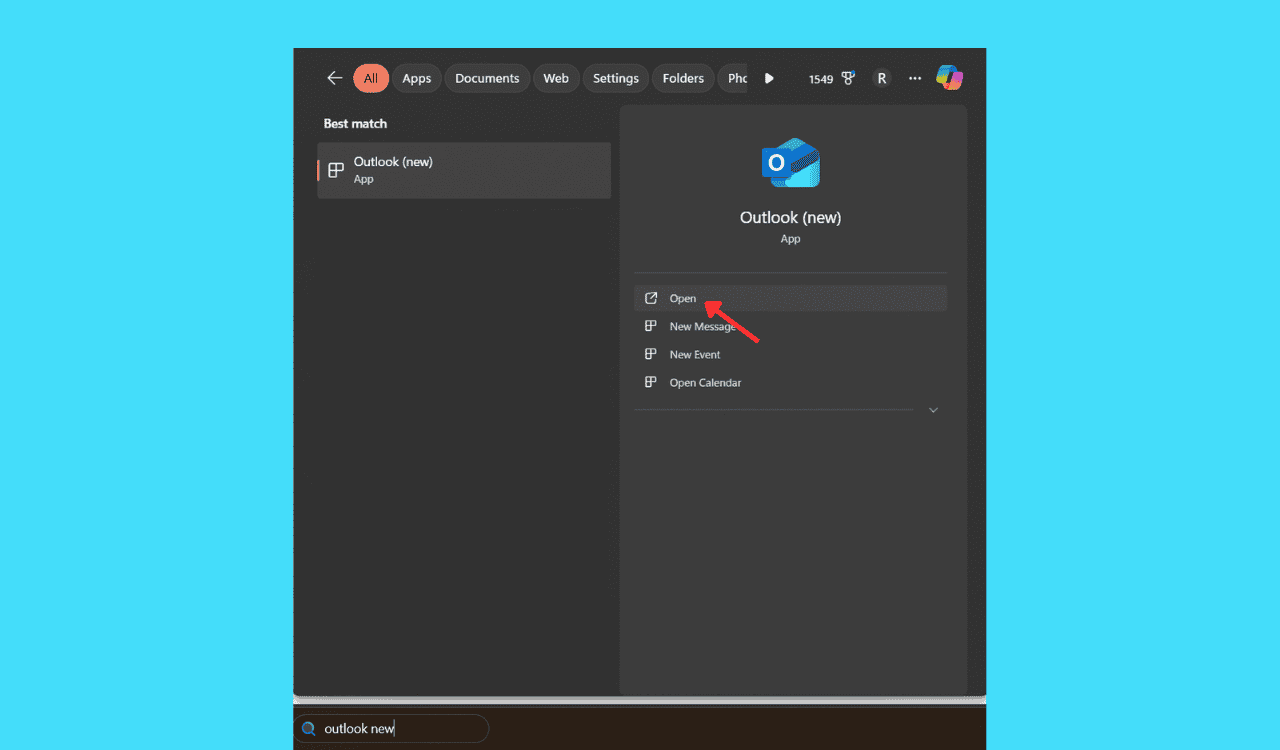
- Click on the Settings icon in the top right.
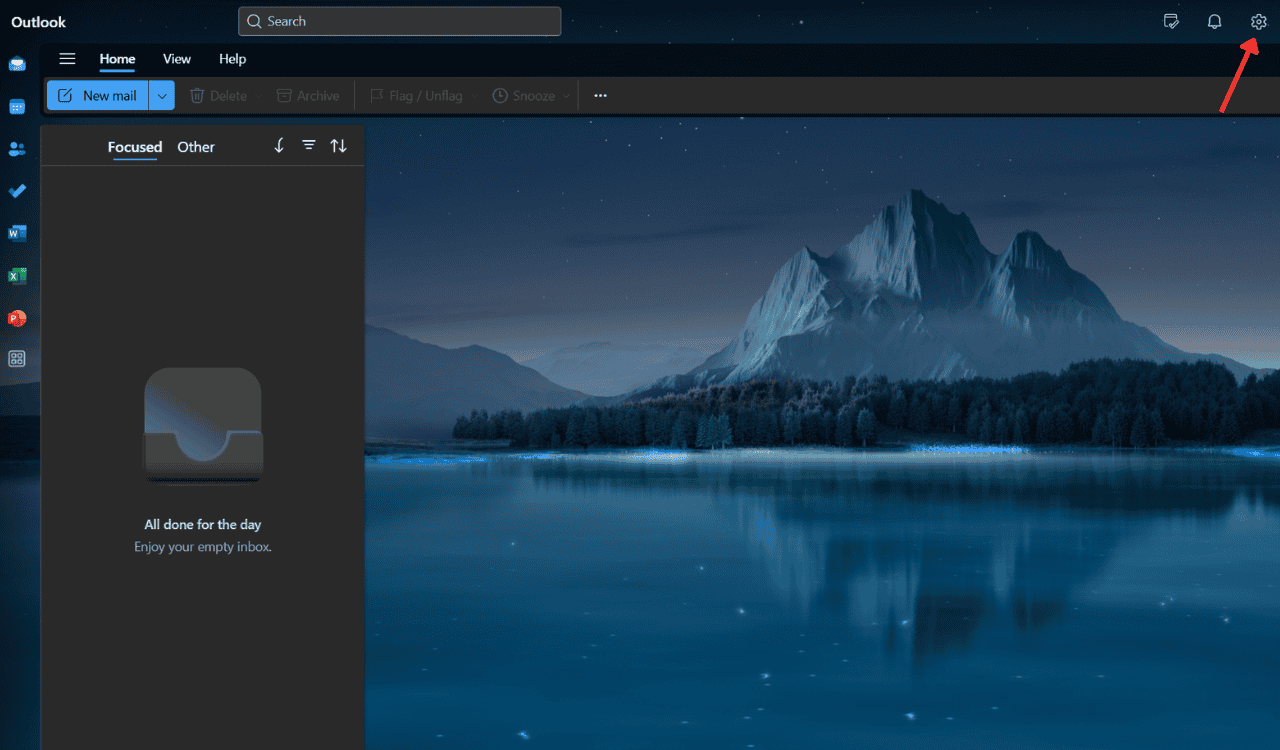
2. Setting up Out of Office
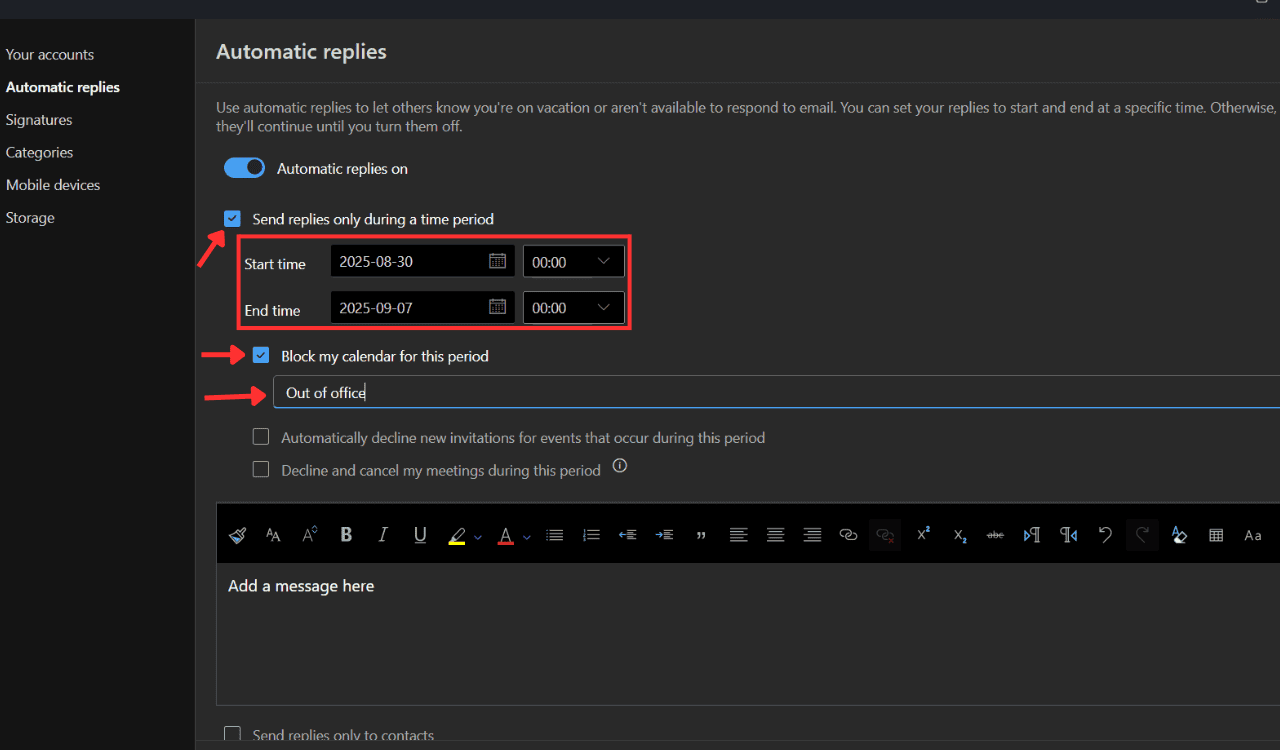
- Click on Automatic Replies as seen in the image below.
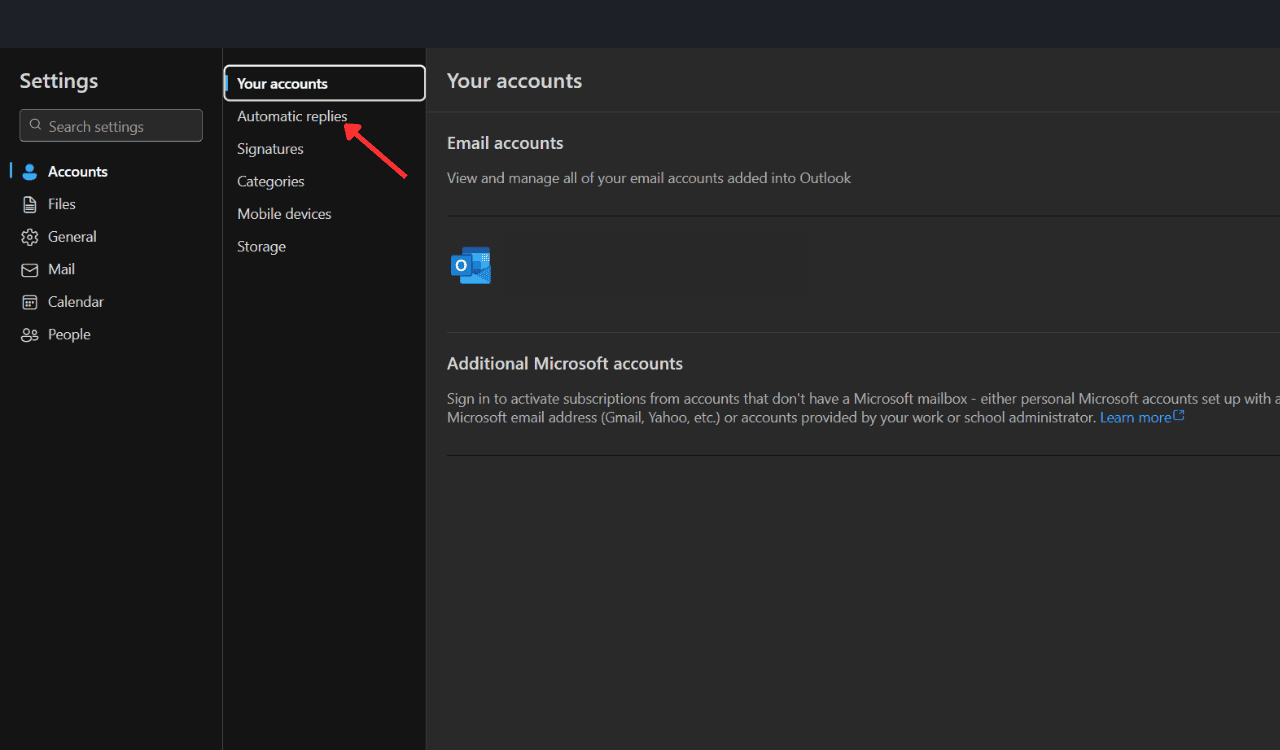
- Toggle Turn on automatic replies.
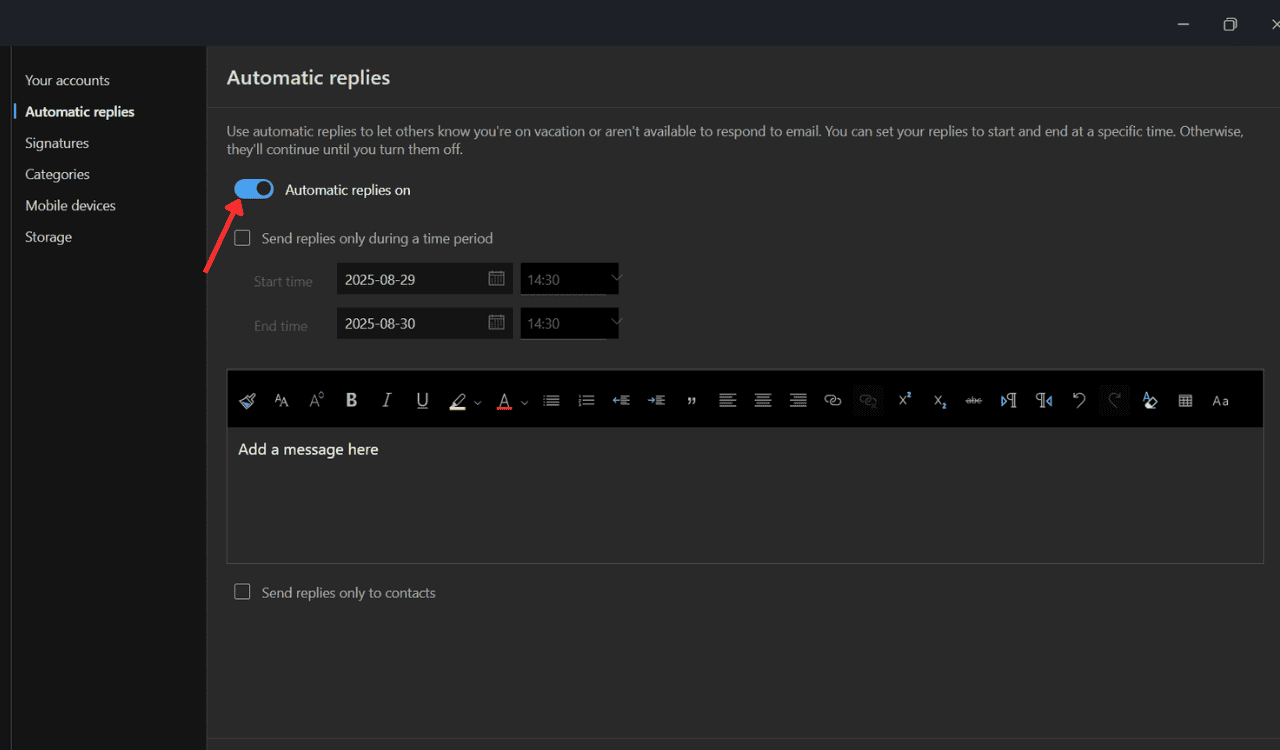
- Choose Send replies only during a time period and enter the start and end date, as we did below. You can further block the calendar for the period and set an “Out of Office” message.
3. Creating automatic Out of Office replies
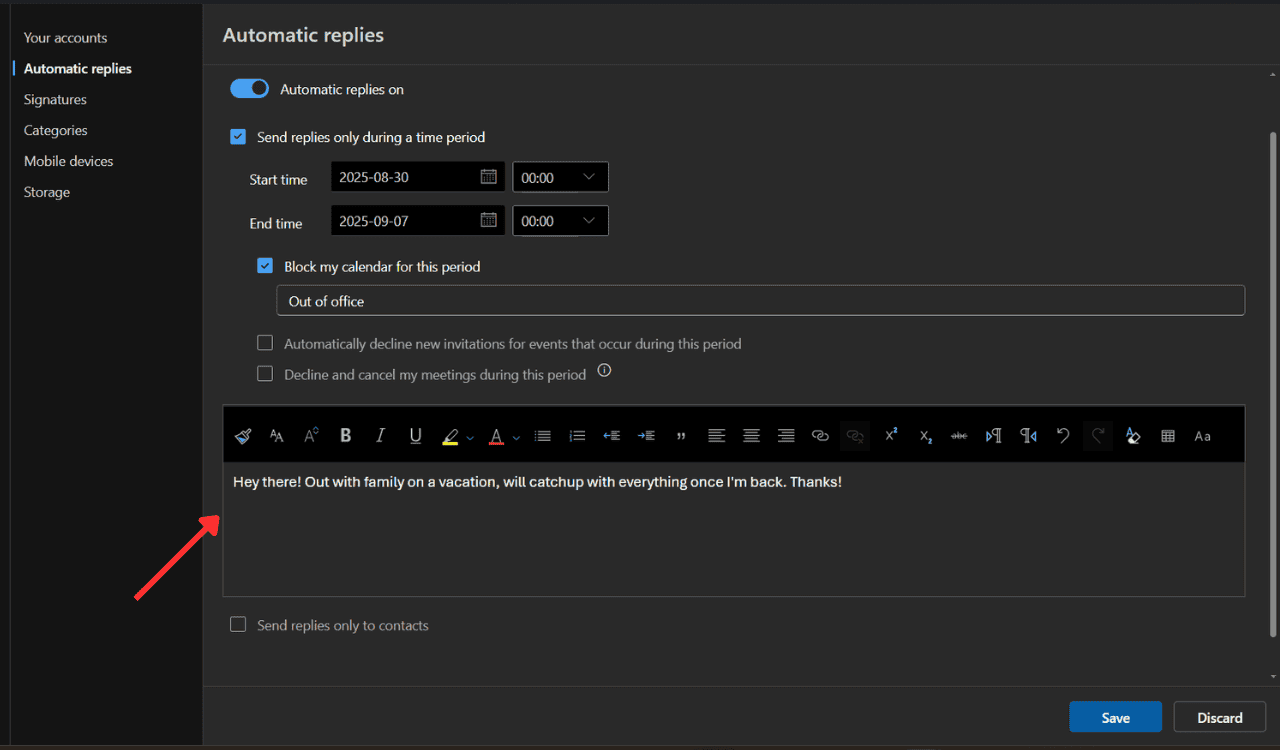
- Type your message under Send automatic replies inside your organization, and format it if you’d like.
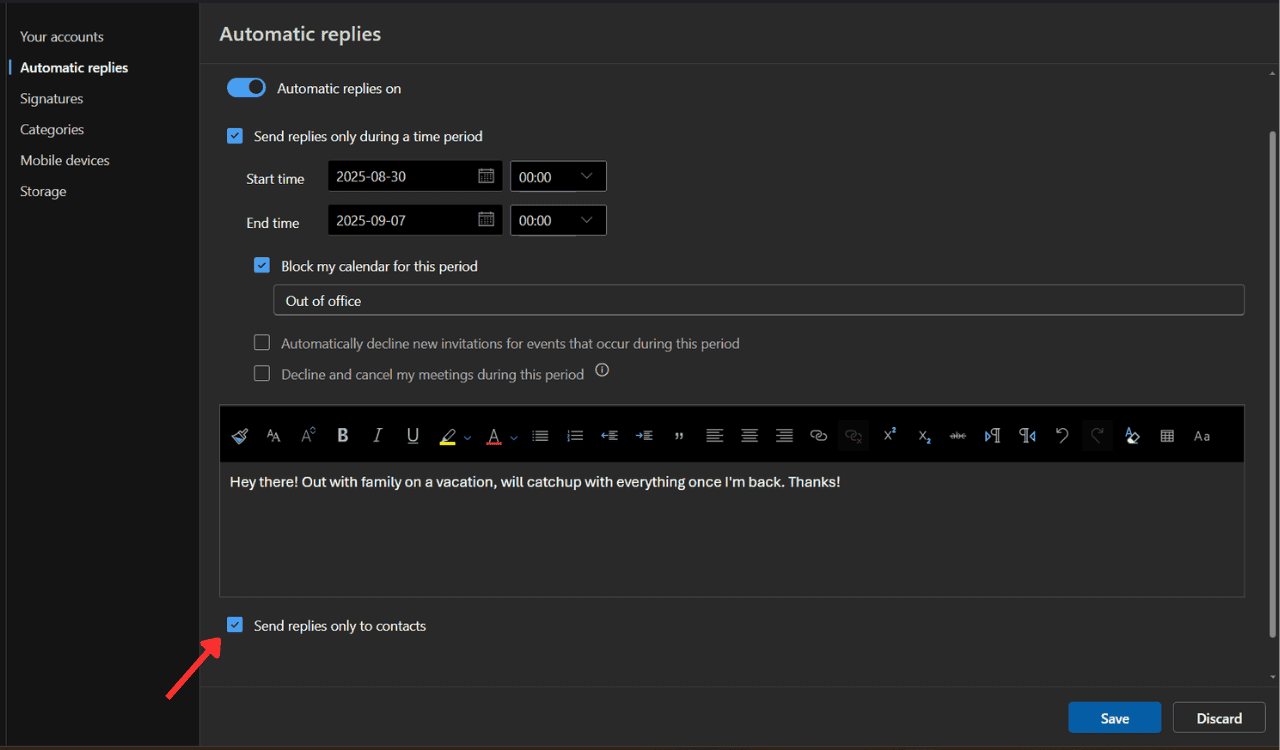
- If you want to send the Out of Office replies to your contacts, check the “Send replies only to contacts” box. If you leave this check box, the reply will be sent to everyone who emails you.
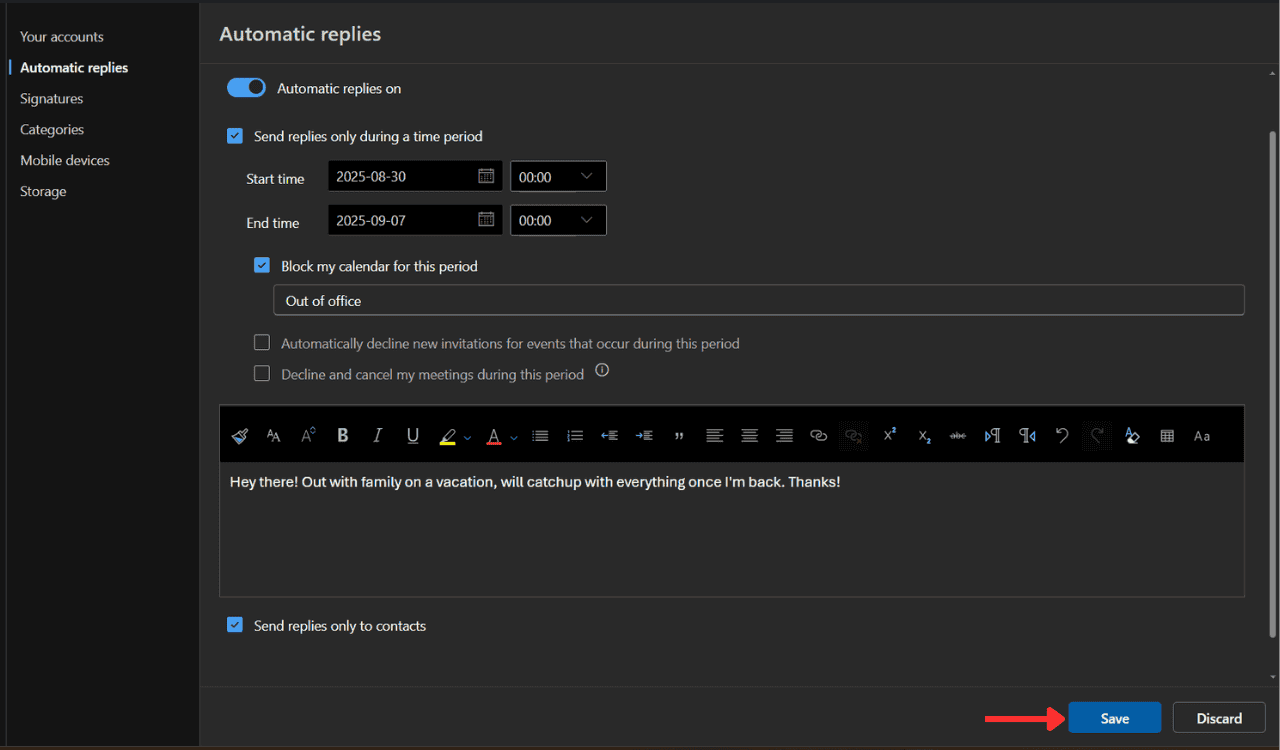
- Finally, click on Save.
Wrapping Up
That’s all we have for you in this guide for setting up Out of Office auto replies in the new Outlook. In case you are looking to send a bulk email, make sure to learn how to create an email group on Outlook. For those who no longer want an email group, here’s a quick guide to delete it.
FAQs related to Outlook’s Out of Office Automatic Replies
Go to View settings, click Accounts > Automatic Replies, toggle it on, set your dates and message, and save.
Click the View tab, then choose View settings in New Outlook. That’s your gateway to Accounts, Automatic Replies, and more.
Only certain types of accounts support the Automatic Replies (Out-of-Office) feature. If you don’t see the Automatic Replies button, your email account doesn’t support this feature. However, if you leave Outlook running while you’re away, you can use rules to reply to your email messages automatically.
If you’re referencing auto-replies, those go automatically. If you’re asking about having replies open in a new window, that isn’t a built-in feature right now in New Outlook.

Read our disclosure page to find out how can you help Windows Report sustain the editorial team. Read more



Improve this guide



User forum
0 messages