
How to Open Ports in Firewall on Windows Server


 4 min. read
  Updated on

If you’re running applications or services that rely on network access, understanding how to open ports in Windows Server is essential. Windows Server includes a built-in firewall that blocks unauthorized connections, but sometimes you’ll need to allow specific ports so apps like SQL Server, web servers, or SSH can communicate properly. In this guide, we’ll walk you through a step-by-step method to safely open ports in your server’s firewall.
How do I easily open ports in Windows Server
1. First, log in to your Windows Server. Make sure you’re using an administrator account with firewall access.
2. Then, launch PowerShell or Command Prompt and type wf.msc and press Enter to open Windows Firewall settings.
3. Next, select Inbound Rules. On the left-hand panel, click Inbound Rules to manage incoming connections.

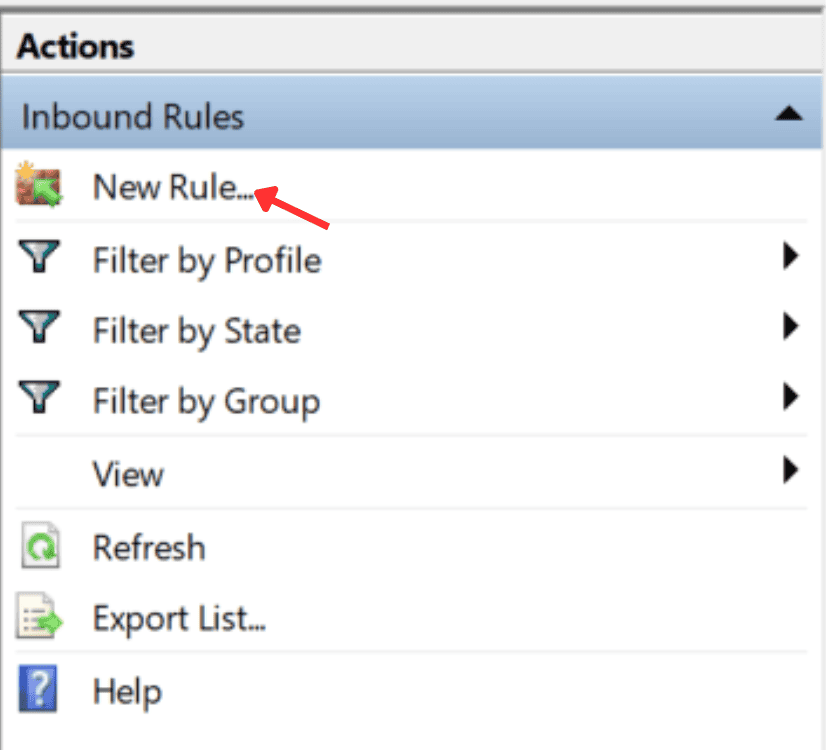
4. Then, on the right side, choose New Rule to start creating a port rule.
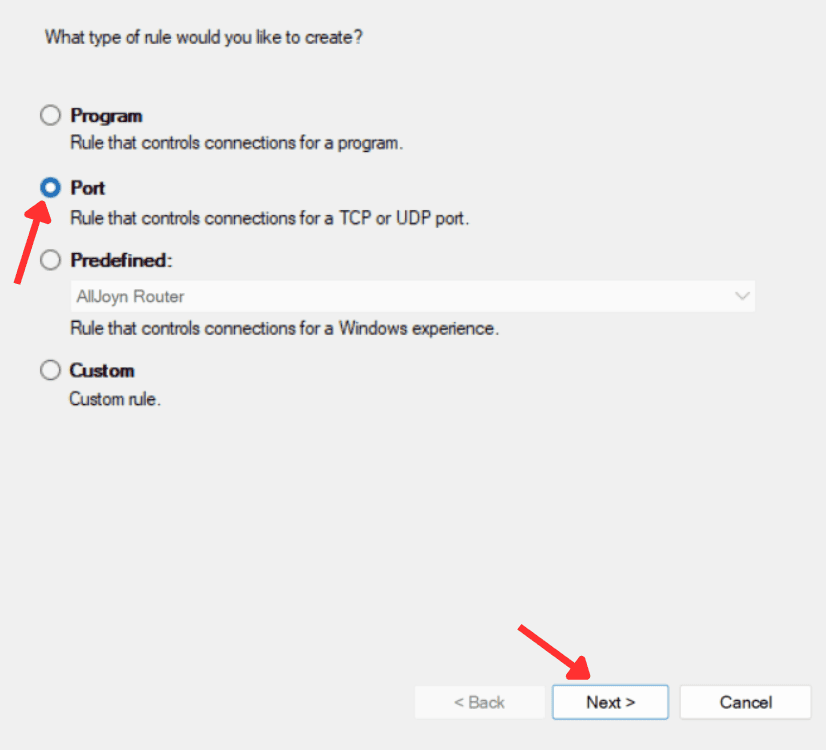
5. Next, select Port as the rule type and click Next.
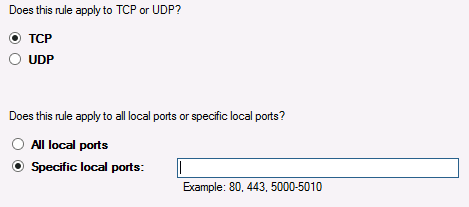
6. Select TCP, then type the exact port number you want to open.
7. After that, choose Allow the Connection and proceed by clicking Next.
8. Now, apply the rule to your chosen profiles: Domain, Private, or Public.
9. Finally, name the rule (letters only), then click Finish to complete.
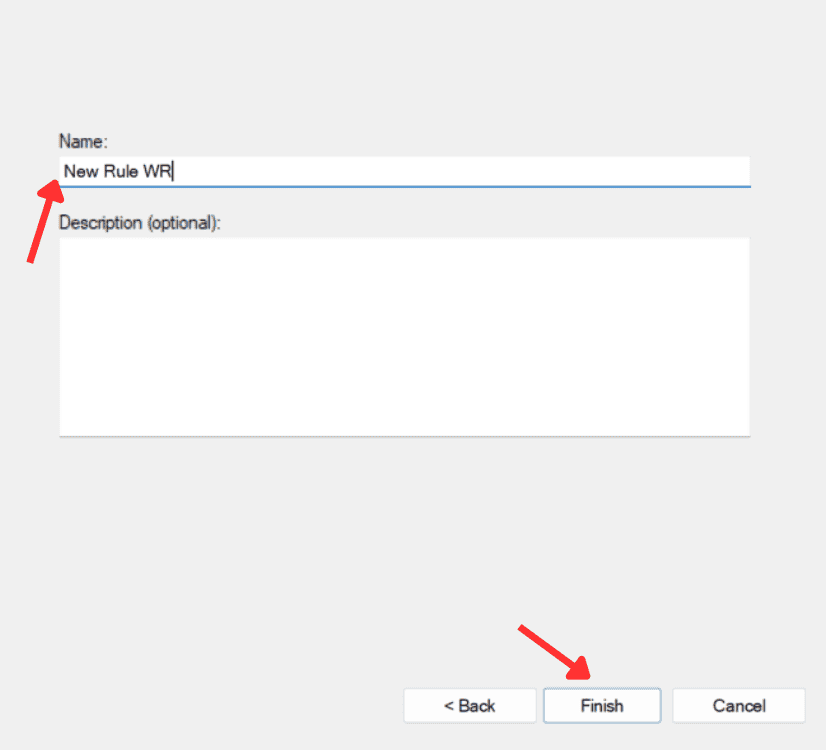
That’s all you’ve to do, and your chosen port should now be open and ready for use.
Summing Up
Opening ports isn’t something you should do casually, but it’s often required. For example, web services rely on ports 80 and 443 for HTTP/HTTPS traffic. SQL Server commonly uses 1433, while secure remote access often needs 22 for SSH. If a port isn’t open, your apps and services may fail to connect.
For SMB file sharing on Windows, learn about ports 139 and 445. For enterprise remote access on Windows Server, learn how to install DirectAccess.
Besides, tasks like managing services or configuring DNS often rely on proper port setup. If you’re exploring more guides, you may find our Windows Server guides on how to delete a service, see the last reboot, and check ports. Also, don’t forget to check our guide on how to set up DNS in Windows Server.
You can access the firewall settings more easily by following this guide on how to open Windows Firewall before creating new port rules.
FAQs
To open a port, go to Windows Defender Firewall, create a new inbound rule, and select the port option. From there, specify the port number, allow the connection, and apply it to your chosen profiles. Once saved, the port will accept incoming traffic.
Ports 80 and 443 are essential for running web servers like IIS or Apache. Follow the inbound rule steps, enter each port number separately, and allow connections. This ensures your websites are accessible over both HTTP and secure HTTPS.
Port 1433 is used by Microsoft SQL Server for remote database access. Open Windows Firewall, create a new inbound rule, and specify TCP with port 1433. Once enabled, clients and apps can connect to your SQL Server instance.
Port 22 is reserved for SSH, which is often used for secure remote administration. Create a TCP inbound rule for port 22, allow connections, and apply it across profiles. This lets you connect safely using SSH clients like PuTTY or OpenSSH.
Port 8080 is commonly used for proxy servers, web apps, or alternative HTTP traffic. To enable it, create an inbound TCP rule in Windows Firewall and specify port 8080. This ensures applications that rely on the port can communicate freely.

Read our disclosure page to find out how can you help Windows Report sustain the editorial team. Read more



Improve this guide




User forum
0 messages