
How To Open Windows Firewall On Windows 11 Step By Step


 3 min. read
  Published on

Learn how to open Windows Firewall using the quickest built in tools. This guide shows every reliable path so you can view settings, allow apps, and manage network protection.
Table of contents
How To Open Windows Firewall?
1. Use Search
Use Search to reach the Firewall panel instantly.
- Select Start.
- Type Windows Defender Firewall.
- Select the top result.

Related reading: you can review helpful Windows Firewall best practices here: Windows 11 Firewall Best Practices
2. Use Control Panel
Use the classic Control Panel layout if you prefer the older interface.
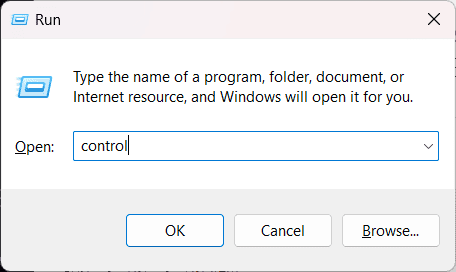
- Press Windows + R.
- Type control and select OK.
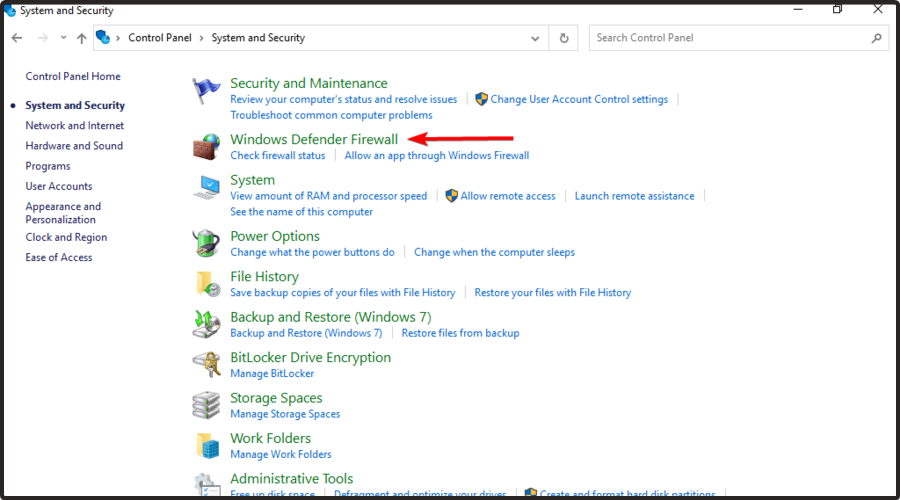
- Select System and Security.
- Select Windows Defender Firewall.
3. Use Settings
Use the Settings app when you need quick access to Windows Security pages.
- Open Start and select Settings.
- Go to Privacy and Security.
- Select Windows Security.
- Select Firewall and Network Protection.

4. Use Run Window
Run gives you the fastest path to the classic Firewall panel.
- Press Windows + R.
- Enter firewall.cpl.

- Select OK to open the classic Firewall panel.
If you need to open ports later, this guide explains it well: How To Open Ports In Windows Server
5. Open Windows Firewall Through PowerShell
PowerShell provides a quick command based method to launch Firewall.
- Open Start and type PowerShell.
- Select Run as administrator.
- Enter the command:
control firewall.cpl6. Open Windows Firewall Through Command Prompt
Command Prompt works just like PowerShell for direct access.
- Open Start and type cmd.
- Select Run as administrator.
- Enter:
control firewall.cplYou can also check for issues like port blocks using this resource: Is Windows Firewall Blocking A Program Or Port
What Is Windows Firewall
Windows Firewall protects your PC by monitoring incoming and outgoing traffic. You can adjust its settings at any time to block threats or allow trusted apps.
Why Windows Firewall Matters
Windows Firewall blocks suspicious connections and protects your apps during online use. Opening it quickly helps you adjust rules, check network status, and fix connection issues.
FAQs
This usually happens because of corrupted system files or disabled Windows Security services. Restart your PC and update Windows, then try again.
Select Advanced Settings in the left pane of the Windows Defender Firewall window to open the full rule editor.
Yes, for most users. It works with Microsoft Defender Antivirus to provide complete built in protection.
Open Windows Defender Firewall, select Restore defaults, then confirm.
You now have every quick method to open Windows Firewall on Windows 11 and Windows 10. These options help you manage rules, check network protection, and troubleshoot port issues with confidence.

Read our disclosure page to find out how can you help Windows Report sustain the editorial team. Read more



Improve this guide



User forum
0 messages