
How to Fix Siri Not Working on iPhone (6 Quick Solutions)


 3 min. read
  Published on
If Siri is not working on your iPhone, it may be caused by settings, microphone issues, or outdated iOS. This guide explains how to fix Siri quickly so you can get back to using voice commands with no interruptions.
Table of contents
How to fix Siri not working on iPhone?
1. Enable Siri in Settings
Make sure Siri is turned on in your iPhone’s settings.
- Go to Settings > Siri & Search.
- Turn on Listen for “Hey Siri” and Press Side Button for Siri.

- Restart your iPhone and test again.
2. Check Microphone Access
Verify Siri has permission to use your microphone.
- Open Settings > Privacy & Security > Microphone.

- Make sure Siri has permission.
- Clean your microphone to remove dust or debris.
If Siri still doesn’t hear your voice clearly, check this guide on Siri can’t hear me on Mac for additional microphone troubleshooting tips.
3. Verify Internet Connection
Ensure Siri has a stable internet connection.
- Siri needs a stable connection.
- Test with Wi-Fi and then switch to mobile data.
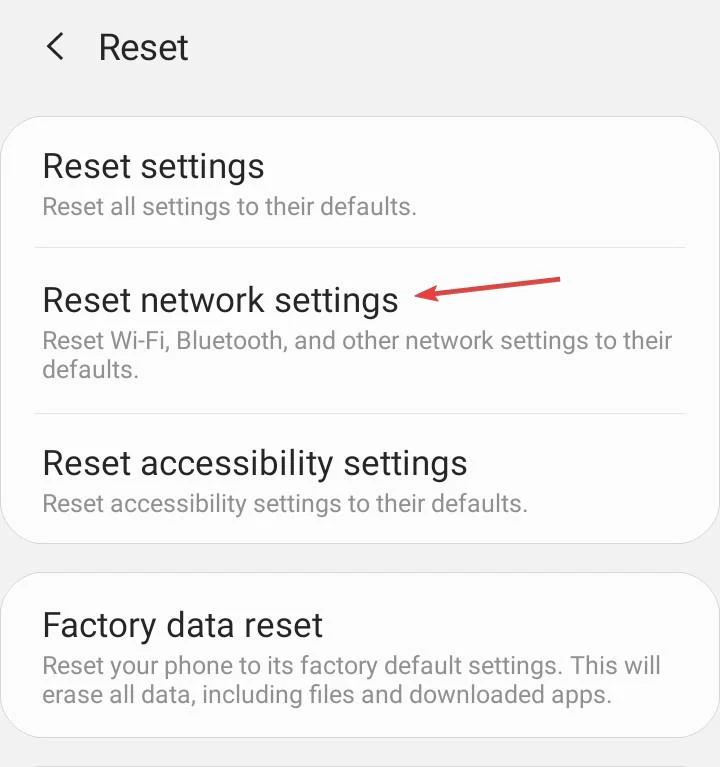
- Reset Network Settings via Settings > General > Transfer or Reset iPhone > Reset > Reset Network Settings.
Siri may also fail if you’re connected to a VPN. See why in Siri not working with VPN.
4. Update iOS
Install the latest iOS updates to fix Siri bugs.
- Go to Settings > General > Software Update.
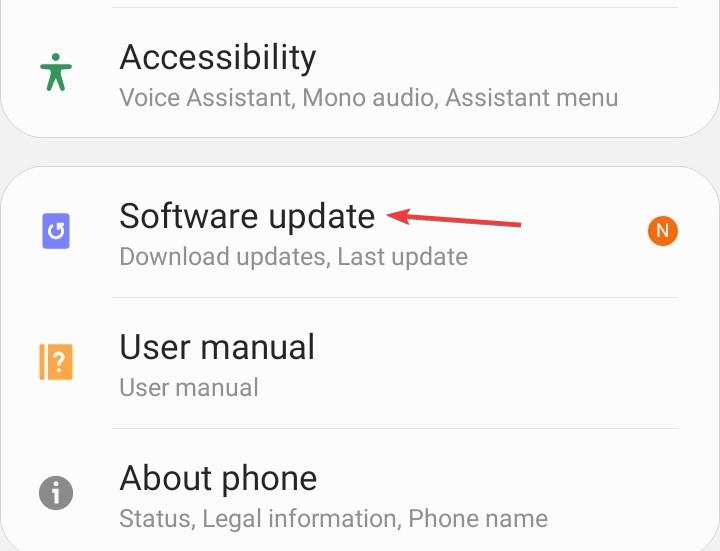
- Install the latest iOS version available.
- Updates often fix Siri bugs.
5. Disable Screen Time Restrictions
Check if restrictions are blocking Siri.
- Open Settings > Screen Time > Content & Privacy Restrictions.
- Turn restrictions off temporarily.
- Recheck Siri functionality.
6. Reset Siri & Dictation
Refreshing Siri and Dictation can resolve hidden glitches.
- Go to Settings > General > Keyboard.
- Toggle Enable Dictation off, then back on.
- This resets Siri’s voice services.
FAQs
Siri may be disabled, your mic may be blocked, or your internet connection unstable.
No, Siri works on mobile data too, but it needs an active internet connection.
Yes, by enabling Listen for “Hey Siri” in settings.
Conclusion
Siri issues on iPhone usually come down to settings, permissions, or connectivity. By enabling Siri, checking microphone access, updating iOS, and adjusting restrictions, you should restore full functionality. For related problems, you can also see why Siri keeps popping up on Mac. If problems continue, contact Apple Support for further assistance.

Read our disclosure page to find out how can you help Windows Report sustain the editorial team. Read more



Improve this guide



User forum
0 messages