
Best Audio Driver for Windows 11 & Setup Guide


 4 min. read
  Updated on
Key notes
- Before expecting to receive any sound output from your Windows 11 PC, you need to download an audio driver.
- Your laptop’s model can be found on the lower side of the device.
- Alternatively, you can see the model by navigating to the About section from the Settings app.

To get sound on your Windows 11 PC for music or meetings, you need an audio driver. Realtek HD Audio Driver is a popular option and comes with Realtek HD Audio Manager, which lets you adjust your sound with features like an equalizer and noise cancellation.
This guide will show you how to download an audio driver on Windows 11 and explain why Realtek HD Audio Manager is so common.
Best audio drivers for Windows 11
1. Realtek High Definition Audio Driver
This is the most common and reliable option for Windows 11 users. It supports high-definition audio, works with most built-in sound cards, and usually comes preinstalled. If not, you can download the latest version directly from the Realtek official website or from your motherboard or laptop manufacturer’s support page.
Pros:
- Great compatibility
- Good audio quality
- Regular updates
Cons:
- Realtek Audio Manager can go missing after updates
2. Microsoft Generic Audio Driver
When other drivers fail, this built-in Windows driver steps in. It’s not fancy, but it’s stable and works on almost any system. You don’t need to download it separately, as Windows installs it automatically when no other suitable driver is found. It can also be installed through Device Manager. We’ll explain how in the guidelines below.
Pros:
- Universally compatible
- No installation required
Cons:
- Basic sound quality
- No support for enhancements or advanced features
3. Manufacturer-Specific Drivers (ASUS, Dell, HP, etc.)
If your device came with a custom audio driver, it’s worth sticking to it. These drivers are tuned specifically for your hardware and may offer better stability or extra features compared to generic ones. You can find these drivers on your PC brand’s official support website, such as ASUS support, Dell support, or HP support.
Pros:
- Optimized for your device
- Can offer better performance or tools
Cons:
- Updates may be infrequent
- Harder to find on older devices
How can I download an audio driver on Windows 11?
1. Use Device Manager
- Begin by right-clicking on the Start icon then tap on Device Manager.

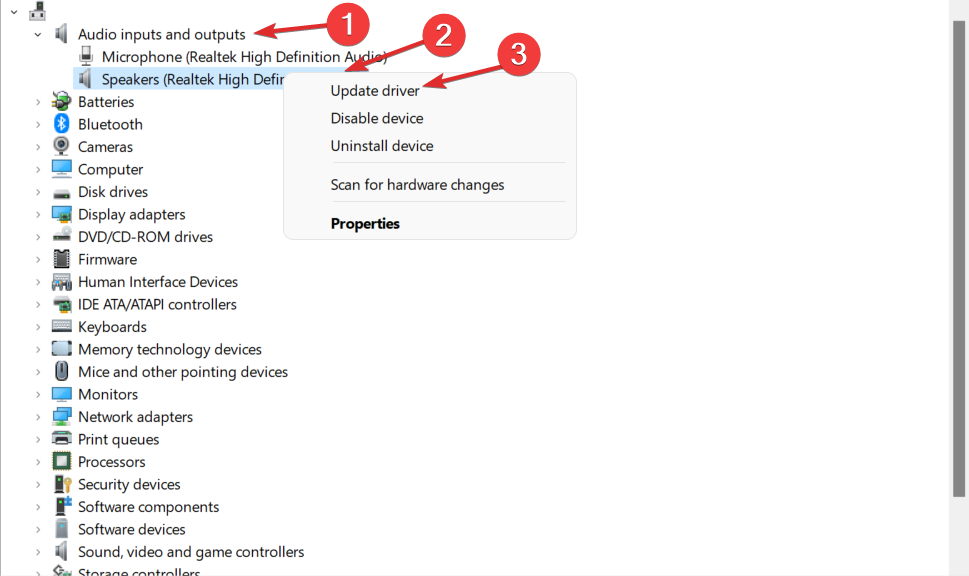
- Expand the Audio inputs and outputs section then right-click on the driver shown and click on Update driver.
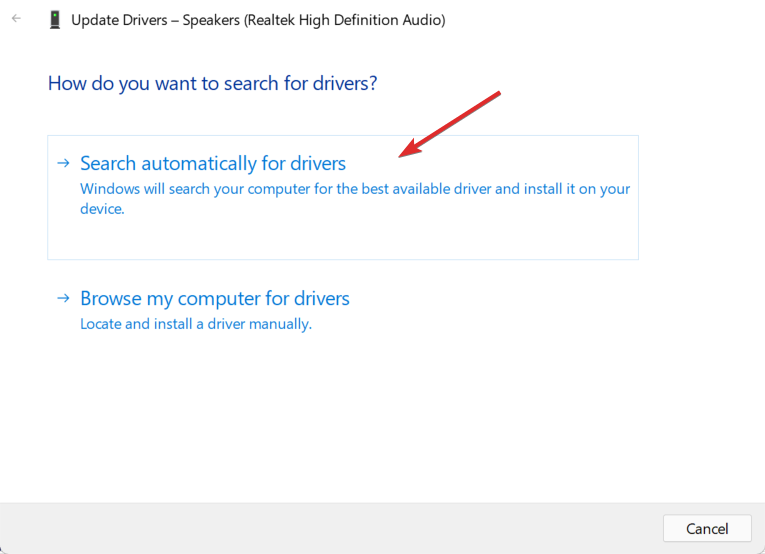
- Choose Search automatically for drivers.
- Choose the Select for updated drivers on Windows Update option.

- Go to Advanced options followed by Optional updates where you will find the audio driver ready for download. Tick the box next to it and select the Download & install button.

2. Use your device manufacturer’s website
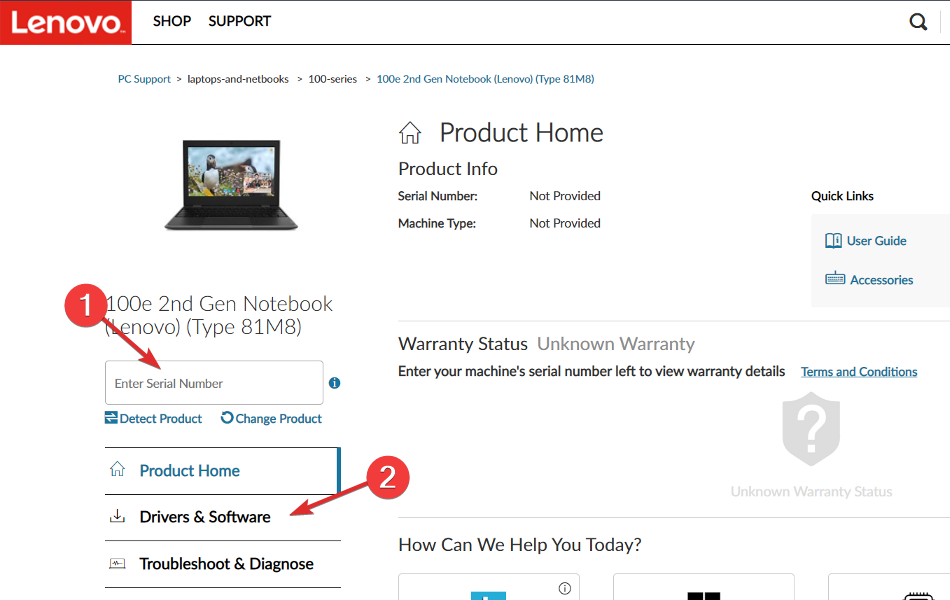
- Navigate to your motherboard manufacturer’s website. We will be using Lenovo as a showcase, thus if you also use Lenovo, head to Lenovo’s page and click on PC to find your computer model.

- Click on the Drivers & software section after you enter your device’s model.
- Type audio in the search bar and click on the result. Here you will be shown the audio driver that you need to download.

It is important that you only use the drivers offered by your manufacturer as the others won’t be compatible with your PC and will cause further problems.
3. Use a third-party software
Manually downloading a driver that your computer requires is not something that you have to get used to. There are third-party software tools intended to update, repair, and download any drivers from your PC.
The software will maintain your PC in top operational shape and make sure that you don’t encounter any driver-related errors along the way.
If you have manually downloaded the audio driver on Windows 11 and now you face issues with it, take a look at our guide on how to fix Realtek HD Audio Driver issues. However, if you have used Outbyte Driver Updater for this, you won’t be needing any further assistance as it will take care of everything.
We also have a guide on how to update the AMD High Definition Audio driver, so don’t miss it.
Keeping your drivers up to date can prevent sttray64.exe Application error and other errors, so be sure to do update drivers regularly.
Keeping your audio drivers updated helps avoid sound problems. For more info, check out the best audio drivers for Windows 10, how to fix USB audio driver issues, generic audio driver problems, and what to do if your Realtek HD Audio Manager is missing.
Was this guide helpful for you? Leave us a comment in the section below and tell us what you think as well as whether you have more methods in mind.

Read our disclosure page to find out how can you help Windows Report sustain the editorial team. Read more



Improve this guide

User forum
0 messages