
Accessories Folder Windows Guide: How To Find It Fast


 3 min. read
  Published on
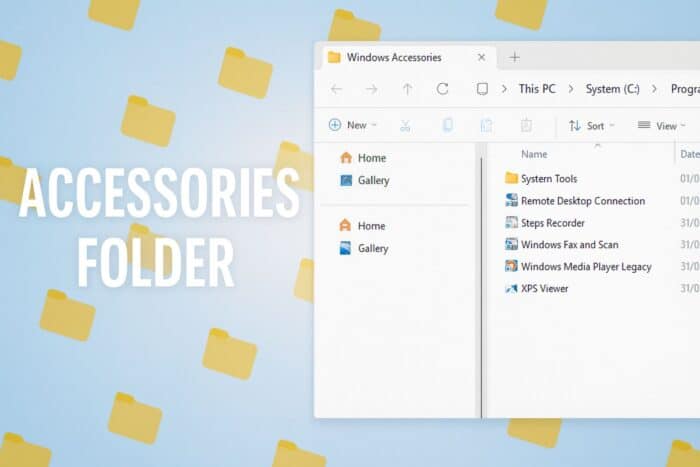
The accessories folder helps you access classic Windows tools. Use the methods below to locate it fast on modern Windows versions.
Table of contents
How To Open The Accessories Folder?
1. Use The Start Menu
This method works on every Windows version and requires no system navigation.
- Click Start.
- Scroll through the alphabetical app list.
- Open the Windows Accessories folder.
- Select the shortcut you want.
2. Search For It
Search helps you find the folder even if Windows reorganizes its location.
- Press the Windows key.
- Type accessories or Windows Accessories.

- Select the result under Apps.
3. Use File Explorer Paths
You can open the Start Menu’s program structure directly through File Explorer.
- Open File Explorer.
- Enter this path:
%ProgramData%\Microsoft\Windows\Start Menu\Programs
- Press Enter.
- Locate the Windows Accessories folder.

You can also learn how to navigate other core folders like Documents in this guide on finding folders on Windows 11.
4. Use The Run Command
Run lets you jump straight to the folder that stores program shortcuts.
- Press Windows key + R.
- Type
shell:programs
- Click OK.
- Find the Windows Accessories folder in the list.
How To Pin The Accessories Folder For Faster Access
Pin To Start
Pinning adds the folder to your Start screen so you can reach it faster.
- Open Start.
- Find Windows Accessories.
- Right click the folder.
- Select Pin to Start.
Pin Individual Tools
You can also pin specific tools if you use them often.
- Open the Windows Accessories folder.
- Right click the tool you want.
- Select Pin to taskbar or Pin to Start.
Learn more about managing Windows shortcuts in this guide to the startup folder in Windows 11.
Where The Accessories Folder Lives In Windows
The folder sits inside the Start Menu’s Programs section and may appear under Windows Accessories or Windows Tools depending on your version.
Learn more about how Windows groups built in apps in Windows Accessories in Windows 10.
FAQs
Windows reorganized older utilities and consolidated several items into Windows Tools.
Search displays individual tools instead of the folder when Windows changes its layout.
Yes. You can create a new folder inside the Programs directory and add shortcuts to it.
Your Start view may hide legacy folders, but the tools still open through search.
Conclusion
You can open the accessories folder through Start, search, File Explorer paths, or the Run command. Pinning it keeps it one click away. If the folder appears missing, Windows Tools and Optional features help you restore or access the same utilities.

Read our disclosure page to find out how can you help Windows Report sustain the editorial team. Read more



Improve this guide



User forum
0 messages