
Canon G3110 Driver Download and Installation Guide


 3 min. read
  Published on

If your Canon G3110 printer is not working properly, updating or reinstalling the driver can fix the issue. Below you will find step-by-step instructions to download and install the Canon G3110 driver on Windows.
How to download and install the Canon G3110 driver?
Table of contents
1. Download the Canon G3110 driver from the official website
- Visit the Canon Support page.
- Search for Canon PIXMA G3110.
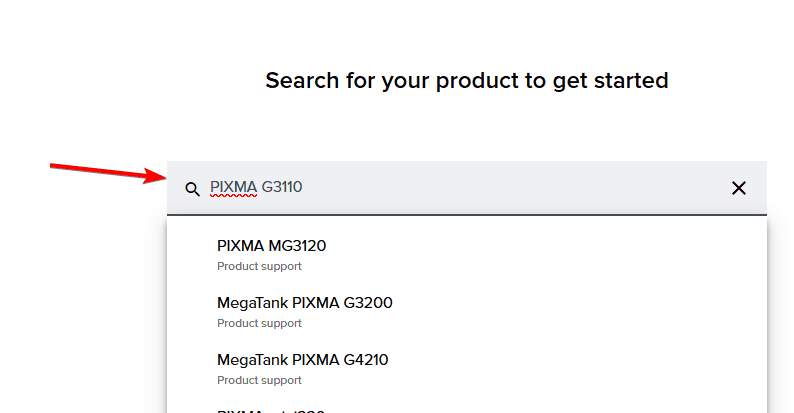
- Select your Windows version.
- Download the recommended driver package.
- Save it to your computer for installation.
2. Install the Canon G3110 driver manually
- Press Win + R, type devmgmt.msc, and press Enter.
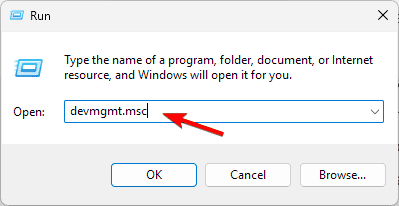
- Expand Printers or Other devices.
- Right-click your Canon G3110 printer and select Update driver.

- Choose Browse my computer for drivers.
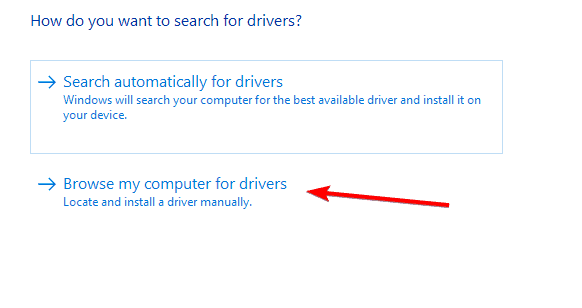
- Locate the downloaded Canon G3110 driver folder and finish the setup.
3. Use Windows Update to install the driver
- Press Win + I to open Settings.
- Go to Windows Update.
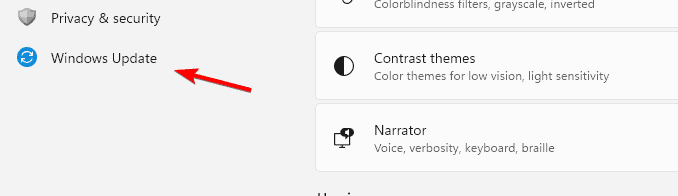
- Click Check for updates.
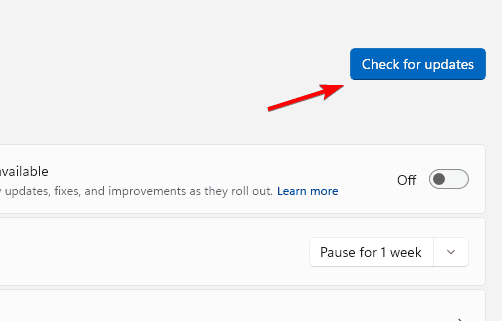
- If a Canon G3110 driver is available, Windows will install it.
- Restart your PC and test the printer.
Fix Canon driver installation problems
Sometimes the Canon G3110 driver does not install correctly. This can be caused by outdated Windows files, corrupted drivers, or compatibility issues. You can follow troubleshooting steps similar to Canon printer not installing driver to resolve these errors.
Alternative Canon driver sources
If the official page is down, you can also check Microsoft’s driver catalog or resources like Canon printer drivers on Windows 11 which provide updated guides for different models.
You can also check model-specific resources, such as the Canon MG2522 driver guide, since installation steps are almost identical across Canon’s PIXMA series.
FAQs
Download the latest driver from Canon’s support page and install it manually through Device Manager.
This usually happens if the driver is missing, outdated, or corrupted. Reinstalling the driver often fixes it.
Yes, the G3110 works on Windows 11 with the latest drivers. You can check compatibility in this Windows 11 Canon driver guide.
Yes, Canon provides a universal driver for basic printing. However, for full features like scanning, it is better to use the dedicated G3110 driver.

Read our disclosure page to find out how can you help Windows Report sustain the editorial team. Read more



Improve this guide




User forum
0 messages