
How To Change File and Folder Permissions on Windows 11


 5 min. read
  Published on

File and folder permissions control who can access and modify data on your PC. You can adjust these settings to fix access errors, protect sensitive files, and keep shared devices under control by following these steps.
Table of contents
How To Change File and Folder Permissions in Windows
How To Change Ownership of a File or Folder
Open the Properties window
You start by opening the properties dialog for the item you want to manage.
- Right-click the file or folder.
- Select Properties.

- Click the Security tab.
Edit permissions
You use the Security tab to grant or remove rights for each user or group.
- Click Edit.

- Select a user or group from the list.
- Check or uncheck the Allow or Deny boxes for each permission.

- Click Apply.
- Click OK to close the window.
Add a new user
You can add new accounts to give someone access to a file or folder.
- On the Security tab, click Edit.
- Click Add.
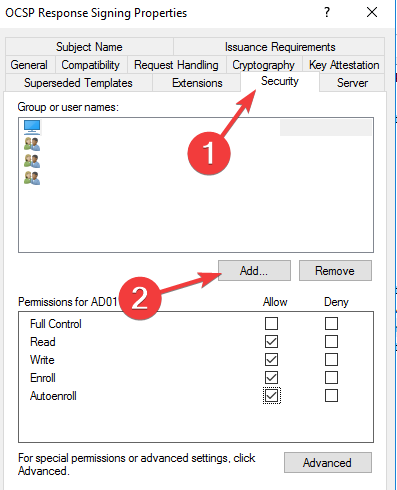
- Enter the user or group name in the box.
- Click Check Names to validate the entry.
- Click OK.

- Select the new entry and configure the permission checkboxes.
- Click Apply and then OK.
Open advanced security settings
You switch to advanced options when your account does not have enough permissions.
- Right-click the file or folder and select Properties.
- Open the Security tab.
- Click the Advanced button.
Assign new ownership
You change the owner to gain full control over protected items.
- In Advanced Security Settings, click Change next to the Owner field.

- Type the new user or group name.
- Click Check Names.
- Click OK to confirm the account.
- Check Replace owner on subcontainers and objects if you want to apply it to all items under the folder.
- Click Apply, then OK.
If you need more detailed coverage of ownership scenarios, follow this step by step guide on how to take ownership of a folder in Windows 11.
How To Fix Permission Denied Errors
Grant full control
You solve many access issues by granting your account full control over the item.
- Right-click the file or folder and select Properties.
- Open the Security tab and click Edit.
- Select your user name from the list.
- Check the Full control box under Allow.
- Click Apply, then OK.
Take ownership when you get blocked
Sometimes Windows blocks you completely, so you must take ownership before you adjust permissions.
- Open Properties and go to the Security tab.
- Click Advanced.
- Use the Owner field to assign your account, then apply the change.
Use the command line for quick fixes
You can also change permissions for many files at once with Command Prompt.
- Press the Windows key, type cmd, and open Command Prompt as administrator.
- Run the command:
icacls "path\to\folder" /grant username:F - Press Enter to apply the new permissions.
If you see the message that you do not have permission to view or edit an object’s permission settings, you can follow a focused guide on how to fix the you do not have permission to view or edit this object’s permission settings error.
What Are File and Folder Permissions
Permissions define which users or groups can read, write, or modify files and folders. Windows enforces these rules through Access Control Lists, so every item checks who tries to open or change it. When you understand these rules, you avoid accidental data loss and unwanted access.
Why Permission Changes Matter
Correct permissions prevent unauthorized users from opening, editing, or deleting your files. They also help applications access only the folders they need, which improves stability and reduces crashes. When something breaks, you can restore order by resetting everything to the original state.
If you want to roll everything back, you can follow a full walkthrough that explains how to reset permissions in Windows 11 and return to default settings.
FAQs
You can open an elevated Command Prompt and run icacls “path” /reset. This command resets permissions for files and subfolders under that path.
Windows requires administrator rights because permission changes affect security for every user on the device. Limited accounts cannot modify these rules for system protection.
Deny rules override allow rules for that user or group. If you deny everything, that user loses the ability to read, write, or execute the file or folder.
Yes. You can select several folders in File Explorer, right-click them, and open Properties. On the Security tab, you adjust permissions and apply the settings to all selected items.
You now know how to change file and folder permissions, assign ownership, and deal with common access errors. Use these steps whenever a file locks you out or when you tighten security on a shared PC. With the right permissions in place, your Windows system stays organized, predictable, and safer for every user who signs in.

Read our disclosure page to find out how can you help Windows Report sustain the editorial team. Read more



Improve this guide




User forum
0 messages