
Close All Open Tabs Fast on Any Device


 3 min. read
  Published on

f you often browse with dozens of tabs open, your system can slow down or lag. The quickest solution is to close all open tabs at once. Here’s how to do it on every major browser and device.
Table of contents
How to Close All Open Tabs?
Close All Open Tabs on Windows (Chrome or Edge)
1. Use the Browser Menu
Follow these steps to close every tab from the main menu.
- Click the three dots at the top right corner.
- Select Exit or Close all tabs.
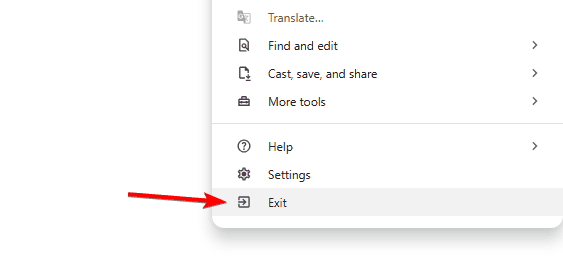
- Confirm if prompted.
2. Use a Keyboard Shortcut
Use this shortcut to close all tabs instantly.
- Press Ctrl + Shift + W to close all tabs at once.
- Alternatively, press Alt + F4 to close the entire browser window.
If Chrome tabs refuse to close, see this fix: Chrome tab not closing.
Close All Open Tabs on Firefox
On Windows and Mac
Use Firefox’s menu to close all tabs quickly.
- Click the menu button in the top right.
- Select Exit (Windows) or Quit Firefox (Mac).
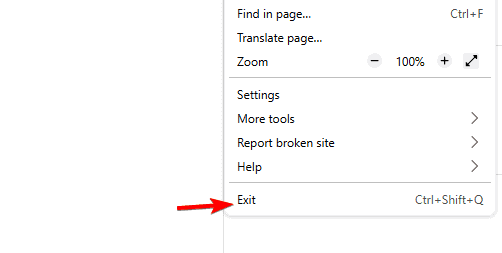
- All open tabs will close automatically.
Close All Open Tabs on Mac (Safari or Chrome)
1. From the Menu Bar
Use the File menu to close all tabs in one action.
- Click File at the top of the screen.
- Select Close All Tabs or Quit Browser.

2. Use Keyboard Shortcuts
Run these shortcuts to close the current window’s tabs.
- In Safari, press Command + Q to quit, or Command + W repeatedly to close tabs.
- In Chrome, press Command + Shift + W to close all open tabs in the current window.
If Chrome shuts tabs when you click, read: Chrome closes tab when clicked.
On Android and iPhone
Close every tab from the tab overview.
- Tap the tab icon (numbered square).
- Tap the trash can or Close All Tabs.
- Confirm to close every tab.
Close All Open Tabs on Android
Shut all Chrome tabs from the tabs menu.
- Tap the Tabs icon.
- Tap the three dots at the top right.
- Select Close all tabs.
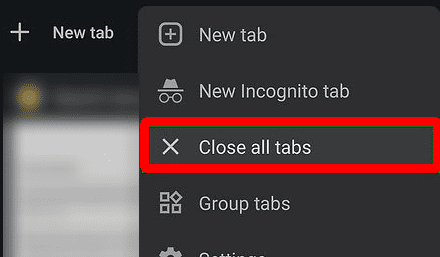
Want a confirmation before closing many tabs? See: Chrome ask closing multiple tabs.
Close All Open Tabs on iPhone or iPad
1. On Safari
Use the Tabs button to clear all open pages.
- Tap the Tabs icon at the bottom.
- Tap and hold Done.
- Choose Close All [number] Tabs.
2. On Chrome
Finish all sessions from the tab switcher.
- Tap the Tabs button at the bottom.
- Tap Edit.
- Select Close All Tabs.
Why You Should Close Tabs Regularly
Closing all open tabs frees memory, improves speed, and reduces battery drain while keeping your workspace tidy.
FAQs
Use Ctrl + Shift + W on Windows or Command + Shift + W on Mac.
No. History remains until you clear it manually.
Yes. Press Ctrl + Shift + T on Windows or Command + Shift + T on Mac.
Update your browser. Some versions hide it in settings or the tabs view.
Conclusion
Learning how to close all open tabs keeps your devices fast and clutter free. Use the menu options or shortcuts above to clear everything in seconds.

Read our disclosure page to find out how can you help Windows Report sustain the editorial team. Read more



Improve this guide




User forum
0 messages